![login-logo.png]](https://helpcenter.casafari.com/hs-fs/hubfs/login-logo.png?height=23&name=login-logo.png)
Have you raised a new property for your portfolio and need to create it in the CRM?
Create your property, identify the main features, upload photos, documents and virtual tours.
Show your property easily to potential clients!
Index:
- Price Analysis
- Generate Document
- Share
- Delete Property
- View on Website
- View in SmartView
- Portals
How to Create a Property
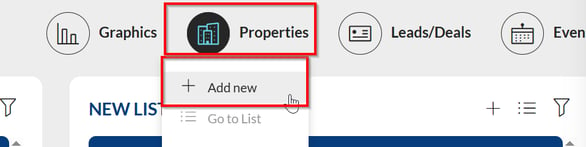
- Using the shortcut within the Dashboard:
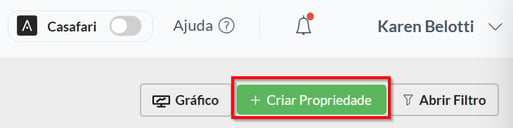
- Through the side menu: Properties>List>Create Property:
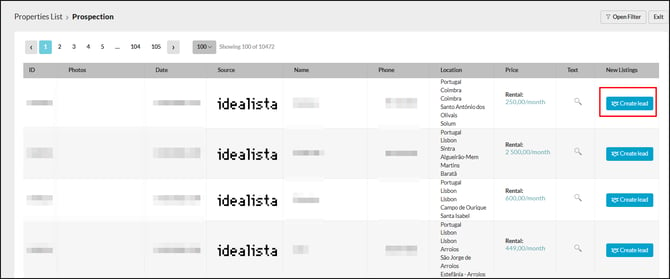
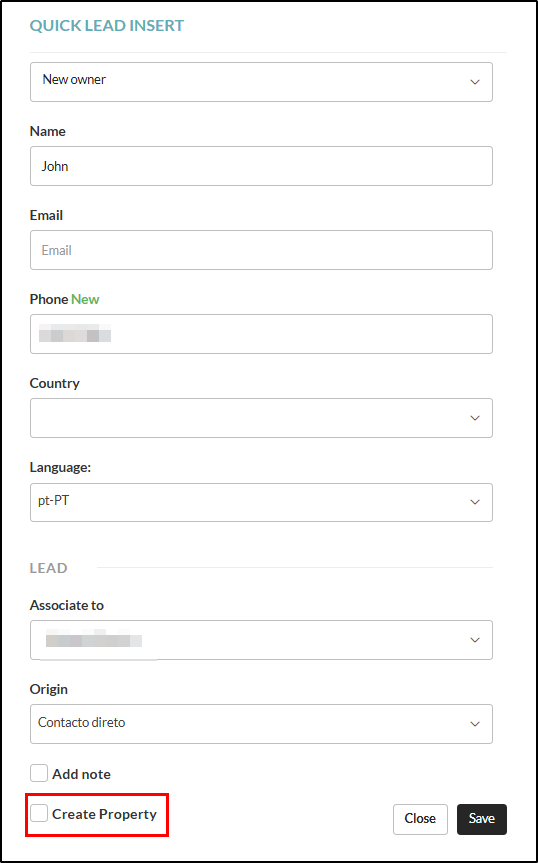
- Through Prospection properties list: Properties > FSBOs: Create a property directly from the property list on prospection window. Click the "create lead" option and in the tab below, select "create property" and edit the reference. The property will appear directly in the property list.
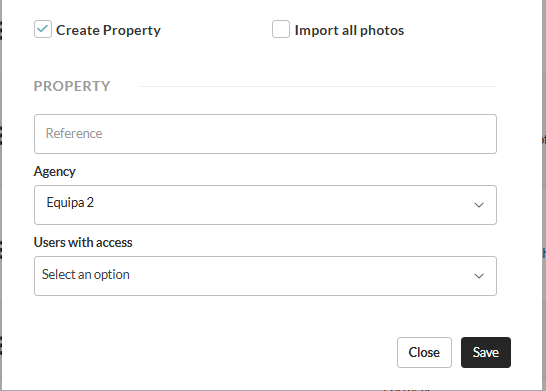
Reference: Enter the property's reference number. If you work with more than one agency/team, you must indicate the agency/team to which it belongs.
The reference number can be filled in manually or automatically**.
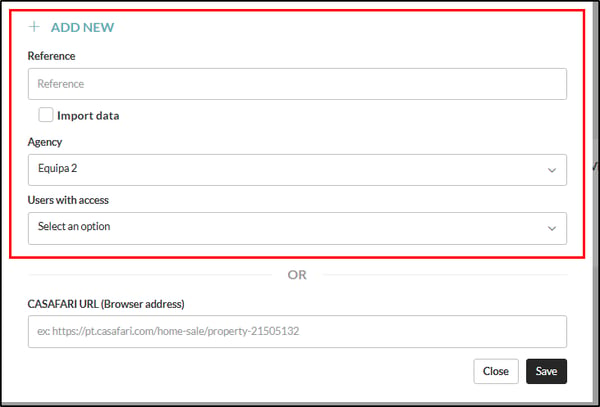
**To apply the automatic referral rule, please contact help@casafaricrm.com
Add property via CASAFARI: If your CRM account is synchronized with your CASAFARI account, you can import property data using the respective URL:

Import data from external properties: When creating a new property, it is possible to import properties that already exist externally by selecting the "Import data" option:
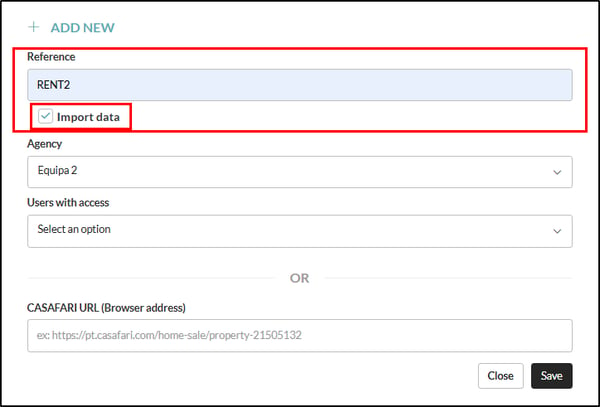
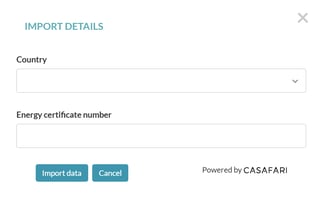
After checking the box to import data and fill in the reference, click Save. A window will then appear where you must fill in the "energy certificate number" for the property to be imported, for Portugal. If the property to be imported is from Spain, you must fill in the "cadastral reference" for the property.
Importing properties from Portugal:
Importing properties from Spain:

Fill in the property details
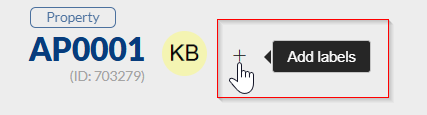
- Labels: Add labels to properties: labels are a tool that allows you to distinguish and/or highlight groups of properties and contacts. Learn more about labels by reading our article.
Click the + button to add labels:
Before proceeding with entering the property details, you can configure the required fields: the required fields for a property can be set manually by going to Configuration > Required Fields and clicking on “Properties”.
A list of mandatory fields will then appear:
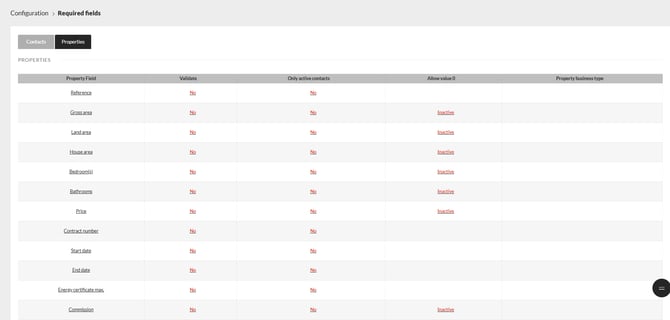
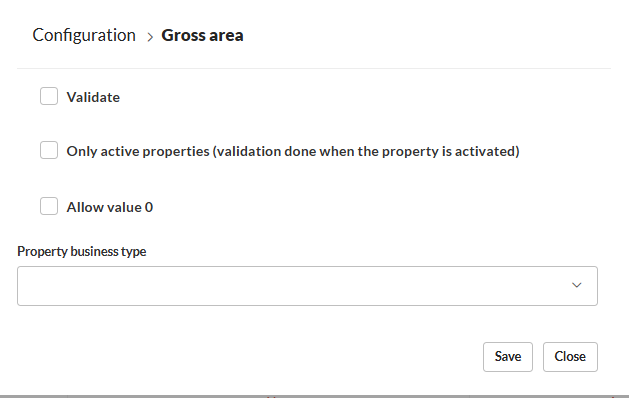
Click on the field you wish to edit and choose between the options “Validate” and “Only active properties”. For numeric fields, you can also choose whether or not to “Allow value 0”. Select the type of property business and save.
- Main:
Set the main features of the property:

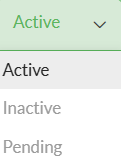
Status: A property can be in one of the following statuses: inactive, active, or pending. Typically, statuses are configured as follows for a property:
-
Inactive: A property has already been sold or rented.
-
Pending: The property is in the configuration/preparation phase in the CRM;
-
Active: A property with all configurations completed in the CRM and can now be published on real estate portals, websites, etc.
Changing a property's status or editing it after approval may be subject to supervision and validation. Learn more about property validation in this article.

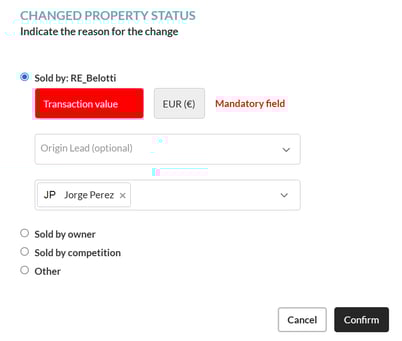
Property sold: When the property is sold, you must fill the "sold" box and, after that, save the property and a notice will appear where you must fill in the information about the transaction value, origin lead (optional) and indicate who made the sale (Agency and agent, owner, competition or other) and confirm.
General data: Fill in the property details: condition, business type*, property type**, typology, areas, price, etc.:
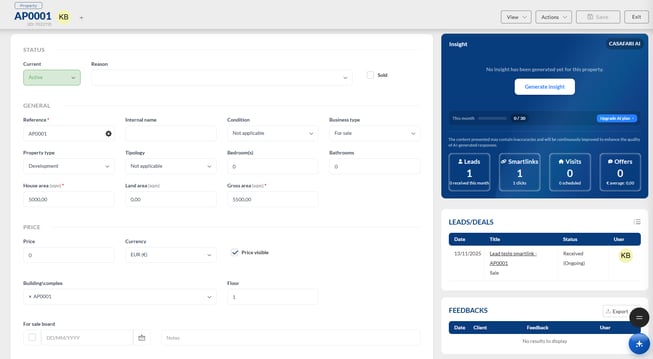
*Business type* – you must select the type of transaction that best fits your intention:
Sale
For properties available for sale on the traditional real estate market.
Long-term rental
Used for properties intended for long-term rental, usually with annual or extended contracts. The price entered should be monthly.
Business transfer (Trespasse)
Applicable to properties or commercial spaces where the business is transferred to a new owner, including activity, equipment, or licenses. You should define the transfer price and/or the rental price (monthly value), if applicable.
Exchange
Used when the transaction involves swapping properties between parties, with or without financial compensation.
Short-term / holiday rental
For properties used for tourism or holiday purposes, such as local accommodation or short stays. The price entered should be weekly.
Rental / Sale
For properties that are simultaneously available for sale and for rent. You should define the sale price and/or the rental price (monthly value), if applicable.
**Condition, business type, property type** – if you need to add a new condition, business type, or property type to the available options, please contact support (help@casafaricrm.com) so we can review your request.
Exclusive property, off-market and visibility:
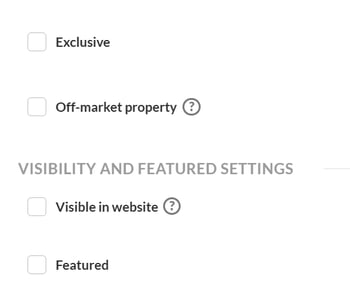
- Exclusive Property: By checking this box, the property is signed as an exclusive listing for the agency.
- Off-Market Property: The property can only be shown to selected clients, without public disclosure. The "Off-Market" box prevents publication on portals and the website. Learn more in this article about off-market properties.
- Visible in website: For the property to be visible on the website, the "Visible in Website" box must be checked.
- Featured: To set a property to appear as a featured listing on the website, check this box.
Screens: Define here which screen you want to include the property (must be created beforehand or can be created by clicking on "edit screens"; more information about this topic here)

-
Internal:
Add information about the contract (CMI) and keys, energy certificate, tax registration, licenses, and commission details.
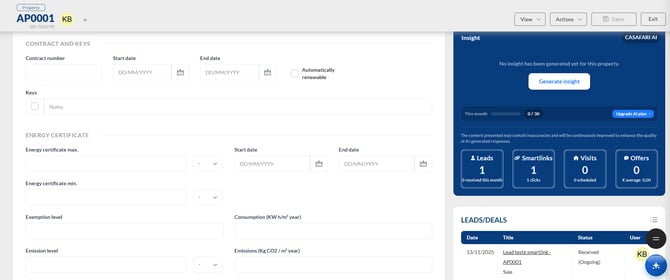
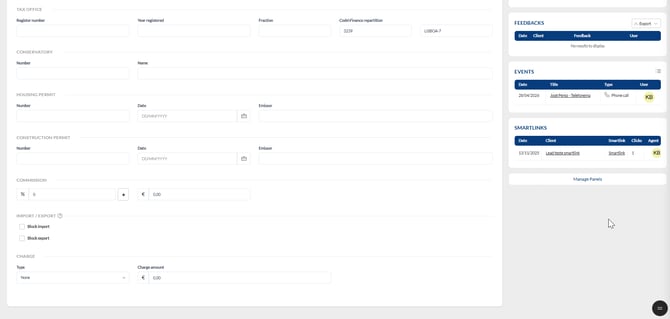
Import and Export:
- Block Import: Check this box to prevent external data from being added to the property. This option prevents a property from being fully updated in the CRM when a daily data import is required.
- Block Export: Check the export block box to prevent the property from being exported to real estate portals.

- Location:
Fill in all the location information with the appropriate details and, in the address field, add the street name:
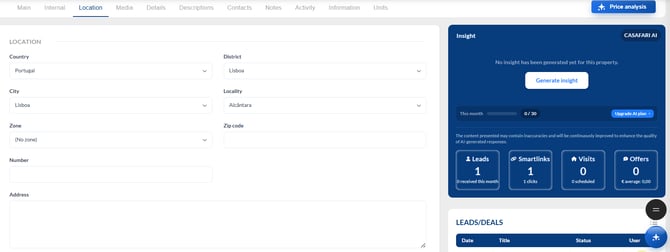
Create and manage zones
In addition to the usual location fields, such as Country, District, Municipality, Parish, Postal Code, and Address, the CRM provides an Zone field. This field allows you to identify the specific zone where the property is located, making it easier to organise, search for, and promote properties.
The available zones may already exist in the CRM or can be created manually by the client, according to the agency's needs.
-
How to add a new zone:
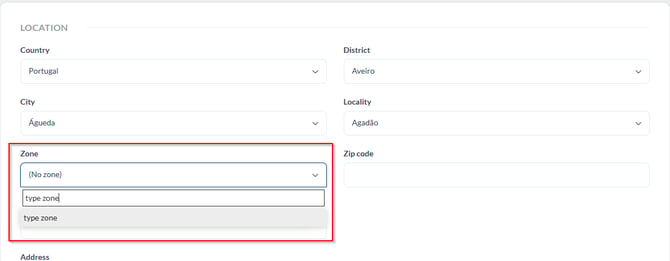
To create a new zone, in the Zone field, start typing the desired name and select the option to create/add that zone.
The created zone will be associated with the selected property. Only after the new zone has been created and associated with at least one property will it become available in the list of options in the Zone field for use with other properties.
-
Managing manually created zones:
Manually created zones cannot be edited. In other words, once an zone has been created, its name cannot be changed.
If you want to change the name of an zone, you should:
-
Remove the zone from the properties where it is currently selected.
-
Once no properties are associated with that zone, it will no longer appear in the list of options.
-
Create a new zone with the desired name.
-
Assign the new zone to the corresponding properties.
Note: the only way to delete a manually created zone is to remove it from all properties. Once the last property using that zone no longer has it selected, the zone will no longer be available for selection in the CRM.
-
Zones on the website and portals:
Zones can also be used when promoting properties.
Website: manually created zones in the CRM are displayed on the website when there is at least one active property visible on the website with that zone selected. If there are no longer any properties meeting these conditions, the zone will no longer be displayed.
Real estate portals: the zone may be sent along with the property data, depending on how each portal operates and which fields it supports.
This allows you to create specific zones for your business and use them to identify and organise properties more accurately.
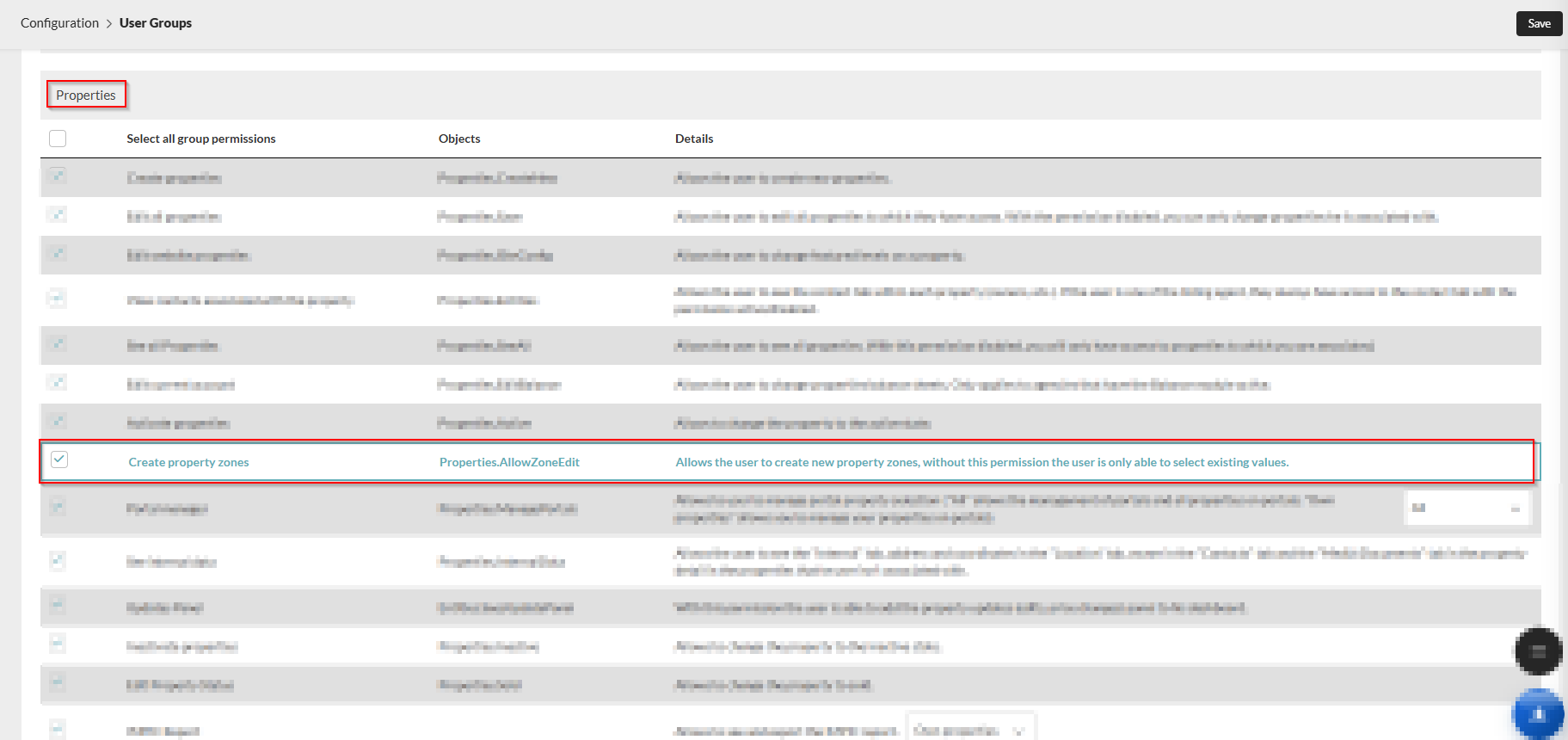
Note: To create new property zones, you must enable the “Create property zones” permission under Users > Groups/Permissions > select the User Group > Properties:
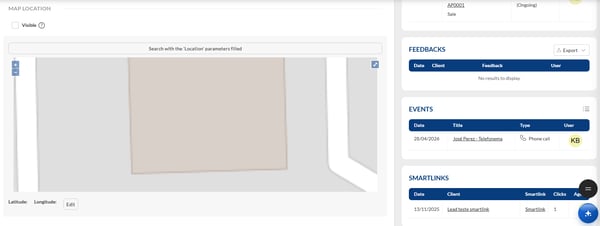
Map Location: You can add the location to the map using the data provided within the CRM under "location" by clicking "search with the location parameters filled" or manually edit it by adding geographic coordinates by clicking the "edit" button.
Visibility option: If you want the exact location to appear on the website and real estate portals, simply select the "visible" option.
- Descriptions:
Describe the property's features and adapt them to the various fields.
Generate descriptions with AI: You can use artificial intelligence to generate comprehensive descriptions based on general property data. The AI-powered description can be generated in any language. Afterwards, it's important to verify that the descriptions and translations are accurate.

Main text input fields:
Title: Fill in the property title according to the relevant characteristics of the property.
Keywords: Keywords are words related to the property's features and will be used to be found in Google search engine results.
SEO Description: A short description of no more than 130 characters that includes the property's main features. This description will be visible in search engines.
Short Description: A description of up to 130 characters with the property's main features.
Description: This description should go into more detail about the property's features, including all details according to their importance. This description will be included in real estate portals when the property is exported.
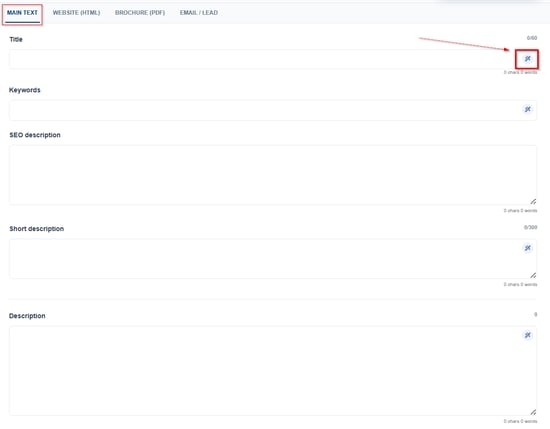
AI-generated descriptions: All main text fields include a button on the right-hand side that allows the content of each field to be generated automatically using Artificial Intelligence (AI).
Website (HTML):
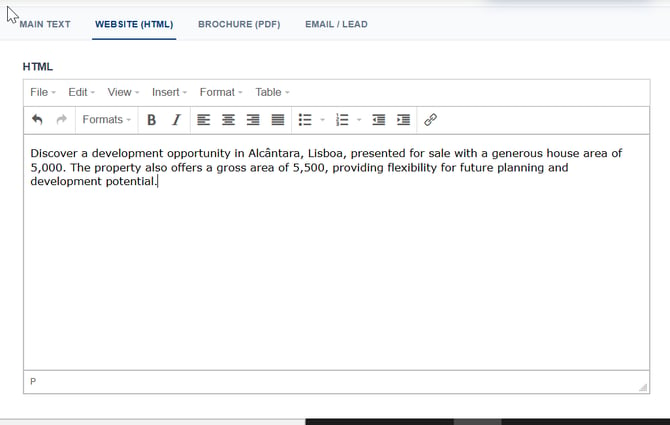
HTML Description: Enter the property description to be displayed on the website. When this field is filled in, its content will replace the description defined in the "Description" field of the "Main Text" section.
Brochure
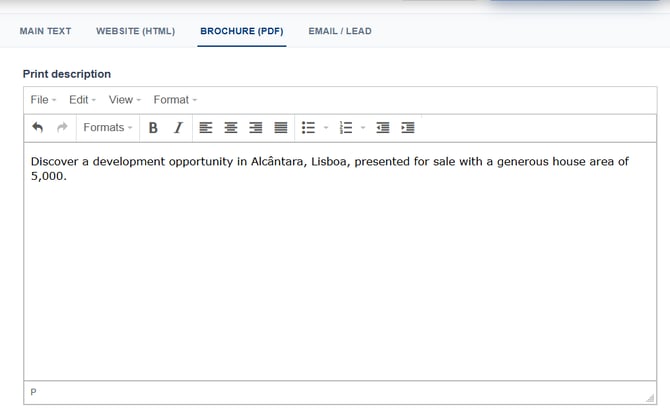
PDF Description: This description will be displayed on the property's brochure.
Email/Lead
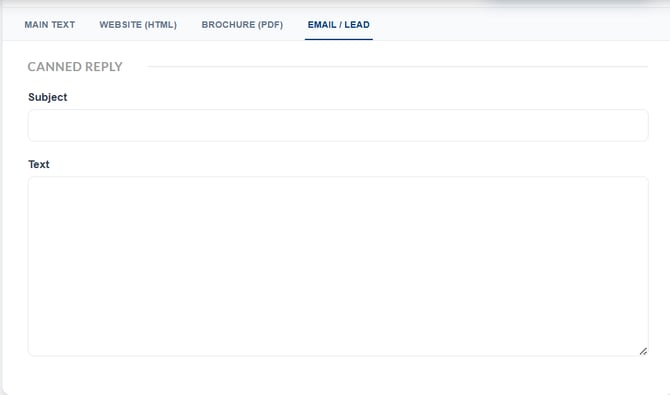
Canned Reply: The agent can send a predefined reply to the prospective client regarding the property they are interested in from the lead to which that property is associated. You can edit both the subject and the email body.
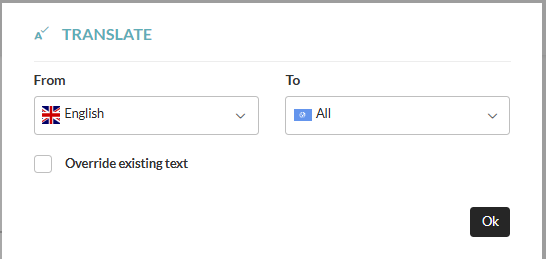
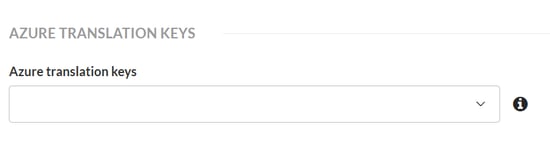
Translations: Translations can be done manually or automatically*. To translate automatically, you must first fill in the descriptions in at least one language. After that, click on "translate" and select the language you want to translate from and to (it can be a specific language at a time or all languages at once), with the option to overwrite existing texts as well:
- Details:
Add details regarding property amenities, such as garage, pool, year of construction, etc. If desired, you can add more details to the property by creating and organizing them in the Settings > Custom Details area. These details will not be exported to real estate portals and will only be visible on the website. Know more about this topic here.
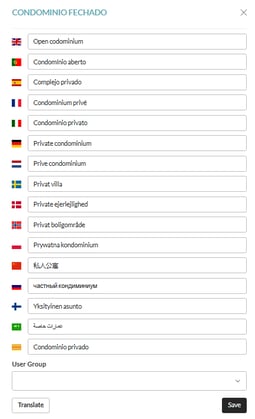
Existing details cannot be deleted, but you can change their order or edit their names. To change a name, simply click on the desired detail, edit it, and add it to a group. You can also translate it into your preferred languages. Once edited, the detail will appear in orange.


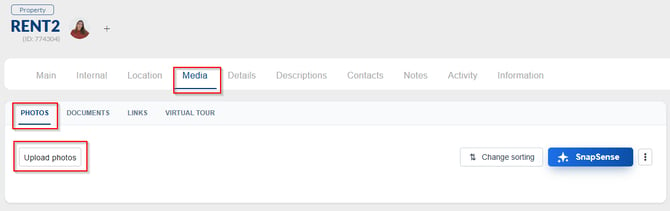
- Media:
Upload photos and property documents.
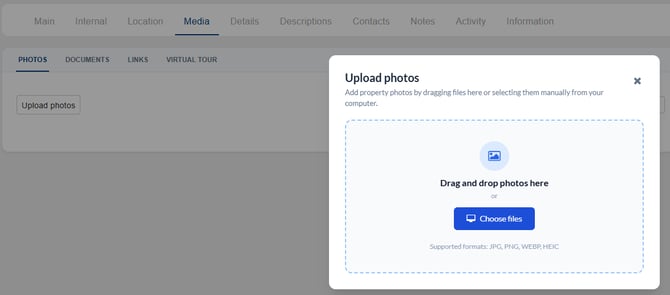
Photos: Upload photos by selecting files from your computer or using Drag & Drop:
Changing the photograph order:
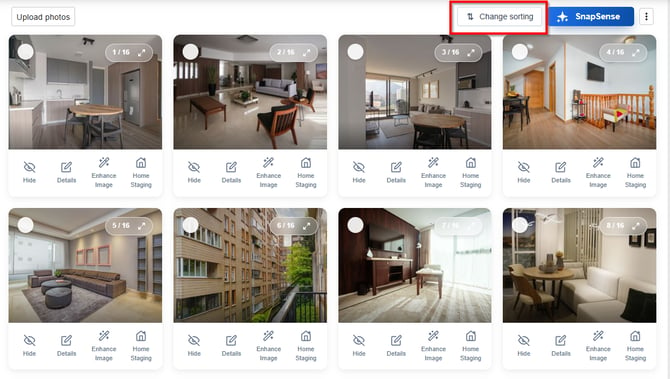
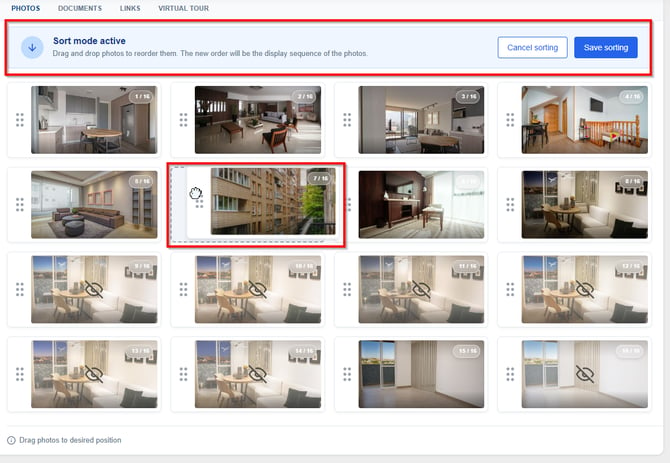
After uploading the photographs, you can change their order. To do so, click "Change sorting". Next, click and hold the drag icon (represented by the dots) on the left side of each photograph and drag it to the desired position. Once you have finished rearranging them, click "Save order" to apply the changes.
Tools:
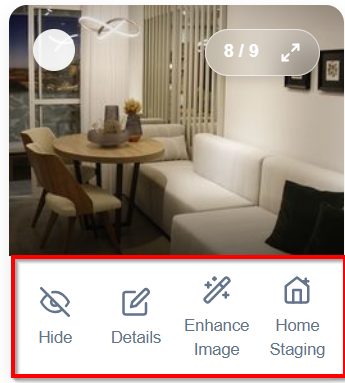
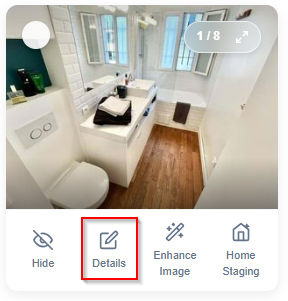
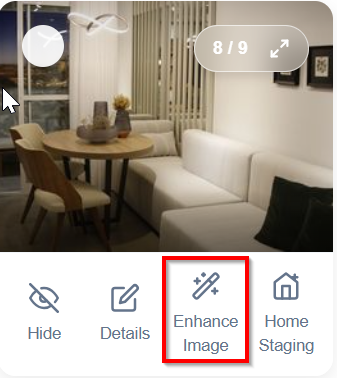
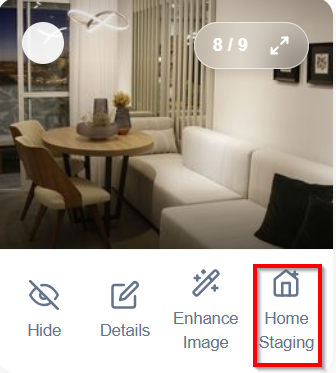
At the bottom of the photo, you will find the following support tools: Hide, Details, Enhance Image, and Home Staging. The functionality of each of these tools is described in the following sections.
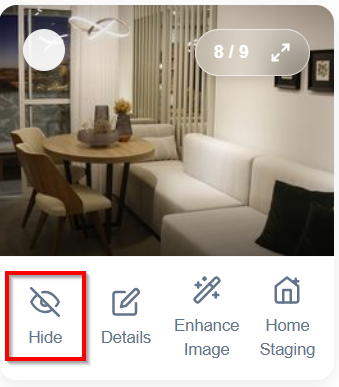
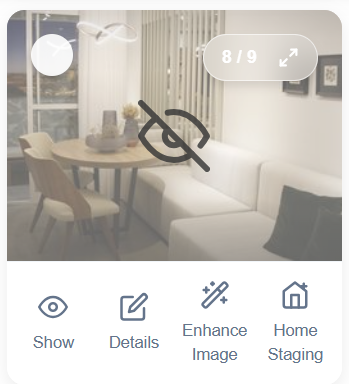
- Hide: The Hide feature allows you to hide a photo from the gallery. While hidden, the photo will no longer be displayed in the gallery. To make it visible again, simply click Show, and the photo will reappear in the gallery.
-
Details:
After uploading the property photos, you can categorize and add a description to each image. This information helps organize the photos and makes it easier to identify the content of each one.
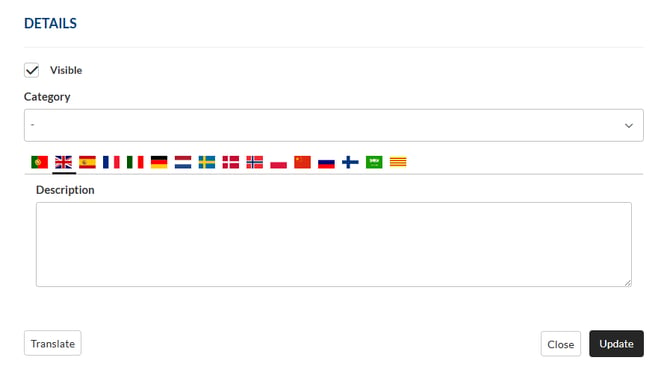
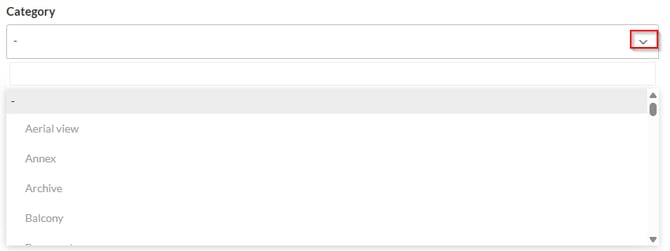
Category: allows you to indicate the type of space or room shown in the photo, for example, Bathroom, Living Room, Kitchen, Bedroom, etc., or a type of document, such as Floor Plan.
Description: allows you to add a caption or description of the image. This field can be used to identify or describe what is shown in the photo whenever necessary.
The photo description is not only useful for managing the property within the CRM. This information is also used when publishing properties on property portals that support this field, where it is sent as the image's alternative text (alt text).
Best practice: We recommend adding clear and objective descriptions to photos, identifying the space or main elements shown in the image. This contributes to better organization of the information and helps systems that use alt text to correctly interpret the images.
The Visible option should be enabled if you want the image to be displayed on the website.
Once you have completed these settings, click Translate and Save to save your changes.
-
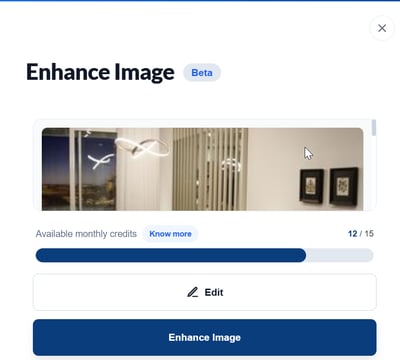
Enhance Image: The Enhance Image feature allows you to edit photos quickly and intuitively. Two options are available: Edit, which enables you to make manual adjustments to the image using the photo editor, and Enhance Image, which automatically applies AI-powered enhancements to improve the visual quality of the photo.
-
-
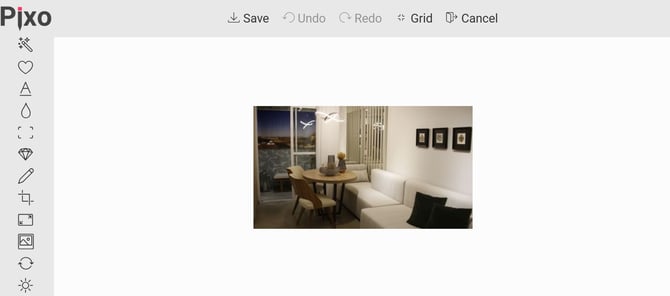
Edit: Within the photo editor, you can adjust the image quality, apply filters, and make other enhancements. To learn more about the photo editor, read our article.
-
-
-
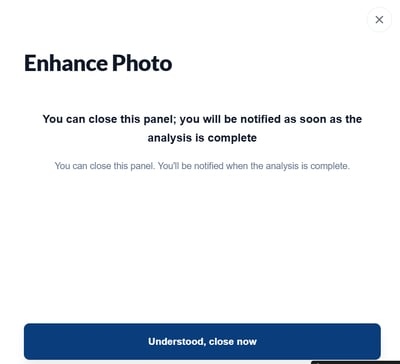
Enhance Image: The Enhance Image feature uses Artificial Intelligence (AI) to automatically improve the quality of the image. When you click Enhance Image, a pop-up window appears to inform you that the enhancement process has started and that you will receive a notification once the image is ready. After receiving the notification, the enhanced image will be available for viewing and use.
-
-
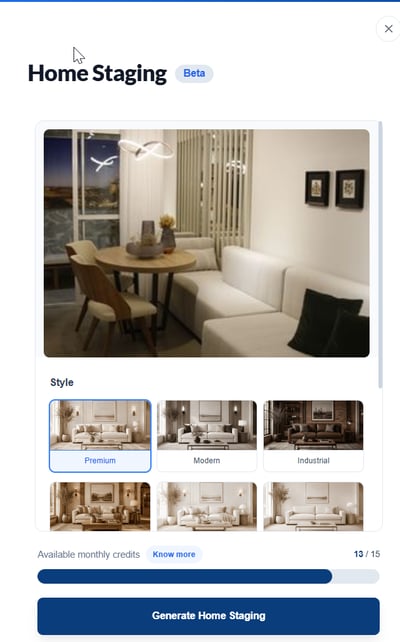
Home Staging: The Home Staging feature is an AI-powered image editing tool that transforms and enhances the visual presentation of a property's spaces. It allows you to remove existing furniture, add new furnishings, and apply different interior design styles, making it easy to create customized and visually appealing environments.
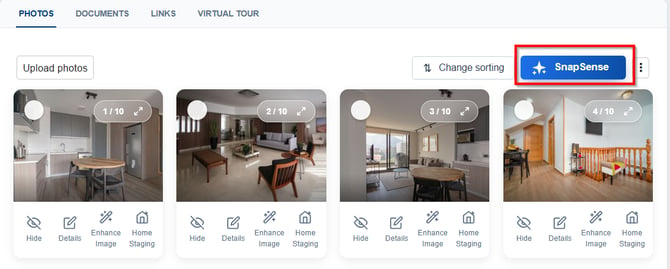
SnapSense: Photo Analysis
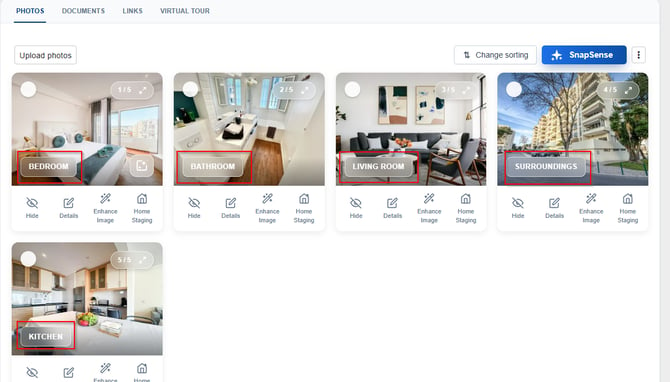
The SnapSense feature uses Artificial Intelligence (AI) to automatically analyse property photos, identifying the different rooms and key features of the property.
During the analysis, the system suggests appropriate categories for each photo, such as kitchen, living room, bedroom, or bathroom, making it easier to organise images. It also automatically generates alternative text (alt text) for each photo, contributing to improved accessibility and digital content optimisation.
SnapSense also identifies relevant property features that can be highlighted in its presentation, helping to showcase the property more effectively.
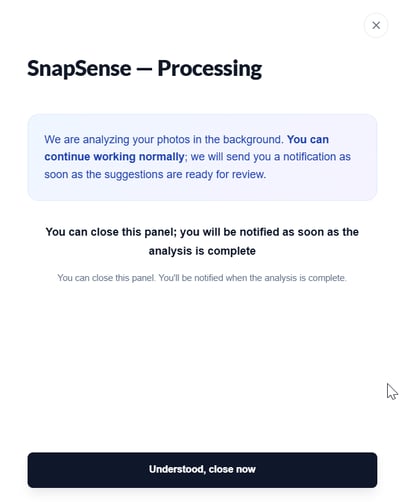
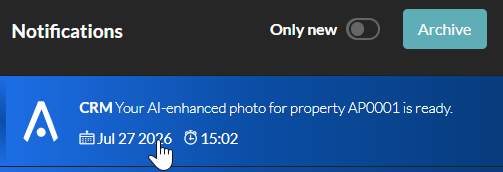
Once the analysis is complete, the user receives a notification and can review all suggestions before deciding whether to apply them.
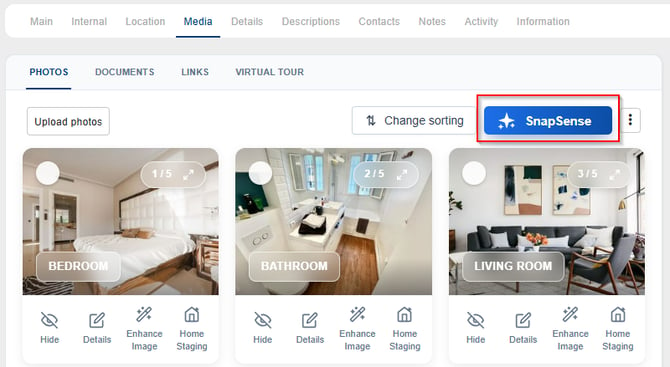
Image requirements and processing in the CRM:
-
Accepted formats: JPEG, JPG, PNG, PNG8, GIF, TIFF, and BMP.
Other formats will be automatically converted to JPG.
-
Recommended resolution: Images with width ≥ 2560px or height ≥ 1440px will be automatically resized to 2560x1440px.
-
Recommended aspect ratio: We recommend using horizontal formats (e.g., 16:9) for better property presentation.
-
Automatic optimization: The system automatically resizes images during upload, ensuring better performance and faster loading on portals.
Note:
When uploading photos in the CRM Backoffice that will later be sent to the website (templates) and/or portals, please keep in mind that, depending on the template used, the system may automatically resize the images to fit the display area.
This means that if the photo’s proportions (aspect ratio) do not match the proportions of the website’s display area, the image may not fit that space exactly. In such cases, black bars may appear at the top and bottom or on the sides of the photo.
Photo management:
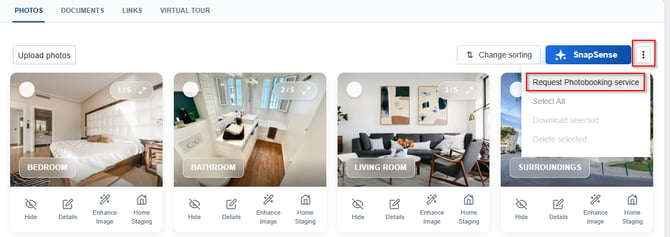
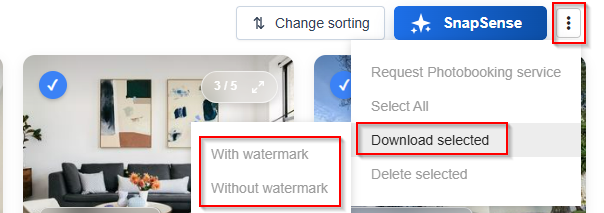
After uploading the property photos, you have several options available to manage the images. To access these features, click the three-dot icon in the top-right corner.
The available options are:
-
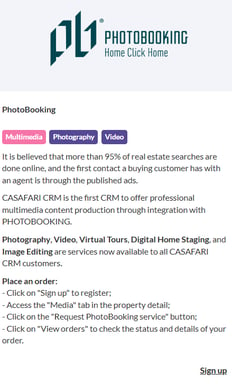
Photobooking Service: If your property doesn't have photos, you can request an audiovisual service in partnership with CRM. Learn more about this integration in the following article.
-
Select All – selects all the photos of the property.
-
After selecting all photos or selecting them manually, you have the following options:
Download selected:
-
with watermark – allows you to download the selected photos with the watermark configured in the CRM.
-
without watermark – allows you to download the selected photos without a watermark.
-
-
Delete selected – allows you to delete all selected photos simultaneously.
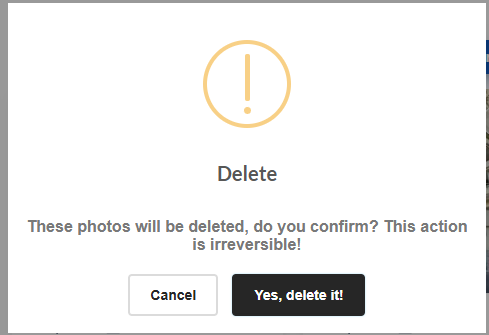
These options allow you to manage multiple photos at once, making the process of organizing, downloading, or deleting images faster and more efficient.
Documents: Upload files from your computer's files; these files can include brochures, certificates, licenses, blueprints, etc.
Once uploaded, the file will appear in the document box, and you can organize it using the tools available in the box:
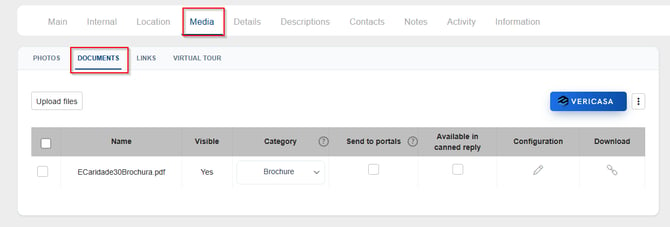
- "Visible": This option allows you to select whether the document will be visible on the website. To change the visibility, click the pencil below "Settings" and select the "Visible" option if you want the document to appear on the website.

- "Category": Organize your document according to a category:

- "Send to portals": This option is used to export files to the "Rightmove" portal. For the export to work correctly, the document must be included in a category.
- "Available in canned reply": Select this option if you want the file to be included in the property's canned reply.
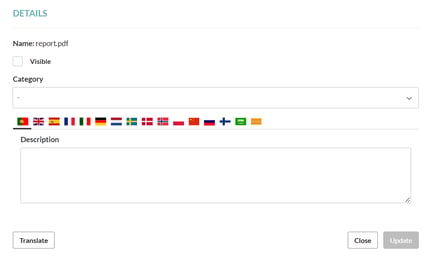
- "Configuration": Open the settings tab and edit the visibility on the website, category, and add a description for the file, then translate it into the desired language.
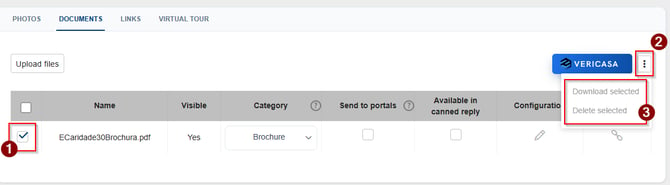
To delete or download documents/files within properties, select the desired document(s), click the three dots next to the Vericasa button, and choose whether you want to download or delete them.
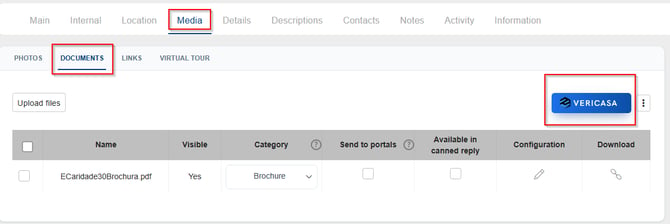
Vericasa: In the Documents section, the Vericasa button corresponds to an integration developed in partnership with Vericasa, a platform specialized in issuing property compliance reports. Through this button, you can access the integration directly and send documents for analysis without leaving our CRM, making the entire process faster and more efficient. To learn more about this feature and how it works, please refer to our dedicated article on the Vericasa integration: Vericasa
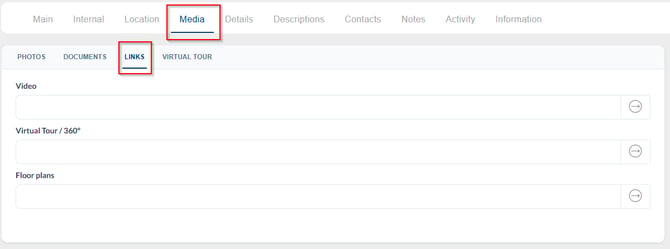
Links: Upload videos of the property to be displayed on the website. Videos should be uploaded to channels like YouTube and Vimeo, and their respective links should be included.
Under "Video": Add a link of a video of the property where you can view the entire property.
Under "Virtual Tour/360º," add a link of a video of an interactive virtual tour video.
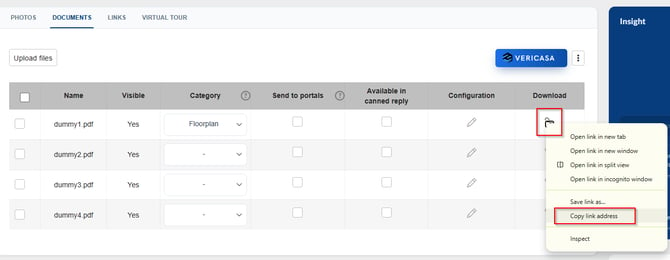
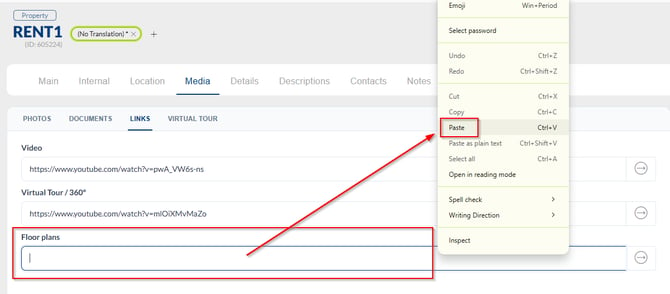
Under "Floor Plans" add a link the property's floor plan.*
*You can obtain this link to the floor plan in “Documents.” After uploading the floor plan file, right-click on “Download,” copy the link, and paste it:
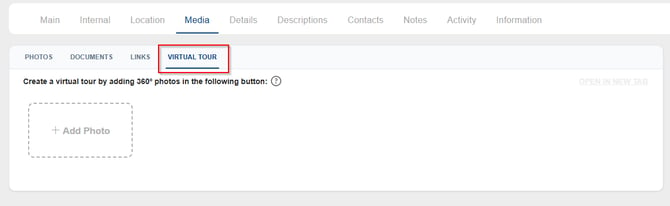
Virtual Tour: Add panoramic photos and create a virtual tour of your property. For more details on creating a Virtual Tour, see the "?" button available in the creation area.
Linking Photos in a Virtual Tour
To create a link between two photos in the virtual tour, open the first photo. Then, drag the second photo onto the first.
Drop the second photo at the exact location where you want the navigation point to appear. This location defines the point that visitors will click to move from the first photo to the second during the virtual tour.
Repeat this process to create additional links between photos until the virtual tour is complete.
- Contacts:
Add information about the property's owner, agent, and agency/team:
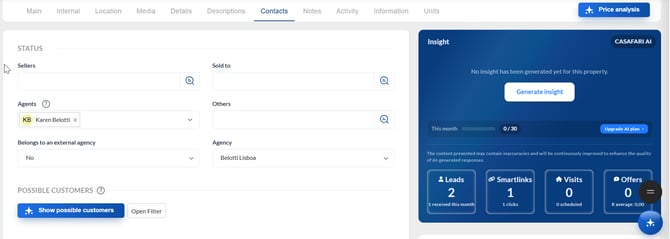
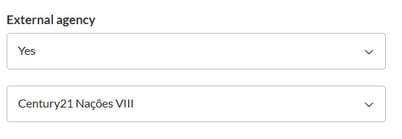
Fill in the "external agency" field if the property is linked to a different real estate agency.
In "Show Possible customers" clicking the button will display potential clients related to the property's features. For more details on submitting a property to the list of clients generated in this area, see the "?" button located in the same area for this action.
SnapSense: Photo Analysis
The SnapSense feature uses Artificial Intelligence (AI) to automatically analyze property photos, identifying the different rooms and key features of the property.
During the analysis, the system suggests appropriate categories for each photo, such as kitchen, living room, bedroom, or bathroom, making it easier to organize your images. It also automatically generates alternative text (alt text) for each photo, improving accessibility and optimizing digital content.
SnapSense also identifies notable property features that can be highlighted in the property's presentation, helping to showcase its key selling points.
Once the analysis is complete, you will receive a notification and can review all the suggested changes before deciding whether to apply them.
AI-Powered Features:
Note: All features in the Media section that use Artificial Intelligence (AI) are part of an optional CRM add-on package. For more information about this package or to learn how to purchase it, please contact your account manager.
- Notes:
Add internal notes relevant to the property.
- Activity:
In the activity tab, add property-related events, such as tours, offers, and meetings. To learn more about creating events, read the article. This tab stores the entire history of events associated with the property.
- Information:
All property information in the CRM is recorded here, including creation date, last update, website access, and complete history.
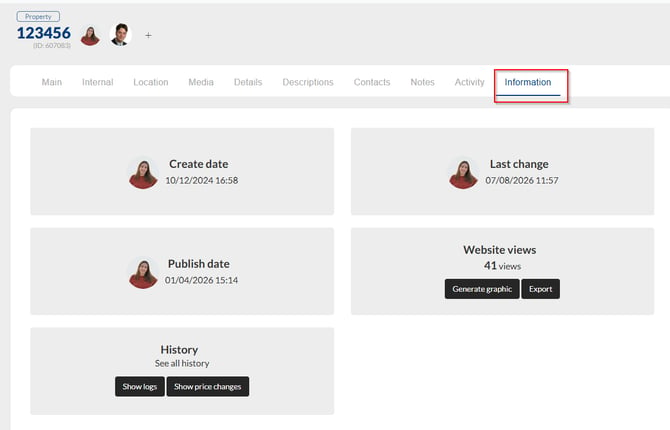
Website Views: The number of visits to the property's website, which can be viewed as a graph by clicking "Generate Graphic".
History: This record shows all changes made to the property. You can view price changes and full activity details. To view the logs, click "Show Logs."
Other actions:



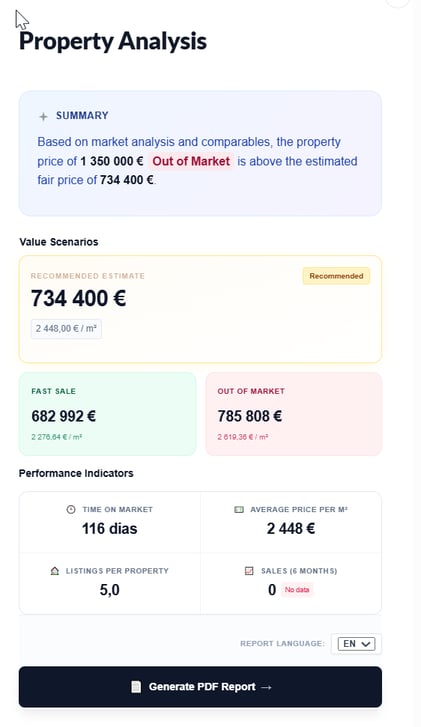
1. Price Analysis: The property price analysis takes into account the property's designated value within the CRM and compares it to similar properties currently on the market. By clicking "price analysis," you can view the average value and also generate a PDF report of the property that includes data on the value and a market analysis, points of interest, and comparable properties. To hide the price analysis warning, simply click "disable warning" in the lower left corner:
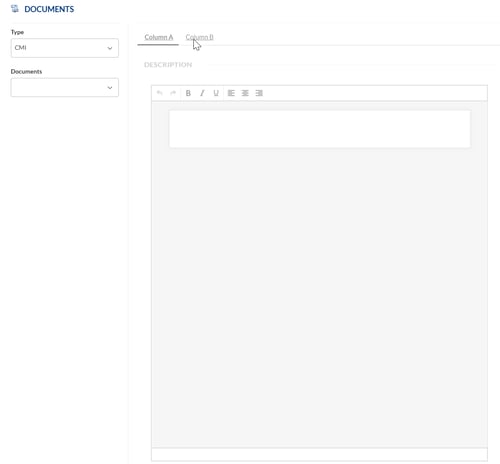
2. Generate document: It is possible to generate previously defined/created documents in Configuration > Document Templates using the data of the respective property:
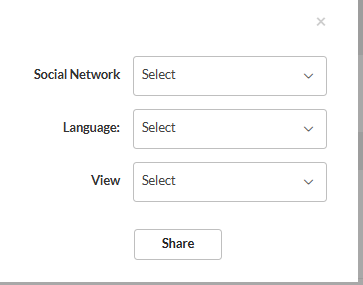
3. Share: By clicking the share button, you can share the property on major social networks. You can choose the language and whether you want the property to be viewed from your website or from a Smartview:
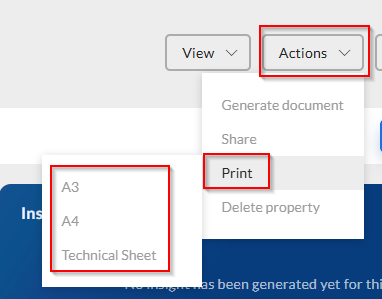
4. Print: Print property showcase sheets in A3 or A4 sizes, as well as the property's Technical Sheet:
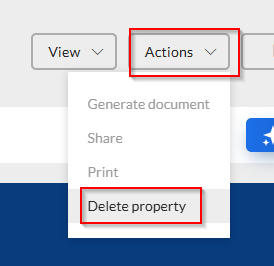
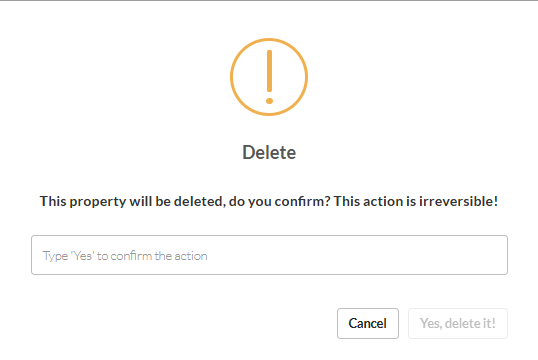
5. Delete property: You can permanently delete a property from CRM. To do so, click the "Actions" button and then "Delete property." Type “yes” in the box to confirm the action.
6. View on Website: This option allows you to open the property's page directly on the website. When selected, you will be automatically redirected to the published property page.
7. View in SmartView: This option allows you to view the property using a SmartView link. Only the information that has been published will be displayed.
8. Portals: View and select the property to be exported to the main real estate portals. To learn more about portals, read the article.
Side Panel
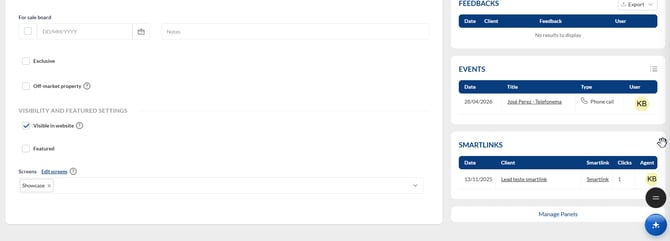
On the property page, you will find a side panel on the right-hand side. The following sections describe the information and options available in this panel.
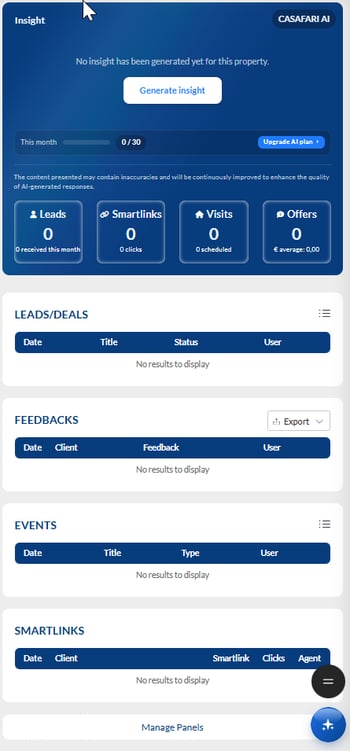
1. AI Insights: The AI Insights feature uses Artificial Intelligence (AI) to analyze the data stored in the CRM and generate up-to-date reports on a property's activity. The information is consolidated from leads, events, contacts, and other CRM records, providing a clear and comprehensive overview of the property's performance and the level of interest it has generated.
Note: Artificial Intelligence (AI) features are part of an optional CRM add-on package. For more information about this package or to learn how to purchase it, please contact your account manager.
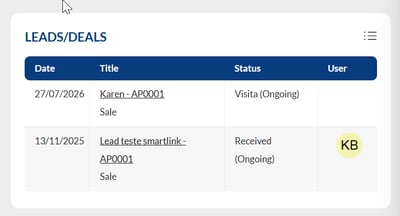
2. Leads/Deals:
This panel displays all the leads associated with the property. To view the information in a list, simply click the List View button located in the upper-right corner.
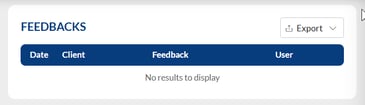
3. Feedbacks:
Here you'll find all feedback from potential buyers related to this property. This feedback can be exported to an external file.
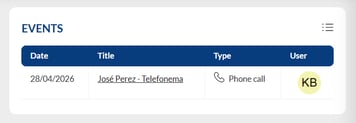
4.Events:
You can view all events associated with the property. Simply right-click in the top corner and a list will appear.
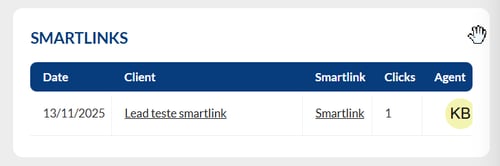
5. Smartlinks:
Here you can view all smartlinks that include the property. To learn more about smartlinks, read the article.
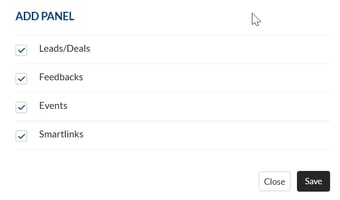
6. Manage panels: Change the display order of panels in the side menu or click "Manage Panels" to add or remove information as needed.
Property Cloning
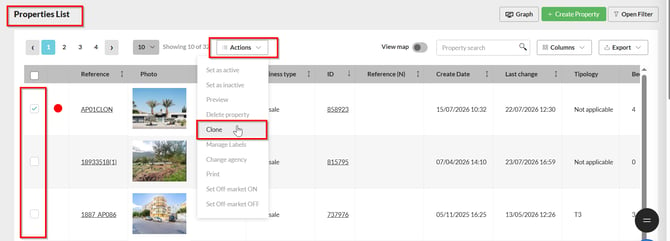
The Property Cloning feature allows you to create a new property based on an existing one. By selecting Clone from the Actions menu on the Property List page, a copy of the selected property is created, including all associated information such as photos, documents, and other property data.
The cloning process does not modify the original property, ensuring that all existing information remains unchanged.
To clone a property, select the property you want to copy and click Clone from the Actions menu.
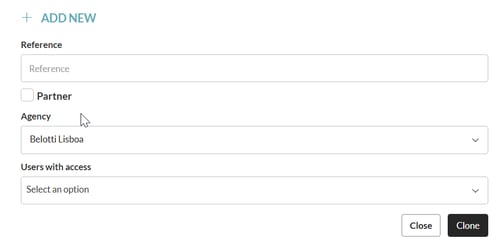
After selecting Clone, a configuration window will be displayed. Enter a new property reference, select the destination agency (if you are using a multi-agency setup), and choose the user who will be assigned access to the cloned property.
 Once you have completed the required information and confirmed the cloning action, the details page for the new property will be displayed. At the same time, a confirmation message will appear, indicating that the property has been cloned successfully.

Property List
To simplify property management and save time, CASAFARI CRM allows you to perform several actions directly from the Property List.
Simply select one or more properties and click the Actions button to access the available operations. Some of these actions can be performed in bulk, meaning they can be applied to multiple properties simultaneously.
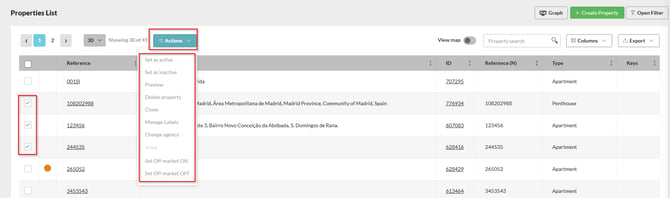
The available options are:
-
Set as activate – Publishes the selected properties, making them active in the CRM and available for export to your website and property portals (according to the configured settings).
-
Set as inactive – Deactivates the selected properties, preventing them from being published.
-
Preview – Opens the property record for viewing or editing.
-
Delete Property – Permanently removes the selected properties from the CRM. This action cannot be undone.
-
Clone – Creates a copy of the selected property while preserving the original information, allowing you to edit only the necessary details. (Explained in the previous section.)
-
Manage Labels – Adds, removes, or modifies the tags/labels assigned to the selected properties, making them easier to organize and search.
-
Change Agency – Transfers the selected properties to another agency (available for multi-agency accounts and subject to user permissions).
-
Print – Generates a printable version of the selected property.
-
Set Off-Market ON – Marks the selected properties as Off Market, allowing them to be identified without deactivating them.
-
Set Off-Market OFF – Removes the Off Market status, making the properties available again.
Other Property List Features:
-
-
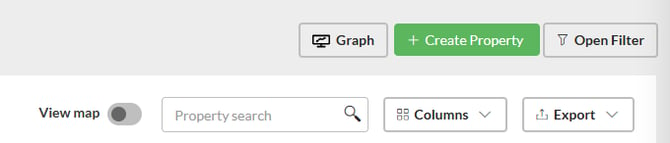
Create Property
Allows you to manually create a new property in the CRM.
-
Open Filter
Applies advanced filters to locate specific properties based on criteria such as status, property type, transaction type, location, agent, reference, and more.
-
Property Search
The search box allows you to quickly find a property using its reference, title, address, or other identifying information.
-
View Map
Displays the properties on a map, making it easier to analyze their geographical distribution.
-
Columns
Allows you to customize the columns displayed in the property list by selecting the information you want to see.
-
Export
Exports the current property list (according to the applied filters) to a file for analysis or sharing.
-
Graph
Displays a graphical overview of the search results, allowing you to quickly analyze the distribution of properties based on different criteria.
-
Note: AI-powered features are available as part of an optional CRM add-on package. For more information about this package or to learn how to purchase it, please contact your account manager.
Have you set up your new property and want to publish it on your website?
See this article for instructions.
This feature is available to all CASAFARI CRM users.
For more information, please contact us by email: help@casafaricrm.com