![login-logo.png]](https://helpcenter.casafari.com/hs-fs/hubfs/login-logo.png?height=23&name=login-logo.png)
The PhotoBooking integration service results from a partnership that provides a complete offering of professional multimedia content production. Through this integration, CASAFARI CRM clients can request Photography, Video, Virtual Tours, Digital Home Staging and Image Editing services, ensuring high-quality solutions for promoting their properties.
How to request the service step by step:
How to register:
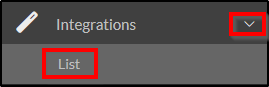
Via the left-hand sidebar, go to Integrations > List and find PhotoBooking. To register, click “Sign up”:
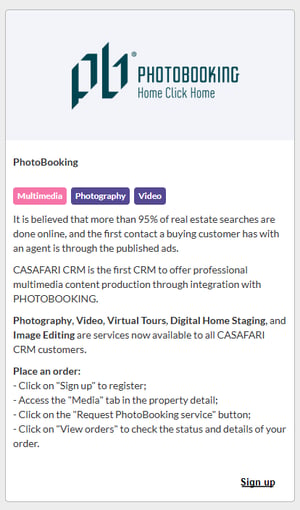
After signing up, the options to view prices and view orders will be available:
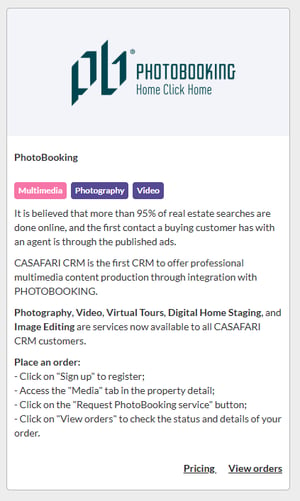
How to view requests:
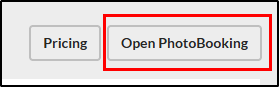
In “View orders”, you will find the complete list of PhotoBooking orders. By selecting “Open PhotoBooking”, you will be redirected to the respective external page.

How to view prices*:
The price list is displayed on two pages: the Orders page and the Integrations page:


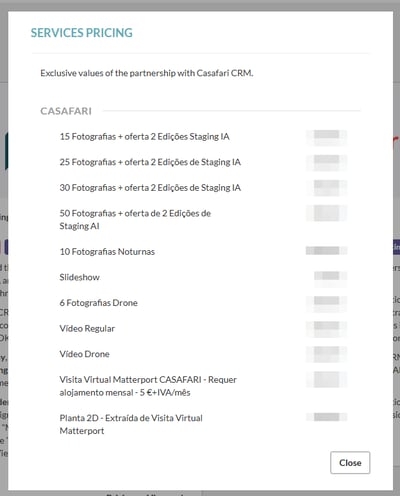
*prices are subject to change.
How to access the external PhotoBooking panel:
You can access the external PhotoBooking panel on the Orders List page by clicking the “Open PhotoBooking” button. The panel will open in a new browser tab.
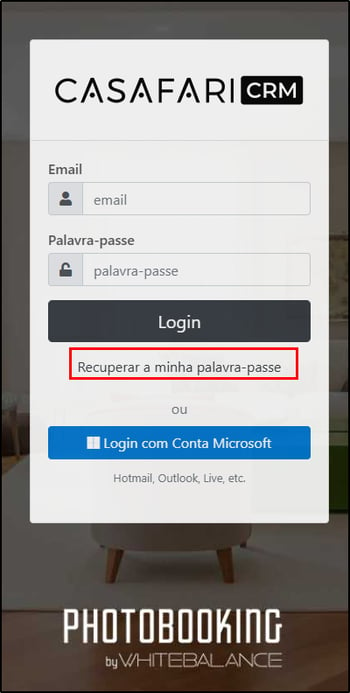
IMPORTANT: When accessing the external panel for the first time, you will need to create a password by clicking “Recover Password” and following the instructions to set it up.
How to create a new media service request for a property:
After signing up, you can access the property details and request the service by clicking “Media” and then the “Request PhotoBooking service” button.
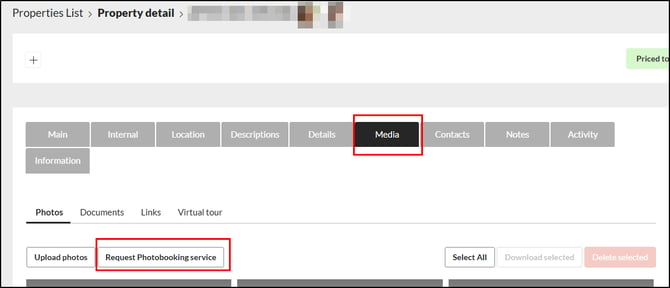
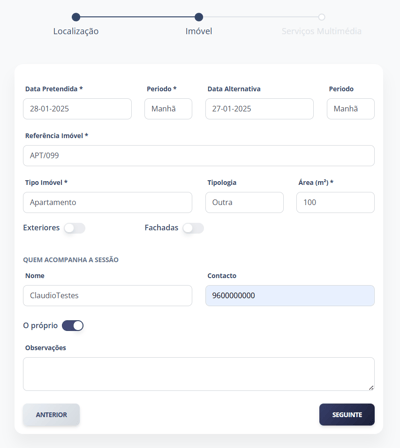
After clicking “Request PhotoBooking service”, you will be redirected to a new page in the PhotoBooking control panel, where you must enter the user and property details.
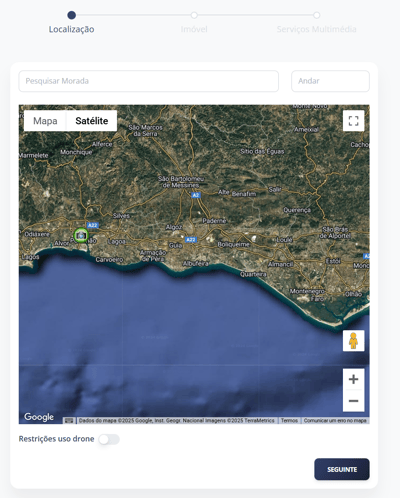
Enter the property details:
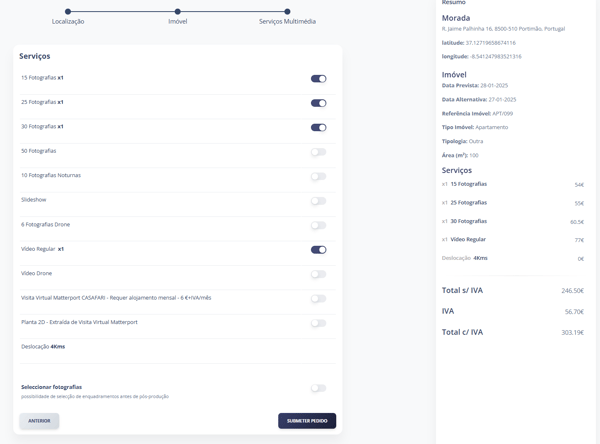
Select the service (an information table will be displayed on the right):
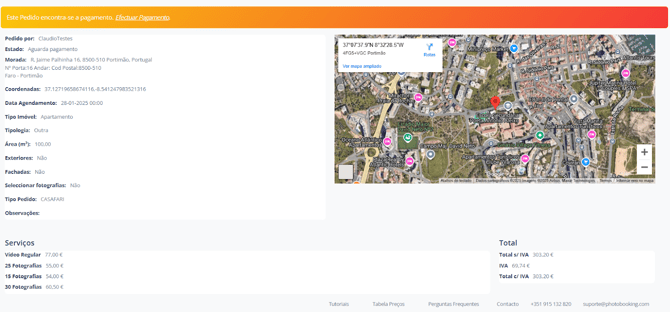
After entering the request details, you must proceed with the payment:
When accessing the property details after submitting the request, you will be able to see in the “Media” tab that the request is being processed:
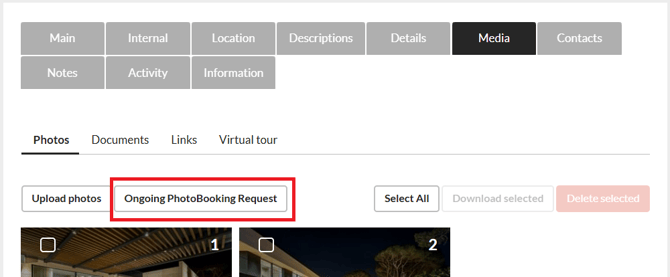
By clicking the “Ongoing PhotoBooking Request” button, you will be redirected to the Orders page, where you can check the status and details of the request.
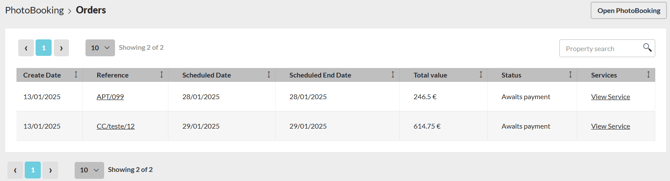
How to add photos to the property:
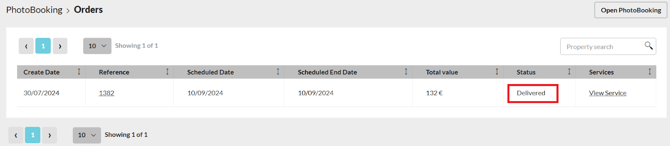
After the requested service is delivered, the status changes to “Delivered”, and it will be possible to add, replace and download media. To view the service details, click “View service”.
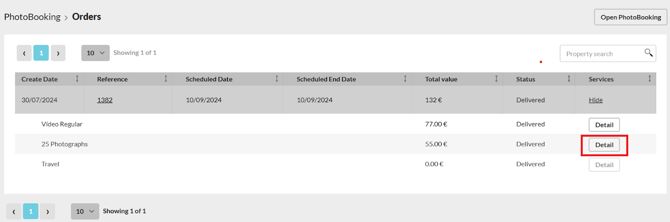
You can view the media products of each service by clicking the “Detail” button.
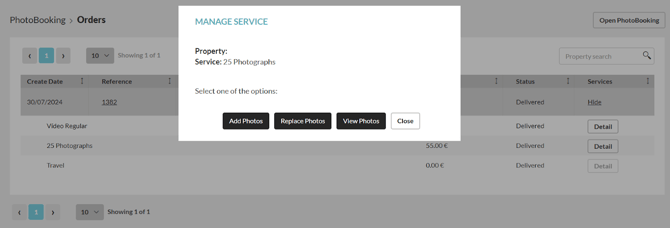
A pop-up window will appear with the options:
-
“Add Photos” (new photos are automatically added to the property while keeping the existing ones);
-
“Replace Photos” (new photos automatically replace the existing ones);
-
“View Photos” (the user is redirected to a Google Drive folder where the media can be downloaded manually).
How to map an external PhotoBooking service request to a CRM property:
A request made in the external PhotoBooking panel is sent to the CRM under the following conditions:
-
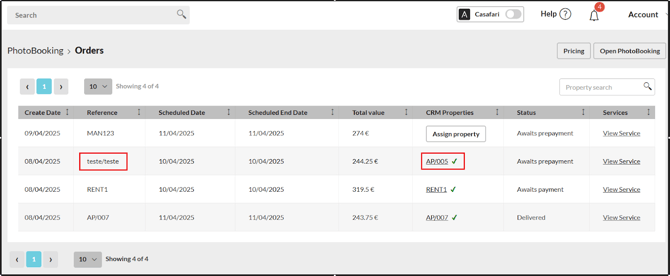
Automatic mapping: The system automatically maps the request when the property reference of the external service request matches a property reference in the CRM.
-
Manual mapping: When the property reference of the external service request does not match a CRM property reference, the user must perform the mapping manually.
The following steps are required to map the property:
-
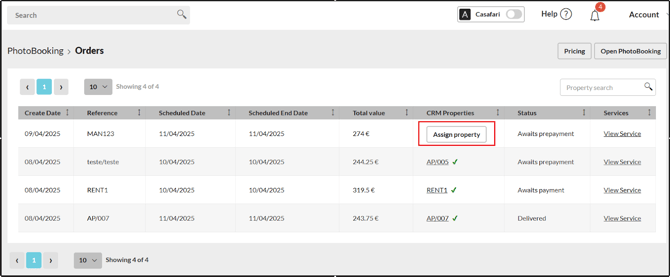
Click “Assign property”:
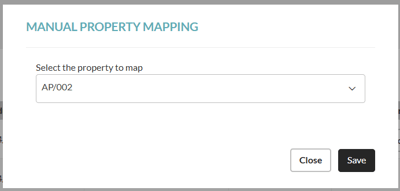
- Search for the property to map it to the PhotoBooking request:
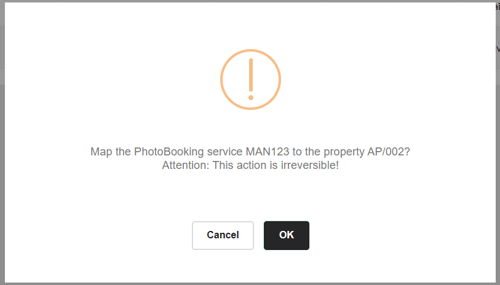
- Confirm the mapping.
- The system displays the icon
 , indicating that the mapping has been completed.
Note:
Properties must have the country set to Portugal (PhotoBooking only provides services in Portugal).
This feature is available for all CASAFARI CRM users.
For more information, please contact us by email: help@casafaricrm.com