![login-logo.png]](https://helpcenter.casafari.com/hs-fs/hubfs/login-logo.png?height=23&name=login-logo.png)
Detail groups and custom details are features that enhance flexibility and precision in property management within the system.
Detail groups allow you to organize information into specific categories, making it easier to search for properties that share the same set of characteristics on the property list page. Custom details offer the possibility of creating new information fields according to business needs.
How to create detail groups:
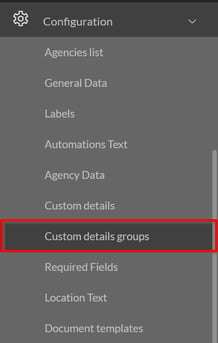
1)Access the Custom detail groups page through the Configuration option in the left-hand sidebar menu.
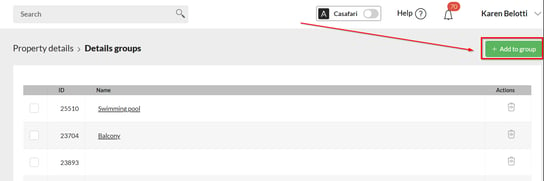
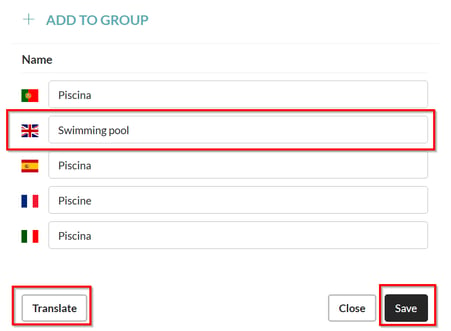
2) Within the "Detail Groups" page, create a new group by clicking "add to group", write the name, and perform the translations.
How to create custom details and associate them with detail groups
1) How to create a custom detail:
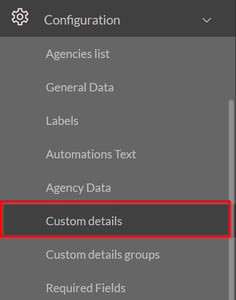
- In the left-hand menu, go to configuration > custom details.
- Within the custom details page, create a new detail:
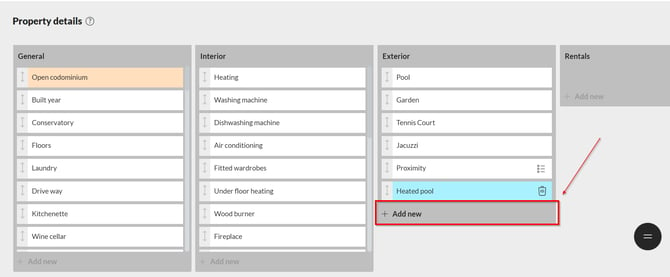
-
Click "Translate" to automatically translate:
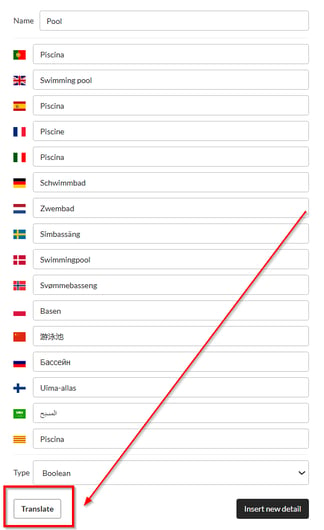
-
Choose the type of detail:
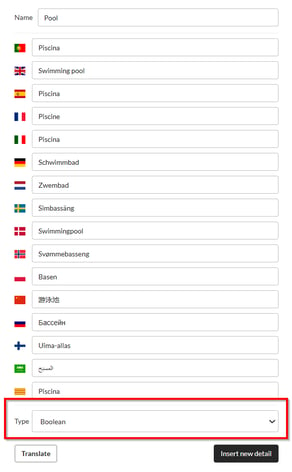
There are four distinct types of details (Boolean, Text, Dropdown, and Listbox), each of which is reflected in different option designs within the details section of the property page.
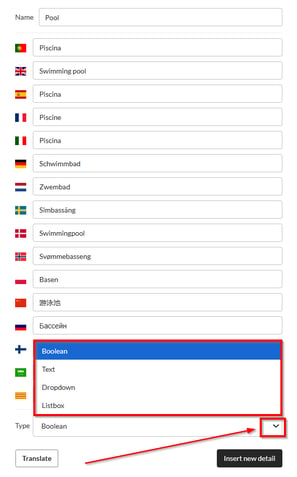
To view customized details, go to the property details page in Properties List > Details.
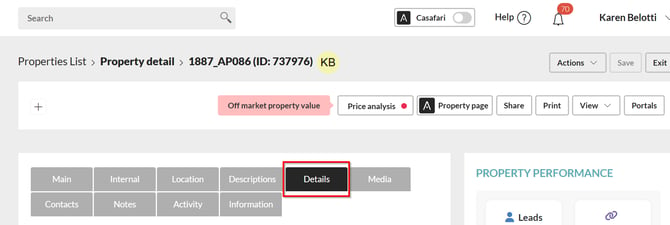
Different types of detail options:
-
Boolean:
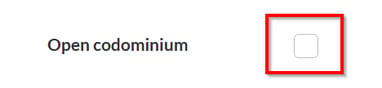
-
Text:

-
Dropdown:
1)Within the newly created detail, click the "Text" icon, then select "Add New" to add options to the detail:
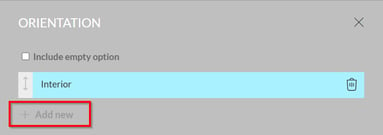
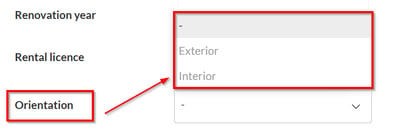
- Listbox: Within the newly created detail, click the "Text" icon, then select "Add New" to add options to the detail:

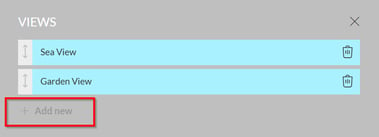
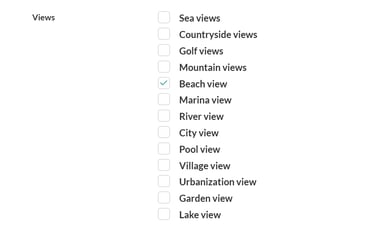
Once created, the personalized details can be rearranged:
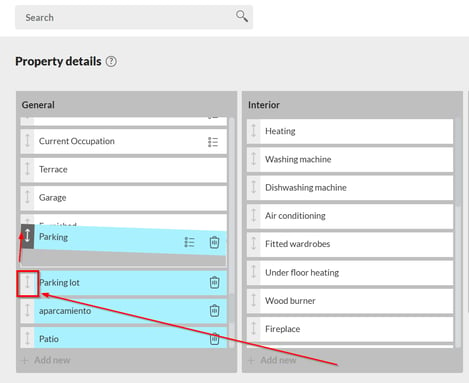
On the Custom Details page, default details cannot be edited or deleted. Custom details created by the user appear in blue and can be edited or deleted, while default details may also appear in orange.
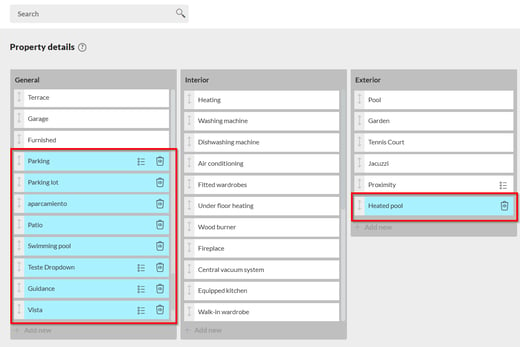
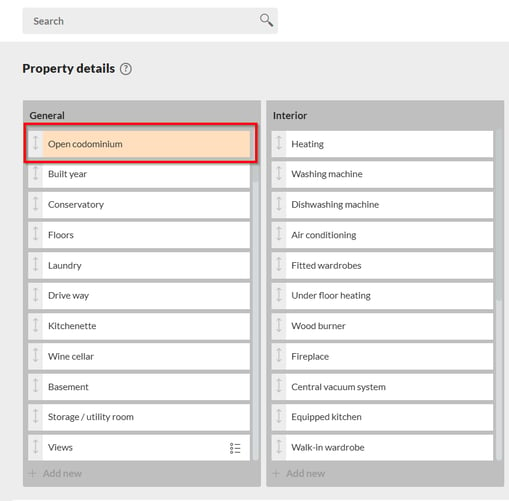
**Note: Custom details are configured to be displayed on the website; however, they are not sent to real estate portals. If it is necessary for any detail to be sent to the portals, please contact the CRM at help@casafaricrm.com.
Assign custom details to the created groups:
- Select the detail and associate it with the target group.
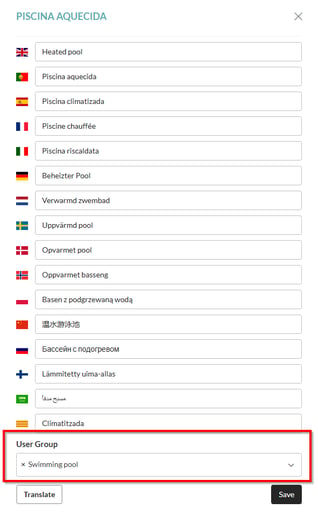
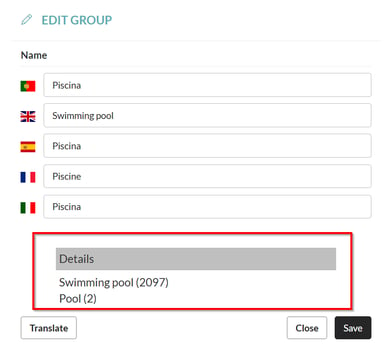
How to view associated details on the details group page:
After creating the details and associating them with the respective group, it is possible to view the associated details by ID and name on the details group page. To do this, simply select the name to open the editing window, where the associated details are displayed, namely the name and ID.
Search by detail groups within the Property List:
Search for properties using filters by detail groups that correspond to the property’s specific characteristics.
1) Open the Properties List and click "Open Filter":

2)In the filters, select “Property” and choose the detail to view properties that match your requirements.
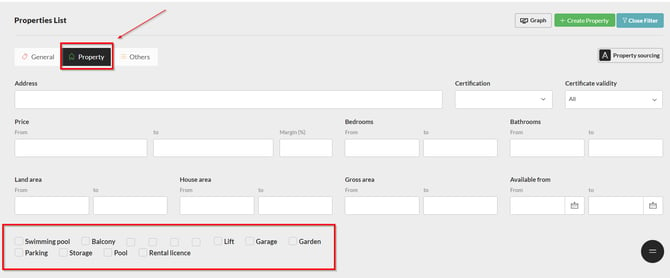
Property search based on the Buyer Client's profile:
- All created groups will also be displayed as filters within the buyer customer profile.
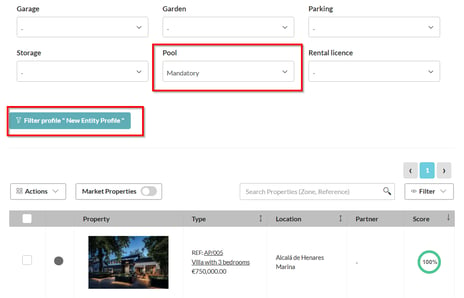
This feature is available on the PLUS and PREMIUM plans.
For more information, please contact us via email: help@casafaricrm.com