![login-logo.png]](https://helpcenter.casafari.com/hs-fs/hubfs/login-logo.png?height=23&name=login-logo.png)
Have you raised a new property for your portfolio and need to create a page for it in the CRM?
Create your property page, identify the main features, upload photos, documents and virtual tours. Show your property easily to potential clients!
Easily showcase your property to potential customers!
1. How to Create a Property
2. Fill in the Property Details
3. Side Panel
1. How to Create a Property
Properties can be created through:
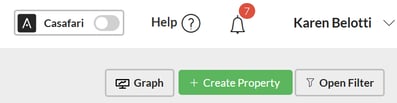
- Using the shortcut within the Dashboard;

- Through the side menu: Properties>Lists>Create Property;
 Through Prospection properties list: Properties > FSBOs: Create a property directly from the property list on prospection window. Click the "create lead" option and in the tab below, select "create property" and edit the reference. The property will appear directly in the property list.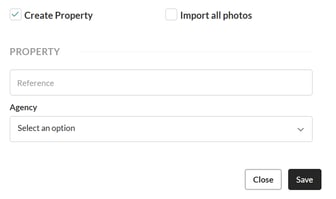
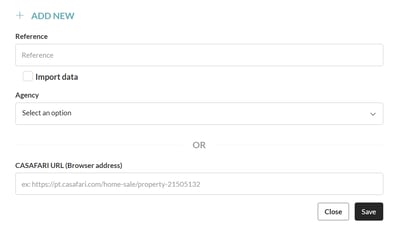
1.1: Reference: Enter the property's reference number. If you work with more than one agency/team, you must indicate the agency/team to which it belongs by clicking the "Create Property" button. The reference number can be filled in manually or automatically.
**To apply the automatic referral rule, please contact help@casafari.com.
Add property via CASAFARI: If your CRM account is synchronized with your CASAFARI account, you can import property data using the respective URL.

1.2: Import data from external properties: When creating a new property, it is possible to import properties that already exist externally by selecting the "Import data" option:

After checking the box to import data and fill in the reference, click Save. A window will then appear where you must fill in the "energy certificate" for the property to be imported, for Portugal. If the property to be imported is from Spain, you must fill in the "cadastral reference" for the property.
Importing properties from Portugal:
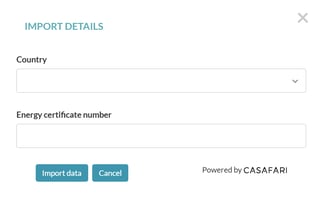
Importing properties from Spain:

2. Fill in the property details:
- Labels: Add labels to properties: labels are a tool that allows you to distinguish and/or highlight groups of properties and contacts. Learn more about labels by reading our article.
Click the + button to add labels.

- Price Analysis: The property price analysis takes into account the property's designated value within the CRM and compares it to similar properties currently on the market. By clicking "price analysis," you can view the average value and also generate a PDF report of the property that includes data on the value and a market analysis, points of interest, and comparable properties. To hide the price analysis warning, simply click "disable warning" in the lower left corner.
 Property Page: Access the property page within CASAFARI. This feature is only available to subscribers with a synchronized CASAFARI account.
- Share: By clicking the share button, you can share the property on major social networks. You can choose the language and whether you want the property to be viewed from your website or from a Smartview.
- Print: Print property showcase sheets in A3 or A4 sizes, as well as the property's Technical File.
- View (website and Smartview): View the property on the website or via a Smartview link. Smartview will only display the property's publicly available information.
- Portals: View and select the property to be exported to the main real estate portals. To learn more about portals, read the article.

- Set the main features of the property in the "Main" tab:
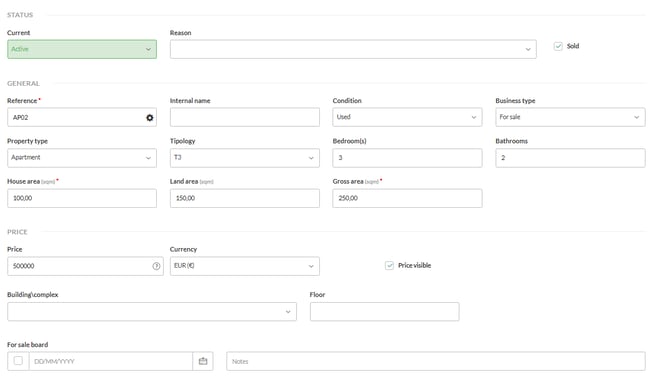
Status: A property can be in one of the following statuses: inactive, active, or pending. Typically, statuses are configured as follows for a property:
Inactive: A property has already been sold or rented.
Pending: The property is in the configuration/preparation phase in the CRM;
Active: A property with all configurations completed in the CRM and can now be published on real estate portals, websites, etc.
Changing a property's status or editing it after approval may be subject to supervision and validation. Learn more about property validation in this article.

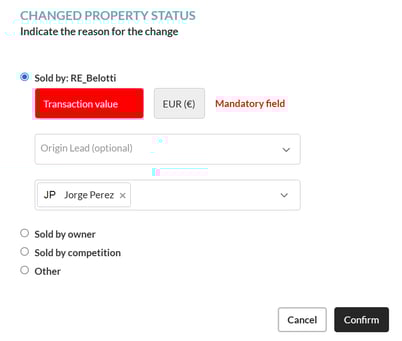
Property sold: When the property is sold, you must fill the "sold" box and, after that, save the property and a notice will appear where you must fill in the information about the transaction value, source lead (optional) and indicate who made the sale (Agency and agent, owner, competition or other) and confirm.
General data: Fill in the property characteristics, price, typology, etc.
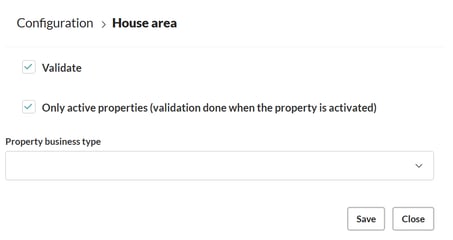
Setting Required Fields: Required fields for a property can be configured manually by going to Settings > Required Fields and clicking "Properties."
This section contains a list of required fields. Click on the field you want to edit, choosing between "Validate" or "Validate only when the property is activated," and then select the real estate transaction type.
 Exclusive property, off-market and visibility:
- Exclusive Property: By checking this box, the property is signed as an exclusive listing for the agency.
- Off-Market Property: The property can only be shown to selected clients, without public disclosure. The "Off-Market" box prevents publication on portals and the website. Learn more in this article about off-market properties.
- Website Visibility: For the property to be visible on the website, the "Visible on Website" box must be checked.
- Featured: To set a property to appear as a featured listing on the website, check this box.

Slideshow: Define here which Slideshow you want to include the property.
 Internal Data:
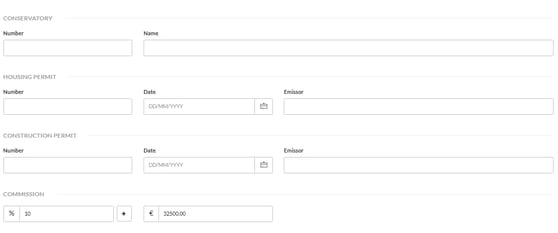
Add information about the contract (CMI) and keys, energy certificate, tax registration, licenses, and commission details.

Import and Export:
- Block Import: Check this box to prevent external data from being added to the property. This option prevents a property from being fully updated in the CRM when a daily data import is required.
- Block Export: Check the export block box to prevent the property from being exported to real estate portals.

- Location:
Fill in all the location information with the appropriate details and, in the address field, add the street name.
Location on the map: You can add the location to the map using the data provided within the CRM under "location" by clicking "search with defined location parameters" or manually edit it by adding geographic coordinates by clicking the "edit" button.
Visibility option: If you want the exact location to appear on the website and real estate portals, simply select the "visible" option.

- Descriptions:
Describe the property's features and adapt them to the various fields.
Generate descriptions with AI: You can use artificial intelligence to generate comprehensive descriptions based on general property data. The AI-powered description can be generated in any language. Afterwards, it's important to verify that the descriptions are accurate.

Title: Fill in the property title according to the relevant characteristics of the property.
Keywords: Keywords are words related to the property's features and will be used to be found in Google search engine results.
SEO Description: A short description of no more than 130 characters that includes the property's main features. This description will be visible in search engines.
Short Description: A description of up to 130 characters with the property's main features.
Description: This description should go into more detail about the property's features, including all details according to their importance. This description will be included in real estate portals when the property is exported.
HTML Description: Write the property description here, which will be visible on the website.
PDF Description: This description will be visible on the property's showcase page.
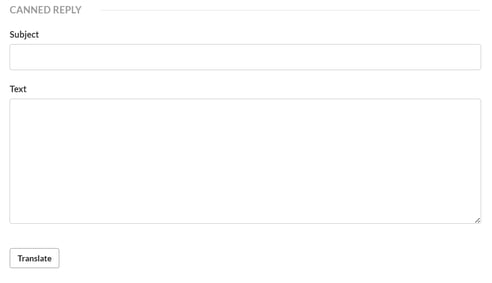
Canned Repply: The agent can send a response to the potential client about the property they're interested in. Edit the title and text options, and click to translate into the desired language.
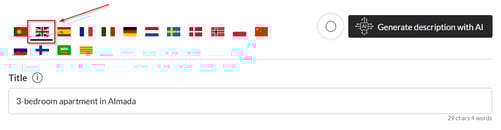
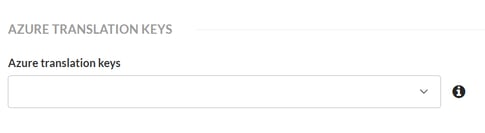
Translations: Translations must be done manually by clicking the flag of the language to be translated. Please note that an AI description can be generated for each language.
- Details:
Add details regarding property amenities, such as garage, pool, year of construction, etc. If desired, you can add more details to the property by creating and organizing them in the Settings > Custom Details area. These details will not be exported to real estate portals and will only be visible on the website.
From the Configuration > Custom Details area, categories are separated by columns where you can create and organize new details/features for a property.
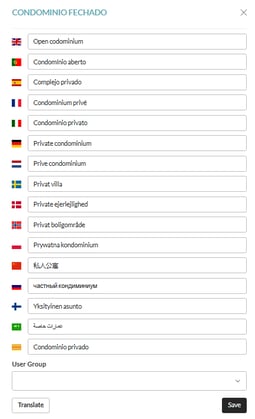
Existing details cannot be deleted, but you can change their order or edit their names. To change a name, simply click on the desired detail, edit it, and add it to a group. You can also translate it into your preferred languages. Once edited, the detail will appear in orange.


- Media:
Upload photos and property documents.
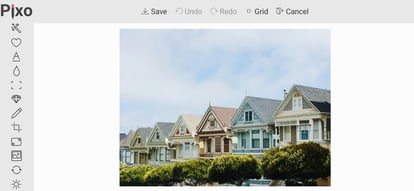
Photos: Upload photos by selecting files from your computer. Once uploaded, you can edit it within the CRM by clicking the pencil icon in the lower right corner. Within the editing section, you can change the image quality, apply filters, and more. To learn more about the photo editor, read our article.

Photobooking Service: If your property doesn't have photos, you can request an audiovisual service in partnership with CRM.

Documents: Upload files from your computer's files; these files can include brochures, certificates, licenses, blueprints, etc.
Once uploaded, the file will appear in the document box, and you can organize it using the tools available in the box:
"Visible": This option allows you to select whether the document will be visible on the website. To change the visibility, click the pencil below "Settings" and select the "Visible" option if you want the document to appear on the website.

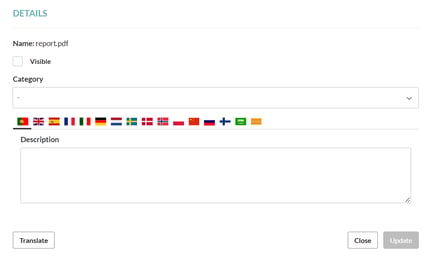
"Category": Organize your document according to a category:

"Upload to portals": This option is used to export files to the "Rightmove" portal. For the export to work correctly, the document must be included in a category.
"Available in predefined response": Select this option if you want the file to be included in the property's predefined response.
"Configuration": Open the settings tab and edit the visibility on the website, category, and add a description for the file, then translate it into the desired language.
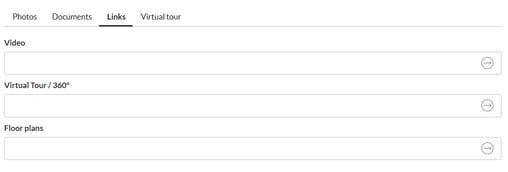
Links: Upload videos of the property to be displayed on the website. Videos should be uploaded to channels like YouTube and Vimeo, and their respective links should be included.
Under "Video": Add a video of the property where you can view the entire property.
Under "Virtual Tour/360º," add an interactive virtual tour video.
Under "Floor Plan," add a video showing the property's floor plan.
Virtual Tour: Add panoramic photos and create a virtual tour of your property. For more details on creating a Virtual Tour, see the "?" button available in the creation area.

- Contacts:
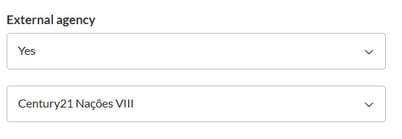
Add information about the property's owner, agent, and agency/team. Fill in the "external agency" field if the property is linked to a different real estate agency.
In "Possible customers" clicking the button will display potential clients related to the property's features. For more details on submitting a property to the list of clients generated in this area, see the "?" button located in the same area for this action.

- Notes:
Add internal notes relevant to the property.
- Activity:
In the activity tab, add property-related events, such as tours, offers, and meetings. To learn more about creating events, read the article. This tab stores the entire history of events associated with the property.
- Information:
All property information in the CRM is recorded here, including creation date, last update, website access, and complete history.
Website Visits: The number of visits to the property's website, which can be viewed as a graph by clicking "Generate Graph."
History: This record shows all changes made to the property. You can view price changes and full activity details. To view the logs, click "View Logs."


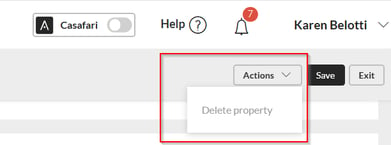
Deleting a property from CRM: You can permanently delete a property from CRM. To do so, click the "Actions" button and then "Delete property."
- Side Panel:
Within the property page there is a side panel on the right where you can view the following information:
- Leads/Deals:
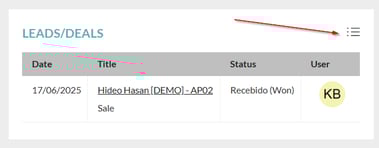
In this panel, you can see all the leads associated with the property. To view the details in a list, simply click the button in the top right corner.
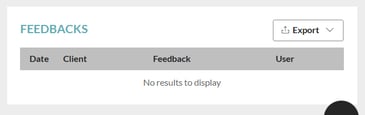
- Feedbacks:
Here you'll find all feedback from potential buyers related to this property. This feedback can be exported to an external file.
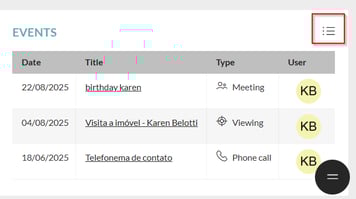
- Events:
You can view all events associated with the property. Simply right-click in the top corner and a list will appear.
- Smartlinks:
Here you can view all smartlinks that include the property. To learn more about smartlinks, read the article.
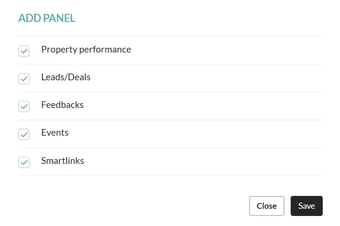
- Property performance: This dashboard allows you to quickly and centrally view various performance indicators. It includes the total number of leads received and the number of leads registered in the current month, the smartlinks generated and the total number of clicks, the associated visit events and the number of scheduled (future) visits, as well as the registered offer events and the average offer value.
Manage panels: Change the display order of panels in the side menu or click "Manage Panels" to add or remove information as needed.
This feature is available to all CASAFARI CRM users.
Have you set up your new property and want to publish it on your website?
See this article for instructions.
For more information, please contact us by email: help@casafaricrm.com