![login-logo.png]](https://helpcenter.casafari.com/hs-fs/hubfs/login-logo.png?height=23&name=login-logo.png)
Lead management is essential to growing your business!
Create new opportunities, showcase your property portfolio, and close deals.
Lead Creation
Leads can be manually created in the CRM or imported (more information about the Lead Importer here).
There are three ways to create a new lead manually within CRM:
1) Through the dashboard panel:
On the dashboard, go to Leads/Deals:

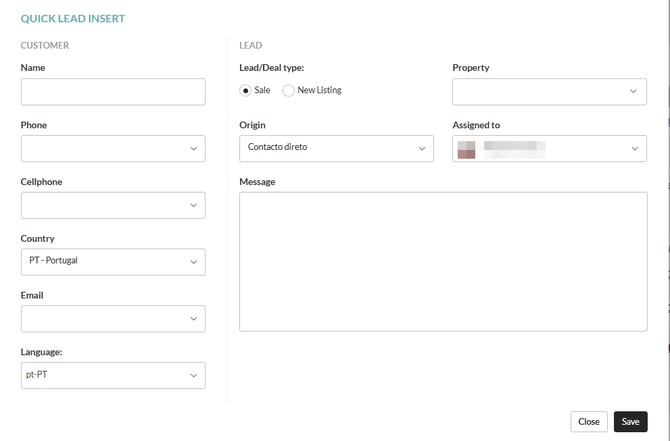
Click on the "Add New" option:

Fill in the potential customer's name and contact information.
Define whether the lead is a "sale" or a "new listing".
Choose the lead origin, define the responsible agent, and the property of interest.
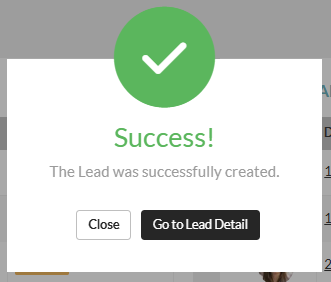
Write a message, click Save, and proceed to the lead details.
2) Through the side menu:
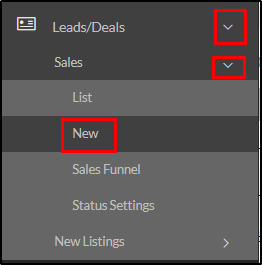
- Sales lead: Click on Leads/Deals > Sales > New
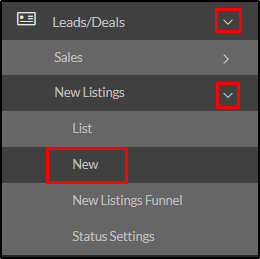
- New listing: Click on Leads/Deals> New listings > New
3) Creating leads through the private property prospecting list:
Through the list of private properties available on all real estate portals, it is possible to add a prospecting lead: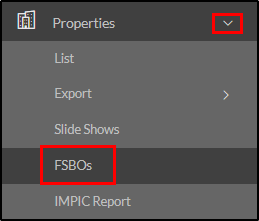
- In the side menu, go to Properties>FSBOs, within the panel on the right, click on "create lead":
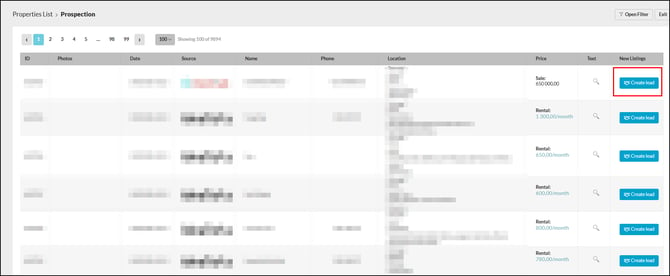
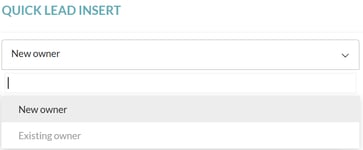
When adding a lead, there is the option to add a new owner or choose from an existing one:
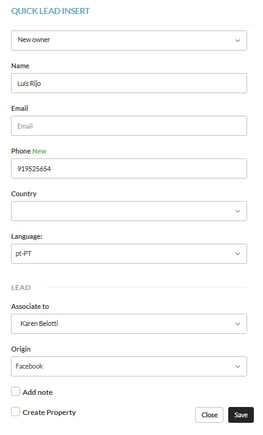
If the chosen option was "New Owner" you must fill in all fields:
When creating sales leads and/or prospecting leads, it is important to have already defined the status for both types of leads. If you have not defined the lead status, you will not be able to add new leads in the CRM.
See this article to learn how to create and configure lead statuses.
Lead Management
After being created in the CRM, when accessing the lead, it will enter the system associated with the first created status and will have access to the following data:
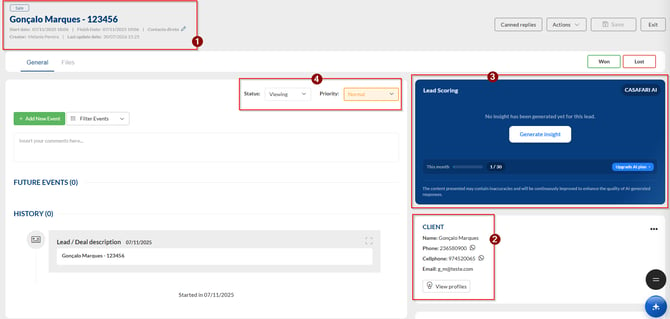
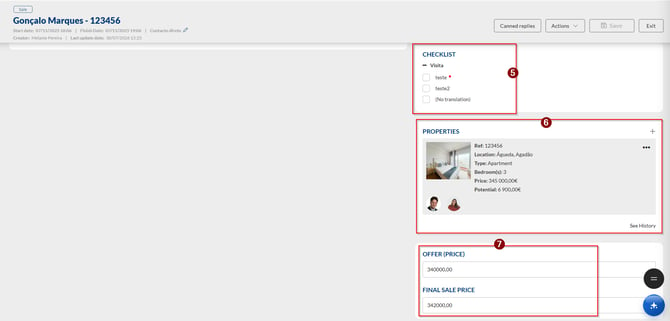
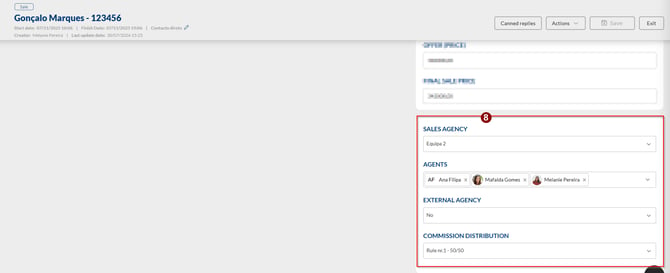
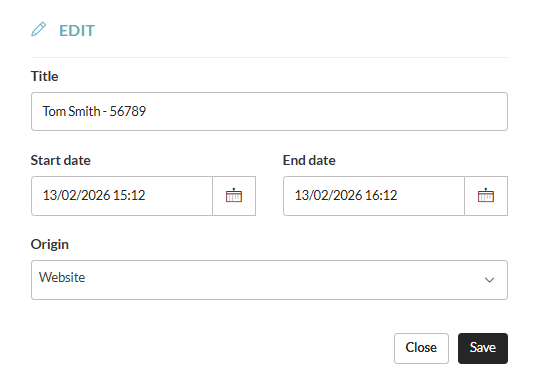
1 – Client name, property reference, creation date, lead origin, and creator (some data can be changed/edited by clicking the pencil icon):
Start date – Date the lead was created (editable)
Finish date – Date the lead was closed (editable)
Last update date – Date of the last update made within the lead (not editable)
Once closed, the Outcome date will also appear – Date on which the lead received the result Won or Lost (editable).
2 – Client details:
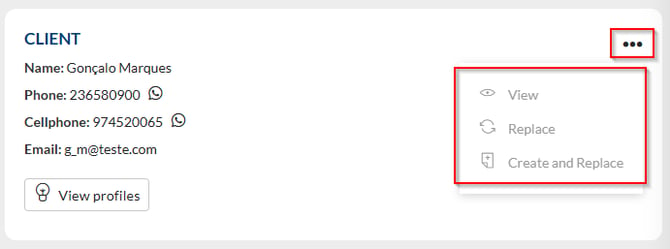
View – Opens the client’s profile page within the CRM
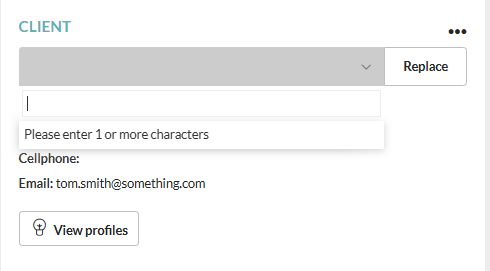
Replace – Option to replace with another client
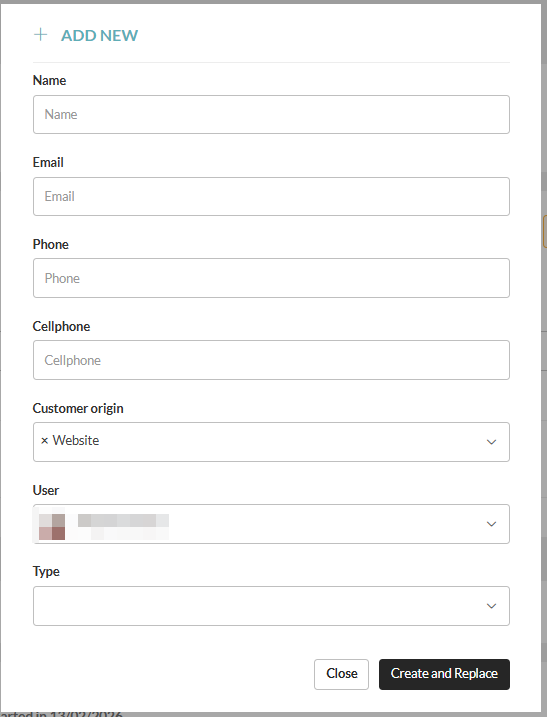
Create and Replace – Option to create a new client to replace the previous one
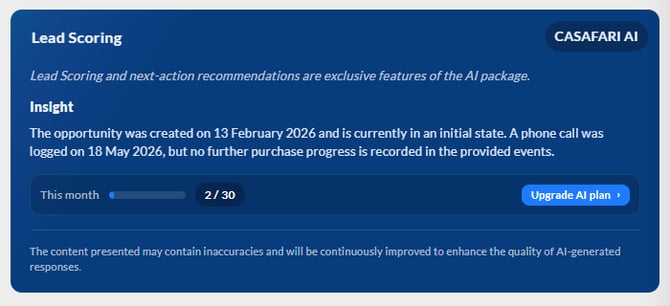
3 – Lead Scoring: Lead Scoring is a feature that automatically assigns a score to leads based on their level of interest and interaction, helping to identify those with the highest likelihood of conversion. This enables sales teams to prioritise follow-up with the most relevant contacts and optimise the sales process.
Insight: Insight is another Artificial Intelligence (AI)-powered feature that analyses the data stored in the CRM to generate up-to-date reports on a lead's activity. The information is consolidated from properties, events, contacts, and other CRM records, providing a clear and detailed overview of the lead's activity and overall engagement.
Note: Artificial Intelligence (CASAFARI AI) is available as an additional CRM package. For more information about this package or to learn how to purchase it, click Upgrade AI Plan or contact your account manager.
4 – Current status and priority of the lead
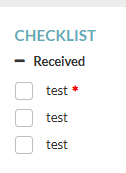
5 – Lead checklist, if configured (directly associated with the status the lead is currently in)
Note: Checklist tasks marked with a red asterisk are mandatory completion tasks. Without completing them, you will not be able to change the lead status.
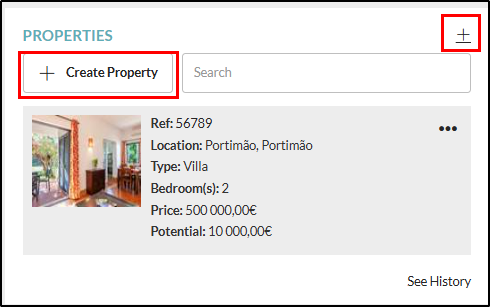
6 - Property associated with the lead, with the possibility of adding more properties. You can search for an existing property or create a new one.
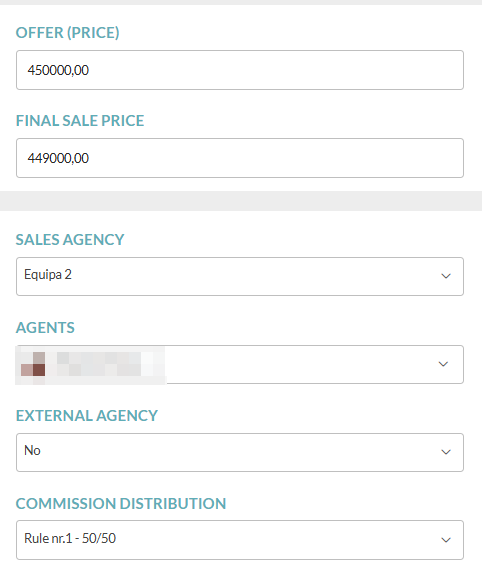
7 – Offer and final sale price
8 – Information regarding the agency, associated agents, external agency, and commission distribution.
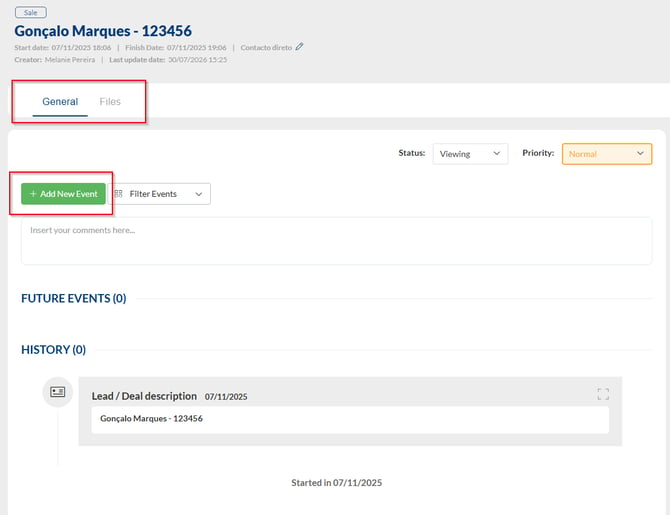
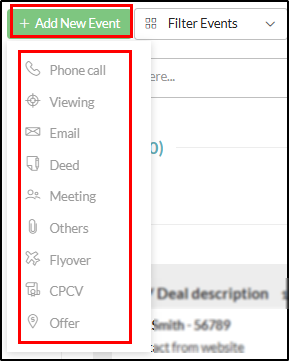
Within the lead, you can also add Files and, under the General tab, add comments as well as the following types of events:
It is also possible to send canned replies to the interested client, where you can choose the text you want to send.
Canned replies are reusable standard messages used to respond quickly, maintain consistency, and save time in customer service.
Note: Sending these replies requires manual action within the lead. Even with canned email templates configured, you can always edit them before sending and include the property url.
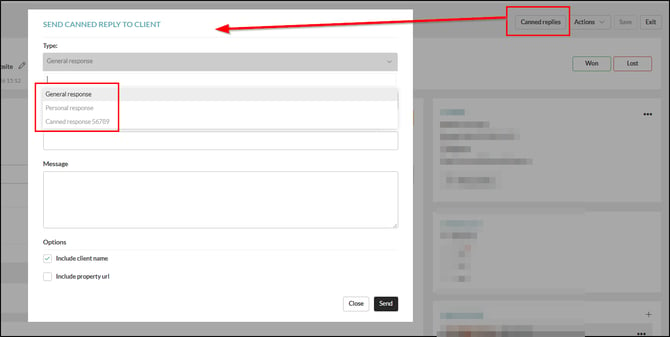
How to configure different types of canned replies:
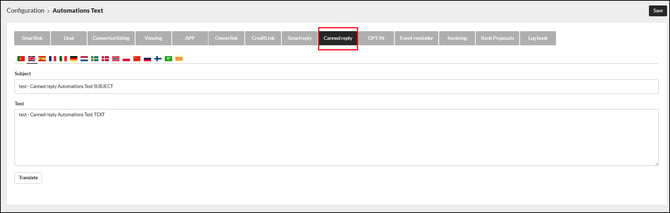
General Response – Go to Configuration > Automations Text > Canned Reply
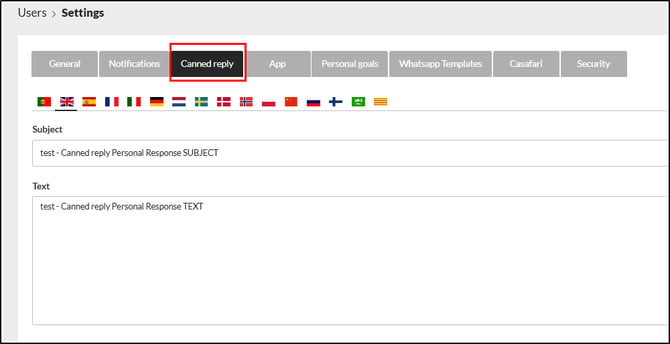
Personal Response – In the top right corner, click your name and go to Settings > Canned Reply
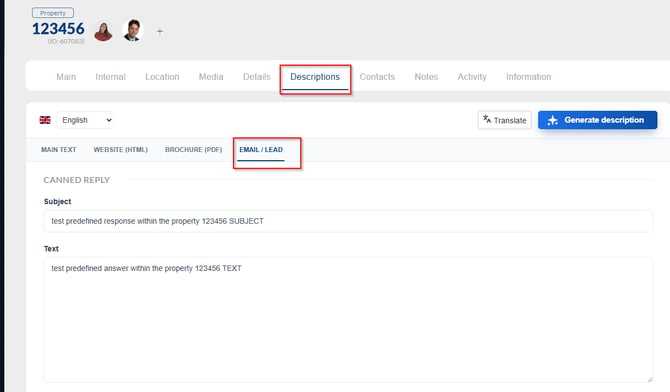
Canned Response “Property reference” – Within any property, you can define a specific reply by going to the “Descriptions” tab > Email/Lead and filling in the “Canned Reply” field:
Other possible actions within the lead:
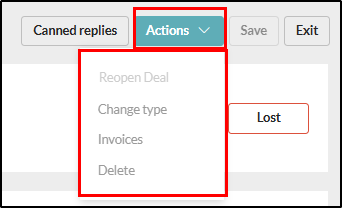
If the lead is already closed, you have the option to reopen the deal. You can also change the lead type to a listing lead or vice versa, check invoices (more information regarding the Invoicing module here), or delete the lead:
Closing Leads
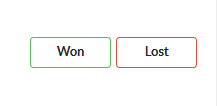
- To close a lead, simply select Won or Lost.
- If you select Lost, you must choose a reason:
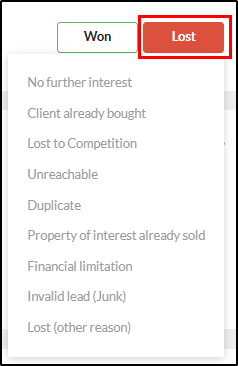
Note: These are currently the available reasons in the system and additional ones cannot be added. If none match exactly, select “Lost (other reason)” and write the appropriate reason.
- If it is a Won lead, please ensure the following data is properly completed so that commission distribution is correctly defined (learn more about commissions in this article).
When selecting Won, the following alert with a checklist will appear:
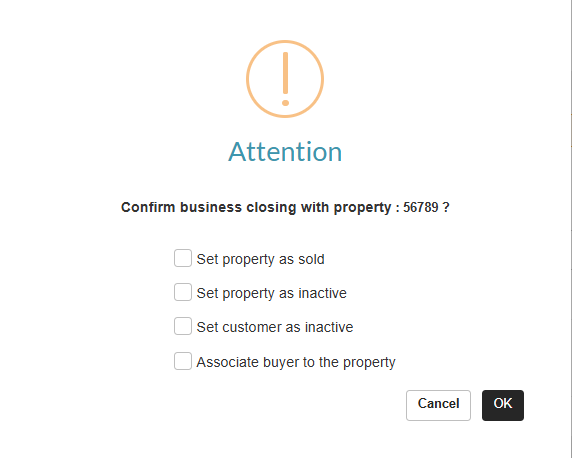
Set property as sold – The property is marked as sold, remains active in the CRM, and visible on the website (if this option is active).

Mark property as inactive – The property is marked as inactive and will no longer be visible on the website.
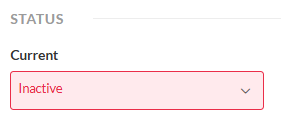
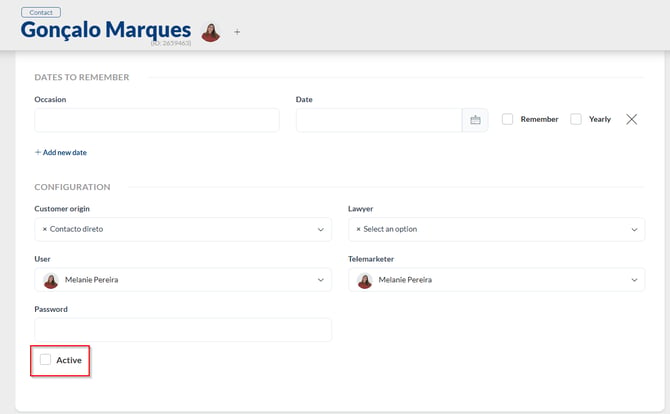
Deactivate associated client – The buyer client associated with the lead becomes inactive in the CRM.
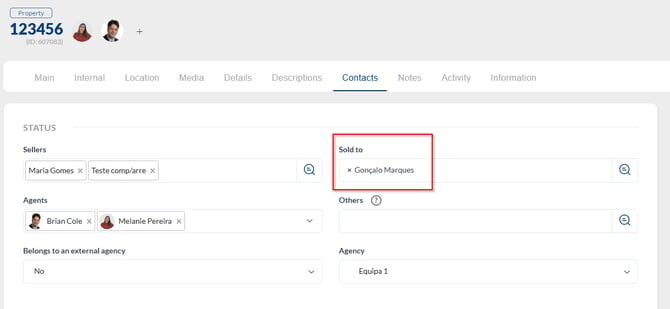
Associate buyer with the property – The buyer client becomes associated with the property.
Managing the Lead List
In the lead list, it is possible to perform several actions to facilitate management, including deleting leads, changing lead status, defining the lead result, and changing associated agents:
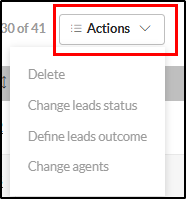
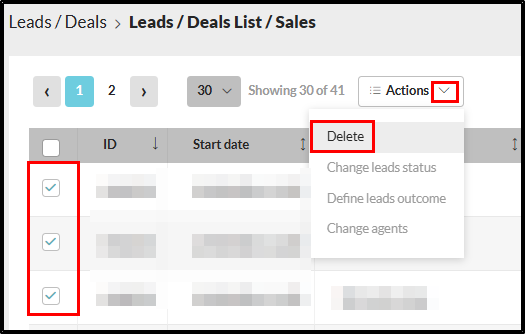
Delete leads – Go to the lead list, filter the type of leads you want, select one or more (or all), click Actions and then Delete.
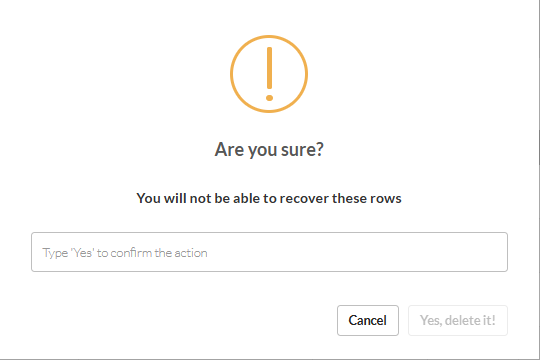
Confirm the action and type “yes” in the box.
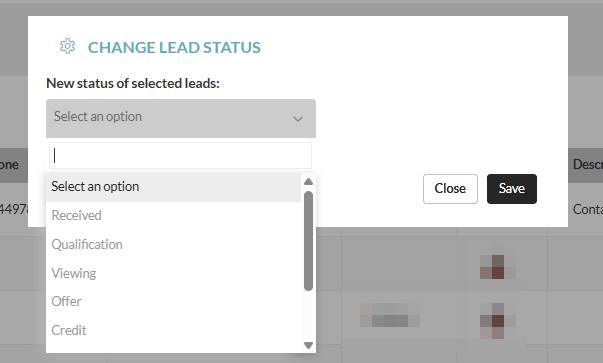
Change lead status – Following the same procedure, filter the leads you want, select them, and click Change lead status.
A box will appear where you must select the status to which the leads should be changed:
Define lead result – To perform this action, filter for ongoing leads. You can only change the result to Lost.
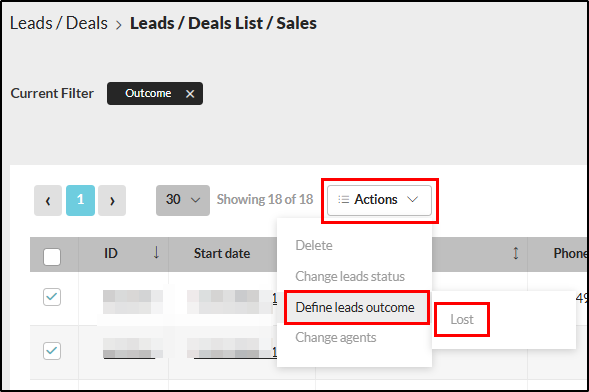
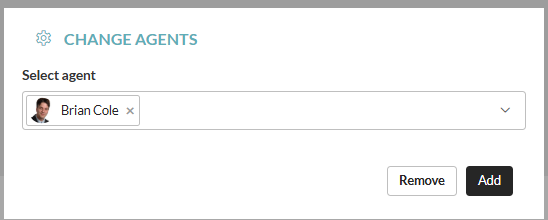
Change agents – With this option, you can remove or add agents associated with the selected leads:
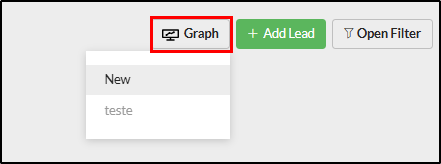
In addition to the above actions, you can also generate charts/graphs with the selected leads (learn more in this article) and export them.
Export lead list – Go to the lead list, open the filter, and select the desired filters.
Then close the filter and select the columns with the information you want to export:
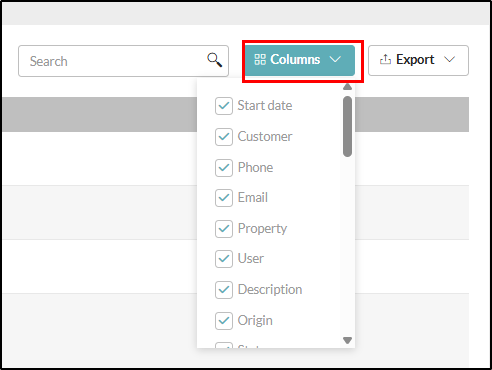
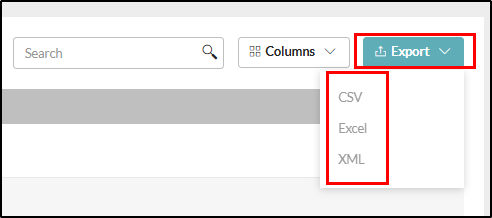
Click Export and choose the file type:
This feature is available for all CASAFARI CRM users.
For more information, please contact us by email: help@casafaricrm.com