![login-logo.png]](https://helpcenter.casafari.com/hs-fs/hubfs/login-logo.png?height=23&name=login-logo.png)
Imovirtual is the gateway to more than 300,000 properties in Portugal. By exporting to Imovirtual you will find opportunities for great deals and increase the visibility of your properties.
Step by step:
-
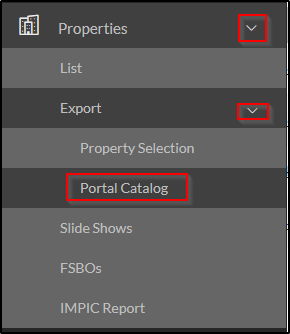
Create an account on the Imovirtual portal. In case you don't have one, you can request registration through the CRM: go to Properties - Export - Portal Catalog - Imovirtual and click on “Apply for Registration”.

-
Fill in the details requested by the portal and click on “Save”. Wait to be contacted by the portal to finalize the creation of your account.
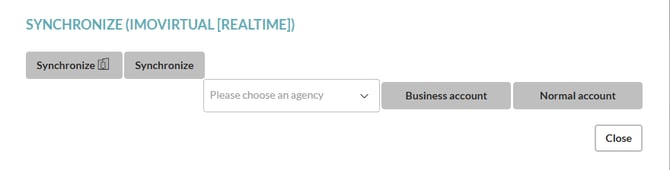
- Is it possible to have an agency account and a developments account (Learn how to create developments in the CRM. See this article):
-
At the end of this process, click on “Synchronize” in the Catalogue of Portals.

-
If necessary, in the same location, set the limit of properties to be exported in the Settings option.
- It is possible to choose the contact you want to send – either by company or by agent.
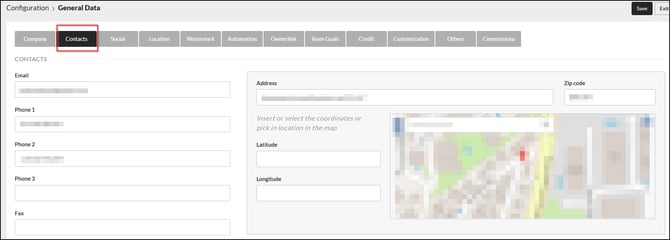
If you choose by company, the data sent will be the one filled in under Configuration > General Data > Contacts.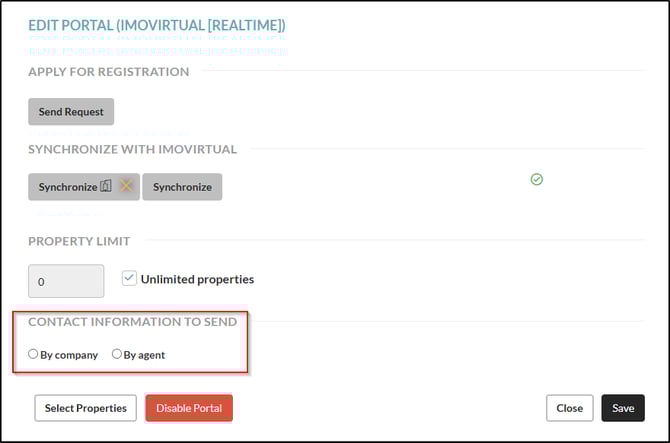
-
Go to Properties - Export - Properties Selection and select the properties that must be sent to Imovirtual.
To learn how to select properties for the portals and find out more about property limits, see this article: How to export properties to real estate portals?
Imovirtual observations:
-
It is mandatory to fill out the Energy Certificate for all properties whose business purpose is the sale.
-
It is mandatory to fill in the License of Use for all properties whose business purpose is renting.
-
By default, CRM always sends the contacts of the agent associated with the properties. However, this information is only published if you have contracted that plan with Imovirtual.
-
Imovirtual provides up to a 1-month free subscription for new agencies or agencies without an active account for more than 3 months.
- Each time a property level change is made within the CRM, we send that change. However, the portal may take longer to process it.
Consultation of the exportation history
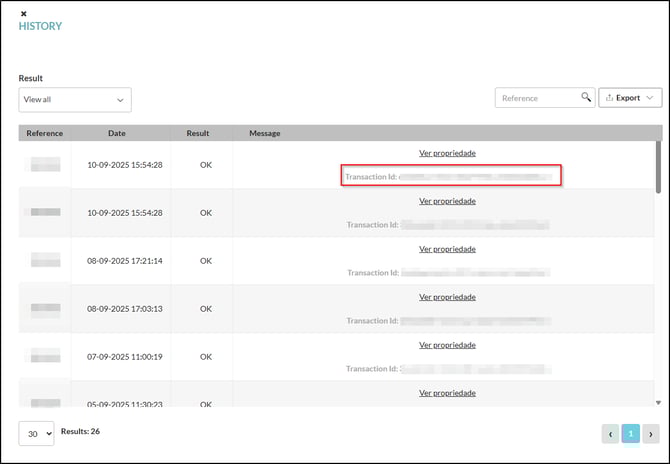
If your properties have been successfully updated from CRM to the portal, you can see the following messages in the History:

- The Ad has been removed - when you mark property in CRM as "sold", this information is sent to Imovirtual. This message indicates that the property was removed from the portal.
- The Ad was deactivated successfully - after inactivating the property in the CRM, this information is communicated to the portal. This message indicates that on the portal side, this property is already deactivated.
- View Property - any change you have made to the property within the CRM was successfully updated in Imovirtual. In this message, you can also access the link to the property in the portal.
If, on the other hand, you receive any of the following messages, it means that the actions you have carried out in the CRM have not been published on Imovirtual. See below:
- Zip Code is invalid - check and correct the postcode of the property you entered in CRM.
- Invalid dimensions for the image https://cdn.proppy.app/propertyfiles/3/8322/0.png : Width (178) and height (178) are less than the minimum required values (300, 300 url) Operation failed: Failed to update - check the dimensions of the image you inserted in the CRM. You can know which image by clicking the link provided. The Imovirtual has minimum values for the size that the images of the properties must have.

In all messages, you can obtain the Transaction ID, which is the message identifier in Imovirtual.

Learn how to improve the quality of your listings on Imovirtual. See this article.
Frequently Asked Questions:
"I am exporting properties from a different system. What do I need to do to switch to CASAFARI CRM"?
Contact your Imovirtual account manager and ask him to change your import system to CASAFARI CRM.
This feature is available for all CASAFARI CRM users.
For more information, contact us by email: help@casafaricrm.com