![login-logo.png]](https://helpcenter.casafari.com/hs-fs/hubfs/login-logo.png?height=23&name=login-logo.png)
Index:
1. Requirements and configuration for use:
2. VeriCasa token configuration in the CRM:
4. Validation and notifications:
5. AI drawer response messages:
6. Other messages displayed in the AI drawer:
7. FAQ:1. Requirements and Configuration for Use
Conditions of use:
The use of the integration requires:
- Having a VeriCasa account with available credits;
- The user must have permission to send requests to VeriCasa, controlled by the permission setting “Vericasa: send documents”.
1) How to Create a VeriCasa Account
A VeriCasa account must be created through the partnership page (VeriCasa Partnership Page) so that the client is recognized as a CRM client.
There are two ways to do this:
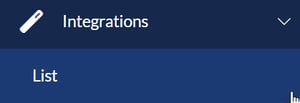
1. In the Integrations menu, there is a VeriCasa card. Click on “Learn more” to open the registration/login page:
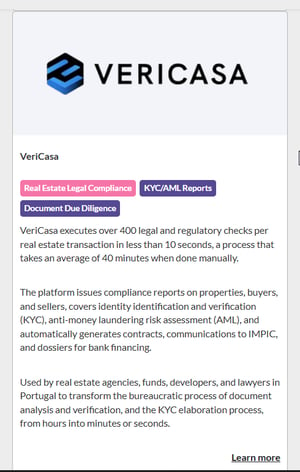
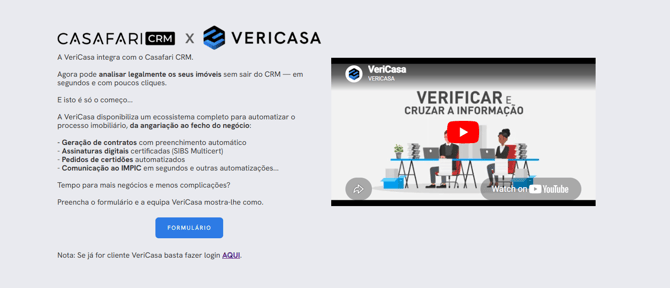
To create a new VeriCasa account: click on “Form”, fill in the required fields, and submit the form.
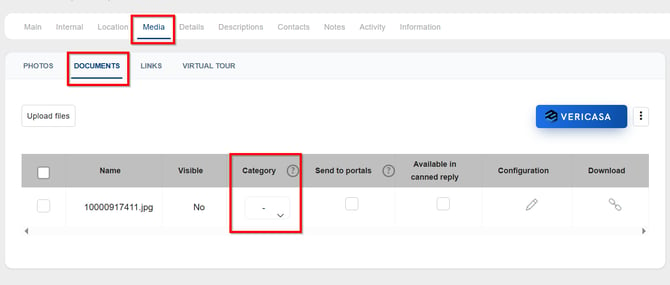
2.Through the property details page: a VeriCasa button is available in the “Media/Documents” tab within the property details page for all clients in Portugal.
2. VeriCasa Token Configuration in the CRM:
The token can be configured in:
- “General Data”: General Data > Others > VeriCasa token
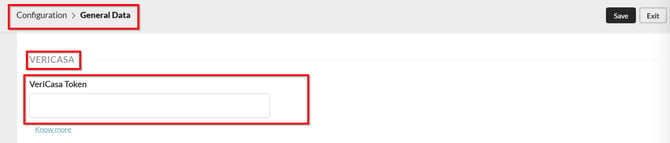
- For multi-agency clients: Agency Data > Others > VeriCasa token:
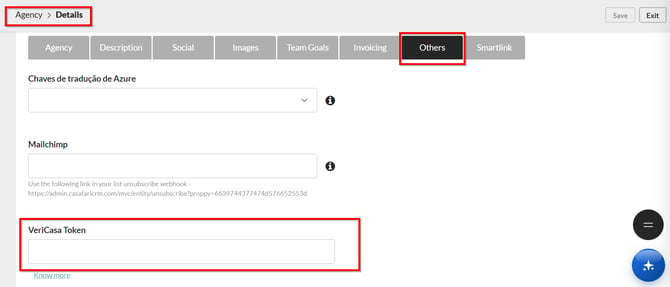
*Note: currently, the token must be requested from VeriCasa.
How the document submission flow works:
1. Go to the property details page, in the “Media/Documents” tab, where the VeriCasa button is available. By clicking it, an AI drawer opens.
2. When the configuration is complete and there are documents associated with the property, a form becomes available with the required and optional file categories for submission, depending on the property type.
3. Document characterization:
Documents can be categorized in two ways:
-
Through the “Media/Documents” tab, in the Category column:
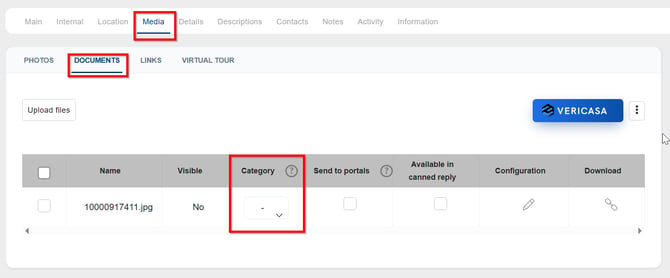
Directly within the AI drawer:
- Mandatory categories are highlighted in the blue section.
- Optional categories are listed in the “Optional Documents” section, shown in grey.
|
Obrigatórias |
Opcionais |
|
Caderneta Predial Urbana / Rústica |
Certidão Permanente de Fração Autónoma |
|
Certidão Permanente |
Certificado Energético (doc) |
|
Certidão da Conservatória |
|
|
Caderneta Predial Rústica |
|
|
Certidão de Teor da Caderneta Predial |
|
|
Certidão Permanente de Registo Comercial |
|
|
IMI - Prédios Urbanos |
|
|
IMI - Prédios Rústicos |
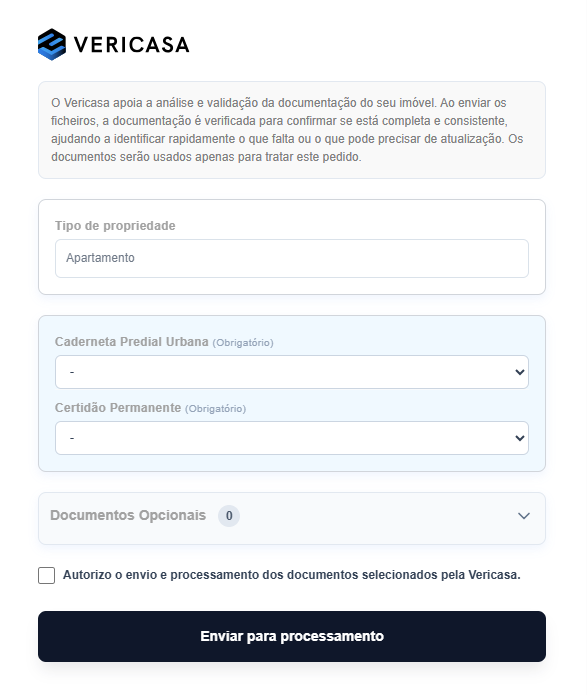 The user must select, for each category, which uploaded document they wish to submit.
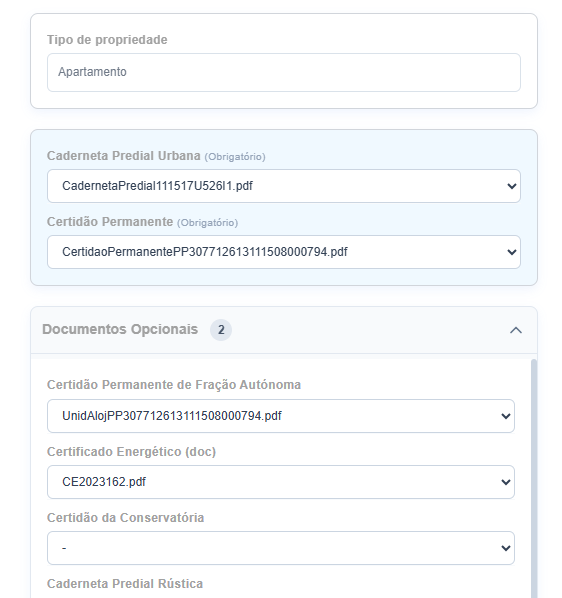
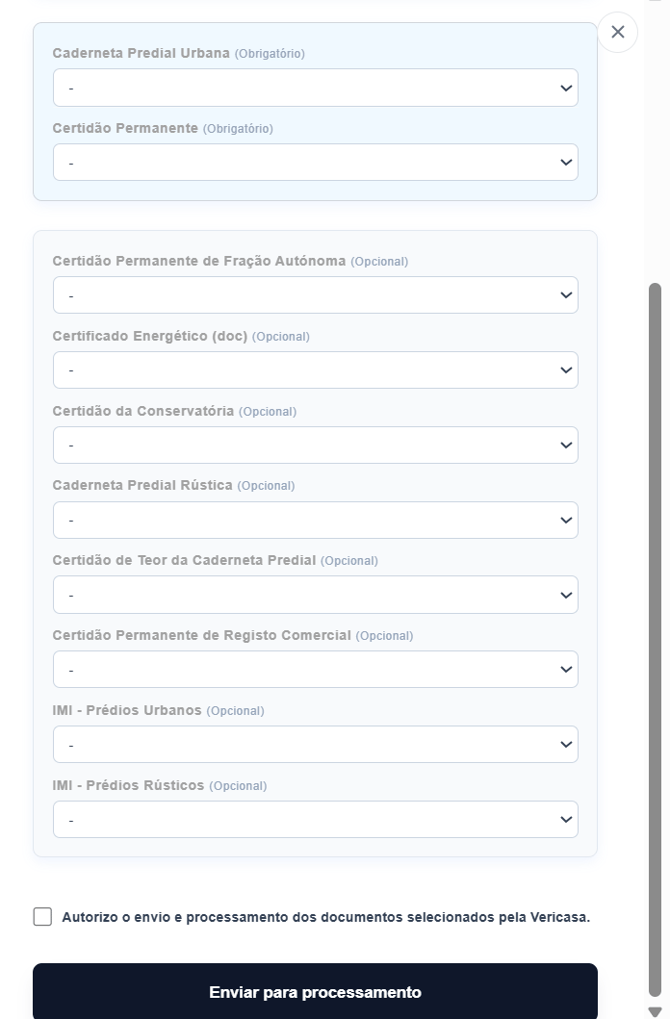
At the end, the user must select the authorization for the submission and processing of the documents, and click “Send for processing”.
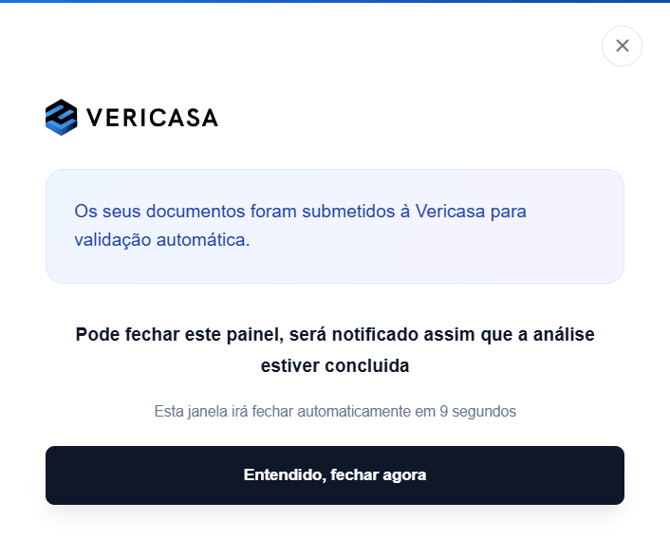
When clicked, the drawer informs the user that the documents have been submitted for validation and that they will receive a notification once the review is complete.
4. Validation and notifications:
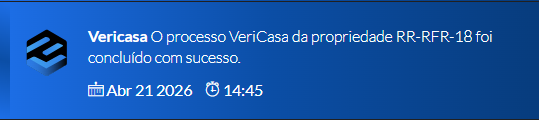
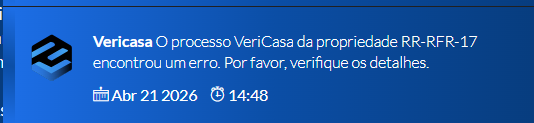
The validation process may take a few minutes. When the CRM receives the response from VeriCasa, a notification is generated for the user:
Successful report generation notification:
Process error notification:
5. AI drawer response messages:
-
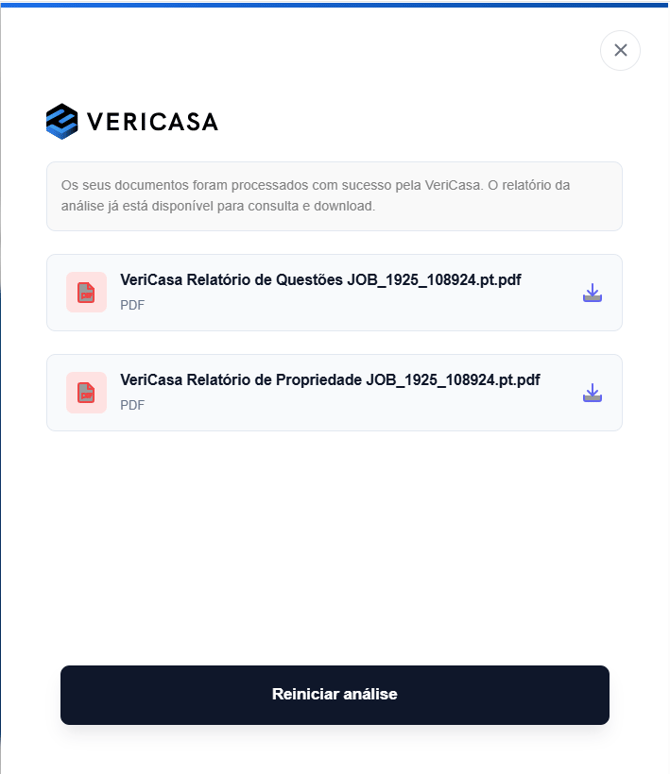
Success — report available for viewing and download:
After the submitted documents are successfully validated, a report is generated by VeriCasa and made available for download:
-
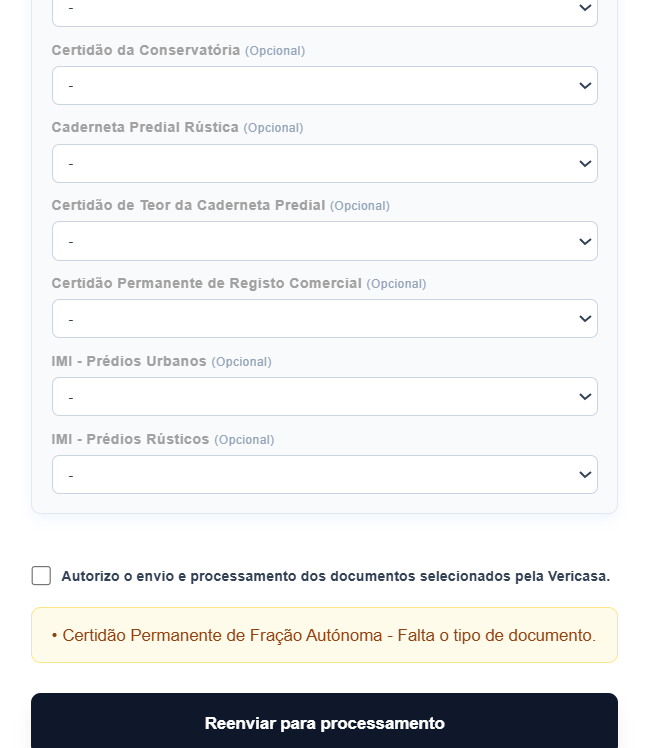
Integration error — missing documents
If a required document for validation is missing, the message will be displayed at the bottom of the drawer:
-
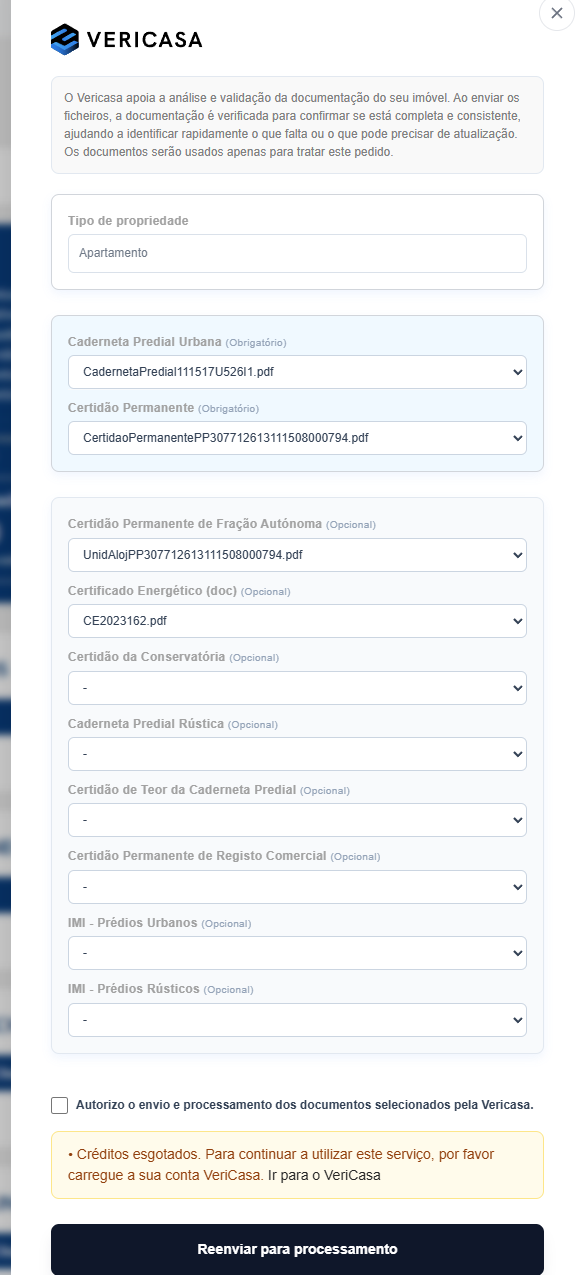
Integration error — insufficient credits:
Restart analysis:
In some cases, it may make sense to request a second legal analysis when the first one is inconclusive or presents significant discrepancies between documents that could hinder bank credit approval, for example.
In such cases, it is possible to resend the documentation to VeriCasa using the “Restart analysis” button, which becomes available after the first result is generated.
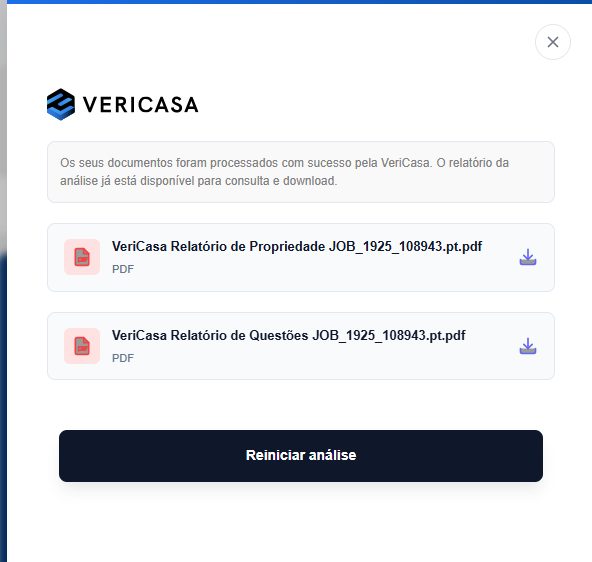
When clicking the button, the drawer returns to the submission form for selecting categorized documents.
Note: if the drawer is closed before new documents are submitted, reopening it will display the most recent analysis. This ensures that reports are not lost if the user chooses not to proceed with resubmission.
6. Other messages displayed in the AI drawer
-
When there are no documents associated with the property yet:
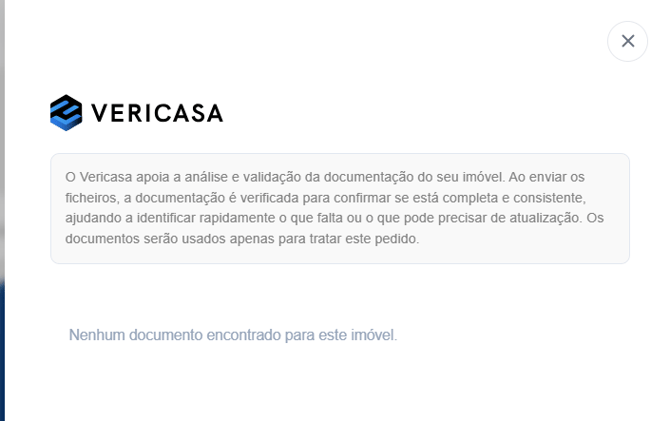
-
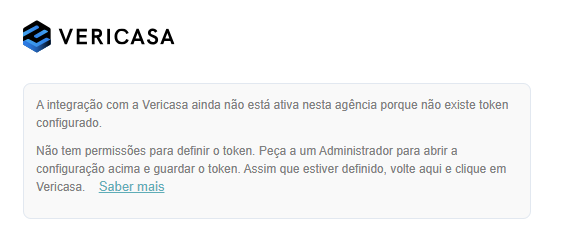
When the agency has configured the token but the user does not have permission to upload files to VeriCasa.
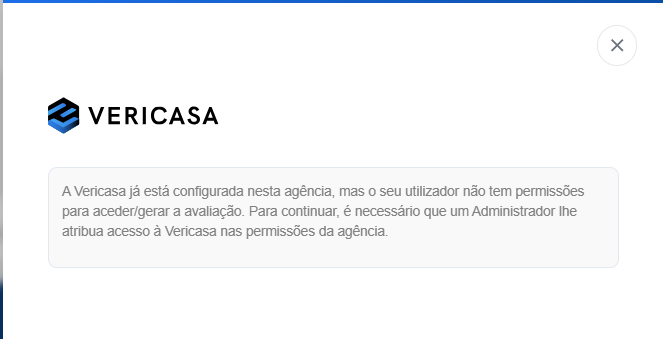
-
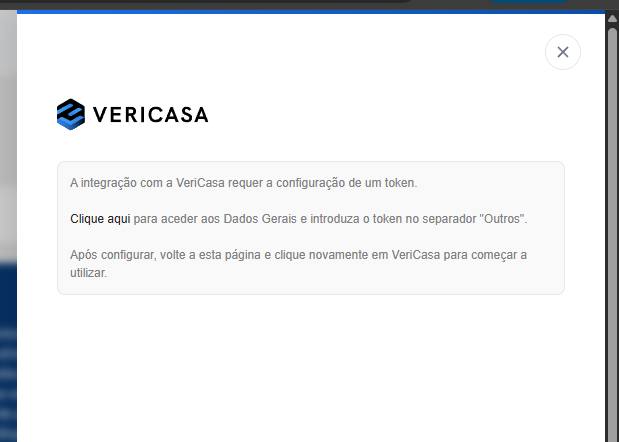
When no token is configured but the user has permission to add a token (multi-agency clients):
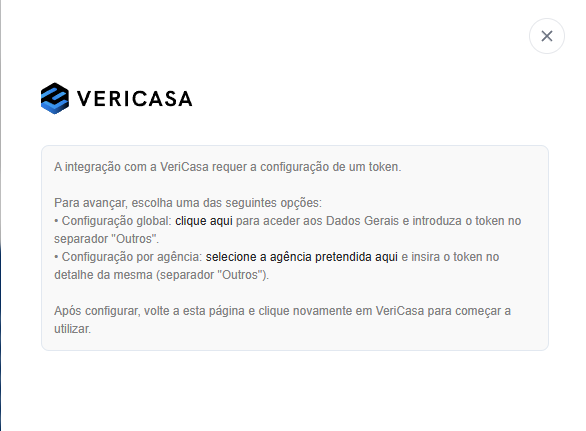
-
When no token is configured but the user has permission to add a token (single-agency clients):
-
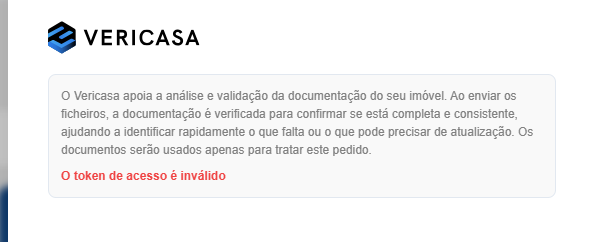
When the configured token is invalid:
7. FAQ
1. What is the main purpose of the VeriCasa integration?
The current integration with the VeriCasa API is intended for the legal analysis of property documentation. *More updates about this partnership will be available soon.
2. Where can I find the VeriCasa feature in the property details?
The feature is available in the “Media/Documents” tab within the property details, via the VeriCasa button.
3. What are the prerequisites to use the VeriCasa integration?
The prerequisites are having an account with the partner with available credit, and the user requesting the process must have permission enabled to send documents. You must request your VeriCasa account token in order to synchronize it with the CRM.
4. How is the VeriCasa token configured in the CRM?
The token can be configured in two places:
- In General Settings, “Other” tab, VeriCasa token field
- In Agency details (multi-agency clients), “Other” tab, VeriCasa token field
5. How are documents submitted for processing?
The user must go to the property details, “Media/Documents” tab, and click the VeriCasa button to open the AI drawer. Then, they must select one document per category they want to submit. Finally, they must select authorization for sending and processing and click “Send for processing”.
6. What are the mandatory document categories for submission?
The mandatory categories are the Urban/Rustic Property Tax Document (Caderneta Predial Urbana / Rústica, depending on the property type) and the Permanent Certificate (Certidão Permanente). If any required document is missing for VeriCasa to analyze the process, this will be shown in the AI drawer.
7. How long does document validation and analysis take?
Validation is processed using artificial intelligence and takes only a few minutes. The exact time may vary depending on the volume of submitted documents.
8. How am I notified about the completion of the VeriCasa analysis?
When the CRM receives the response from VeriCasa, a notification is generated for the user, which may indicate either a successful report or a process error.
9. Where can I view the report generated after a successful validation?
By clicking the notification, the user is redirected to the property under the “Media/Documents” tab, where the AI drawer opens displaying the VeriCasa analysis result. The successful report is also available for download.
10. Can I request a new analysis for the same property?
Yes. After an initial report, you can click “Restart analysis”, select new documents for each category, and submit them for VeriCasa to reprocess the analysis.
11. What other messages can appear in the AI drawer besides success or missing documents errors?
Other messages that may appear in the AI drawer include:
- Integration error — insufficient credits
- When there are no documents associated with the property yet
- When the agency has configured the token but the user does not have permission to upload files to VeriCasa
- When no token is configured but the user has permission to add a token (for multi-agency or single-agency clients)
12. Are the requests I make in the CRM available in my VeriCasa account?
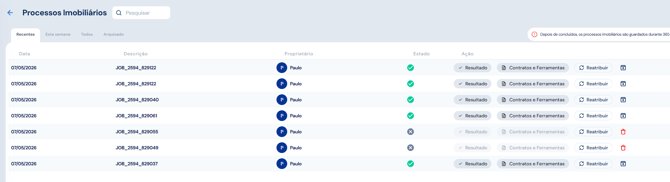
Yes. You can view all requests made in the VeriCasa Real Estate Processes section. In the “Description” column, the last characters shown correspond to the property ID in the CRM. For example, the request JOB_2594_829037 refers to the property with ID 829037 in the CRM.
This feature is available to all users on the PREMIUM and PLUS plans.
For more information, please contact us by email: help@casafaricrm.com