![login-logo.png]](https://helpcenter.casafari.com/hs-fs/hubfs/login-logo.png?height=23&name=login-logo.png)
This feature is divided into 3 areas:
B - Submission of the Survey and Evolution
A - Creation of Surveys
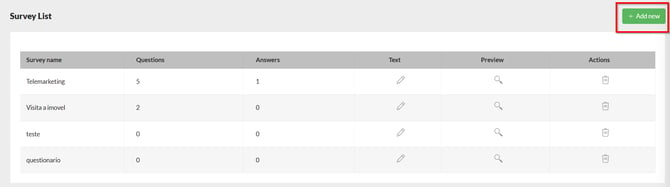
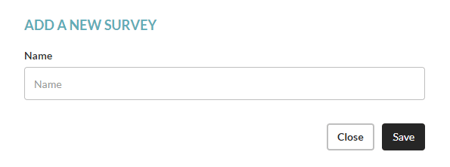
1. In the area of Surveys - List - Add New define the Survey Name.
2. Choose the type:
In CRM, you can create the following:
- Viewing: evaluation of the visit by the potential buyer.
- Telemarketing: internal qualification of new leads.
- Property Online: evaluation of the fundraising process.
- Lead Won - Buyer: evaluation of the buying process.
- Lead Won - Seller: evaluation of the sales process.
- Not Used: surveys that are not in use.
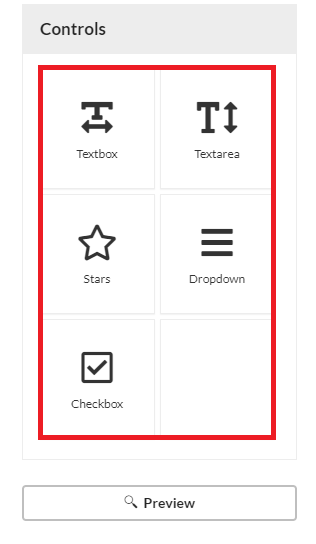
3. Establish the type of question to ask using the available Controls.
4. Enter the Question Name and translate it automatically:
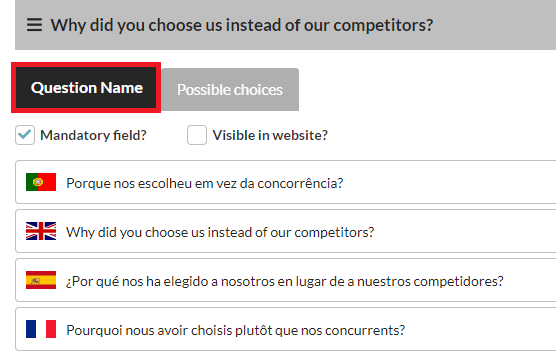
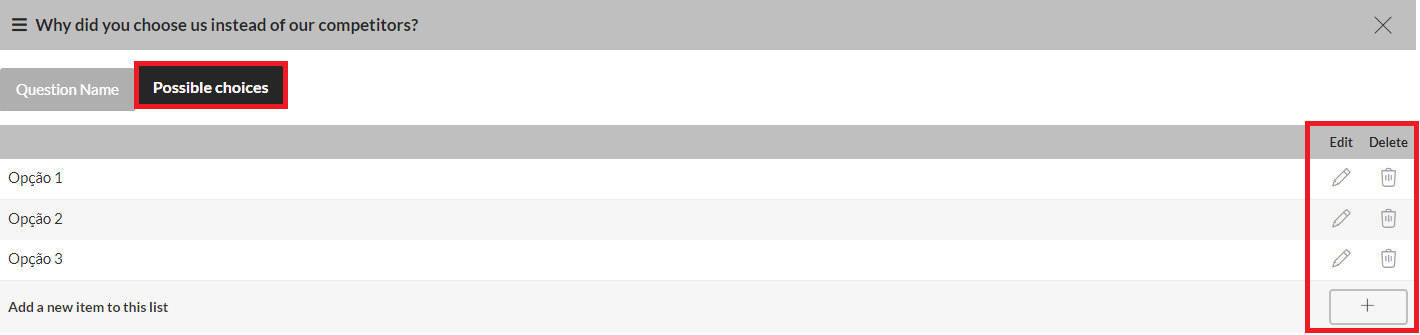
Note: For each question indicate whether your answer is mandatory. For the "Options" control, set the possibilities of reply:
You can add, translate, edit and delete these replies.
5. Click on Save.
Texts for email and Surveys:
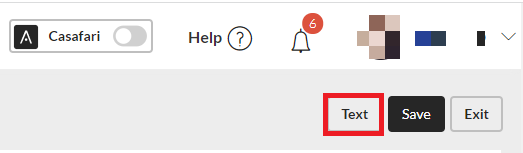
1. In the option "Text", define the Title and Body of the email that should be sent in the survey.
2. Edit the Description of the survey.
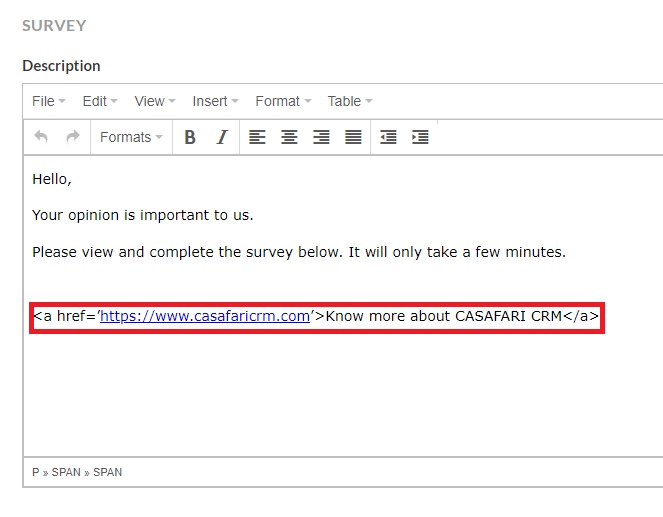
3. You can add a link to the introductory text of the survey. This link should always be added as follows:
<a href=’link’>text</a>
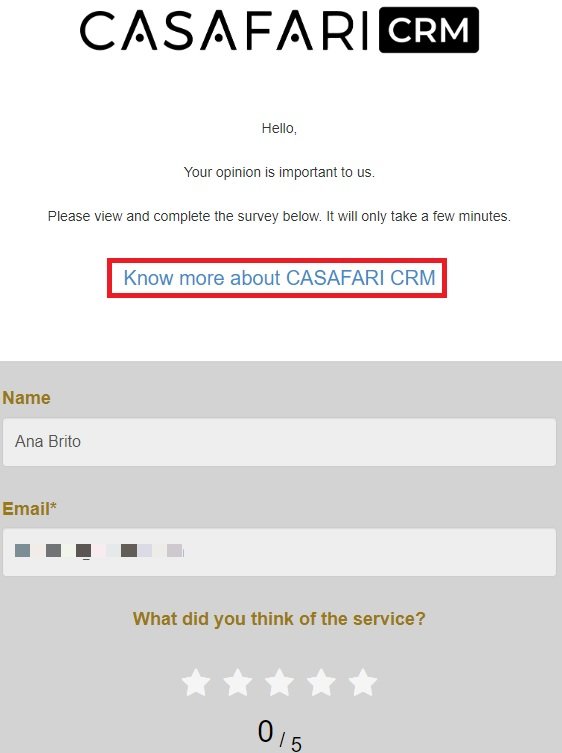
Below is an example of the application of a link:
4. Click on Save.
It’s essential to fill in this information so that the surveys can be sent. The OPT-IN request must be accepted by the client and/or owner of the property.
B - Submission of the Survey and Automation
Viewing
After viewing a property, collect feedback from the potential buyer to know their satisfaction.
Automation of the survey submission:
1. Go to Configuration - General Data - Automation - Survey.
2. Define when the survey should be sent after the visit:

3. Send a copy of the survey submission to the agent. Select the checkbox for this purpose
.
4. Click on Save.
Survey Submission Evolution:
1. Access Events - Events List.
2. Choose a "Viewing" event and check the status of the Thermometer:
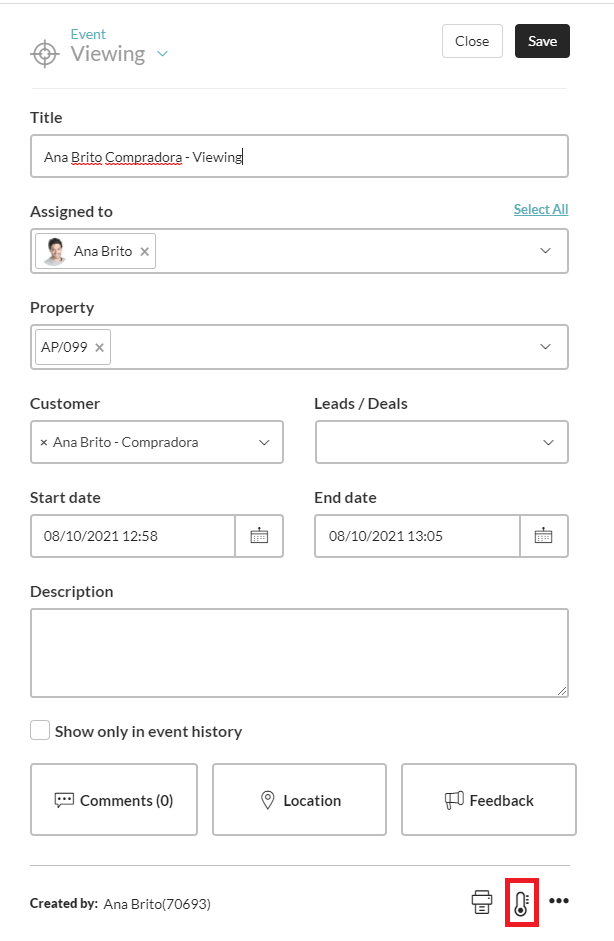
The status of the thermometer will be an indicator of the status of the survey:
- Empty: not sent
- Half Full: sent
- Full: answered
Telemarketing
The survey is automatically sent to the telemarketing agent to fill in the information to qualify the lead.
Filling in the survey:
1. Go into Leads/Business - Sales - List.
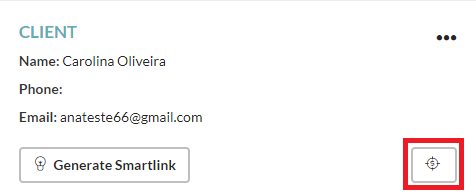
2. Select the lead and click the button highlighted below to access the survey:
Viewing the completed Survey:
1. Go to Contacts - Buyers List.
2. Select the contact and access the detail.
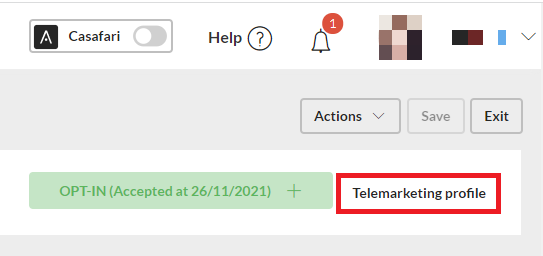
3. Fill in the survey for the lead qualification, and select the option "Telemarketing Profile".
Property Online
It’s a survey sent to the property owner when the agent put the property visible on the website of the agency.
Automation of the survey submission:
1. Go to Configuration - General Data - Automation - Survey.
2. Define when the survey should be sent after the agent makes the property visible on the website.

3. Send a copy of the survey submission to the agent. Select the checkbox for this purpose.
4. Click Save.
Lead Won - Buyer:
The survey is sent to the buyer after the sale of a property.
Automation of the survey submission:
1. Go to Configuration - General Data - Automation - Survey.
2. Define when the survey should be sent out after the deal is closed by the agent.

3. Send a copy of the survey submission to the agent. Select the checkbox for this purpose.
4. Click Save.
Lead Won - Seller:
The survey was sent to the property owner after the property sale.
Automation of the survey submission:
1. Go to Configuration - General Data - Automation - Survey.
2. Define when the survey should be sent out after the deal is closed by the agent.

3. Send a copy of the survey submission to the agent. Select the checkbox for this purpose.
4. Click Save.
C - Answers and Testimonials
1. Access Surveys - Surveys Results.
2. Use filters for an optimized search:
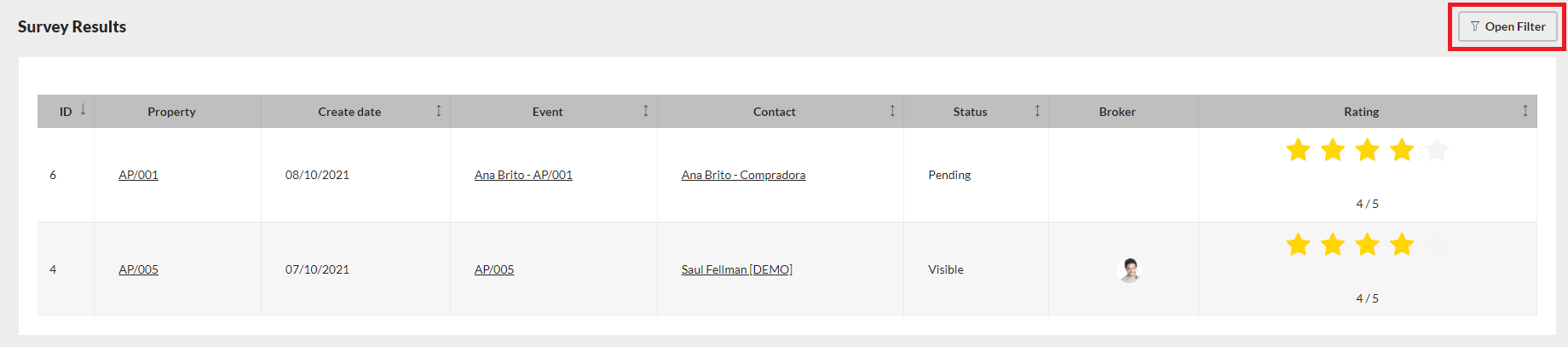
3. Choose the answer and have access to all details of the survey.
This new is available in the PREMIUM Plan.
For more information, please contact us by email: help@casafaricrm.com