![login-logo.png]](https://helpcenter.casafari.com/hs-fs/hubfs/login-logo.png?height=23&name=login-logo.png)
Smartmail - This is an automation that enables you to periodically send an email to the potential customer with a Smartlink to properties of interest to the buyer.
It does not repeat properties already communicated and is sent in the language defined in the contact.
Configuration - is mandatory to define it on the CRM:
Text for Smartmail automatism and OPT-IN*:
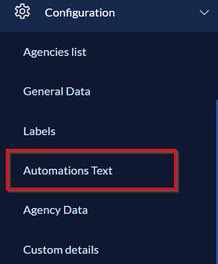
1. Go to Configuration - Automations Texts.
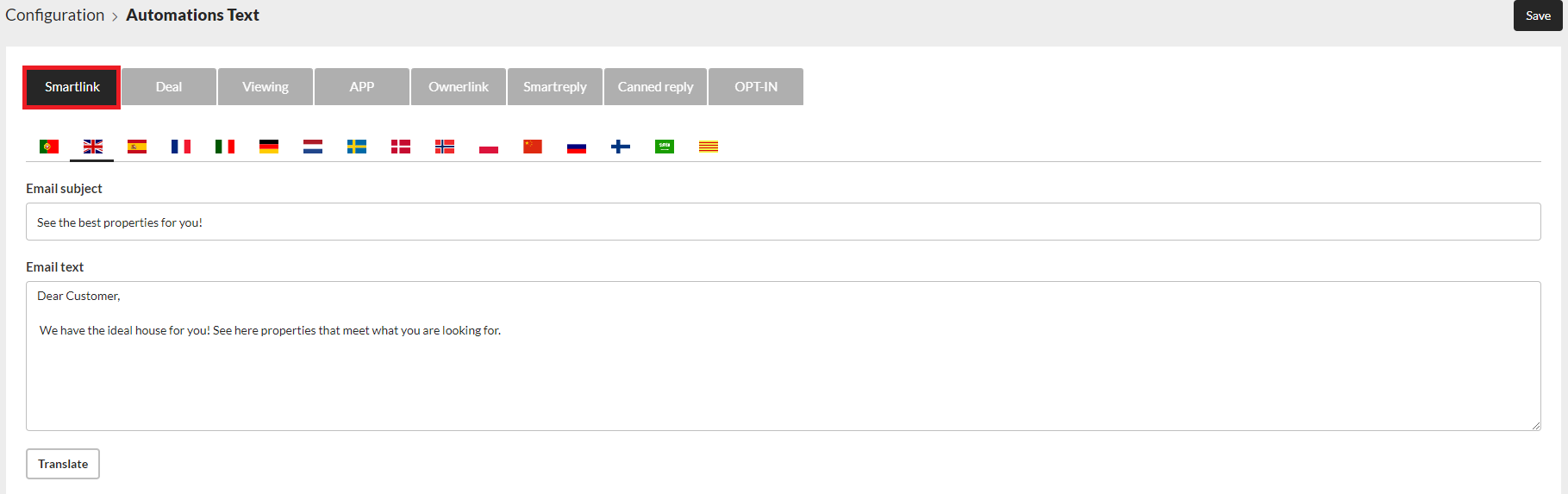
2. On the Smartlink tab, type the subject and text of the email:
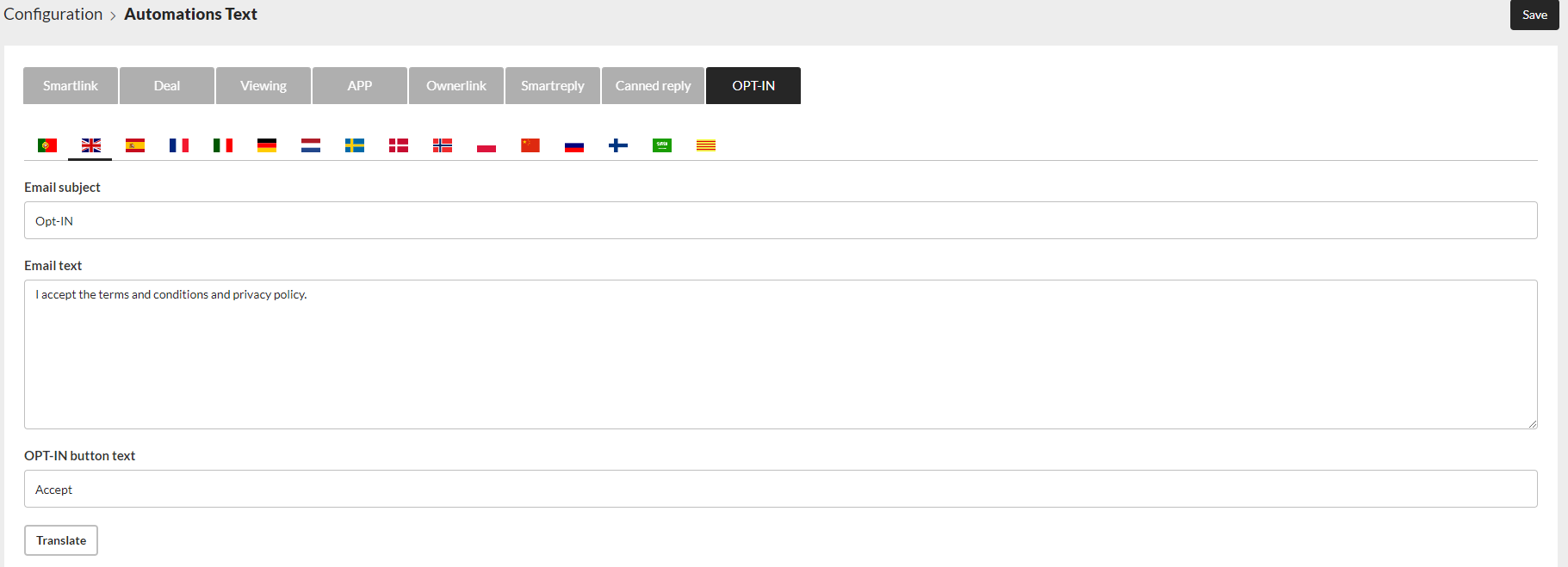
3. Under OPT-IN, set the subject, email text and OPT-IN button:
4. Click Save.
To share Smartlinks via email, it is essential that Smartmail is configured and the contact accepts the OPT-IN request.
Automation
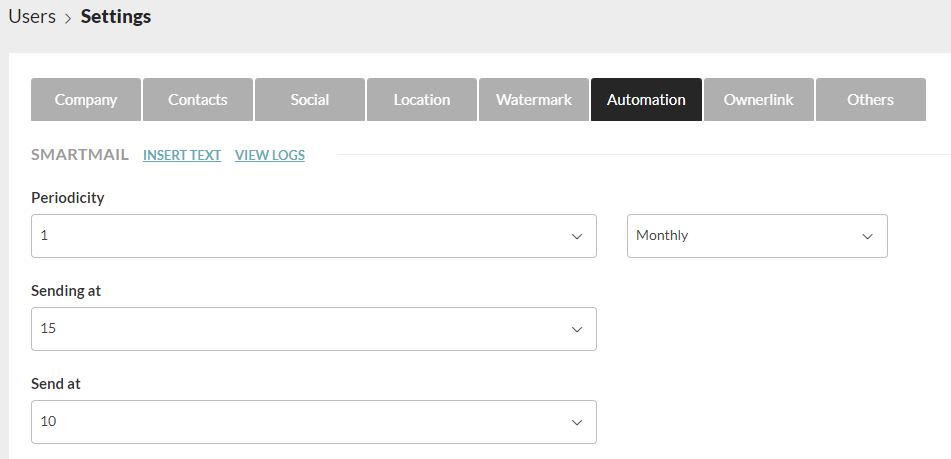
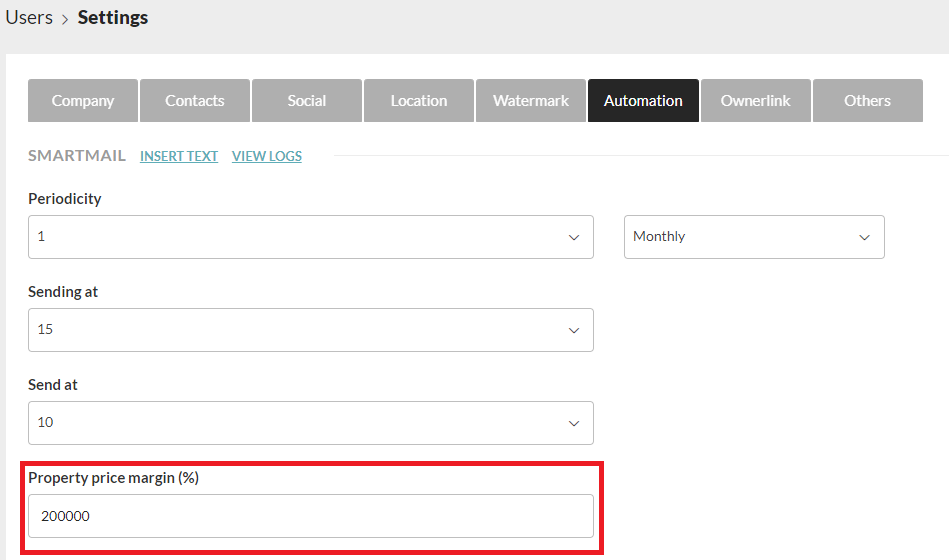
1. Go to Settings - General Data - Automation - Smartmail.
2. Configure the periodicity, day of the week or month and time of sending:
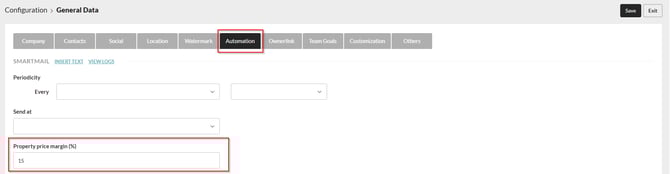
3. Set a price margin for Smartlink to include properties with % above and below the indicated:
Notes:
If a price margin percentage is not entered, the CRM defaults to 30%.
This applies when defining a customer profile, as it filters properties that fall within the parameters defined in that profile. In the price field, you can define a minimum and a maximum price.
For example, if you defined the following price range in the profile:
Minimum price – 160,000
Maximum price – 220,000
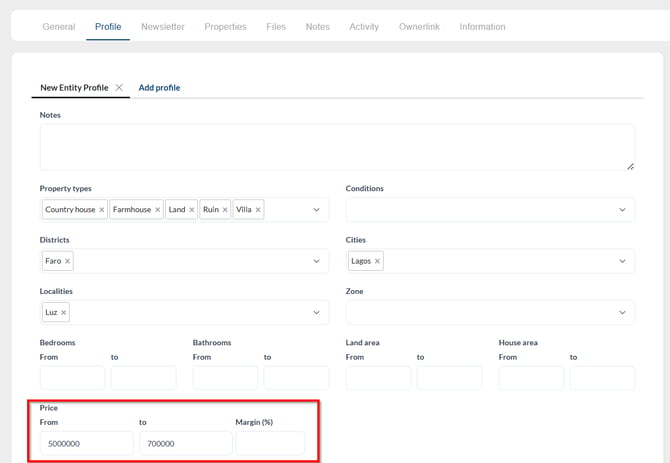
If you don't have a property price range defined, the results in the property list, in terms of price, will be as follows:
160,000 - 30% = 112,000
220,000 + 30% = 286,000
In the property list, you'll see all properties that fall between 112,000 and 286,000.
If, beyond this price range, you set a 15% limit:
160,000 - 15% = 136,000
220,000 + 15% = 253,000
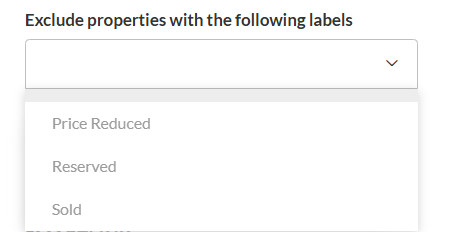
4.Filter properties by labels
5. Click Save.
Smartreply - It is an automation that allows sending an email when a lead is created in the CRM.
It may or may not contain a Smartlink and is sent in the language defined in the contact.
Configuration - it is mandatory to define in the CRM:
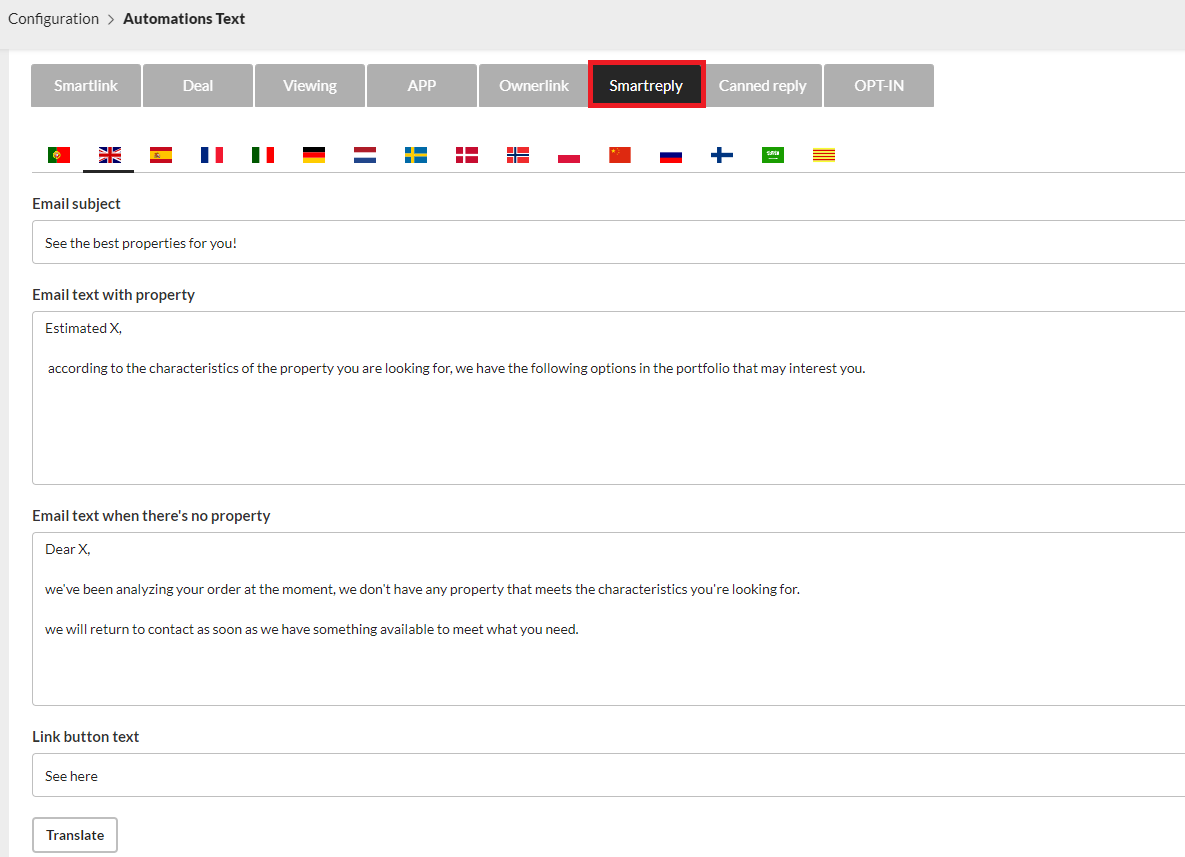
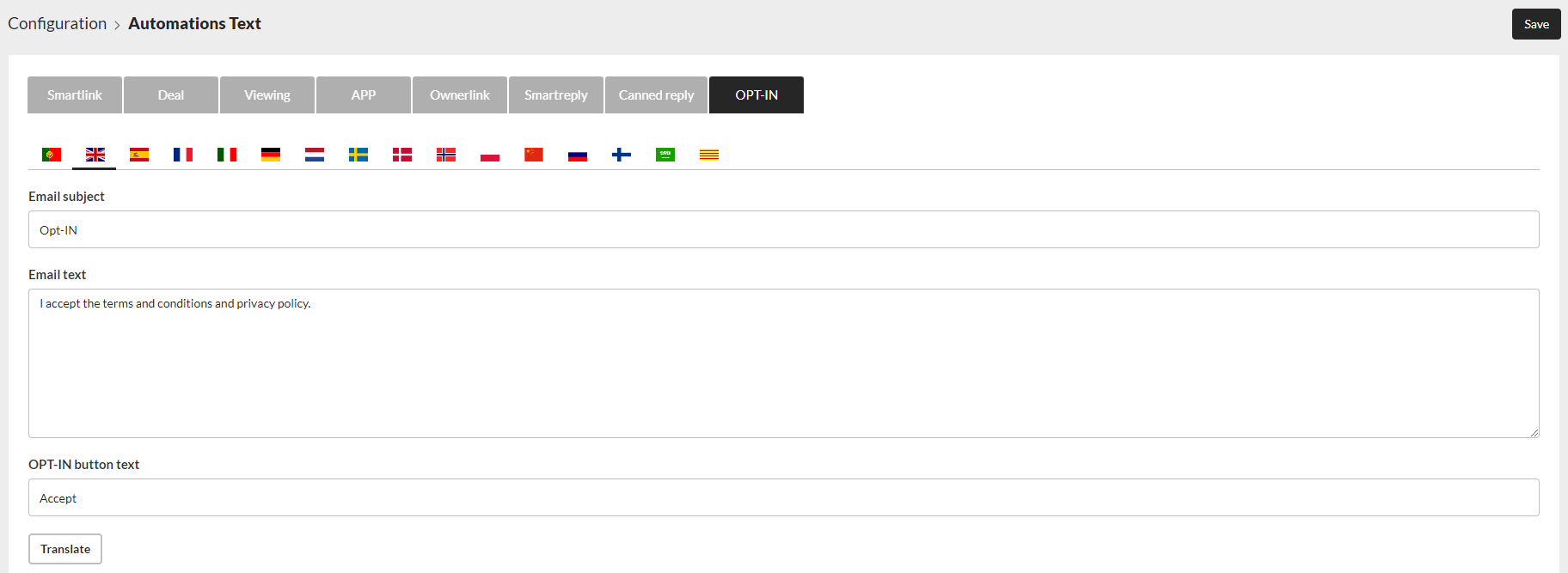
Text for Smartreply Automation and OPT-IN*:
1. Go to Configuration - Automated Texts - Smartreply.
2. Type the subject and email text for the case of: existing or non-existing property:
3. In OPT-IN option, set the subject, email text and OPT-IN button:
4. Click Save.
To send Smartreply, it is essential that the contact accepts the OPT-IN request.
Automation:
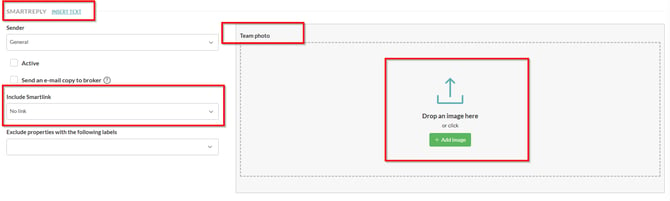
1. Go to Setup - General Data - Automation - Smartreply.
2. Configure the sender.
3. Select the checkbox if you want to send a copy of the email to the broker.
4. Choose whether to include a Smartlink in this communication
5. You can add a team photo
6. Click Save.
Note:
-
On leads generated on the website, the OPT-IN option will already appear enabled, because when the potential buyer makes a contact request, he/she has to accept the terms and conditions.
-
In the leads imported from real estate portals, this option may not appear enabled. It will depend on the rules defined by each portal.
-
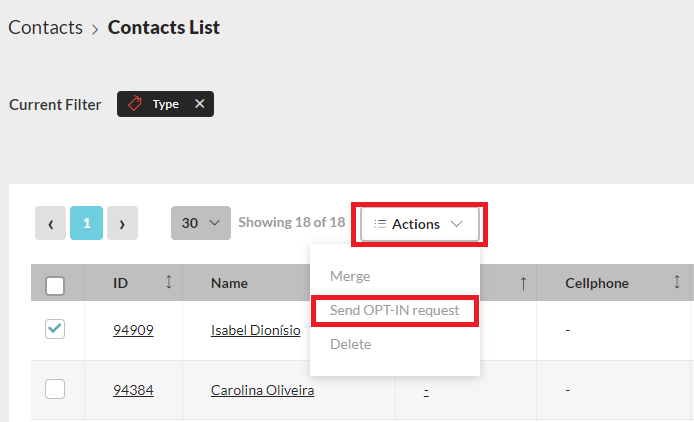
For manually created leads, the OPT-In request must be sent to the contact:
1. Go to Contacts - List of Sellers or Buyers.
2. Select the contacts.
3. In the Actions option, choose "Send OPT-IN request":
4. Check if the request has been accepted and when, in the contact details.
These features are available in the PREMIUM plan
For more information, send an email to: help@casafaricrm.com