![login-logo.png]](https://helpcenter.casafari.com/hs-fs/hubfs/login-logo.png?height=23&name=login-logo.png)
The translation of content is essential to cross borders in the digital world and attract customers from all over the world. CASAFARI CRM allows automatic translation of contents. Learn about this solution so you can apply translations without limits.
Check the step-by-step to create an Azure key and configure it in CRM:
1. Create Account:
-
- Go to azure.microsoft.com and click "Get started with Azure" and then "Try Azure for free" to create a new account.
- Click on the “Pay-As-You-Go” link and then "Get Started".
- Set up a credit card (Visa, Mastercard, or American Express).
- After filling in the details, proceed to the “Subscribe” option. If you receive the information “Not eligible for a free Azure account”, select the option “Subscribe to Azure with Pay-As-You-Go pricing”.
- To continue, click “Go to the Azure Portal”.
2. Get your Translator key:
-
-
Once the resource is deployed, go to your Translator resource.
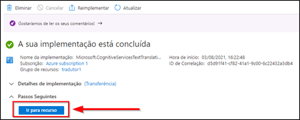
-
Click on Keys and Endpoint in the left-hand menu.
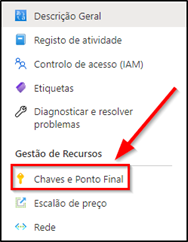
- In the right panel, two keys for the translator will appear. Click the 'Show Keys' button.

-
Copy the Key 1.
-
3.Add your key to CASAFARI CRM:
-
-
Log into your CASAFARI CRM account.
-
Navigate to Configuration > General Data.

-
In the “Integration” tab scroll down to the "Azure translation keys"
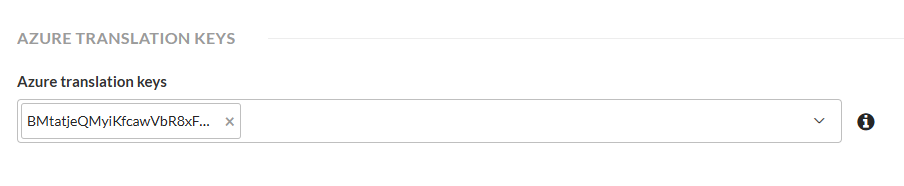
-
Paste your Azure key.
-
Click Save
-
This feature is only available in the PLUS and PREMIUM plans.
For more information, contact us by email: help@casafaricrm.com