![login-logo.png]](https://helpcenter.casafari.com/hs-fs/hubfs/login-logo.png?height=23&name=login-logo.png)
Visiting properties is an essential activity for selling a property.
You can create visits at various locations in CRM:
- Dashboard
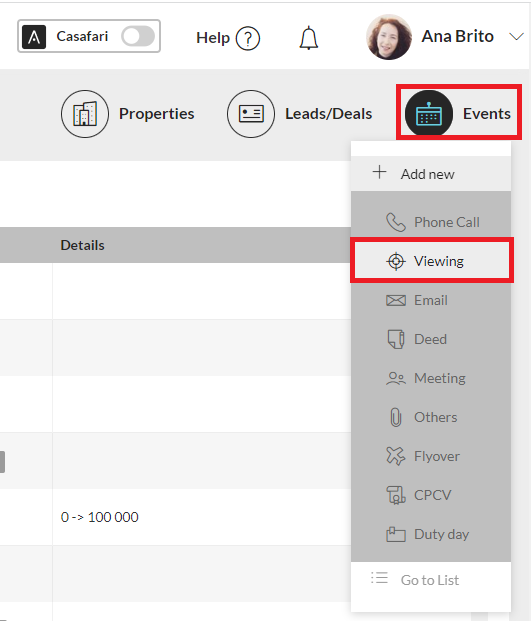
1. Go to the Dashboard.
2. On the Events shortcut, click on "Add new'' and select "Viewing".
- Leads:
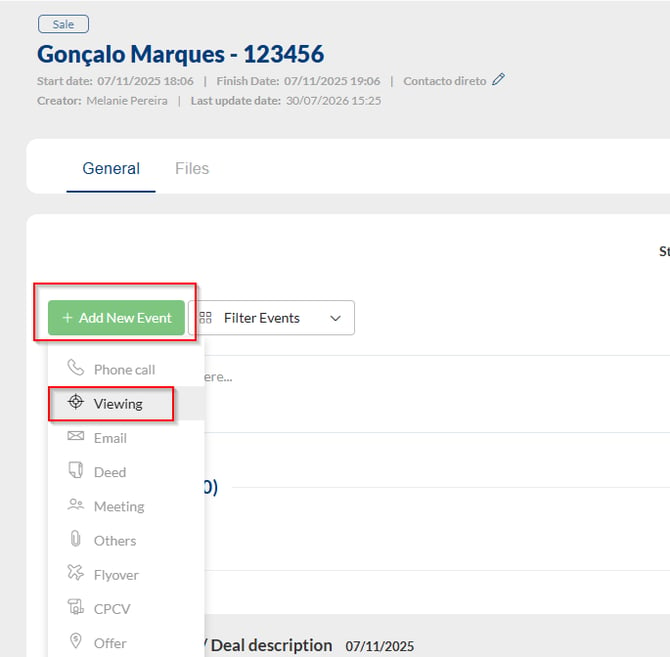
1. Go to Leads/Business - Sales - List.
2. Select the lead and access the detail.
3. Click on "Add New Event" - "Viewing".
- Properties:
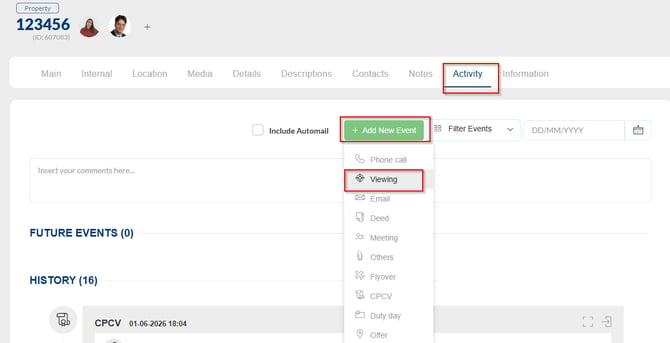
1. Go to Properties - List of Properties.
2. Select and access the property details.
3. On the "Activity" tab, click "Add New Event" and choose "Viewing".
- Contacts:
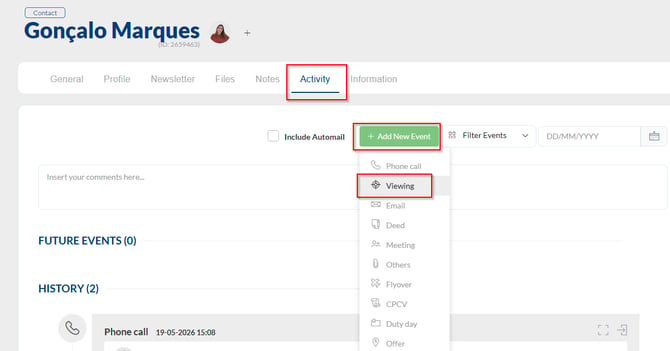
1. Go to Contacts - List of Sellers or Buyers.
2. Select and access the contact details.
3. On the "Activity" tab, click "Add New Event" and choose "Viewing".
- Events:
1. In the main menu, go to Events - List.
2. Click the green button to add a new event and choose the type "Viewing".
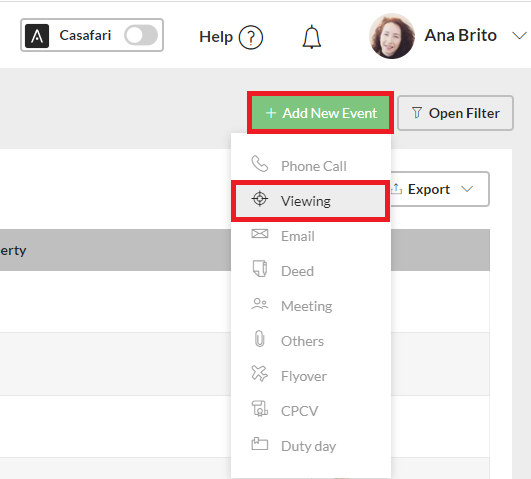
Follow the event history and view upcoming events in the calendar and event list!
Configuration
To properly create this type of event:
1. Write the title of the event.
2. Associate to one or more agents.
3. Choose the properties.
4. Identify the customer and the lead/business.
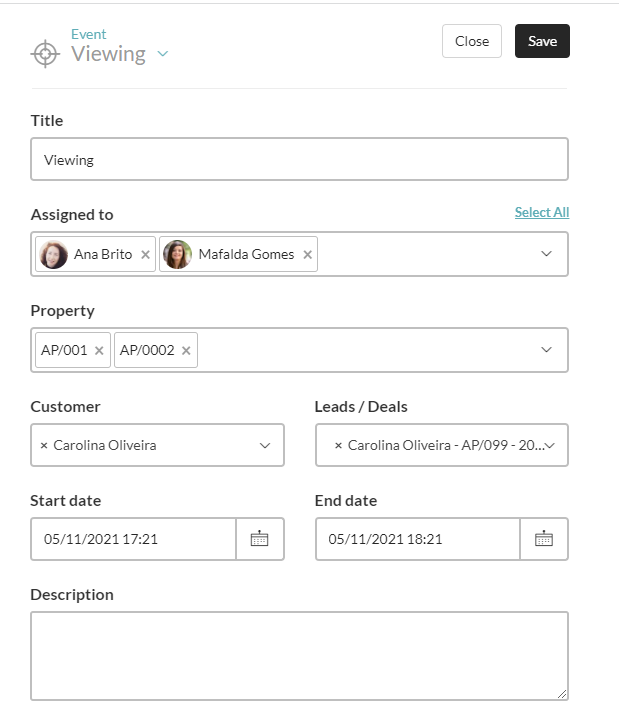
5. If your calendar is synchronized with Google Calendar and you do not want to add his event, select the "Show only in event history" option.
6. Add comments and meeting point with the prospect.
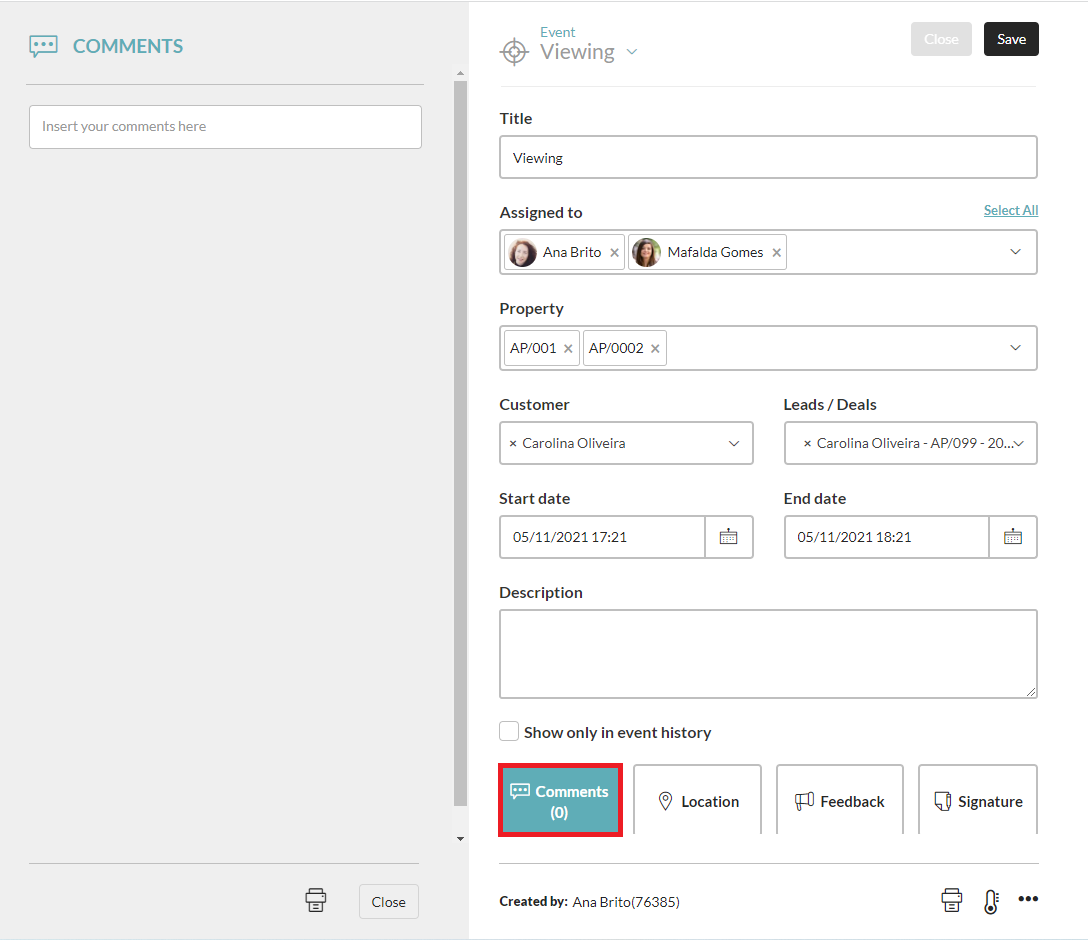
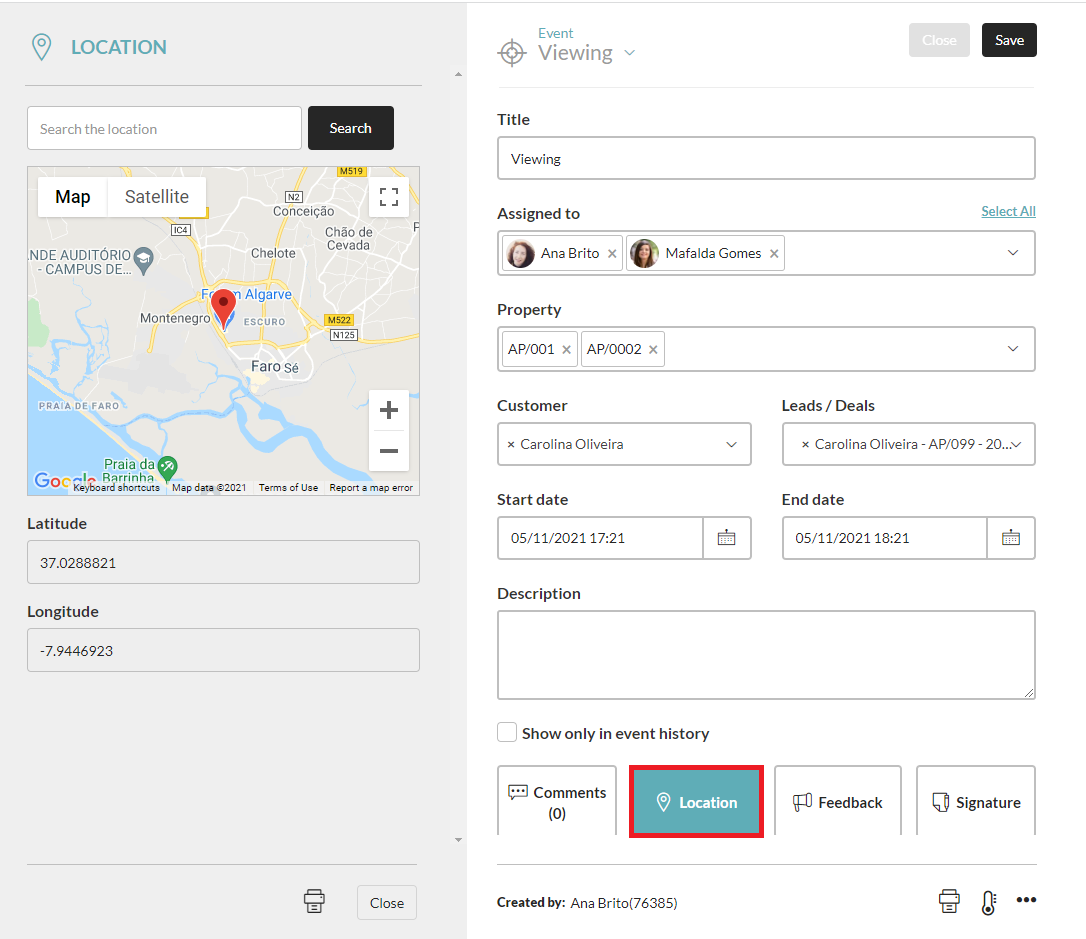
7. Click Save.
Manage Property Viewings
Manage viewings on CASAFARI CRM on desktop:
1. Access the visit in the list of events and/or calendar.
2. Select the event.
3. Add written feedback and share with the owner.
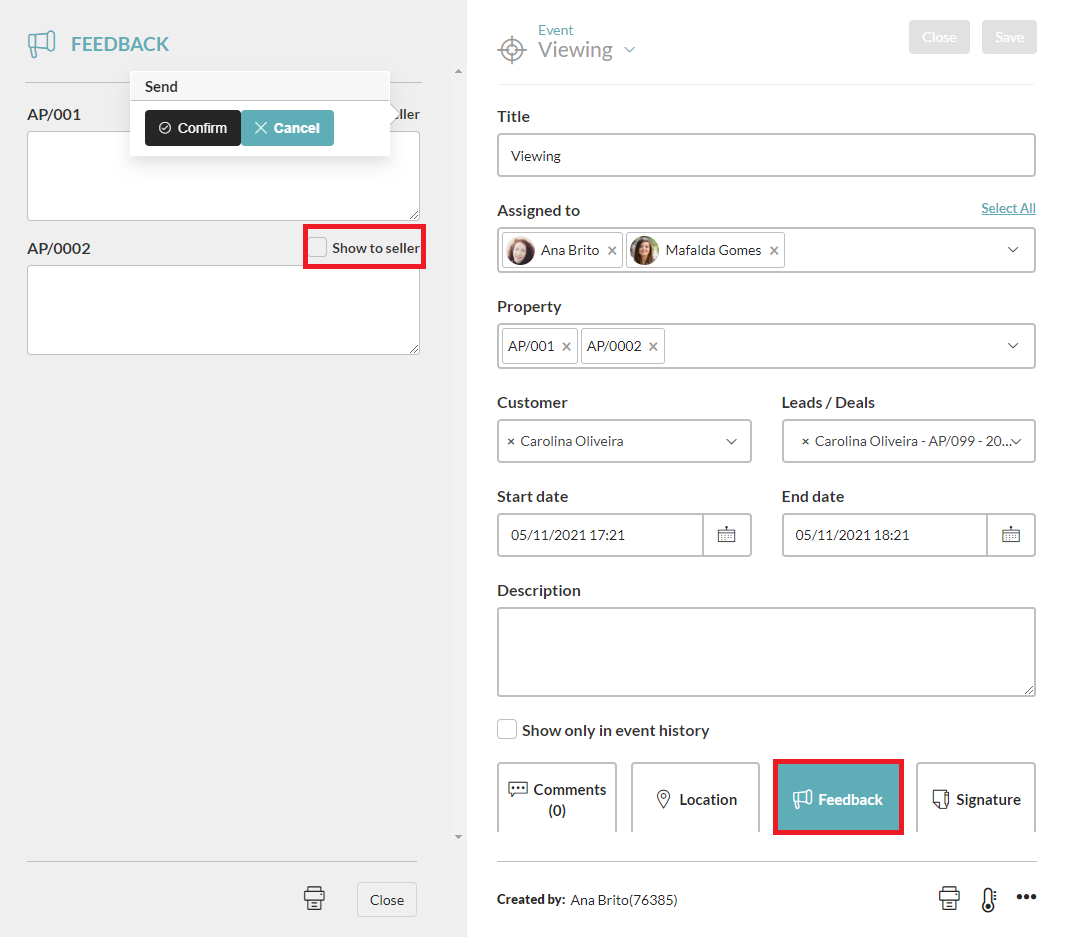
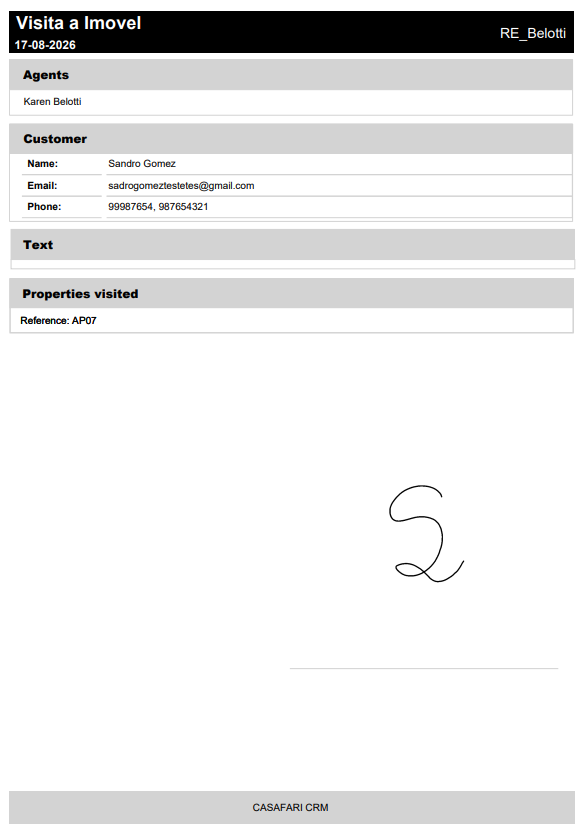
4. Viewing Forms: view and print a document confirming the property viewing
Through the viewing forms, you can view and print a document confirming that the property viewing took place. This document can be shared with the buyer who visited the property, as well as with the respective estate agent.
In addition, these documents can be shared with the property owner as proof that the viewing took place.
Internal document for the agency or estate agent:
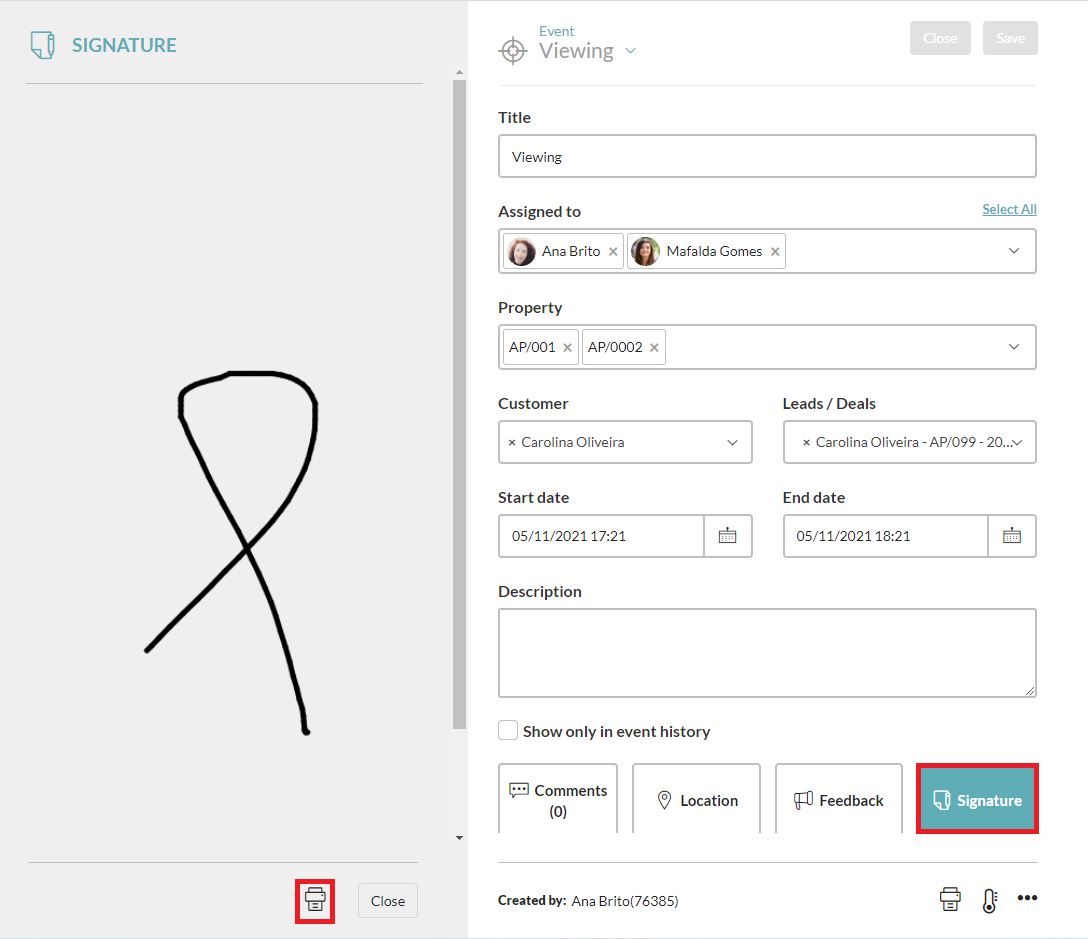
External document: Once the document has been signed through the app, the signature will also be available on the desktop version. In the Signatures section, you will be able to view and print the signed viewing form to share with the buyer.
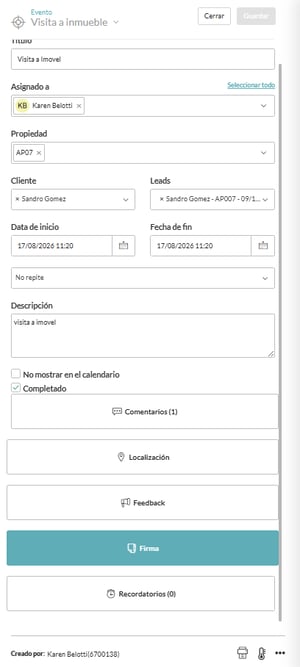
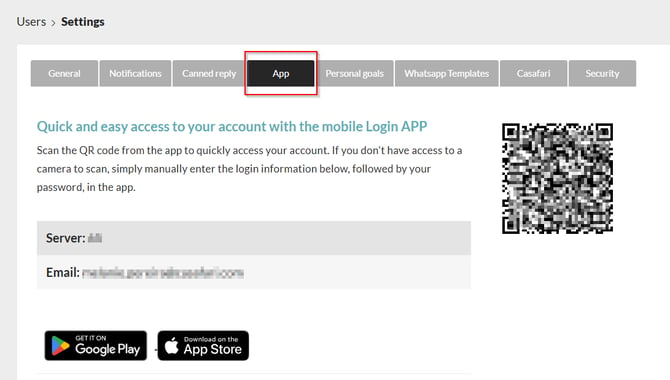
Manage Viewings through the APP:
1. Log in in the APP:
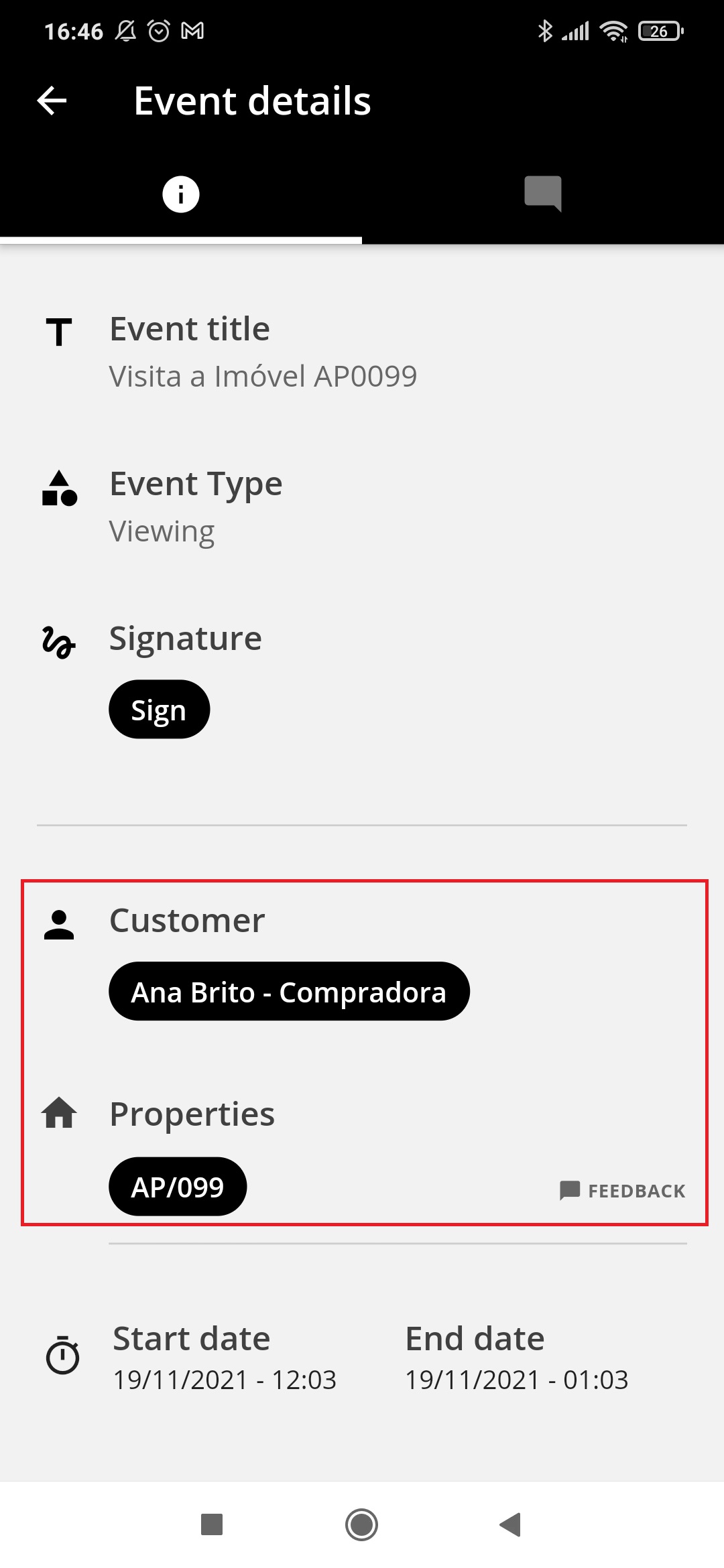
2. View the event and all customer and property details.
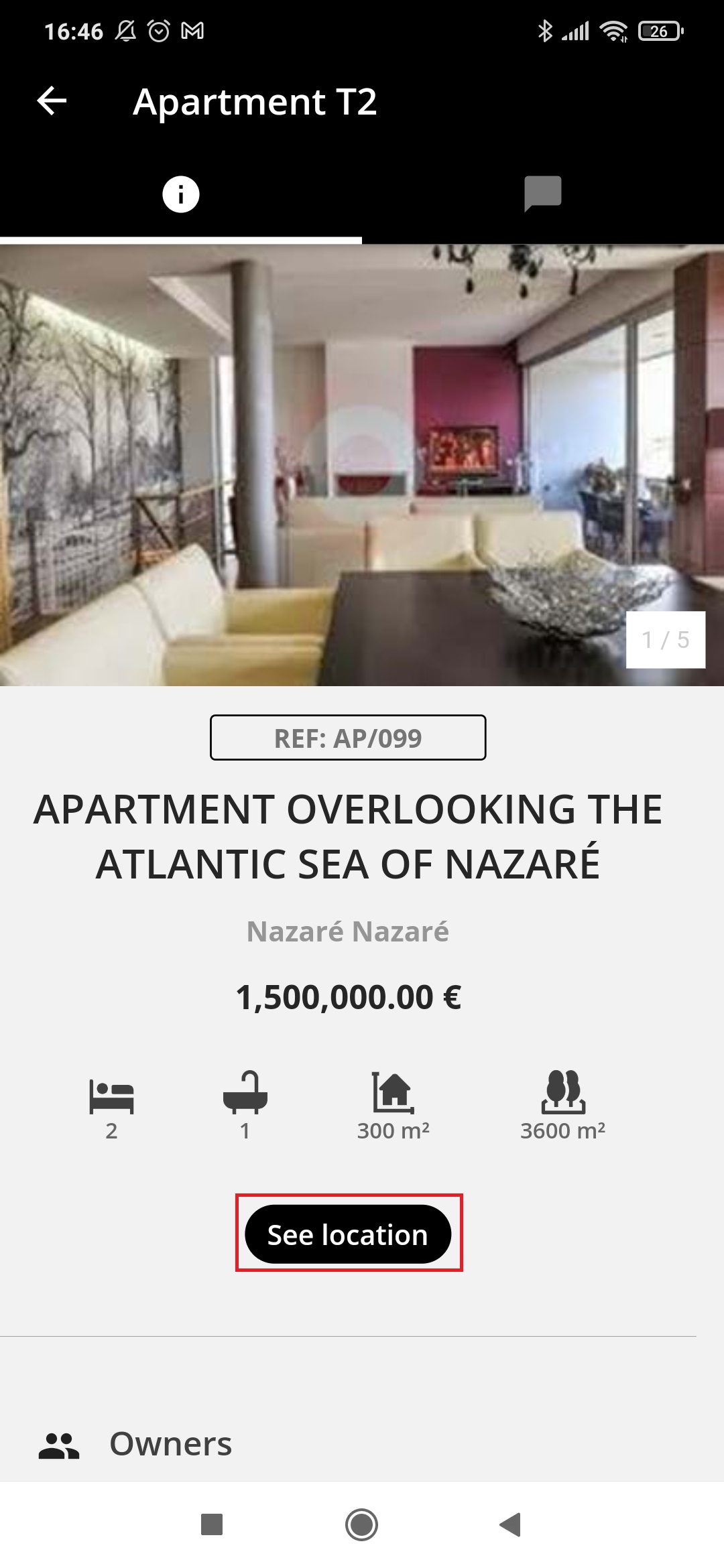
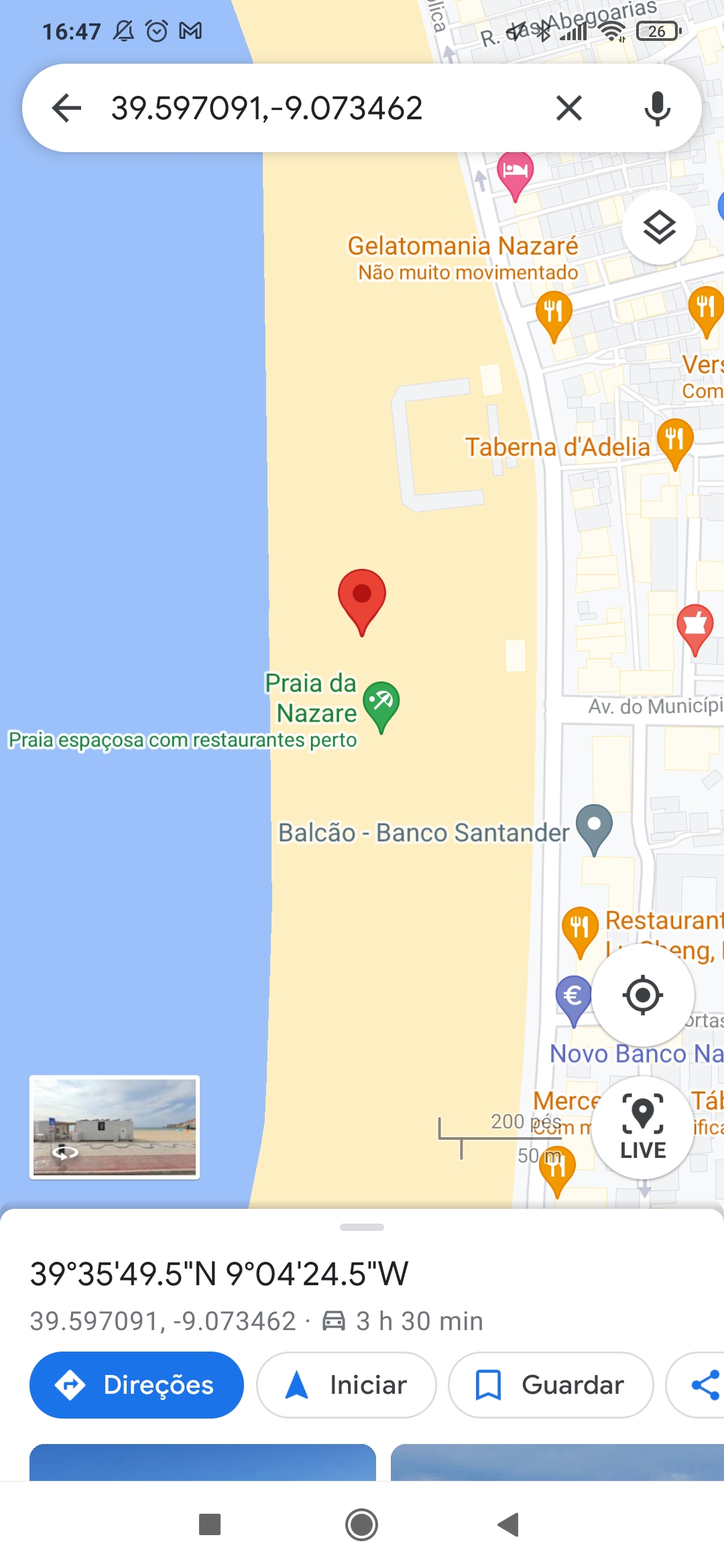
3. Check the GPS coordinates of the property location.
4. After the visit, add written or voice feedback and share with the owner.
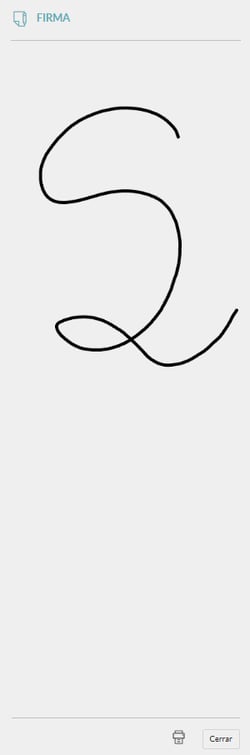
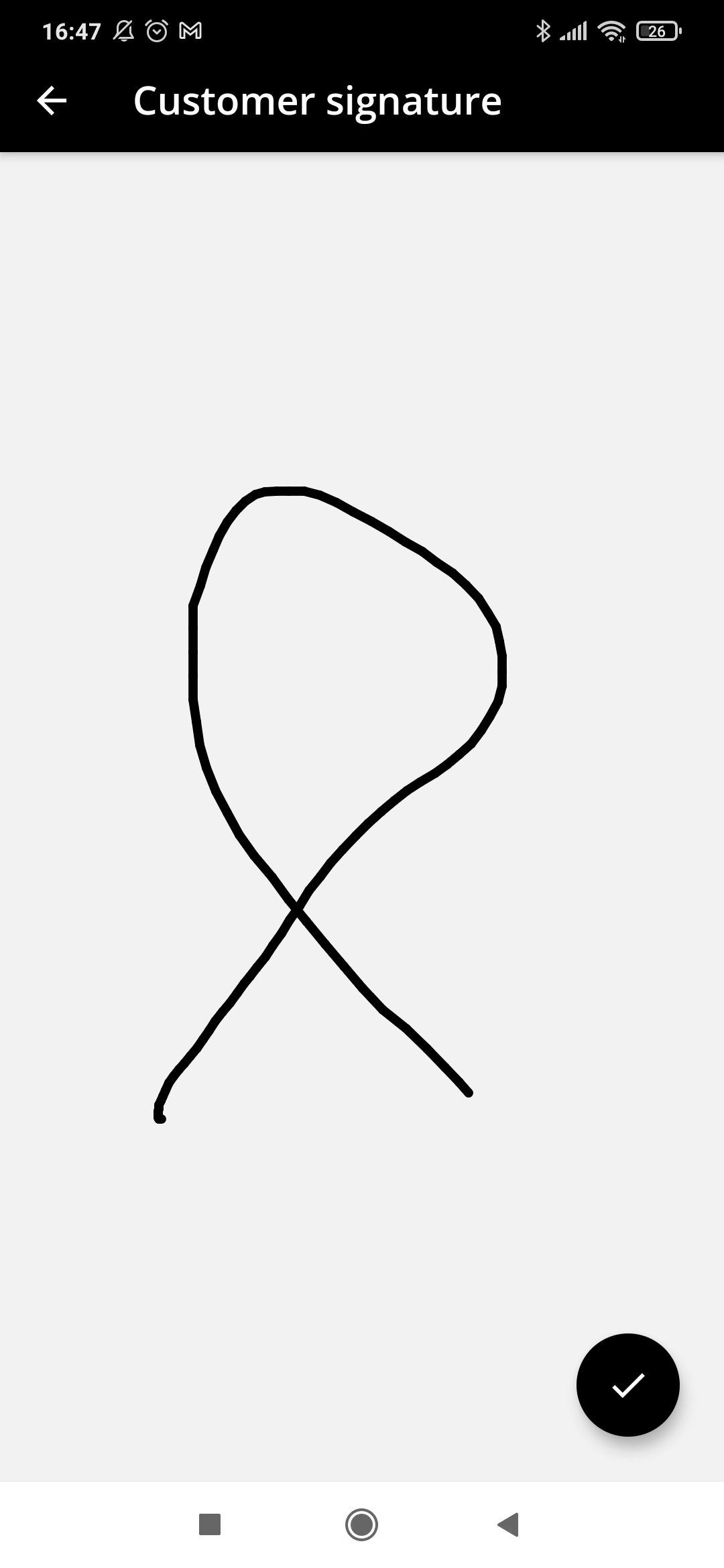
5. Ask for the signature proving the visit through your agency.
All information configured and/or altered in the APP is synchronized with the desktop version of CASAFARI CRM.
Post-visit
Send a satisfaction questionnaire to the potential client, after having visited the property.
Read our article on this subject
Property viewing management is available to all CASAFARI CRM users.
The APP is available with the PLUS and PREMIUM plans.
For more information, please contact us by email: help@casafaricrm.com