![login-logo.png]](https://helpcenter.casafari.com/hs-fs/hubfs/login-logo.png?height=23&name=login-logo.png)
Learn how to create new users and groups in this article and check out the steps to manage permissions.
Index:
Creating new users:
1. Access the area Users - New.
2. Define a username and User Group:
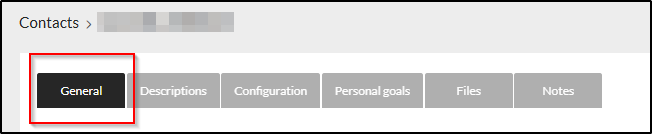
3. Add personal data, social networks and photo:
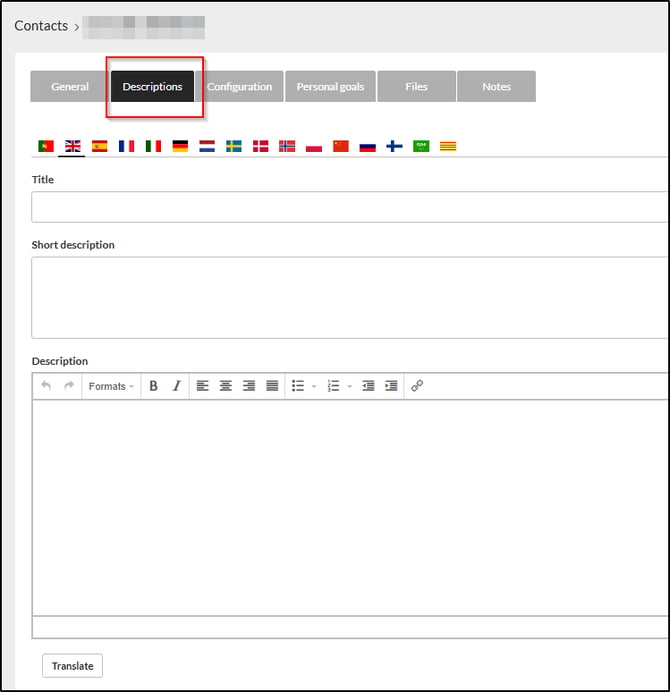
4. Insert a description and make translations:
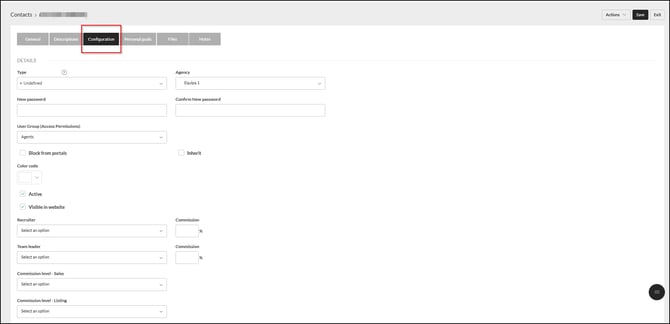
5. Configure the user type, select the agency to associate the user with, set/change the password, and define the recruiter and team leader:
Notes:
- The following user types are currently available:
-
Broker - for those who will be responsible for acquiring new properties for the agency's property portfolio.
-
Telemarketer - for those who will be responsible for qualifying new sales leads.
-
Salesman - for users responsible for property sales processes.
- When setting up a new user, if you check the option “Block from portals”, all the properties of this agent, even those indicated in the area “Portal Selection”, will not be exported to any real estate portal.
- If you want this new user to access leads, contacts, and properties of an existing user, you should select the option “Inherit”. Then, choose the agent from which you want the information to be transferred: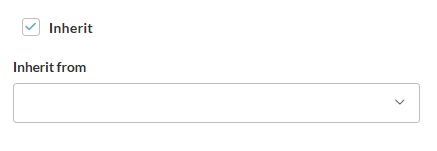
- Select a color for the new user. This way, an event scheduled for him/her will be available in the calendar (in the Dashboard area) highlighted with the defined color.
- Mark the option “Visible on Website” to make the information of this new agent available on your website.
6. Set personal goals for listings and sales:

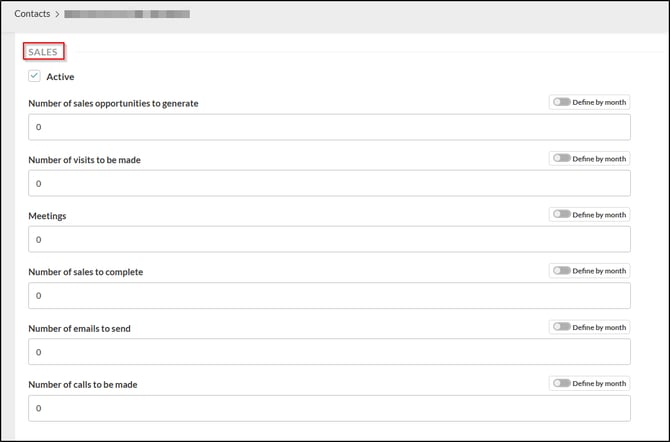
7. Upload files:
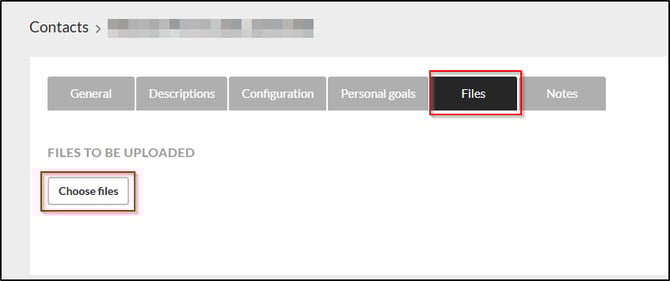
8. Write notes:

9. Click Save.
Creating user groups:
1. Access the area Users - Groups/Permissions.
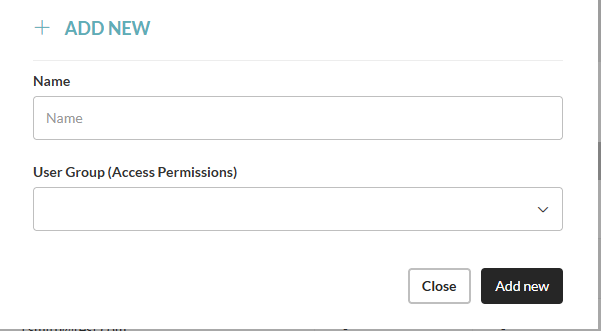
2. Click on “Add new” and define the group name:
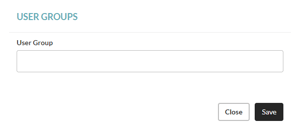
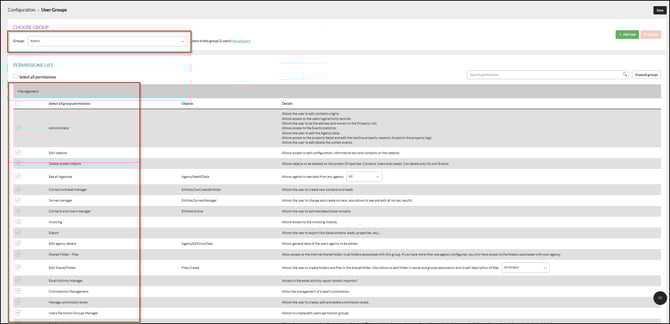
3. Define the permissions for this group:
4. Click Save.
Permissions Management:
1. Access the area Users - Groups/Permissions.
2. Choose the user group.
3. View the list of roles and activate or remove permissions:
4. Click Save.
Transfer data between users:
1. Access the area Users - List
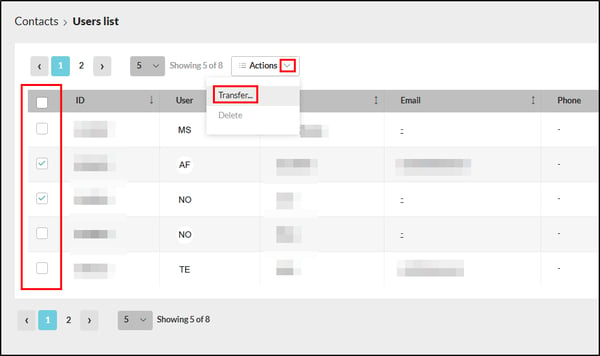
2. You can select one or more users, click on Actions and then on Transfer:
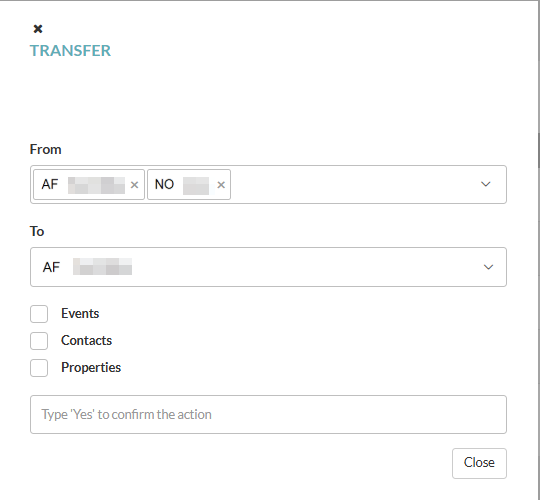
3. Confirm which data you want to transfer and to which user, and type “yes” in the box to confirm the action:
Delete users:
1. Access the area Users - List
2. You can select one or more users, click on Actions and then on Delete:
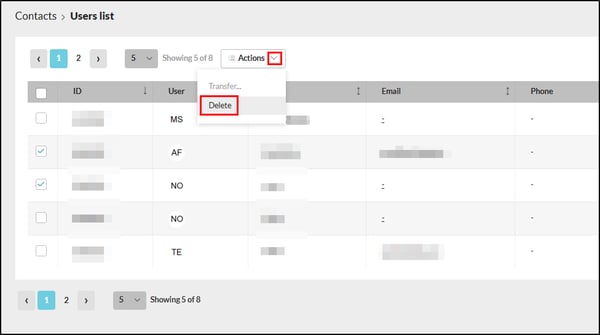
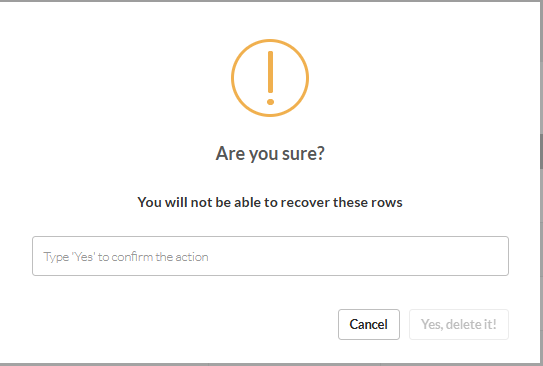
3. Confirm this action and type “yes” in the box:
Export user list:
1. Access the area Users - List
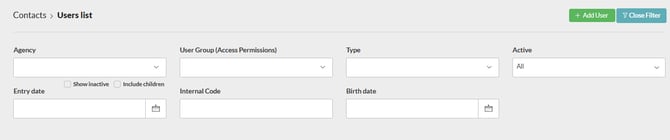
2. Open the filter and apply the filters you want:
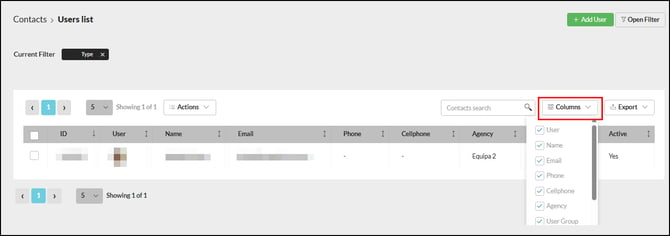
3. After filtering, you can select the columns with the information you want to export:
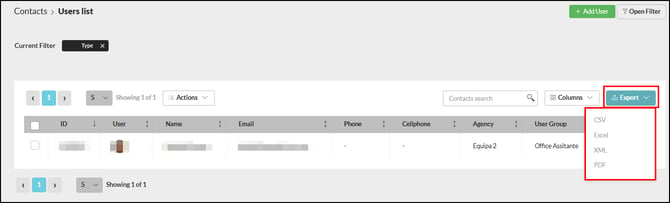
4. Click on Export and select the file type:
Note:
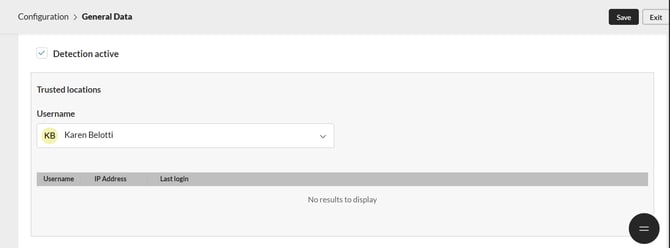
- Detection and intrusion: Add trusted user locations by accessing Configuration > General Data > Others. Select the users so that locations and login activities are recorded.
We recommend enabling Two-Factor Authentication to improve the protection and security of CRM user data. For more information on this topic, please click here.
This feature is available for all CASAFARI CRM users.
For more information, please contact us by email: help@casafaricrm.com