![login-logo.png]](https://helpcenter.casafari.com/hs-fs/hubfs/login-logo.png?height=23&name=login-logo.png)
Create alerts of the various actions that occur in the CRM and the APP. Be notified by email and within the CRM.
Manage notifications:
1. In the top right corner, go to your profile and click on "Settings".
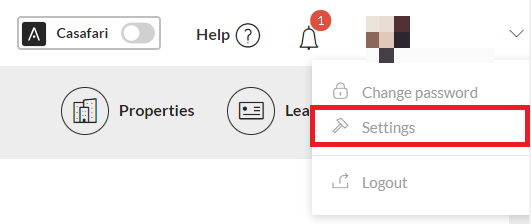
2. Go to the "Notifications" tab.
3. Choose how you want to be notified for each notification:
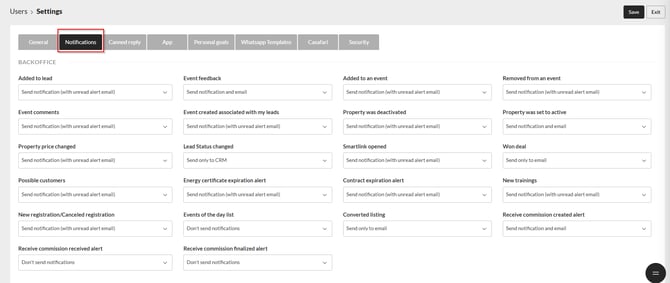
Available options:
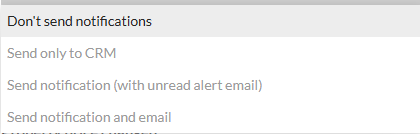

- Don't send notifications – You will not receive alerts in the CRM or by email
- Send only to CRM – You will only receive alerts in the CRM
- Send notification (with unread alert email) – You will receive a notification in the CRM and an email if it remains unread
- Send notification and email – You will receive alerts both in the CRM and by email
- Send only to email – You will only receive alerts in email
4. Define whether you want to receive notifications for actions that occur in the APP:
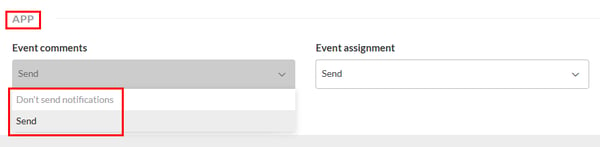
5. Click Save.
Scheduling of alerts:
1. Go to Settings - General Data - Others.
2. Configure the period after which you want to receive alerts for unread notifications*, expiration of the energy certificate and contract expiration:
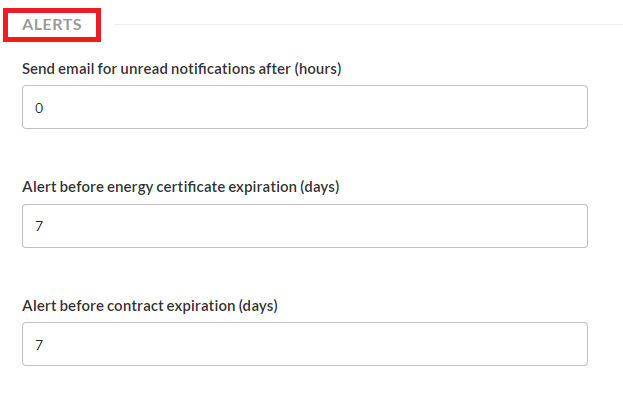
3. Click Save.
Note:
For notifications such as “Converted listing” and “Won deal”, you must first define the corresponding texts and ensure that each user will receive the email in the language set in their profile.
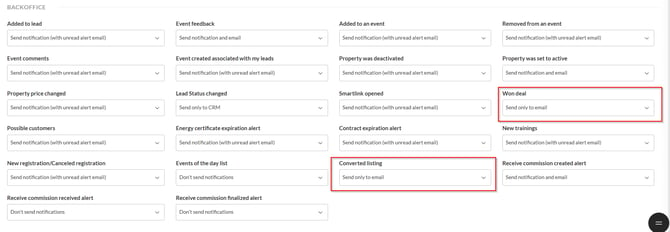
Go to Configuration > Automation Text and define the texts in the different languages.

This feature is available for all CASAFARI CRM users.
For more information, please contact us by email: help@casafaricrm.com