![login-logo.png]](https://helpcenter.casafari.com/hs-fs/hubfs/login-logo.png?height=23&name=login-logo.png)
Register contacts in the CRM so you can assign them to leads and close deals!
A) How to create a new contact:
B) Create new contacts for an Owner and Buyer/Owner profile:
C) Create other types of contacts:
D)Contacts created from FSBOs list:
1) “Actions” Button:
2) “Columns” Button:
3) “Export” Button:
F) Users Associated with Contacts:
You can create profiles of sellers and buyers, among others, such as lawyers and suppliers.
A) How to create a new contact:
To create a new contact within the CRM, access the left-hand side menu and choose a contact list. A new contact can be added by accessing the side menu through Contacts>Buyer List, Contacts>Seller List or Contacts>Others.
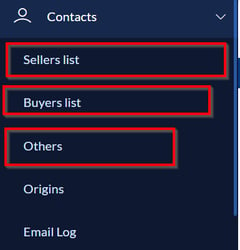
It is possible to create profiles for sellers and buyers, among others, such as lawyers and suppliers.
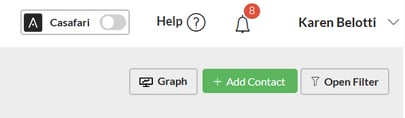
B) Create new contacts for an Owner and Buyer/Owner profile:Go to Contacts > Buyers List or Contacts > Sellers List and click "Add contact".
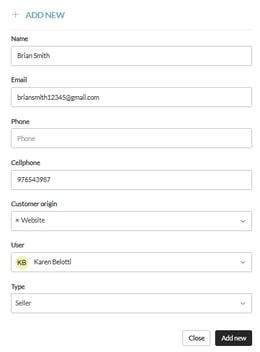
Fill in the personal details, email, customer origin, user and type.
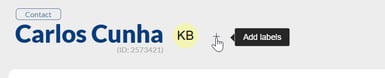
1. Labels: Add labels to the contact; learn more about labels in the article.
2. General data:
Add the contact's personal details:
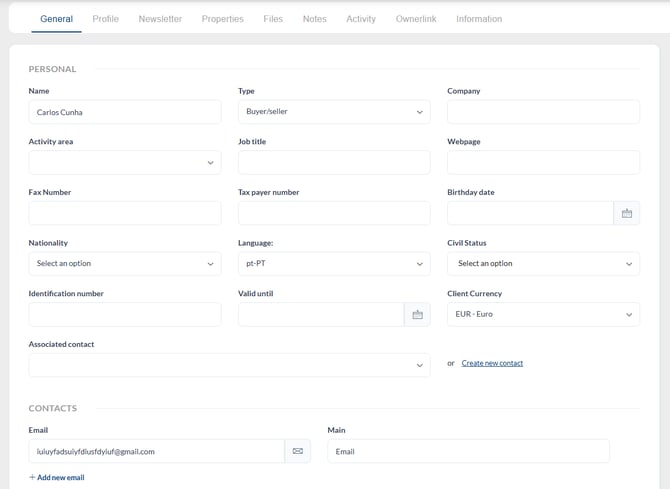
2.2) Associated Contact: This field allows you to add another contact who will be involved in the property purchase. You can either create a new contact or associate an existing contact.

If the “Civil Status” field is set to “Married”, the applicable matrimonial regime must be specified when associating a contact.
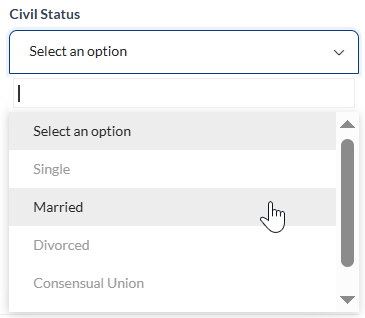

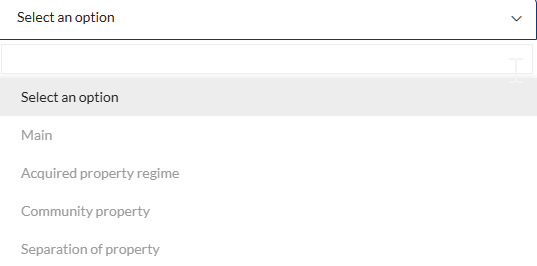
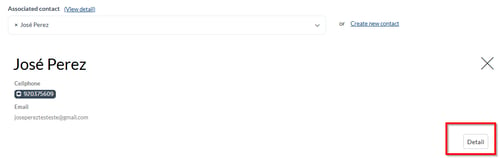
Under the “Details” option, clicking on it will open the details page for the associated contact, where you can view the contact’s information.
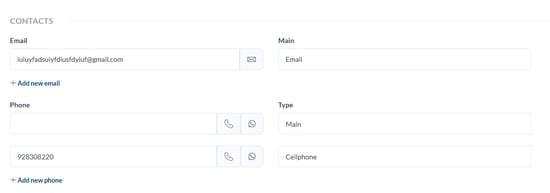
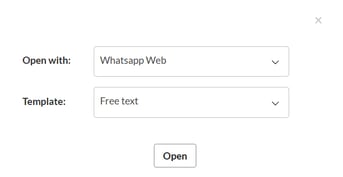
Phone and email contact: Add the customer's email and mobile phone number. Select the mobile number associated with the customer's WhatsApp account. By clicking the WhatsApp button next to the phone number, you can send a message directly to the customer.
 Dates to remember: Add one or more important dates and tick the notification box to be reminded. You'll receive a notification in the CRM and also by email 48 hours before the date set here.

Configuration: Edit the contact's configuration. This can be edited at any time, allowing you to change the contact's source, add a secondary user (i.e., another agent), add a lawyer, if applicable, and even create a password for the contact. Adding a password will only make the contact visible to other users after the password is added.
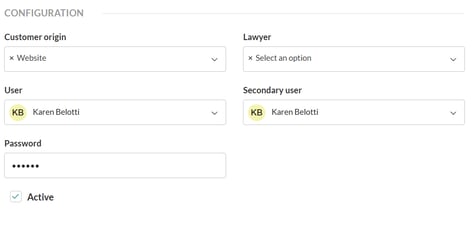
Note: When a contact is deactivated, it no longer appears in the dropdown lists for sending property information, creating associations, etc., and automatic emails are no longer sent.
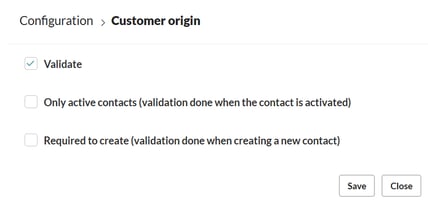
Setting required fields: the required fields for filling in a contact can be configured manually by going to configuration > required fields and clicking on "contacts".
In this area, there is a list of required fields; click on the field you want to edit, choose between the options "validate" or "validation only for active contacts" or "validation required to create a new contact" and click Save.
3. Profile: This tab belongs only to the Buyer Contact.
Add the characteristics of the property types the client is looking for. If there is no lead associated with the contact, the data can be filled in normally. If there is an associated lead, the data is filled in according to the characteristics of the property associated with this client's lead.
You can add different property types, depending on what the client is looking for.
By clicking "Add Profile," you can create another profile with different characteristics.

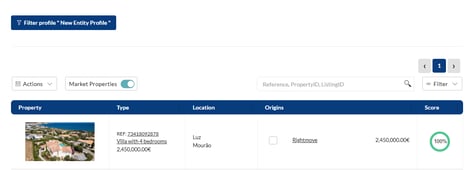
Property search based on client profile: Search for available properties based on the client's profile.
You can search within the CRM, where properties from the agency's portfolio will appear. You can use the filter to search for any property, regardless of its condition.
Activate the "market properties" button to view properties available on the market, based on the characteristics specified in the client's profile. You can use the filter to search for properties from agencies, partner agencies, private individuals, or banks.
Customised search using the search bar: In the search bar box, search for properties based on reference characteristics, address, etc.
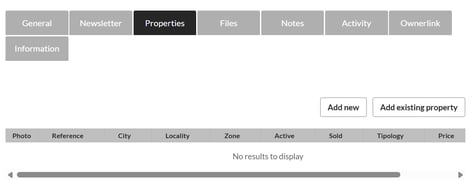
4. Properties: This tab belongs only to the Seller Contact.
Add properties related to the contact. You can add a new property, then create a new page in the CRM or add an existing property. This option is only available for Owner or Buyer/Owner contacts.
5. Newsletter: Check the box to send the OPT-IN request to the contact and include them in the mailing list. The OPT-IN text allows customers to accept the terms and conditions defined in Configuration > Automation Text > OPT-IN.
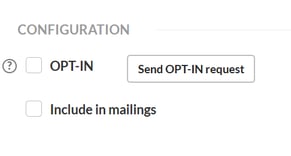 *Note: When the customer accepts the OPT-IN request, the OPT-IN option is selected, and the acceptance date is displayed.
Mailing: When a customer is added to the mailing list, they can receive Smartmails. To learn more about Smartmails, read our article.
By accepting the terms and conditions of the OPT-IN request, you also allow contacts to be sent to MailChimp. To learn more about MailChimp, read our article.
6. Files: Upload files to the contact, such as proof of income and other client documents.
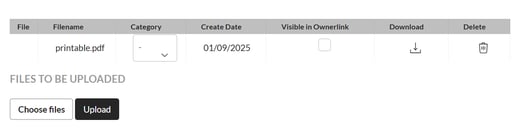
Category: Identify the document category according to the options.
Visible in Ownerlink: Select this option if you want the document to appear in Ownerlink. To learn more about Ownerlink, read our article (option available only for Owner or Buyer/Owner contacts).
7. Notes: Set notes relevant to the contact.
8. Activity: Create events, view history, and future events. Click the "Automail" box to see which and how many Smartmails this contact has been included in.
9. Ownerlink: Create an Ownerlink and share information with the property owner (option only available for Owner or Buyer/Owner contacts).
10. Information: View all activities, including creation date, last edited date, and the complete history of internal activity related to the contact.
11. Right-side panel
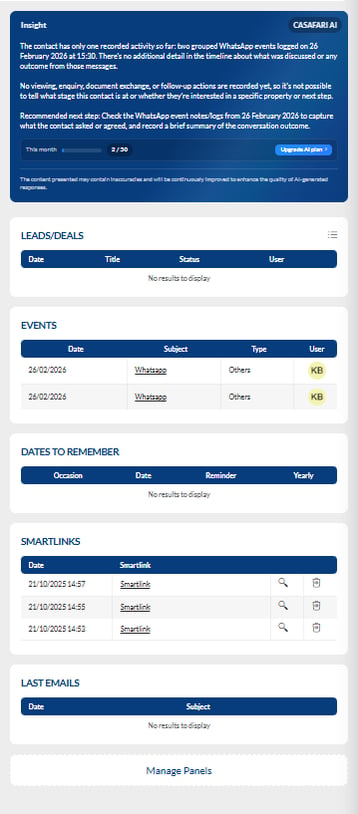
AI Insight: AI Insight is an Artificial Intelligence (AI) feature that analyzes data recorded in the CRM to generate up-to-date reports on each contact's activity. The information is consolidated from leads, events, and other records, providing a clear, detailed, and centralised view of every interaction and the complete activity history for each contact.
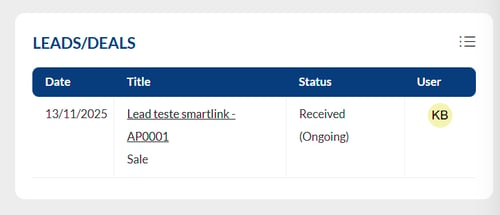
Leads/Deals: This section displays all leads associated with the contact. To view the details in a list, click the button in the upper-right corner.
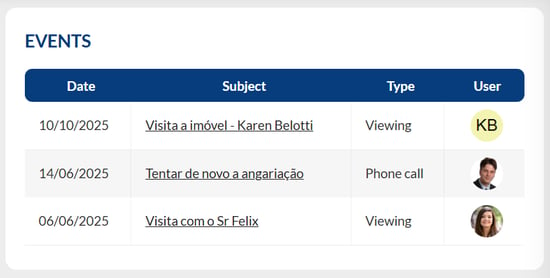
Events: This section displays all events associated with the contact. To view them in a list, click the button in the upper-right corner.
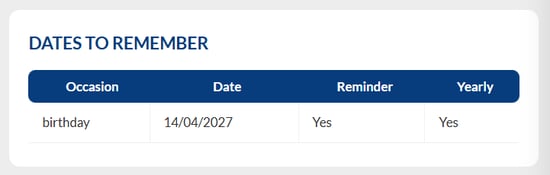
Dates to remember: This section displays all important dates associated with the contact.
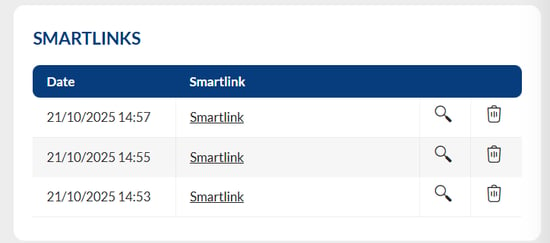
Smartlinks: This section displays all Smartlinks sent to the contact. To view the details in a list, click the button in the upper-right corner. To learn more about Smartlinks, see the related article.
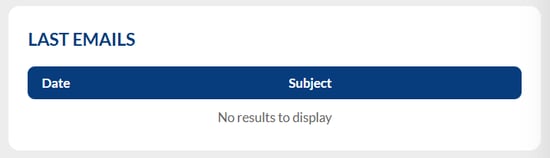
Last emails: This section displays all imported emails. The Email Importer allows you to import all email communications exchanged with your contacts, keeping a centralised and easily accessible history. To learn more about the Email Importer, read our article.
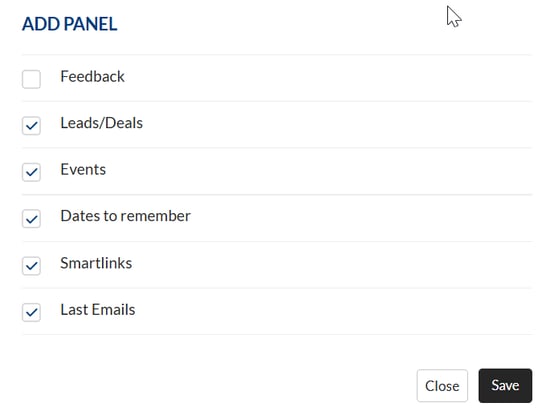
Manage Panels: Reorder the panels displayed in the side menu, or click Manage Panels to add or remove information according to your preferences.

12. Actions: Click on the actions option in the top right corner to print, export, view invoices and delete the contact.
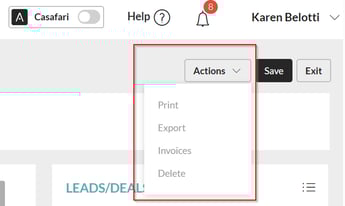
Print: An A4 PDF file is generated with all the contact's information for printing. Esta informação não me parece ser do detalhe do contacto
Export: Export an XML file with all the contact's information for download.
Invoices: Access customer invoices within the CRM. To set up an invoice, access the billing module under Billing > Invoices. To learn more about Invoices, read our article.
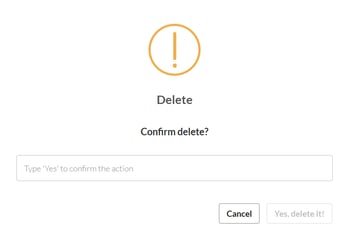
Delete: Delete a contact by clicking "Delete." After clicking, a window will appear asking you to confirm the permanent deletion of the contact. Click "Yes, delete!"
C) Create other types of contacts:
Go to Contacts > Other and click "Add Contact."
You can create other types of contacts within the CRM. These contacts can include buyer/owner, short-term/vacation rental owner, attorney, investor, other, and external agency.
When an external agency contact exists, it can be linked to the properties to which it is associated. Learn more about external agency properties in our properties article.
These contacts are populated in the same way as the previous ones, allowing you to add files, notes, view activity, etc.
D) Contacts created from FSBOs list:
When a new lead or property is created through the prospection properties list, a new contact will automatically be created in the seller list.
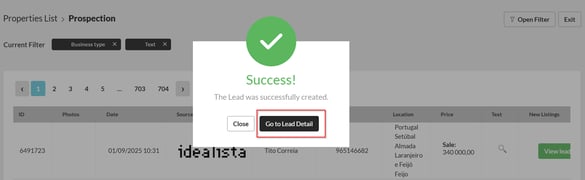
After creating the lead, click "Go to lead details":
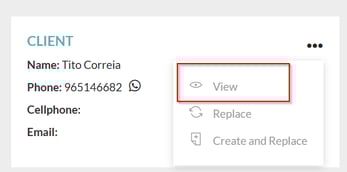
Within the lead page, in the right-side menu under "client", click on "view":
Within the contact details page, edit all information and add what's needed. To access the prospecting properties list, click Properties > FSBOs. Read our article on properties to learn more about creating leads and new properties through the prospecting properties list.
E) Contacts List Page:
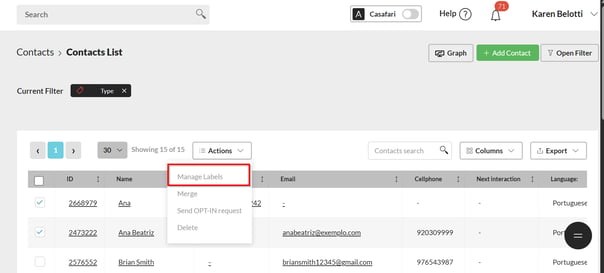
1) “Actions” Button:
Perform direct actions from the contacts list by clicking the “Actions” button.
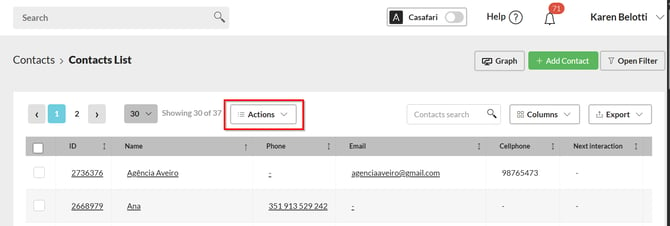
Types of actions:
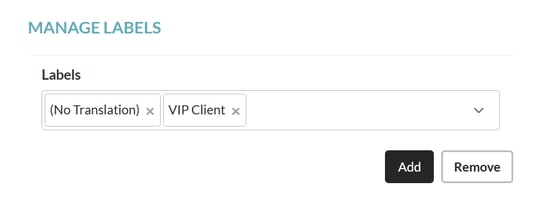
Manage labels: Select the contacts on the left whose labels you want to modify, and choose the labels you wish to add, change, or remove.
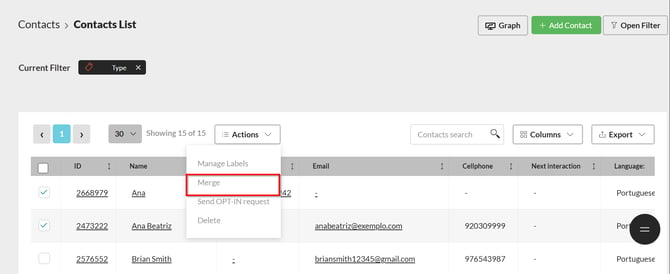
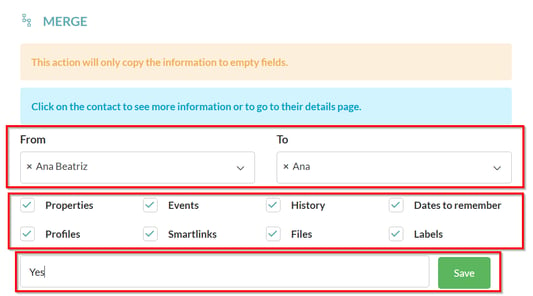
Merge contacts: Through this action, you can merge contacts that are duplicated or whose information you wish to combine into a single contact record. After clicking “Merge contacts,” in the “From” to “To” field, select the contacts you want to group, and then choose the data you wish to transfer and copy. To complete the action, type “Yes” and select “Save.”
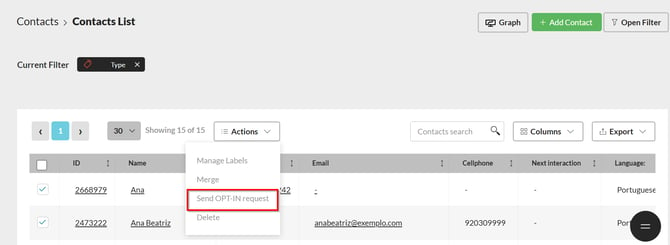
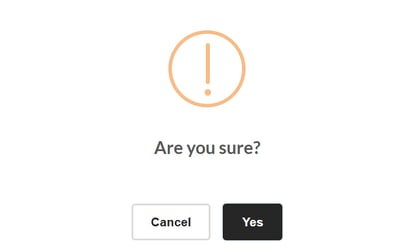
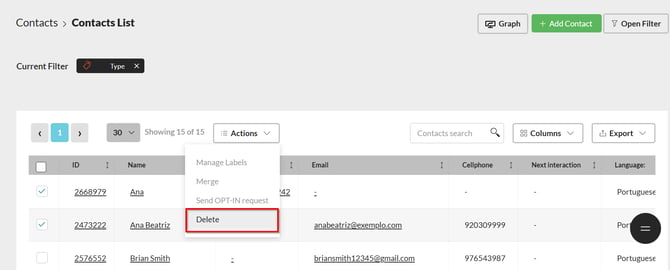
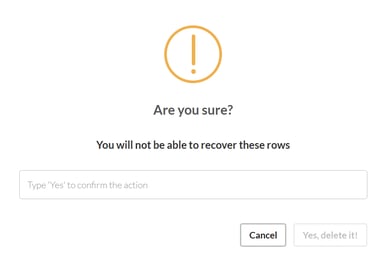
Delete: Select the contacts you wish to remove and click “Delete.” A warning pop-up window will appear and, to proceed with the deletion, you must type “Yes.”
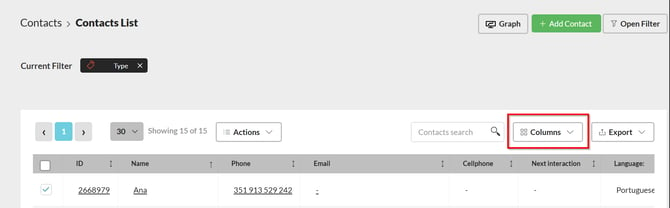
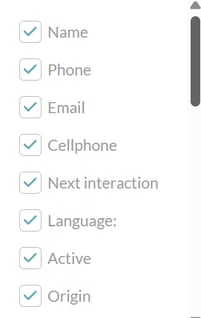
3) “Export” Button:
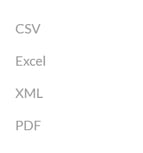
Export contact data to external files (PDF, XML, CSV, and Excel):
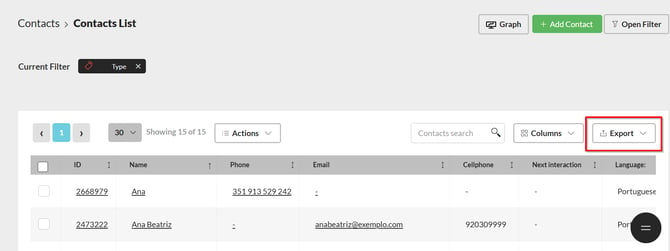
F) Users Associated with Contacts:
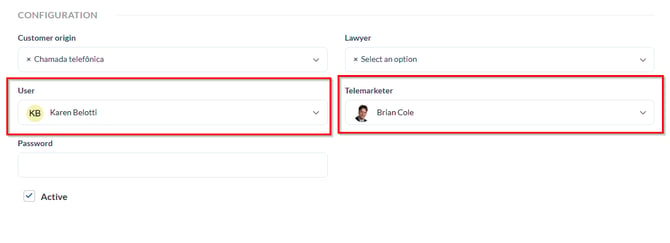
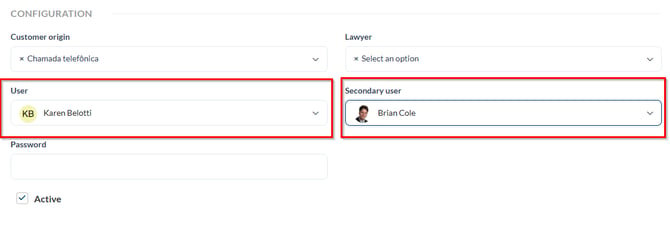
In the “User” field, the agent to whom the contact belongs is assigned. This user will have access to all of the contact’s data.
To allow more than one user to have access to the contact’s data, an additional user can be added to the “Telemarketer” field for buyer contact data, or to the “Secondary User” field for the remaining types of contacts (seller, lawyer, other, investor, among others).
-
Buyer Client:
- Seller Client and Other Contact Types:
Note:
It is possible to create contacts without associating them with any leads. This can occur in situations where the agency has no property that meets the potential client's need at the moment.
Note: Artificial Intelligence (AI) features are available with an additional CRM add-on subscription. For more information about licensing and pricing, please contact your account manager.
This feature is available for all CASAFARI CRM users.
For more information, please contact us by email: help@casafaricrm.com