![login-logo.png]](https://helpcenter.casafari.com/hs-fs/hubfs/login-logo.png?height=23&name=login-logo.png)
Step by step:
-
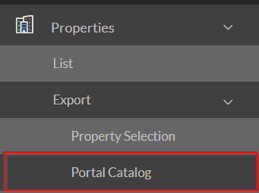
Create an account on the Idealista platform. If not, you can request registration through the CRM: go to Properties - Export - Catalog of Portals - idialista.pt and check the option “Apply for registration”.

- To set up a development account: To export developments to the Idealista portal, you must have purchased the development module from the portal. To do this, you must request activation on Idealista's side and inform us so we can process the activation request internally. After this, we will confirm the activation, and you can then select the properties/developments to export to the portal. Learn more about creating developments in the CRM by accessing our article.
-
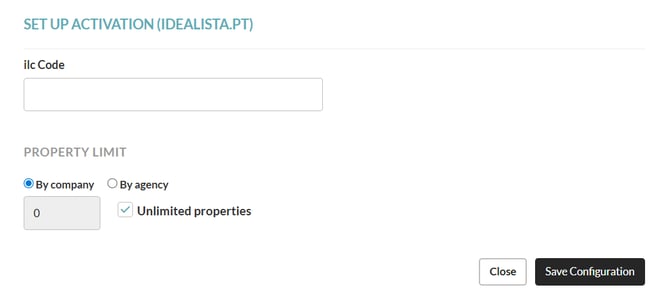
You must obtain the ILC code (identification number) associated with your account from the portal. The ILC code is information provided by idealista. If your idealista account allows you to export projects, you must notify us so we can configure it internally.
- Go to Properties - Export - Portal Catalog - Configuration and enter the ilc code. Set the limit on the number of properties to be exported, if necessary.
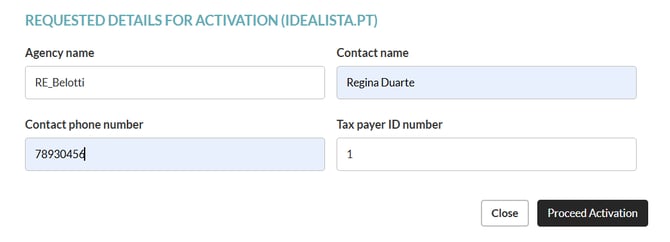
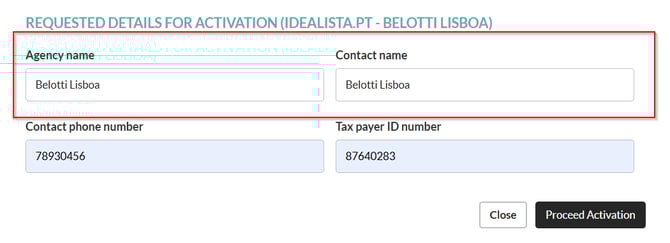
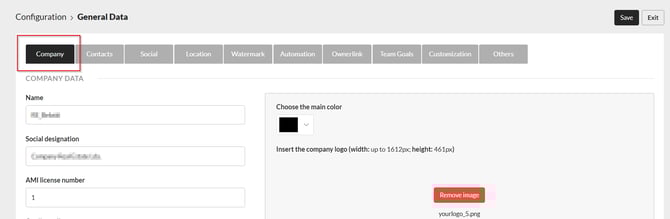
- To request registration, you can choose the contact to send the information to or, if the selected option is to send the company data, these will be filled in according to the information in Configuration > General Data > Contacts.
By contact:
By company:
-
Go to Properties - Export - Property Selection and select the properties that are to be exported to idealista.
Note on the export of properties with “New” condition to Idealista:
Properties whose condition is set as “New” in the CRM are, by default, not exported to the Idealista portal. This condition applies to new properties or new developments, whose publication on the portal depends on the permissions associated with the client’s Idealista account.
If the Idealista account allows the export of properties with these characteristics, this configuration must be communicated so it can be activated internally. This will ensure that properties with the “New” condition are not incorrectly excluded from the feed.
Observations from idealista.pt:
-
It is mandatory to define the Zip Code in the properties that will be exported.
-
There are three ways to communicate how the portal should publish the property's location:
- Hidden - This is the default option and tells idealista that they should only publish the area (approximate location) where the property is located;
Street - Tells idealista that they should publish the property's address;
Full - Tells idealista that they should publish the full address (exact location - address + number) where the property is located;
**If you wish to submit either of the last two options, please contact us at help@casafaricrm.com so we can configure the desired settings.
- The photos cannot be larger than 32Mb. If the photo exceeds this size, the idealist will resize the photo.
- The portal does not accept videos from streaming platforms (YouTube and Vimeo, for example). It will require activation in idealista and then communication with us so that we can also enable this option in CRM.
- Idealista only accepts videos in the following formats: AVI, MOV, WMV, MPEG, RM, MP4, FLV, M2T, and 3GP. The maximum number of videos is 6 per property, up to 100 Mb. However, from the CRM, you will only send 1 video for each property.
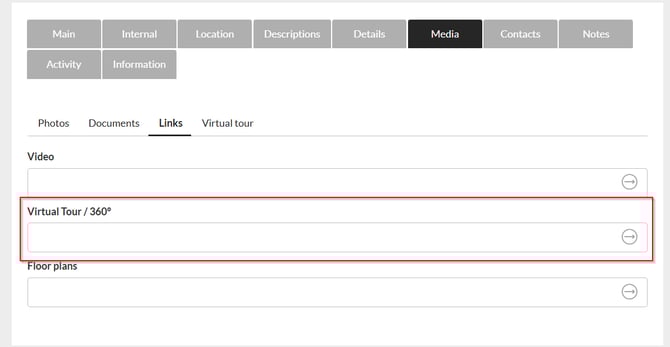
- To send virtual tours, you should contact your portal account manager so they can prepare everything to receive this information through CASAFARI CRM. The portal accepts the virtual tour format from our system, so you can go to Properties > Media > Virtual Tour to create and export one. Follow these steps to publish virtual tours on your website and export to real estate portals:
2. Select the property and access its details.
3. In the Media tab, go to "Links."
4. Enter the URLs for the video and/or virtual tour.
5. Click Save.
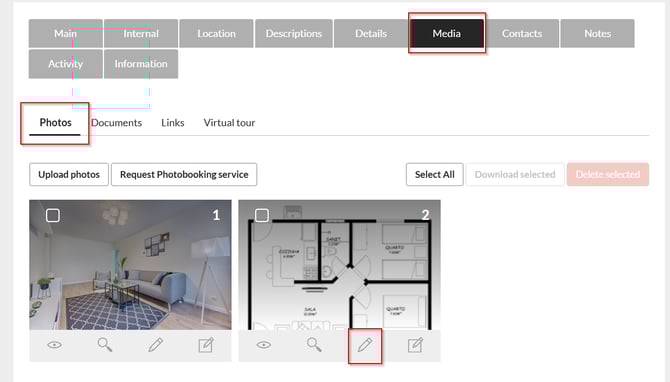
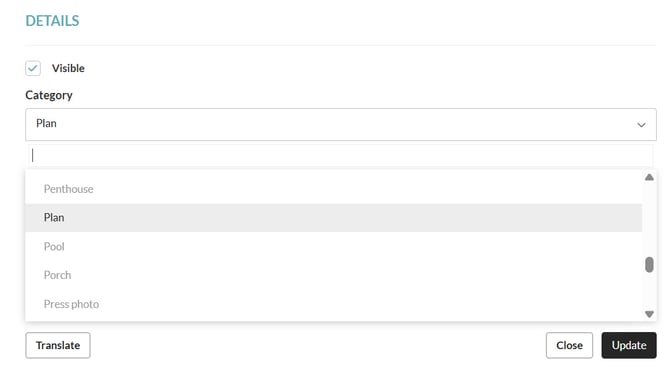
- In case you want to send the plan of the property to idealista, you must upload a photo of the property plan and categorise it as " Plan" inside the CRM.
- The property feed is updated to idealista every 2 hours. However, the portal may take longer to process it.
Check the export history.
If the messages are successfully processed, you will get the following information:
"Property inserted/updated in idealista".
This means that any property that has been altered in the CRM has been updated in the Idealist or that a new property has been successfully exported. In this message, you can also access the link to the property in the portal.
If the message you see in the history displays the information "property not inserted due to low quality of the listing. Please review the property fields", you should access the idealista backoffice/system to see what information is missing.

Frequently Asked Questions:
"The property is not published on Idealista.pt"
One of the main reasons for properties not appearing on idealista.pt is that the zip code of the property is missing. This must be entered in the CRM and must be valid.
"The property is not in the correct location".
Please check on the CTT website if the zip code is correct: https://www.ctt.pt/feapl_2/app/open/postalCodeSearch/postalCodeSearch.jspx.
"The property does not have the title I have set up in the CRM".
Idealist does not use or accept the title of the properties set in the CRM. The portal builds the title based on the characteristics of the properties sent to it in the feed.
If necessary, contact your idealista account manager to make changes to the ad title directly in the portal.
"I'm exporting properties from a different system. What do I need to do to switch to CASAFARI CRM?"
Contact your idealista account manager and ask them to change your import system to CASAFARI CRM. Idealista will confirm this change along with the ilc code (CRM field where you should put the Branch ID) that should be configured.
This change will eliminate all properties that were previously uploaded to idealista (manually or exported), so that the ones from CASAFARI CRM can be published, without the risk of duplicating properties in the portal.
This feature is available to all CASAFARI CRM users.
For more information, please contact us by email: help@casafaricrm.com