![login-logo.png]](https://helpcenter.casafari.com/hs-fs/hubfs/login-logo.png?height=23&name=login-logo.png)
Custom funnels allow you to create workflows tailored to the specific needs of each business. In addition to the existing funnels, sales and listings, they can also be used to manage other areas, such as after-sales, recruitment, or credit management.
1) How to access
-
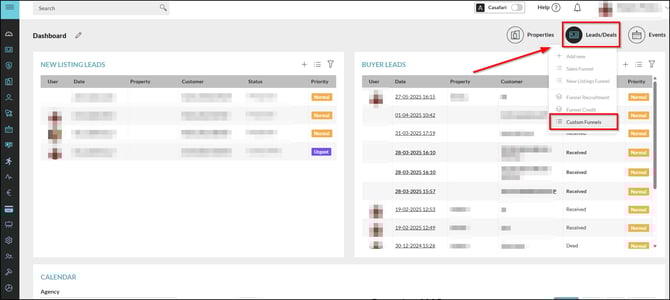
Via the dashboard by clicking on Leads/Deals:
-
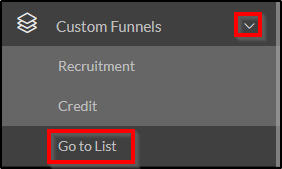
Via the main menu on the left:
2) How to create a custom funnel
-
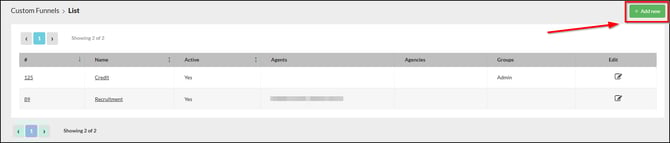
Go to the list and create a new funnel by clicking “Add new”
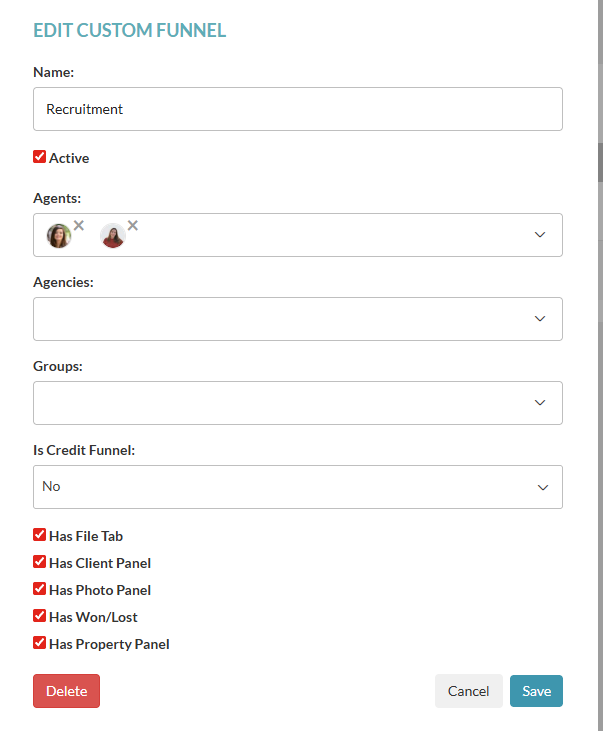
- Edit the funnel:
-
Name: enter the funnel name.
-
Active: select to activate the funnel.
- Select who will have access to the funnel:
-
Agents: select the agents who will have access.
-
Agencies: select the agencies that will have access.
-
Groups: select the user groups that will have access.
For clients with the Credit Module enabled, it is also possible to create credit funnels, with specific forms and actions. Simply select “Yes” in the field “Is Credit Funnel”.
- Select panels, tabs, and other options that will appear within the funnel:
-
Files tab: to add files relevant to the deal
-
Client panel: to add a client to the opportunity
-
Photo panel: to add a photo within the lead/opportunity
-
Won/Lost result: select whether you want to define the outcome as won or lost
-
Properties panel: select if you want to associate a property with the opportunity
Once created, the funnel will be visible in the list.
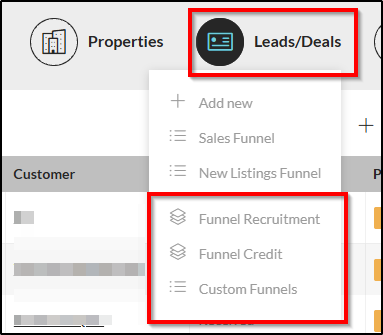
The new custom funnel can also be accessed directly from the dashboard.
3) How to create custom funnel stages
-
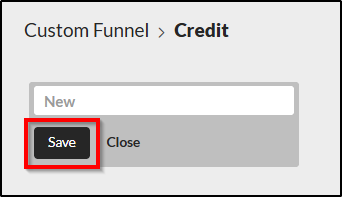
To create a new stage within the funnel, click “Add new stage"

-
Create a name for the stage and click Save
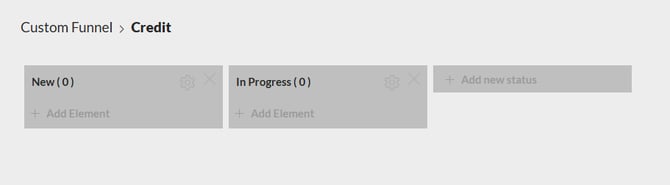
The stages will be saved within the funnel.
Update the stage settings
-
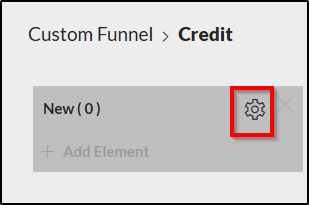
Click the “tools” icon to edit.
-
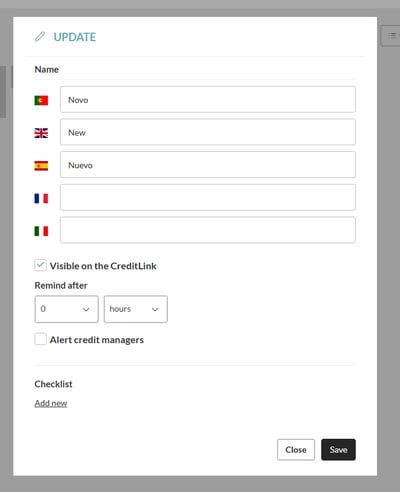
Then add translations, set a reminder, and edit the checklist.
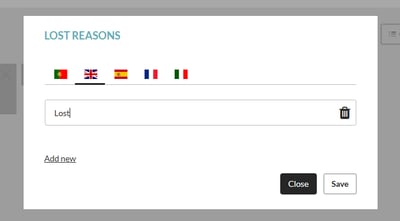
On the funnel stages page, it is also possible to configure the reasons for losing an opportunity by clicking “Configure reasons”.

-
Click “Add new” to add a new field, add the translations, and save.
4) Create new opportunities/leads
-
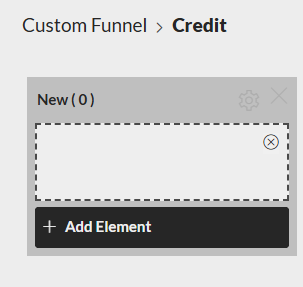
Create a lead within the funnel.
-
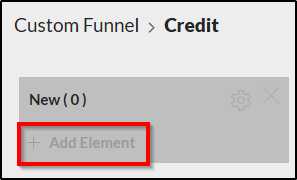
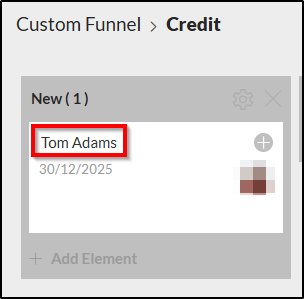
Add a lead according to the funnel stage and click “Add item”.
-
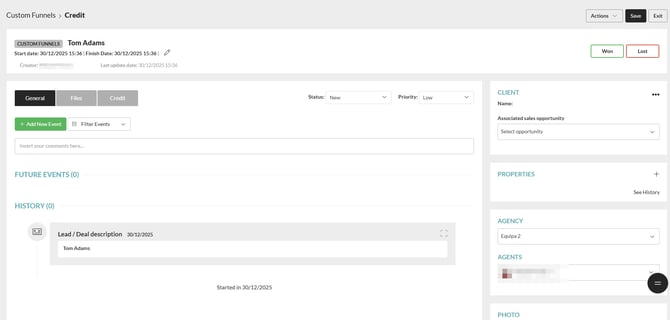
Then, you can click on the lead to edit it and add the client.
Notes:
To activate the Custom Funnel module, please contact Customer Support by email and request the activation of custom funnels.
This feature is available on the PREMIUM plan.
For more information, you may contact us via email at: help@casafaricrm.com