![login-logo.png]](https://helpcenter.casafari.com/hs-fs/hubfs/login-logo.png?height=23&name=login-logo.png)
Within the scope of sales management, commission allocation is essential to motivate teams and recognise results. When a lead is successfully closed, the CRM enables managers to distribute commissions in a simple and transparent way, defining who receives what and how payments are processed.
1) How to activate and set up commissions:
2) Define your agency’s commission level structure:
3) Create commissions
4) Commission Page:
“Main” Tab:
“Split” Tab
“Payments” Tab
1) How to activate and set up commissions:
-
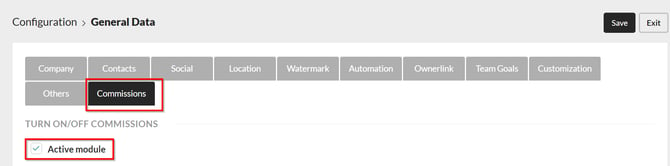
Access the Commissions section through the left-hand menu under Configuration > General Data > Commissions to activate the module:
-
Set commission standards: Define the percentage of the deal that will be allocated to the sale and the percentage assigned to the acquisition, ensuring that the total adds up to 100% (by default, the system applies a 50/50 rule).
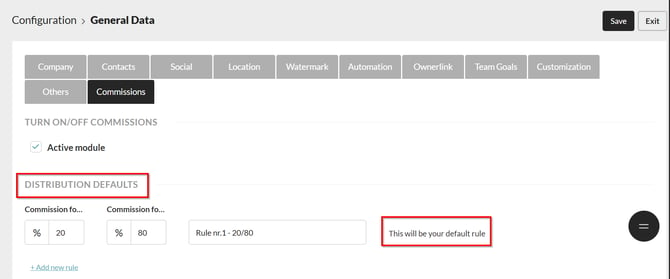
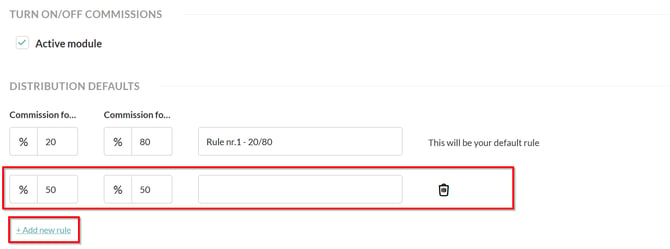
The default 50/50 distribution rule is fixed and cannot be changed or removed. If the agency uses more than one rule, it is possible to create up to 10 different distribution scenarios, allowing varied percentages to be configured for each situation.
-
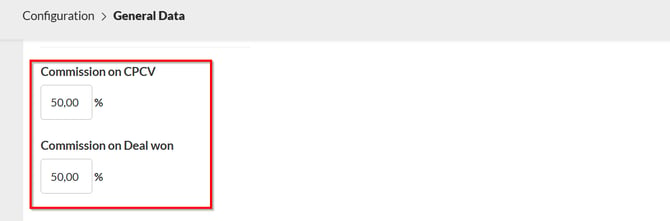
Set payment stages: Define the percentage to be received or paid for both the Promissory Contract (CPCV) and the deed, ensuring that the total adds up to 100% (by default, the system applies a 50/50 distribution).
-
Define the source of the recruiter’s and team leader’s commission: The commission can be deducted from the agent or directly from the agency. By default, the system applies the deduction according to the configured settings.
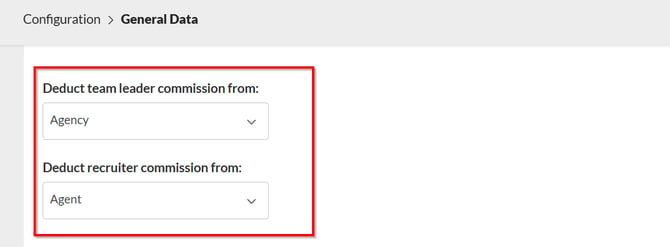
-
Management reports: Define how the rankings will be displayed.
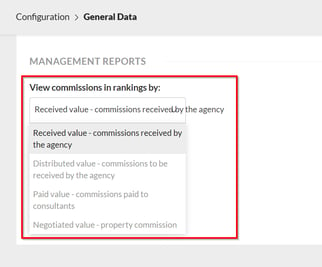
-
Define the group of users with access to the commissions module:
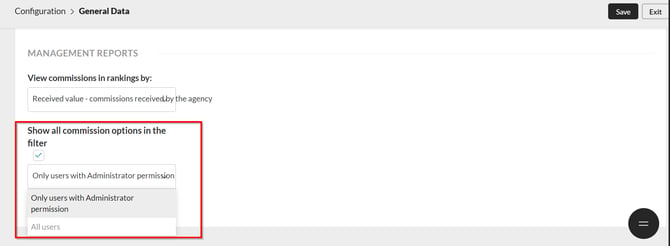
2) Define your agency’s commission level structure:
Commission levels are a list of the different commission categories within the agency. Each user is associated with a commission level so that the system can automatically calculate their commission when a deal is closed.
1. Access the left-hand menu and go to Commissions > Commission Levels:
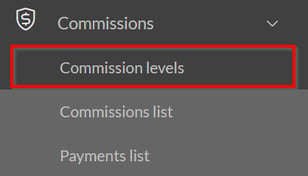
2. Define the levels: There are four predefined levels that can be activated or deactivated (they cannot be deleted):
Recruiter: for agent recruiters
Team leader: for team leaders
Booking Assistant
Listing Assistant
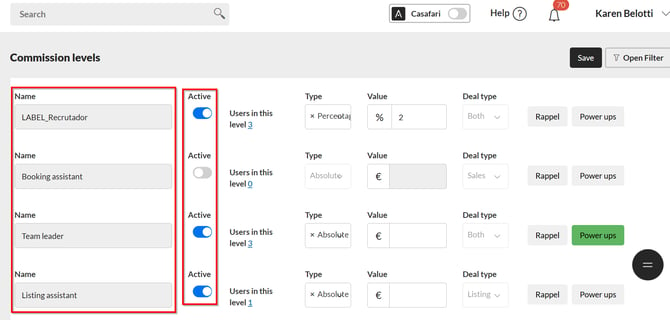
In addition to these predefined levels, new levels can be created to define commission groups, which can be activated/deactivated and also deleted.
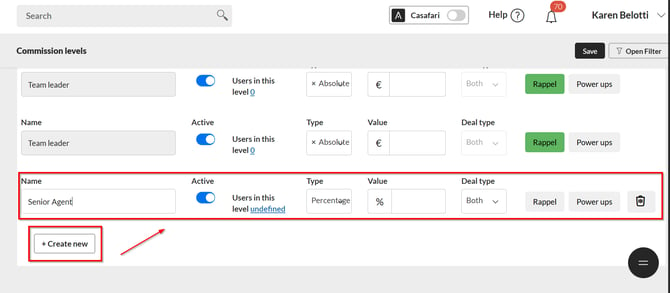
How to create a commission level:
1) Name, Active/Inactive and "Users in this level":
Name: Name of the commission level group
Active/Inactive: Allows activating or deactivating the commission levels

Users in this level: Allows adding users to the commission level group:
1. By selecting the number “0”, a pop-up window will appear where you can choose the group of users to add:
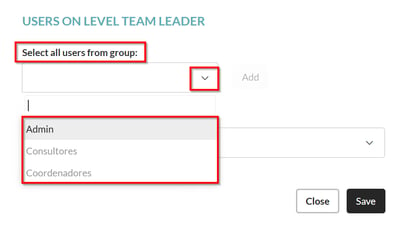
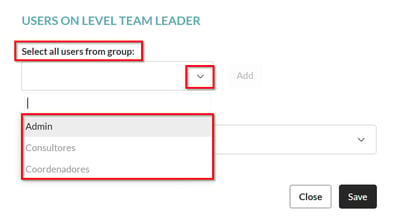
2. Select the users to be included in the group; you can choose one or more users.
2) Type: percentage or absolute value

3) Value: define the commission amount

4) Deal type: Define whether this commission level applies to sales, listing, or both.
Note: The deal type can only be set for custom-created levels; predefined levels cannot be modified.
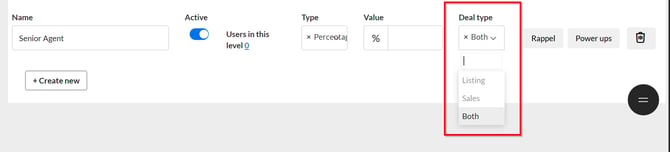
5) Rappel – Commission increase: Allows you to define an increase to the base commission based on the volume of deals closed. Multiple tiers can be added. The increase can be defined as a percentage or an absolute value.

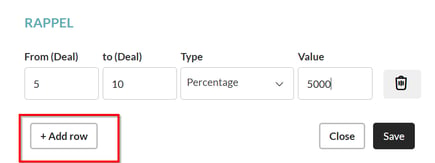
When “Rappel” is activated, it will be displayed in green:

5) Power-ups: Allow you to define additional commission amounts if a specific goal is achieved within a set time frame (monthly, yearly, or annually from the agent’s hire date), either at the sales level or commission level.

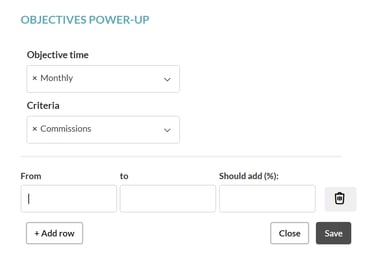
When “Power ups” is activated, it will be displayed in green:

Configure users’ commission level:
1. Access the user’s details via Users > List > Settings
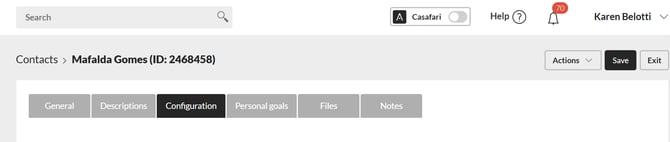
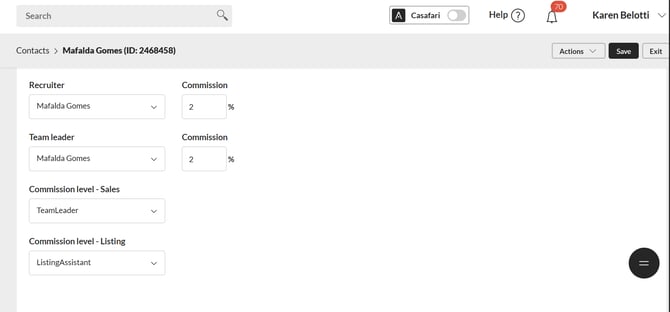
2. Associate users with commission levels:
-
Recruiter + recruiter’s commission percentage (optional): You can associate a recruiter with an agent and specify the percentage they will receive (if different from the default percentage set for the Recruiter commission level).
-
Team Leader + team leader’s commission percentage (optional): You can associate a team leader with an agent and specify the percentage they will receive (if different from the default percentage set for the Team Leader commission level).
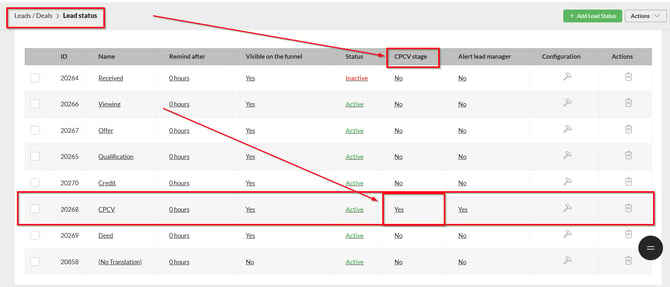
Select a lead status as your “CPCV Status”
Go to Leads > Sales > Status Settings:
To ensure that the commission is generated in the CPCV stage, a CPCV lead stage must be selected in the settings.
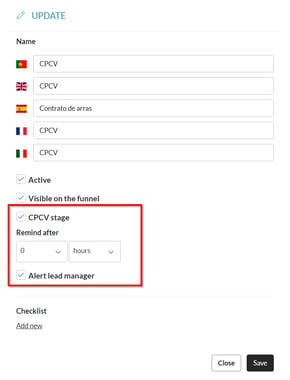
Note: Clients with multiple agencies should ensure they select a status and not a substatus as the CPCV status.
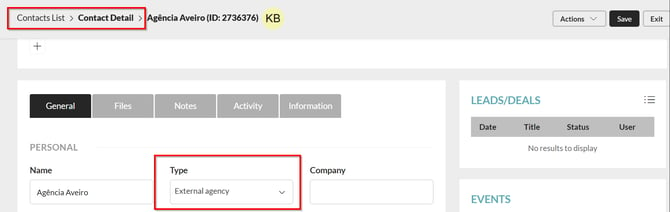
Define your partner (external) agencies
Go to Contacts > Contact List (Others)
If the company involved an external agency (either in acquisition or sale), you will need to save these agencies as contacts of the type “External Agency.”
3) Create commissions
The commission can be triggered at three different moments:
1) When the lead status changes to “CPCV Stage”
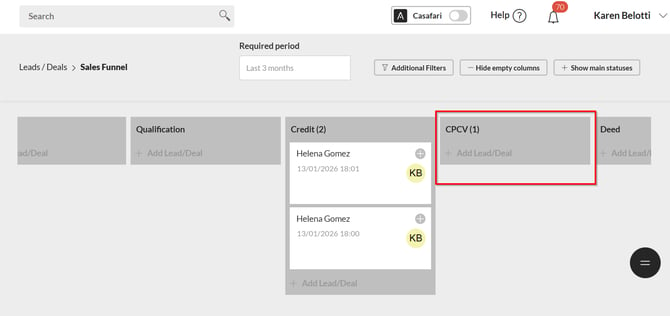
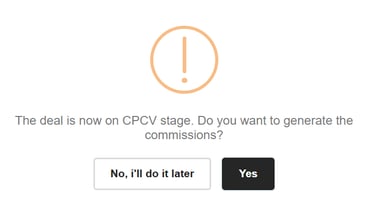
The system will display a pop-up window asking whether the user wants the commission to be generated at that moment:
-
If the user selects “Yes”, the commission will be created and can be edited.
-
If the user selects “No”, the commission will not be created immediately and will only be generated once the lead is won.
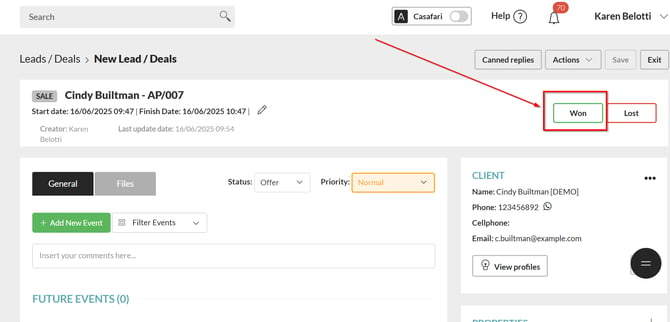
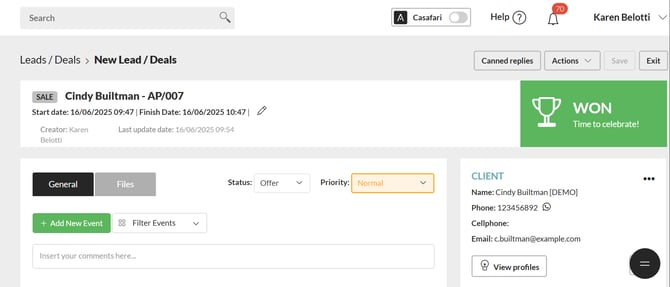
2) When a lead is “Won”
When a lead is marked as “Won”, the system automatically generates the commission.
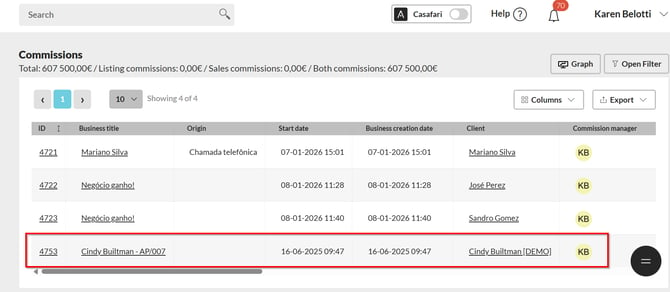
Validations for commission generation:
For a commission to be generated when a lead is marked as Won, certain conditions must be met. The final sale price must be filled in, and there must be only one property associated with the lead. It is also mandatory that the lead has at least one assigned agent. Additionally, there must be at least one user with the active Commission Manager permission. In the case of multi-agency clients, this user must belong to the same agency or to a higher-level agency.
3) When the property is marked as “Sold”
A commission is generated when the property is selected as sold.
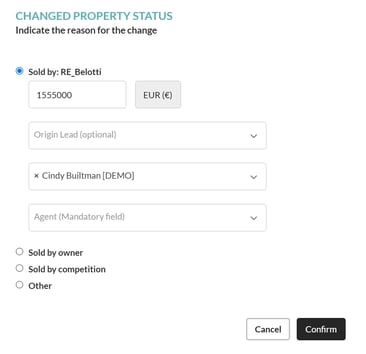
Before the commission is created, the system will validate certain fields and may ask the user to complete them beforehand:
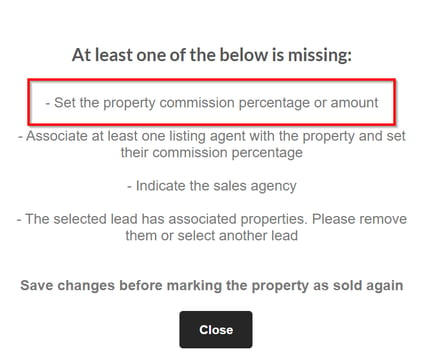
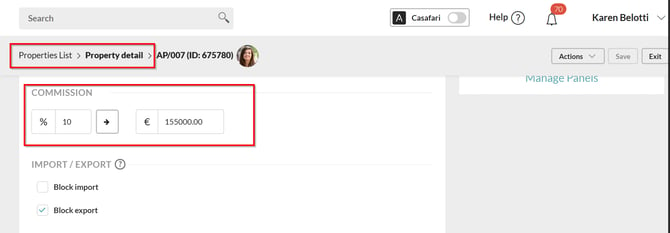
There must be a commission percentage/amount defined in the property details, which can be edited via the property list > details > Internal:
4) Commission Page:
You can access the generated commission page via Commissions > Commission List.
Top-right corner buttons:
- Complete – complete the commission (fields become locked)
- Reopen – reactivate the commission (fields become editable again)
- Save – save the data entered so far
- Exit – return to the list of commissions
- Delete – delete the commission. If a new commission needs to be created, it must be created from the sales lead, under Actions → Create Commission.


“Main” Tab:
Opportunity – Sales lead that generated the commission (title with link). Not editable.
Property – Reference to the property associated with the deal (with link). Not editable.
Transaction Value – Final sale price of the lead at the time the commission was created. Not editable.
These fields cannot be modified.
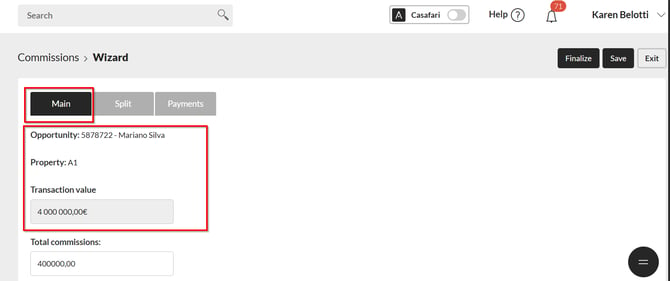
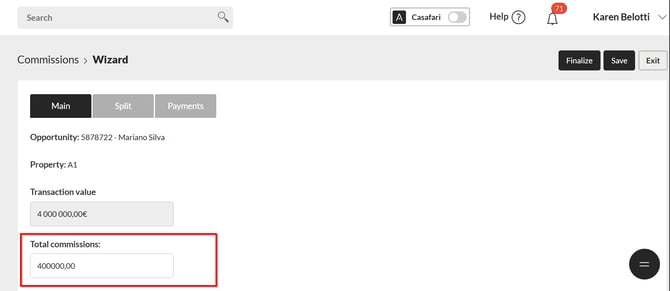
Total Commissions: Calculated from the transaction value and the commission percentage/amount defined in the property. If a value is entered manually, the system will ignore the transaction value and percentage, using the entered amount directly. It is editable by commission managers.
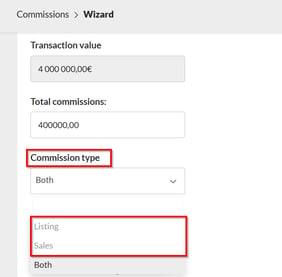
Commission Type: both, sale, or listing
Both: If the listing and the sale belong to the same agency or to agencies within the same network (internal split);
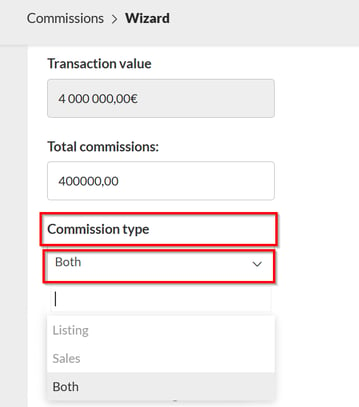
Sale: if only the sale was handled by the agency and the listing was provided by an external partner.
Listing: if only the listing was handled by the agency and the sale was made by an external partner.
External Agency: when the commission type is Listing or Sale, the external partner agency must be selected. If it is already specified on the property or sales lead, it will be automatically populated by the system; otherwise, it must be selected manually by the commission manager.
Editable and mandatory when the commission type is Listing or Sale.
Commission Distribution Rule:
If more than one rule exists, it will be automatically populated with the distribution rule selected on the sales lead.
If it is already specified on the property or sales lead, it will be automatically populated by the system; otherwise, it must be selected manually by the commission manager. This field is editable only by users with Admin permissions.
Listing Commission: automatically populated with the percentage defined in the distribution rule. Editable only by users with Admin permissions.
Sale Commission: automatically populated with the percentage defined in the distribution rule. Editable only by users with Admin permissions.
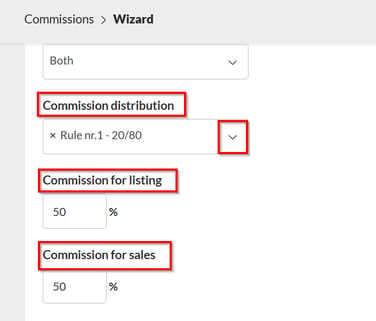
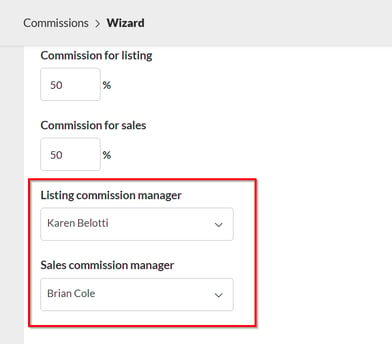
Listing comission manager– pre-selected according to the configured settings. The user will have access to the commission, but will only be able to view the acquisition component.
Sales Commission Manager – pre-selected according to the configured settings. The user will have access to the commission, but will only be able to view the sales component.
“Split” Tab
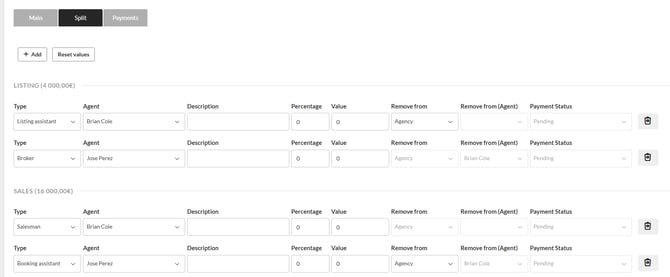
In this tab, the commission received by the agency is distributed among all users involved in the deal.
If all users are associated with commission levels, they will be automatically selected, and the commission will be distributed according to the percentages defined in those levels. Otherwise, they must be added manually by the commission managers.
Note: Associating users with commission levels after the commission has been generated will not automatically add them to the commission or update the percentage if they are already associated with it. For this to happen, the current commission must be deleted and a new commission must be generated.
Available Actions:
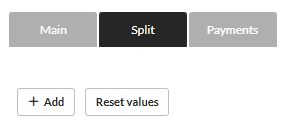
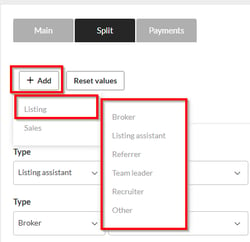
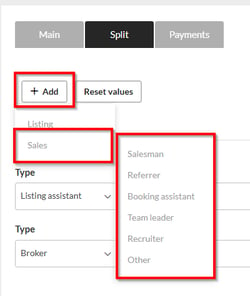
1) Add: Allows you to add the various parties involved in the transaction to the commission distribution.
Listing:
On the listing side, it is possible to add:
- Listing Agent: agent responsible for prospecting, negotiating, and formalizing the property listing agreement with the owner (mandatory).
- Listing Assistant: provides operational or administrative support to the listing agent throughout the property listing process.
- Referrer: person or entity who referred the owner or property, generating the listing opportunity.
- Team Leader: leader of the listing agent’s team who oversees the deal and supports the consultant’s management.
- Recruiter: consultant or manager who recruited the listing agent to the agency, entitled to a share of the commission for team development.
- Other: any other party who participated in the listing process and should be included in the commission split. For example, an agency employee who was responsible for photographing the property.
Sale:
On the sales side, it is possible to add:
- Salesman: the agent responsible for sourcing the buyer, presenting the offer, and closing the property sale (mandatory).
- Referrer: person or entity who referred the buyer, generating the sales opportunity.
- Booking assistant: professional responsible for qualifying the buyer and scheduling property viewings.
- Team Leader: leader of the sales agent’s team who oversees the deal and supports the negotiation and closing process.
- Recruiter: consultant or manager who recruited the sales agent to the agency, entitled to a share of the commission for team development.
- Other: any other party who participated in the sales process and should be included in the commission split. For example, the café owner who provided the keys to the sales agent during the client's property viewing.
Note: All parties added to the commission must be created in the CRM as system users.
2) Reset Values:
If changes have been made to the original commission split (when the commission was generated), the values can be reset using this action.
Field completion:
The tab is divided into two sections: Listing and Sale.

When there is only one agency, if the commission type is Sale or Listing, only the part of the deal that will be distributed will be displayed.
When there are multiple agencies, the level of information available to the commission manager depends on the type of split. In a split with an external agency (commission type “Sale” or “Listing”), only the part of the deal corresponding to the relevant agency will be displayed. In a split with an agency from the same network (commission type “Both”), each commission manager will have access only to the part of the deal corresponding to their agency, while the remaining information will be hidden.
Next to each section, in parentheses, the commission amount allocated to each part of the deal is displayed, according to the configured distribution.
The fields in each row should be completed as follows:
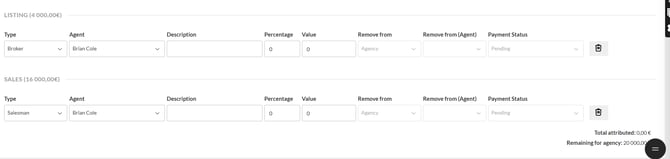
Type
The role the user performed in the deal. Sales Agent and/or Listing Agent are mandatory roles to finalize a commission.
Agent
Select a user from the list. All active users to whom the commission manager has access are displayed in alphabetical order. Inactive users appear at the end of the list and can also be selected.
Description
Field used to describe the role of the selected user when necessary. Example: select the type “Other” and enter “Cleaner” in this field.
Percentage / Amount
Calculated based on the user’s commission level and the configured percentage distribution among listing agents for the property.
Deduct From / Deduct From (Agent)
Defines whether the user’s commission amount will be deducted from another user’s commission or from the agency’s share.
By default, the listing/sales agent’s commission will be deducted from the agency’s share. The recruiter’s and team leader’s commissions will be deducted according to the configuration defined in the general settings.
If the amount is deducted from an agent’s commission, that agent must be included in the commission distribution so that the corresponding amount can be deducted from their share.
Payment Status
Shows the payment status of the commission to that user. Payments are managed in the “Payments” tab.
Totals:
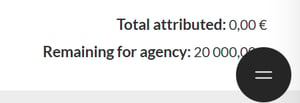
Total Allocated
The sum of the amounts allocated to all parties involved.
Remaining for Agency
Calculates the amount remaining for the agency by subtracting the total amount allocated to all parties involved from the total commission amount.
“Payments” Tab
This tab lists the commission payment statuses and payments.
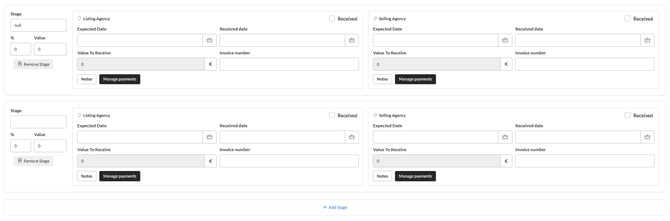
By default, the system automatically creates two payment statuses: CPCV and Deed. The commission percentage assigned to each status corresponds to the default percentage defined in the general settings.
However, each transaction has its own characteristics and may have different payment schedules. For this reason, the statuses are dynamic, allowing you to add or remove statuses according to the specific requirements of each transaction.
The only condition is that the sum of the percentages assigned to the different statuses must not exceed 100%, and the total amount allocated must not exceed the total commission amount.
Examples of payment statuses:
- For a rental: Contract
- For a standard sale: CPCV + Deed
- For a development project: Phase 1 + Phase 2 + Phase 3 + Phase 4
Each payment status must include:
- Title – the name used to identify the payment status
- % – the percentage of the commission to be received at this stage
- Amount – the commission amount to be received at this stage
The manager responsible for each side of the transaction, Listing or Sales, is then responsible for completing the corresponding fields:
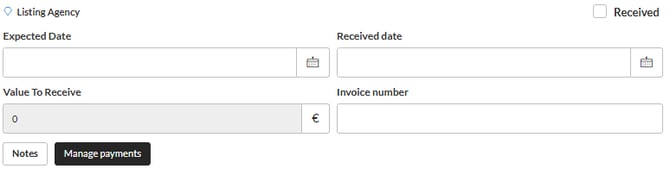
Date Received
The date on which the commission was actually received. When this date is entered, the “Received” checkbox will be automatically selected. This field can only be edited by the commission manager responsible for the Listing side.
Amount to Receive
The amount automatically calculated for each party involved in the transaction, corresponding to the commission to be received at that payment stage. This field cannot be edited.
Example: If the total commission is €10,000, with a 50/50 split between Listing and Sales, and there are two payment stages, CPCV and Deed, with a 40/60 split, the amount will be distributed as follows:
- CPCV Status: €4,000
- Listing: €2,000
- Sales: €2,000
- Deed Status: €6,000
- Lead Generation: €3,000
- Sales: €3,000
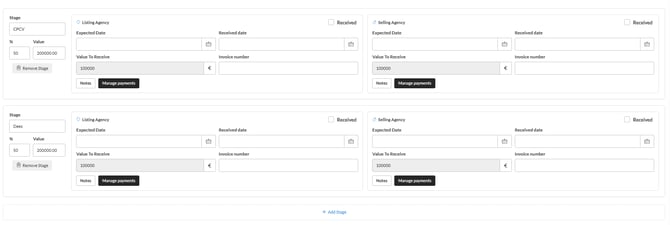
Invoice No.
The invoice number associated with the amount received.
Notes
A field for adding comments or notes about the payment.
Manage Payments
A pop-up window for managing payments to the users included in the distribution.
Finalize the Commission
Once all payments have been made, the commission must be finalized by clicking the “Finalize” button.
The commission can be reopened for editing.
5) Commission List
Once a commission has been received, the commission manager must access the respective commission and enter the date received, which will automatically mark it as “Received”.
To view received commissions, simply access the commission list and filter by the “Received” status. Alternatively, you can define a date range for the date received to view commissions received within a specific period.
The total received and total outstanding amounts are displayed in the top-left corner of the commission list.
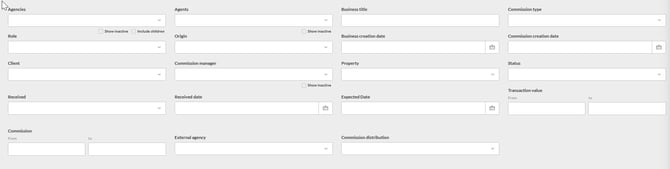
In the top-right corner, you will find the “Open Filter” button.
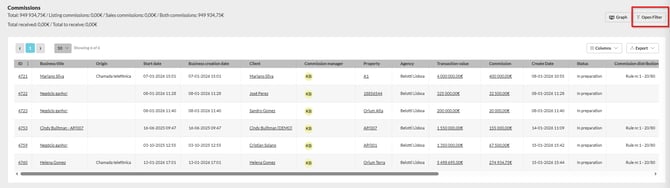
The results can be filtered by:
Agency: Search for payments made to agents from one or more specific agencies.
Agents: Search for payments made to one or more specific agents.
Deal Title: Search by the title of the lead that originated the commission.
Commission Type: Select between Both, Lead Generation, and/or Sales.
Role: Search for commissions containing specific roles within the transaction (e.g., commissions with a “Referrer”).
Source: Search for commissions by the lead source.
Deal Creation Date: Search by the date the opportunity/lead was created (date range).
Commission Creation Date: Search by the date the commission was created (date range).
Client: Search for commissions associated with a specific buyer/client.
Commission Manager: Search for commissions assigned to specific commission managers.
Property: Search for commissions associated with a property.
Status: Search by the commission status.
Received: Search for commissions where at least one payment status is marked as received.
Date Received: Search for commissions by the date a payment status was received.
Expected Date: Search for commissions by the expected payment date.
Transaction Value: Search for commissions by transaction value (range).
Commission: Search for commissions by total commission amount (range).
External Agency: Search for commission payments made to agents in transactions where the Lead Generation or Sales side involved a partnership with a specific external agency.
Commission Distribution: Search for commissions by distribution rule (when more than one distribution rule is configured).
The commission results list can be exported in Excel or PDF format. The columns available through the “Columns” button are fully configurable, allowing each user to customize the information displayed according to their needs.
6) Commission Notifications
There are three types of notifications associated with commissions:



| When It Is Sent | Recipients | Notification |
|---|---|---|
| When the commission is created | Commission managers from listing and sales agencies | Receive a commission created alert |
| When the commission is received | Commission managers from thelisting and sales agencies | Receive a commission received alert |
| When the commission is finalized | Commission managers from the listing and sales agencies | Receive a commission finalized alert |
A commission manager who has CRM notifications or email notifications enabled should always receive a notification when:
- A commission is created
- A commission is saved with the date received filled in
- A commission is finalized
Users who do not have the commission manager role should not receive notifications or emails when a commission is created, received, or finalized, even if the commission belongs to their agency. This rule applies even when the user has notifications enabled to receive this type of information.
Deleting a Commission
There may be cases where certain deal details change or need to be corrected because they were entered incorrectly.
Until the commission is created, all changes can be made. However, once the commission has been created, certain values changed in the lead or property will no longer be reflected in the commission.
In these cases, the commission can be deleted.
7) How to Delete a Commission
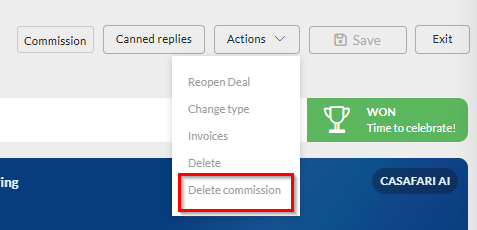
The commission can be deleted either from the commission page or directly from the lead.
From the lead, click the “Actions” button and select “Delete Commission”:
From the commission page, click the “Delete Commission” button:

Deleting a commission is irreversible. For this reason, if there are any associated payments, the deletion is protected by a confirmation screen where the user must confirm the action by typing “Delete”.
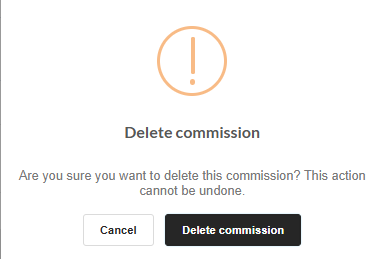
After deleting the commission, you can create a new, corrected commission by accessing the lead’s “Actions” menu and selecting “Generate Commission”.
Notes:
**To add the commissions module, you must contact customer support by email and request the activation of Comission module.
**For the commissions module to be activated, the “Commission Manager” permission must be enabled in the permissions group, and at least one user must be selected as a commission manager.
**In order for a commission to be generated, there must be a single lead exclusively associated with one property. If a lead is associated with two or more properties, the commission will not be generated.
FAQs
I belong to a network and made a sale shared with another agency within the network. How many commissions do we need to create?
For transactions shared between agencies within the same network, the process is as follows: the agency responsible for the lead generation creates the property; the agency responsible for the sale creates the sales lead and associates it with the property belonging to the lead generation agency. When creating the commission, the sales agency moves the lead to CPCV or marks it as Won, which triggers the commission generation.
From that point onwards, both agencies have access to the same commission, but each agency can only view its own share of the transaction.
The lead generation was mine, but the sale was made by a partner. / The sale was mine, but the listing was done by a partner. How do I distribute my share of the commission?
The commission should always be considered as a whole. The total commission amount for the transaction must be entered, rather than only the amount corresponding to one of the parties. The system then automatically calculates the split between the parties when the commission is created.
If the commission is related to Listing, the sales lead must be marked as “External Agency”, and an external agency must be selected. You can then mark the lead as Won directly from the lead, or mark the property as sold and select the relevant lead in progress so that it is marked as won and the commission is generated.
If the commission is related to Sales, the property must indicate which external agency is involved in the partnership, so that the lead generates a Sales commission.
I have already generated the commission, but some values in the lead and/or property were incorrect. Can I edit them in the commission?
Yes, but this depends on the values and the user's permissions. If the commission is still in preparation, the only way to fully correct it is to delete the existing commission and create a new one from the lead.
What happens if I assign a user to a commission level after the commission has already been generated?
Assigning a user to a commission level after the commission has been generated does not automatically update the calculations. To apply the new configuration to an existing commission, you must delete the current commission and generate a new one.
How can I find out how much commission was received within a specific date range?
In the commission list, use the “Date Received” filter and select the desired date range. The top-left corner of the page will display the total commissions received and the total outstanding amount.
When can I delete a commission?
You can delete a commission, provided it is in “In Preparation” status, if you identify incorrect information entered in the lead or property that cannot be corrected after the commission has been automatically generated.
How do I configure commission levels?
Go to Commissions → Commission Levels and create the different levels, defining the percentages, thresholds, and application rules according to the agency's commission structure. This menu option is only visible to users with permission to edit commission levels.
How do I assign a commission level to each consultant?
There are two ways to do this. In Commissions → Commission Levels, select “Users at this Level” and click the number to open the user assignment panel. From there, you can assign the level by user group or individually to specific users.
Alternatively, you can assign the commission level directly from the consultant's profile by selecting the appropriate level under the Settings tab. From that point onwards, the rules will be automatically applied to their transactions.
What are Power Ups and Rappel, and what are they used for?
Power Ups are additional incentives applied to specific transactions. Rappel refers to a cumulative adjustment, usually associated with targets or achieved turnover levels.
How do I close a transaction and automatically generate a commission?
After entering the final values (price, percentage, and parties involved), changing the transaction status to “Won” automatically calculates the commission based on the defined rules. The commission can also be generated when the lead status is changed to CPCV, if the relevant configuration is enabled.
In the case of a shared transaction, how do I split the commission?
On the lead, indicate that there is a shared transaction (if the buyer belongs to another agency) and define the percentage allocated to each party before closing the transaction. If the property belongs to another agency, identify the property as an External Agency in the Contacts tab. The system automatically calculates the distribution.
How do I split the commission?
In the commission list within the transaction, allocate the percentages to the consultants involved and save the changes. If commission levels have already been assigned, the system will automatically calculate the split.
How do I record that I have received the commission?
In the Payments tab, record the payment received for the relevant transaction, entering the date and amount received.
How can I see what I am going to pay/receive?
In the Payment List menu, you can view pending and paid amounts, as well as expected payment dates, with filters available by period or consultant.
There are repeated lines in the payment list. What does this mean?
These correspond to different payment stages, splits between parties involved, or adjustments (e.g., Rappel). The payment list only displays the amount to be paid to consultants based on the percentage that the agency receives at each stage, such as CPCV and Deed, or other configured payment stages.
I have a closed lead with two properties associated with it. Why wasn't a commission generated?
A lead with two properties cannot be marked as Won. A lead represents a single transaction and should therefore have only one property associated with it.
There are several commission splits for transactions shared with external agencies. How can I create different percentages?
Go to Settings → General Settings → Commissions and define the default distribution rules. This option respects the permission level assigned to each user.
This feature is available on the PREMIUM plan.
For more information, please contact us by email: help@casafaricrm.com