![login-logo.png]](https://helpcenter.casafari.com/hs-fs/hubfs/login-logo.png?height=23&name=login-logo.png)
Getting new properties for your agency's portfolio is now easier! Organize and make your prospecting actions measurable. Through CASAFARI data, discover properties for sale by owners around you. Get to know CASAFARI GO in this tutorial and increase your chances of attracting new properties.
Login
From Profile:
1. Log in to CASAFARI CRM (desktop version).
2. In the upper right corner, access your profile and click "Settings".
3. In the "APP" tab tab, two options for logging in will appear:
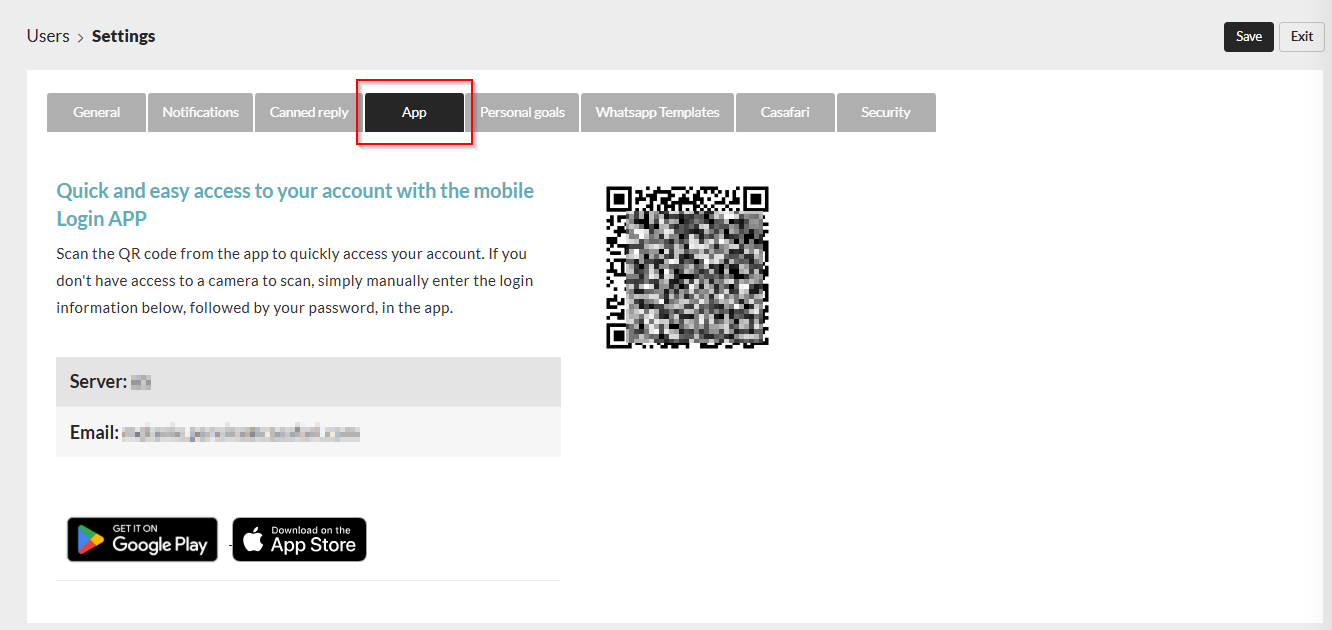
- QR Code
Open the APP and click on the button below to scan the QR code that is presented to you in the CRM:
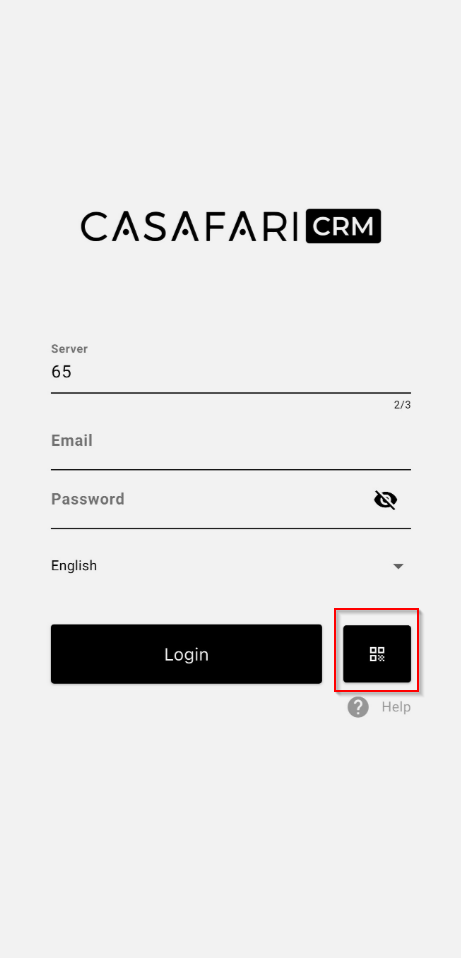
This option is best for logging into the APP if you have quick access to the desktop version of the CRM.
- Email and Server ID
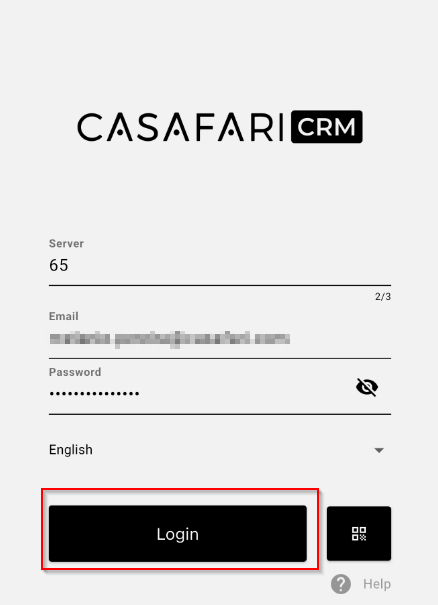
Open the APP and fill in your email and password. Then, indicate your agency's server ID.
This information can also be found in the Settings area under the "APP" tab in the CRM.
The server ID is the same for all agency users, so if you are outside the agency and need to log in, any member of your agency can give you this information.
After filling in these details, click "Login":
From the Users area:
1. In CASAFARI CRM (desktop version), go to Users - User Data.
2. In the "APP" tab tab, two options for login will appear:
- QR Code
Open the APP and click on the button below to scan the QR code presented in the CRM:
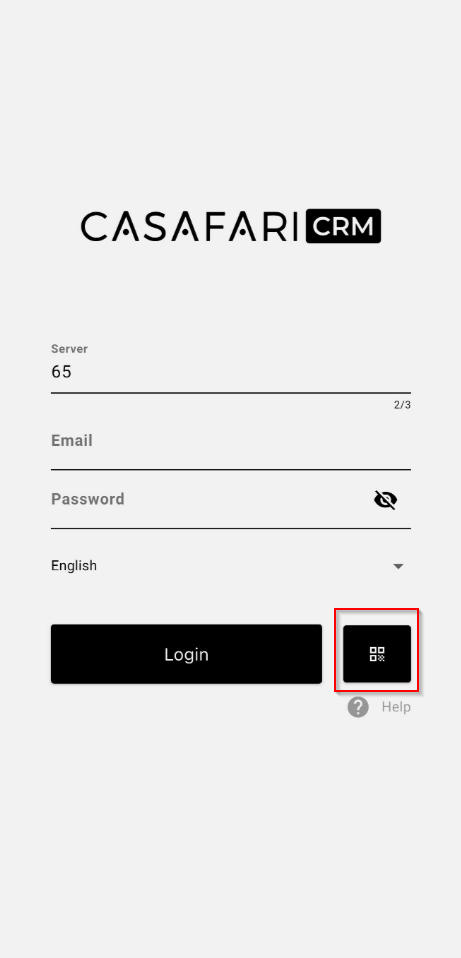
This option is best for logging into the APP if you have quick access to the desktop version of the CRM.
- Email and Server ID
Open the APP and fill in your email and password. Then, indicate your agency's server ID.
This information can also be found in the Configuration area under the "APP" tab in the CRM.
The server ID is the same for all agency users, so if you are outside the agency and need to log in, any member of your agency can give you this information.
After filling in this information, click "Login":
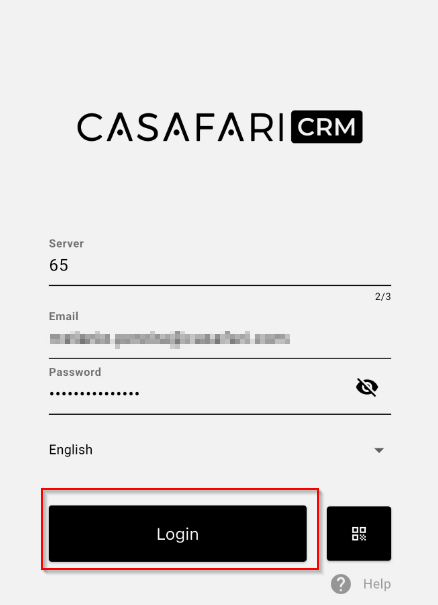
Access to CASAFARI GO:
1. In the main menu, go to the "CASAFARI GO" option.
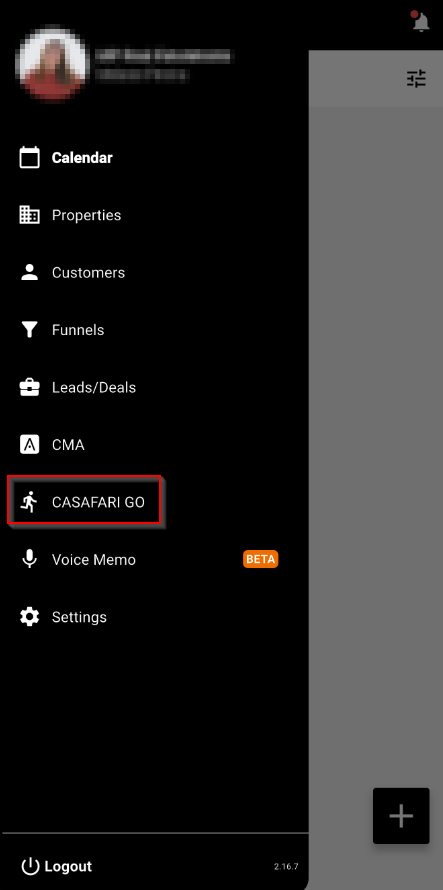
2. The first time that the user clicks the menu, the system will show this message:
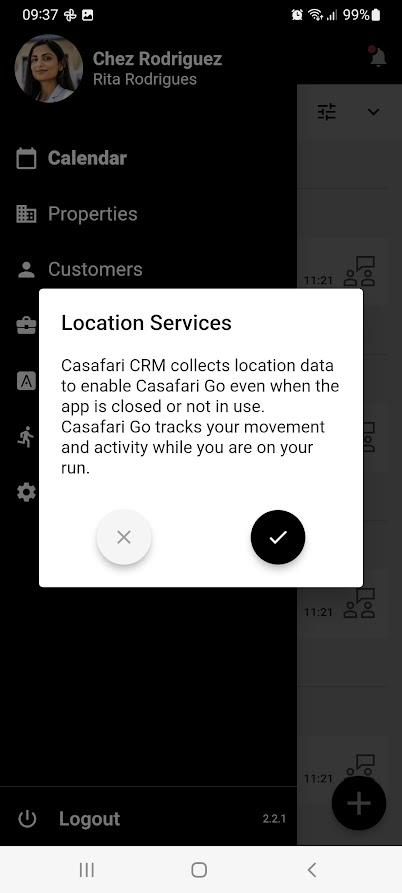
The device may also ask about the precision of the Location service, in which case you should select “Precise” to guarantee the best accuracy. This is a requirement from Transistor
The app will ask for permission to access the device's location and physical activity.Once you choose one of these options, CASAFARI GO will show a map of your current location.
Notes:
- System may also prompt about battery usage - select “Allow” to allow the application to run in the background
-
- GPS Accuracy - sets the accuracy to be applied to the tracking. The higher the value, the better the results
- Save Photos in Gallery - allows the app to save in the phone gallery the photos taken during the GO sessions
3. Click on "Go!" option and start your route.
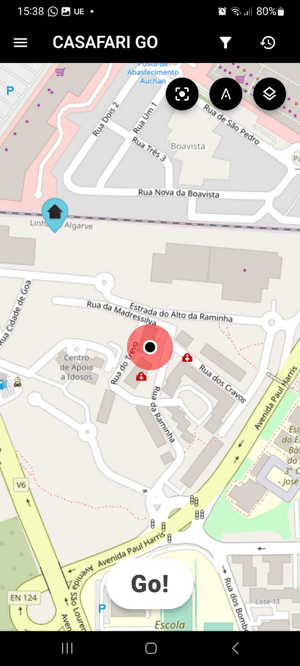
- On the top-right is the recenter icon. If the user navigates through the map, when they click this icon the map will recenter to their current position
When the route starts, the timer and the distance will begin to count down.

In addition, the screen will also show:
-
An indicator of the number of notes added
-
A button to expand the bottom panel that will allow you to add notes and/or end the route.
- On the top right there are three options:
- Recenter
- Create ACM
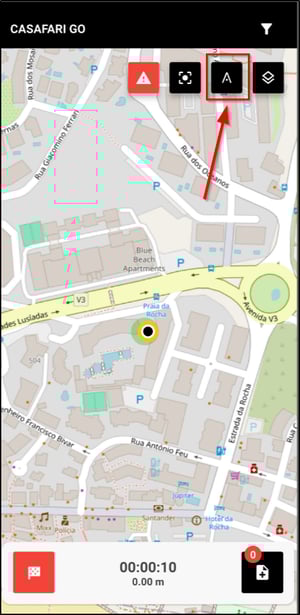
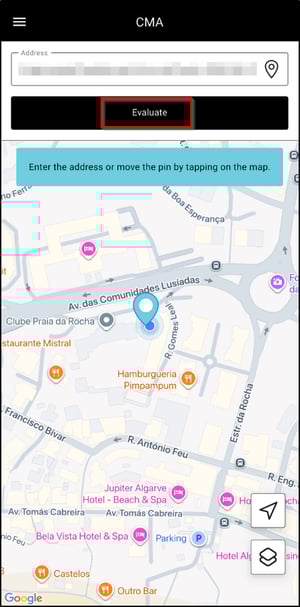

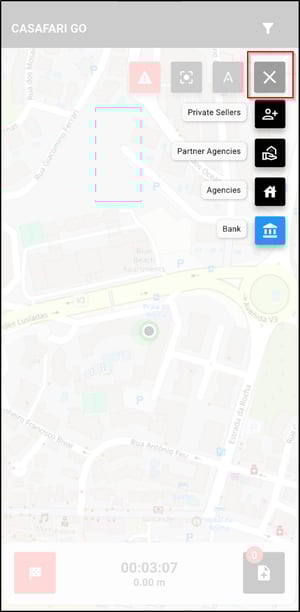
-
- Filter properties by:
- Private Sellers
- Partner Agencies
- Agencies
- Bank
- Filter properties by:
As you travel along your route, whenever a property for sale is available, they will be flagged with this symbol:
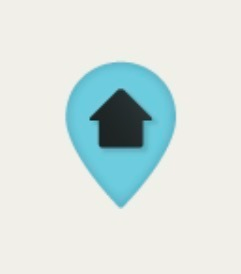
If you want to view more details of the ad, click on the symbol.
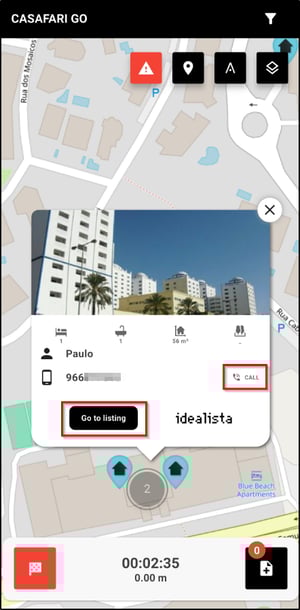
- If it’s a FSBO:
- First photo of the property
- Nr of bedrooms, nr of bathrooms, house area and land area
- Owner’s name / Owner’s contact information - with a “Call” link to open the phone dialer and call the owner
- Go to listing - link to open the property detail in the portal
- Logo of the portal where the property is published
- If it’s a Partner Agency, Agency or Bank property:
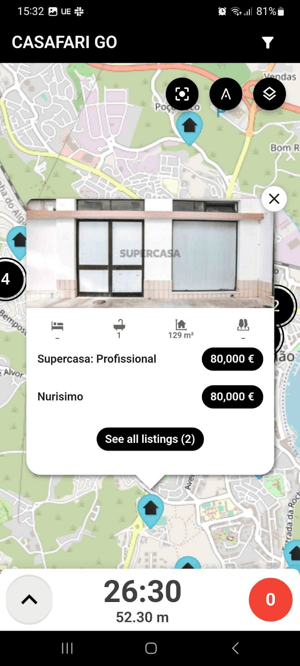
- First photo of the property
- Nr of bedrooms, nr of bathrooms, house area and land area
- List of sources, with name and price - click each of them to go to the listing in the website
- Limited to 3
- Shows “See all listings” if there are more than that
- Inside, click each of the sources to access the listing in the website
Besides the properties that are shown on the screen, the user can also make their own prospection along the way, by talking with people or checking agency signs in properties, so they will want to take some notes/pictures.
To do so, click on the "Add note" option:
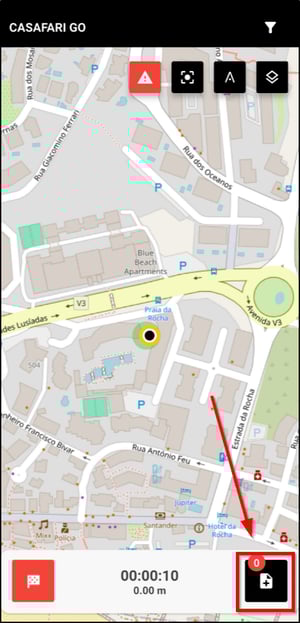
Click this option to insert a text note and a photo of that spot. Simply enter the note, click “Add picture” (this will start the phone’s camera and, if it’s the first time you’re using CASAFARI GO it will request permission to take pictures) and take a picture. After that, confirm using  .
.
The note will be saved as a red pinpoint to your run.

Click this option to finish the run.

Confirm the end of the run with  to finish it and view the summary:

Click Exit to close the summary and return to the app.
- View sessions history
The GO sessions are saved in a history, available through the  button.
Note: the history will be deleted from the app if you uninstall it. You can always consult all sessions from the CRM.

- Farming Zones
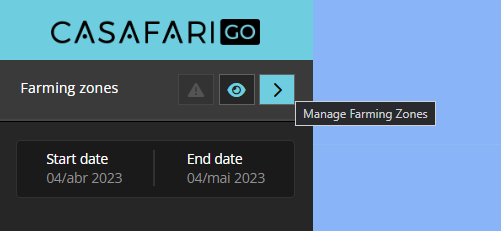
Users can define prospecting areas (farming zones) for agents or teams.
This configuration is done by CASAFARI GO admins on the desktop version and transferred to the application, so that the agents can visualize their farming zones when making runs.
How to create a farming zone
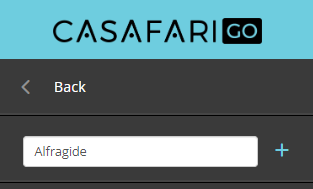
3. Type the name of the farming zone and click “+”:
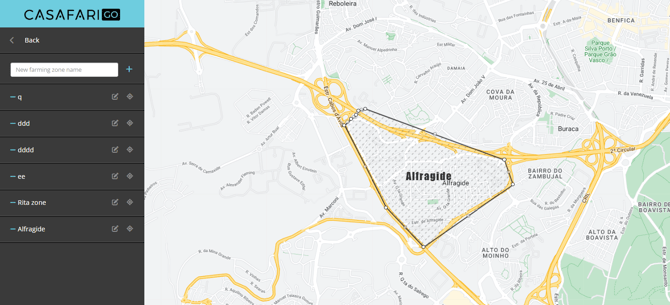
4. When this yellow message appears at the top of the map, start drawing the zone. Zones must start and end at the same point for the system to consider them complete.

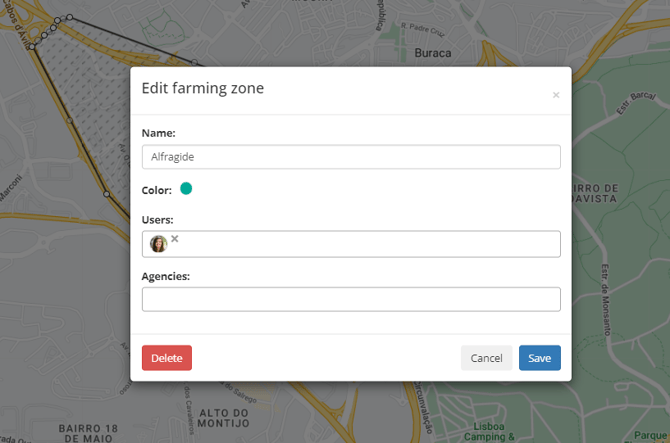
5. After creating the zone, click the “edit” button to attribute the zone to an agent/team. Select the color, users and agencies:
6. Next time one of the selected users open CASAFARI GO on the application they will be able to view their farming zones.
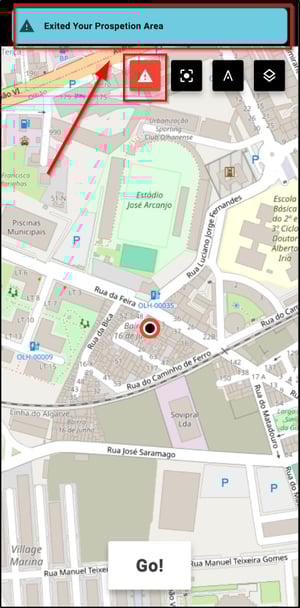
7. Whenever you enter the map and are outside your prospetion area, the following alert will appear at the top:
Other actions:
Edit a farming zone - select a different name, color, users and agencies
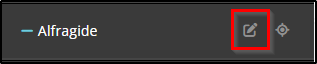
Delete a farming zone - inside the edition pop-up, click the “Delete” button to delete the farming zone. Please be aware that all data will be lost.

- CASAFARI GO Statistics
In this area you will have access to the statistics of each agent who used CASAFARI GO in his courses.
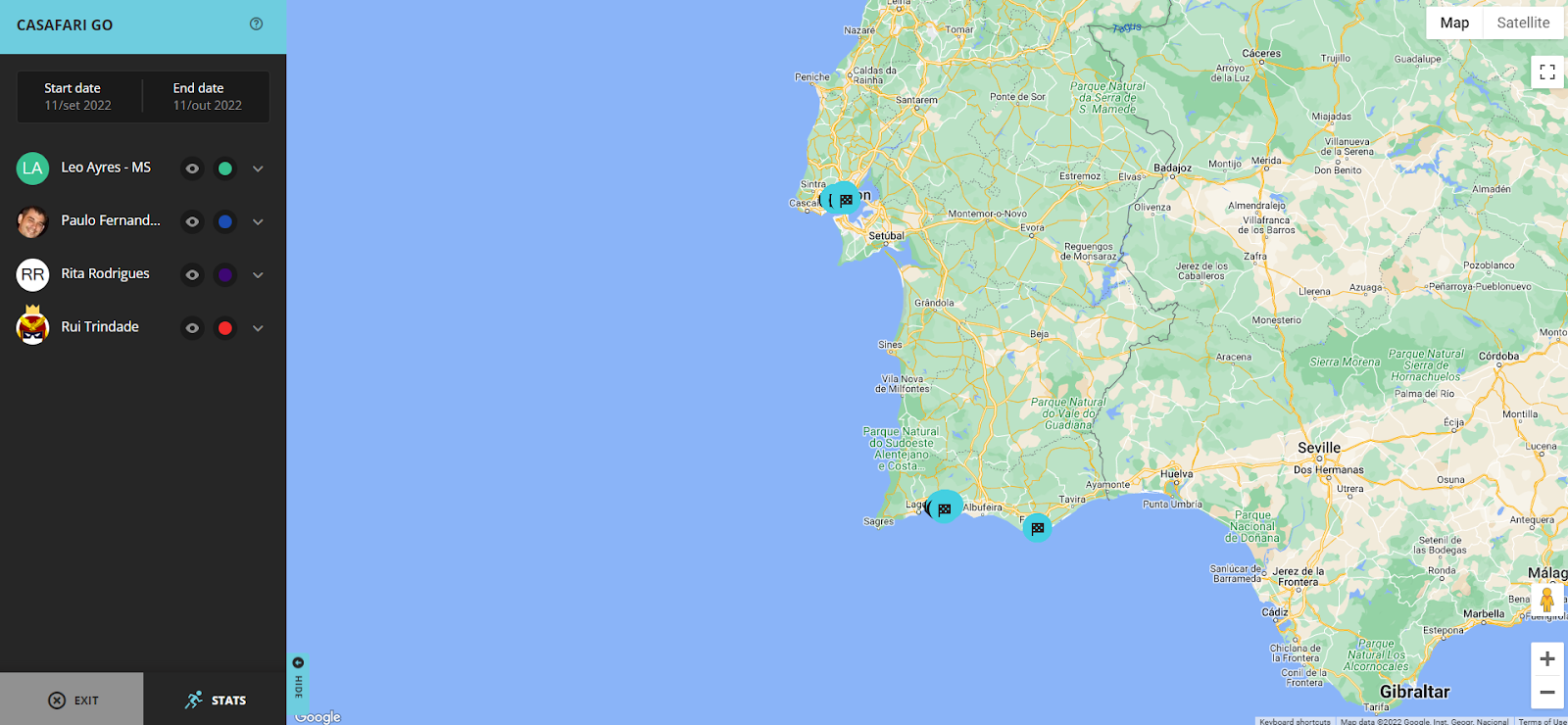
- In CRM, access the menu CASAFARI GO - View map.
- Use the date range search to filter the runs by date.
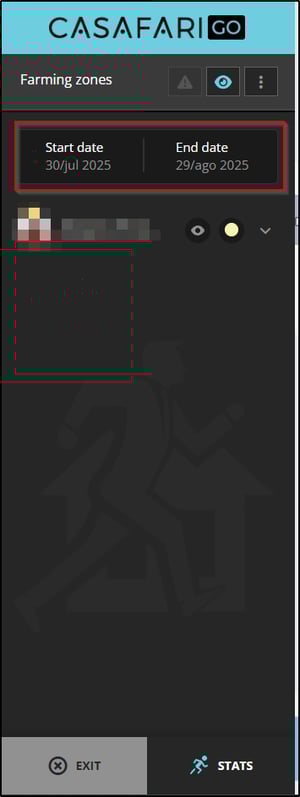
- From now on you can see, for each agent, the various metrics achieved:
- Each user will have a color. By default, the system puts the color of each user as it is defined in the entity. If we change it, it saves the new color in the browser.
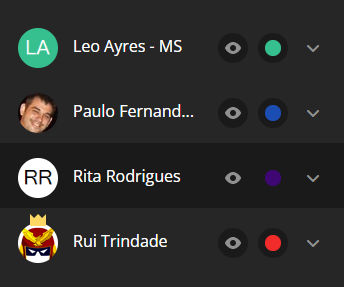
- Hide/show the routes of each user:
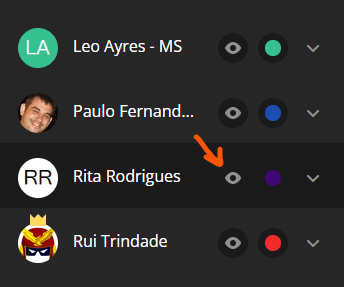
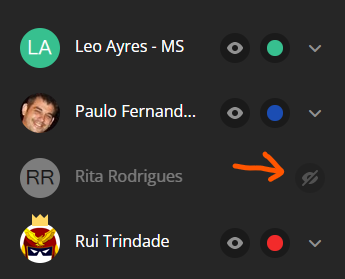
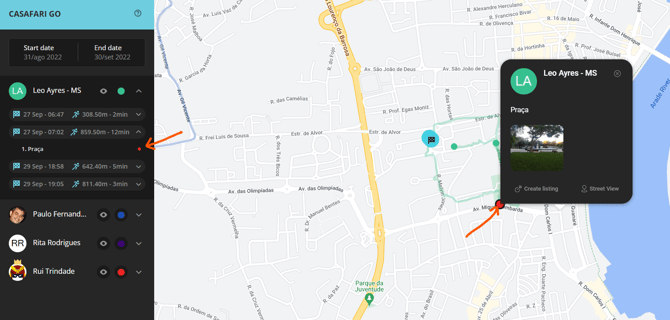
- Access this option to view the routes taken by the agent , the distance traveled per day, notes and the properties marked for canvassing.
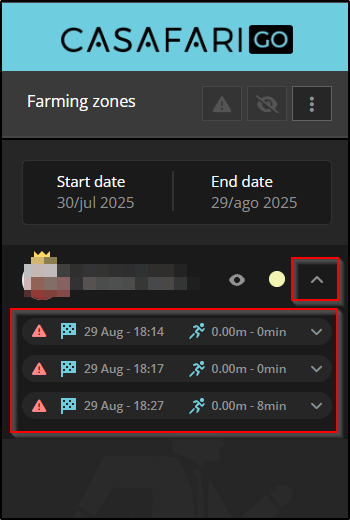
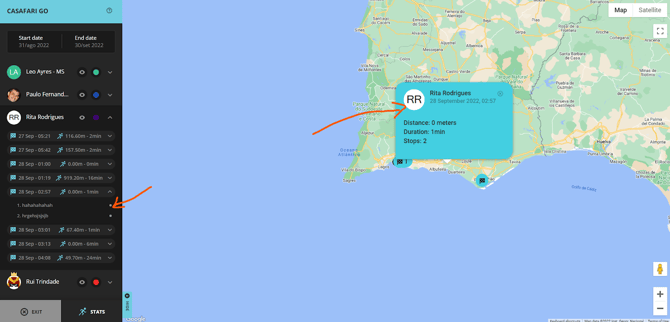
- Click on each run below the user to view it on the map and to open the details pop-up with info on:
-
- Name of the user
- Date and time
- Distance walked (in metres)
- Duration of the run (HH:mm)
- Number of stops
-
- Name of the user
- Text written
- Photo taken (click the photo to open in full size)
- Create listing - create a lead directly from that pinpoint. The lead will go directly to the first status of the funnel
- Street view - to open the pinpoint in Google Maps, with street view
- Check the global results
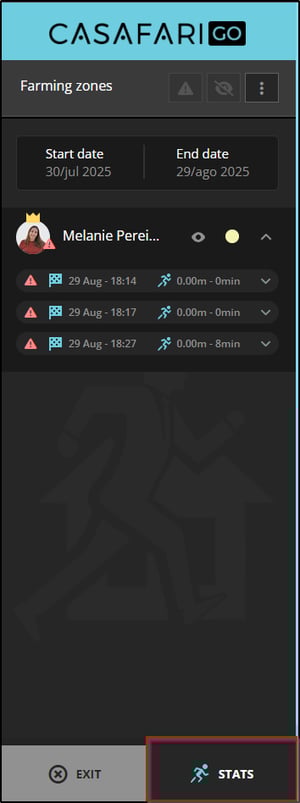
Open the “Stats” screen for an overview of all the runs:
- Top 3 users for distance walked in the last 7 days
- Ranking of all users by distance walked in the last 30 days
- Ranking of all users by distance in the selected period of time, with:
- Total runs
- Total distance
- Total duration
- Total of notes
- Number of created opportunities
To exit this statistics area, click on the "Close Stats" option.
Find out how you can join CASAFARI GO by contacting your account manager.
In case of doubt, you can contact us by email: help@casafaricrm.com