![login-logo.png]](https://helpcenter.casafari.com/hs-fs/hubfs/login-logo.png?height=23&name=login-logo.png)
Two-Factor Authentication (2FA) adds an extra layer of security to access the Casafari CRM. In addition to a password, this method requires a second verification step, significantly reducing the risk of unauthorized access and ensuring greater protection of your company’s data and operations.
Configuration
To enable Two-Factor Authentication, you must have an authenticator app installed on your mobile phone. Below are some examples of authenticators available for both Android and iOS:
-
Google Authenticator

-
Microsoft Authenticator

-
Duo Mobile

-
Twilio Authy

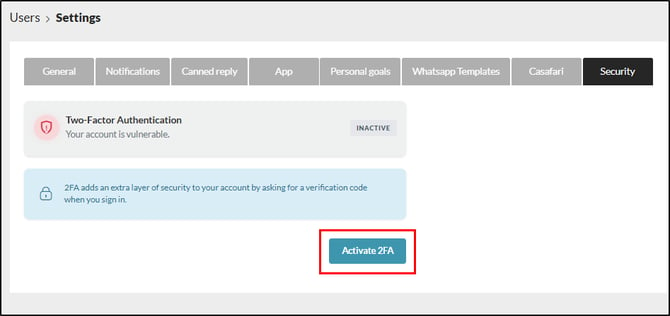
Click on Activate 2FA (Two-Factor Authentication) in the Security tab:
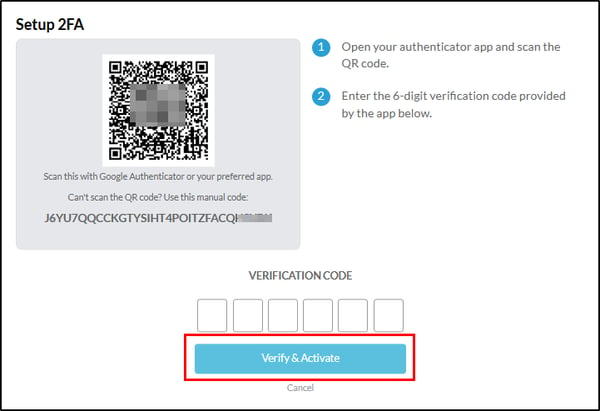
Open the authenticator app on your mobile phone and scan the QR code or manually enter the code to link your CRM account to the authenticator.
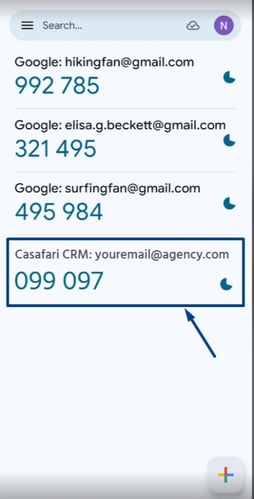
Enter in the CRM the code displayed in the authenticator app.
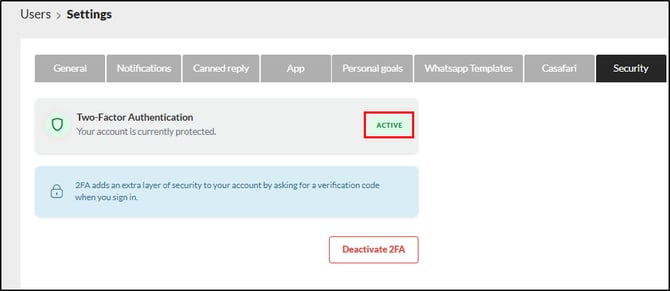
Click Verify & Activate to complete the setup process:
Using 2FA
Log in to the CRM as usual by entering your email and password:
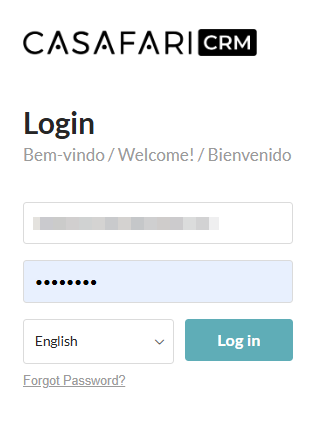
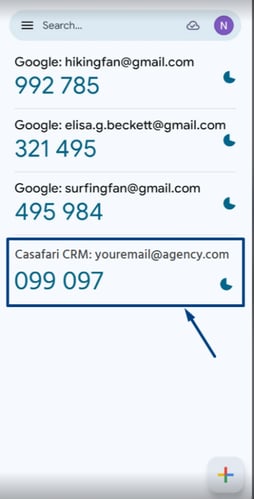
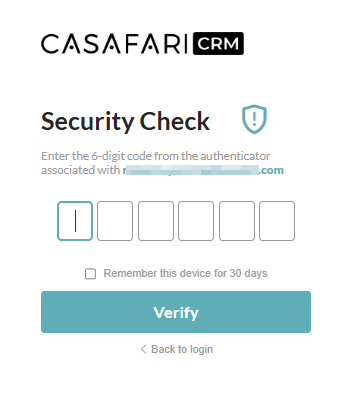
After clicking Log in, the second authentication step will be displayed. At this point, open your authenticator app and enter the code shown into the CRM:
Notes:
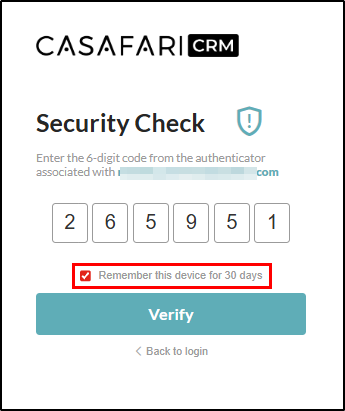
- You can select the option “Remember this device for 30 days” so you do not need to repeat the second authentication step during this period.
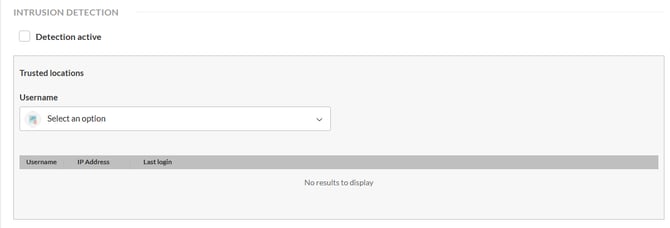
- If Trusted Locations is enabled and you change your IP, the system will ask for two codes: one from 2FA and another from the CRM, as you are accessing it from a different IP.
This happens because if you select “remember this device for 30 days” the system will not ask for the code again during that period, unless you change your IP.
Disable 2FA
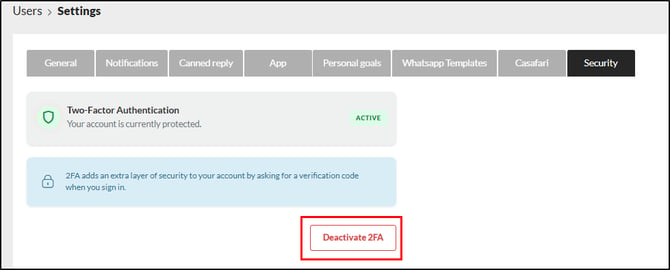
Go to Settings again.
Click Disable 2FA in the Security tab:
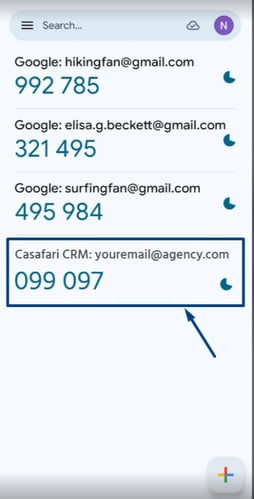
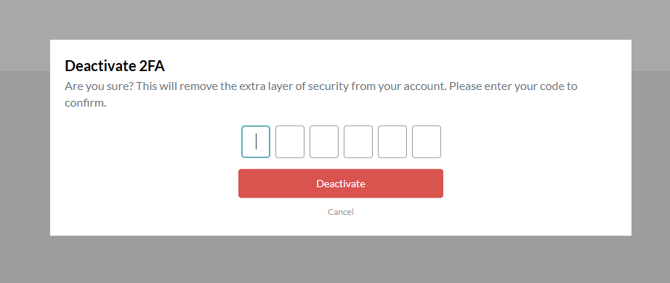
Enter the authenticator code and click Deactivate:
For more information, please contact us by email: help@casafaricrm.com