![login-logo.png]](https://helpcenter.casafari.com/hs-fs/hubfs/login-logo.png?height=23&name=login-logo.png)
Highlight your properties with an interactive digital showcase. Slideshows, integrated into your CRM, allow you to present properties using an internet-connected TV, whether in your store or at an external event.
Create a Slideshow:
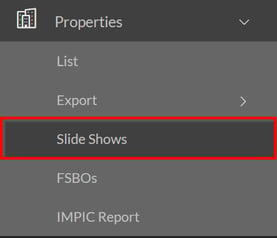
1. Go to Properties > Slide Shows
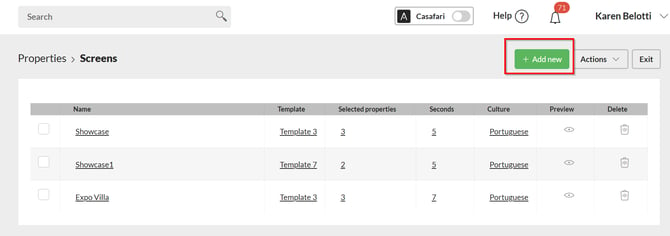
2. Click the “Add New” button.
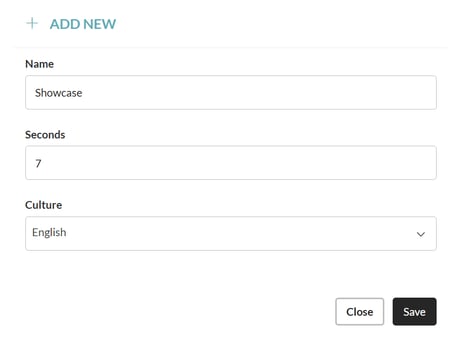
3. Set a name, select the duration in seconds, and choose the presentation language:
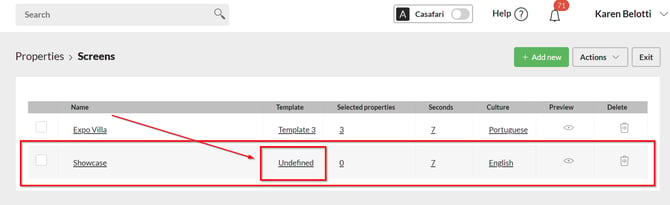
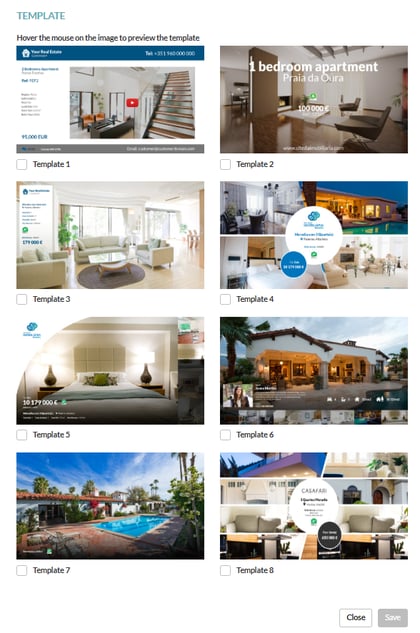
4. Choose a template:
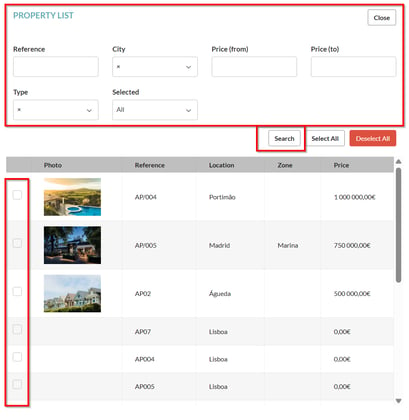
5. Select the properties to appear in the slideshow: use the filters to search for properties and mark your selection.
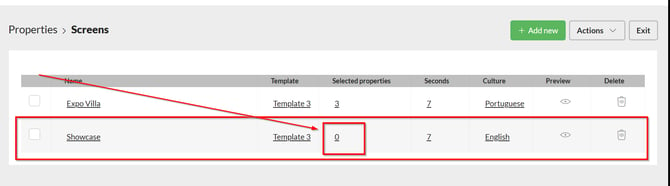
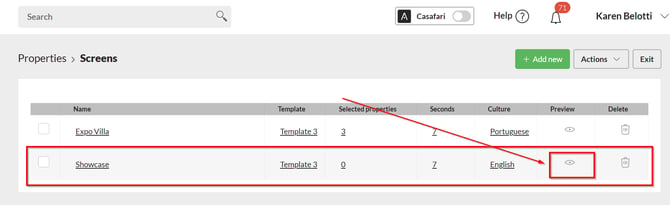
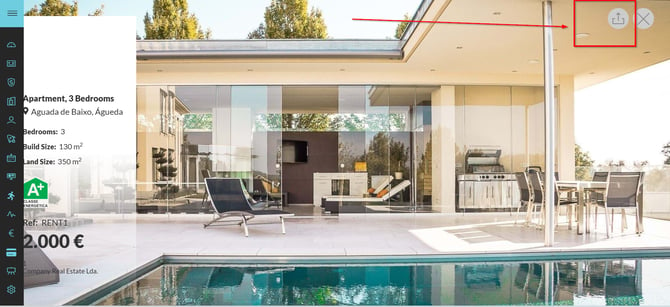
6. Preview the slideshow and click the icon in the top-right corner to share the link: once created, a link to the slideshow is provided. This link can be used on a TV or other display and is automatically updated whenever properties are added or removed from the screen in the CRM.
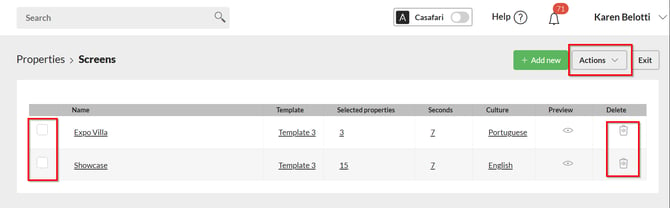
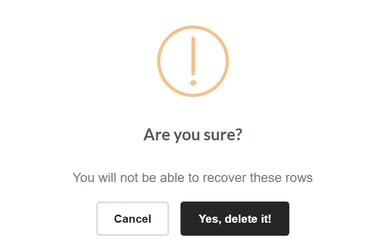
7. To delete a slideshow, select it in the right-hand area and click on «Actions», or use the icon in the «Delete» column.
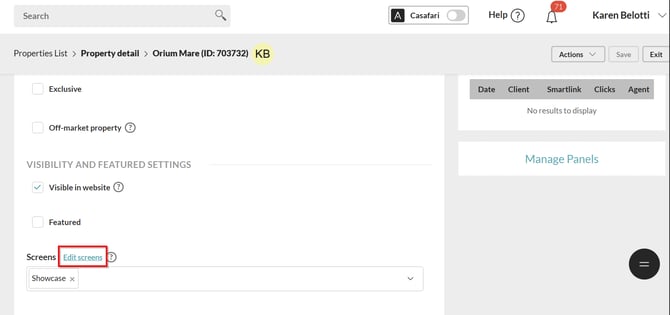
8. After creating the exhibition, in the property details it is possible to select a slideshow by clicking on «Monitors».
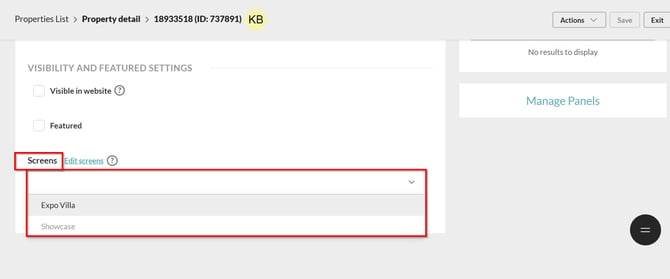
9. After creating the slideshow, you can change the presentation duration (in seconds) and the language. In the property details, you can also click on “Edit slide” to be redirected to the Slideshow page, where you can make the desired changes.
Notes:
*Properties are displayed in the Slideshow in a random order, and it is not possible to arrange them within the presentation.
**The title shown in the slideshow is not the same as the one defined in the property details. It is automatically generated to fit the slideshow format, always following the same structure: property type, followed by a comma, and the number of bedrooms. For properties without a defined number of bedrooms, the title structure takes into account only the property type.
This feature is available to all users on the Premium plan.
For more information, please contact us by email at: help@casafaricrm.com