![login-logo.png]](https://helpcenter.casafari.com/hs-fs/hubfs/login-logo.png?height=23&name=login-logo.png)
In this article, you'll learn how to create developments in CRM and organize their respective units in a simple and structured way. By following this step-by-step guide, you'll be able to correctly configure the development, associate apartments (or other units), and ensure that all information is centralized and visible in the system.
In addition, we'll also teach you how to manage developments and publish them on the website and on the Idealista and Imovirtual portals.
1. Create a new property
Learn how to create a property in CRM here.
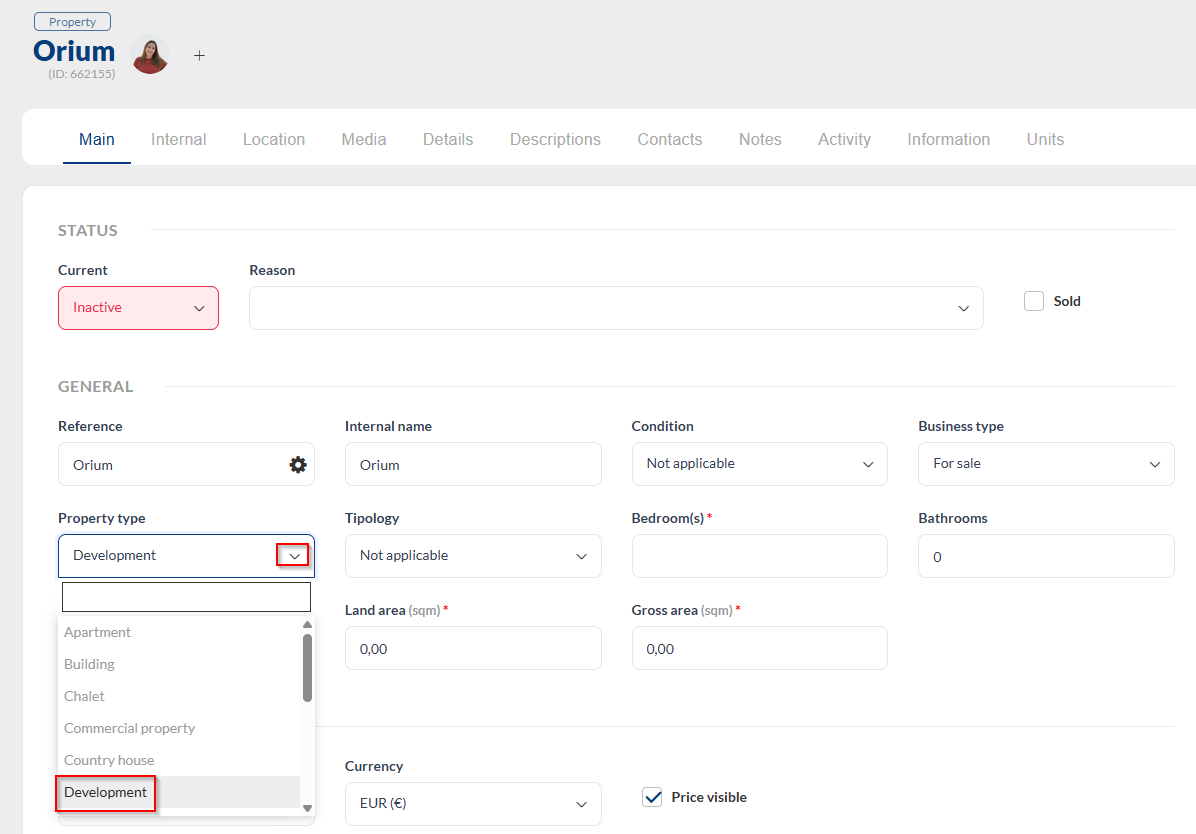
To create a Development in CRM, you must create a new property and define it as "Development":
2. Fill in the general details of the development
Define the name of the development, fill in the descriptions, location, upload photos and other relevant features, and save.
3. Create the units (e.g., apartments) associated with the development.
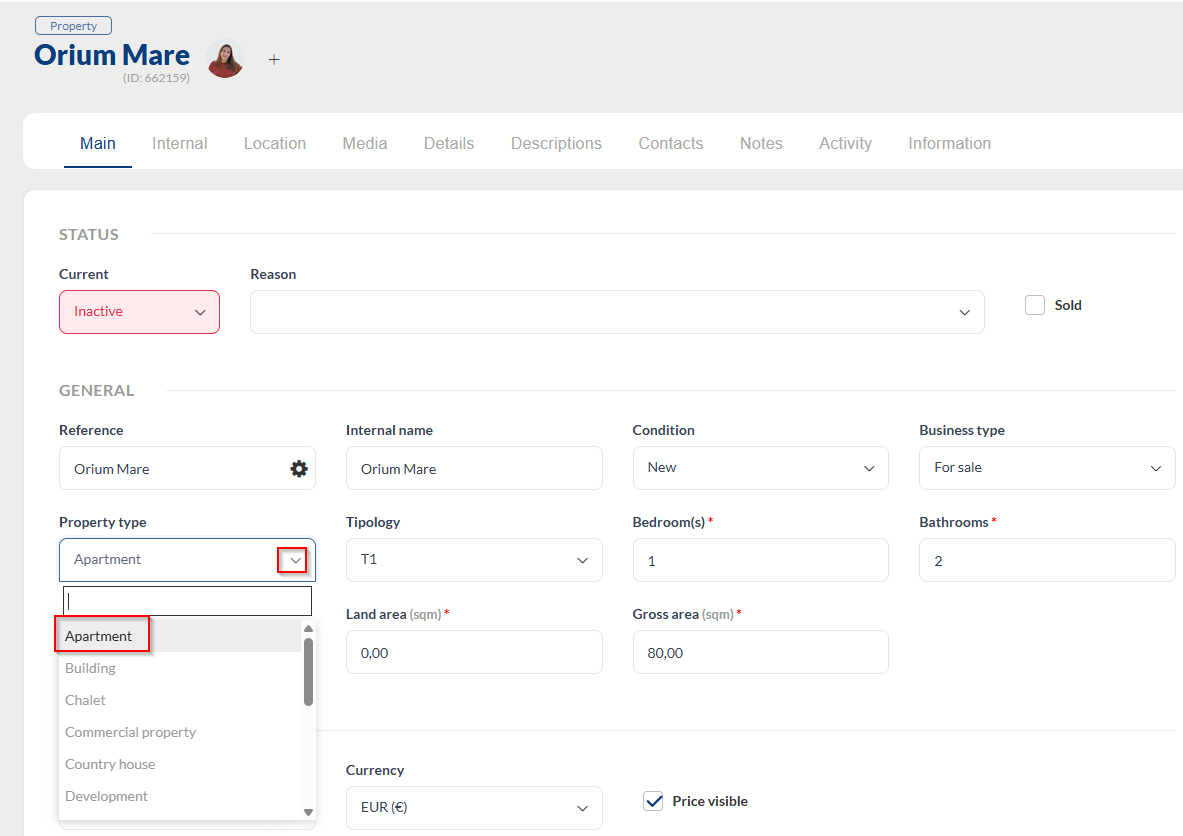
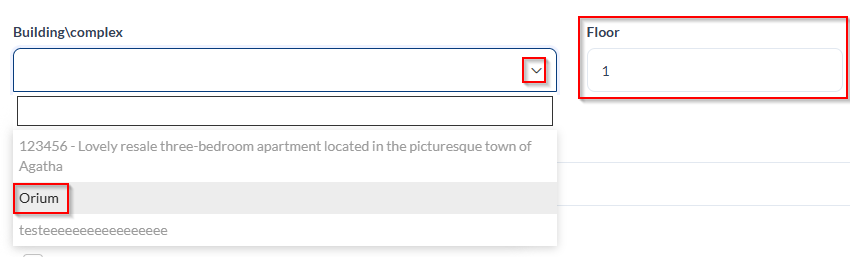
For each unit, you must create a new property of the "apartment" type (example), fill in all the necessary information, and, at the end of the creation process, associate this unit with the previously created development.
4. View and manage all fractions directly in the development tab.
The previous process must be repeated for all units.
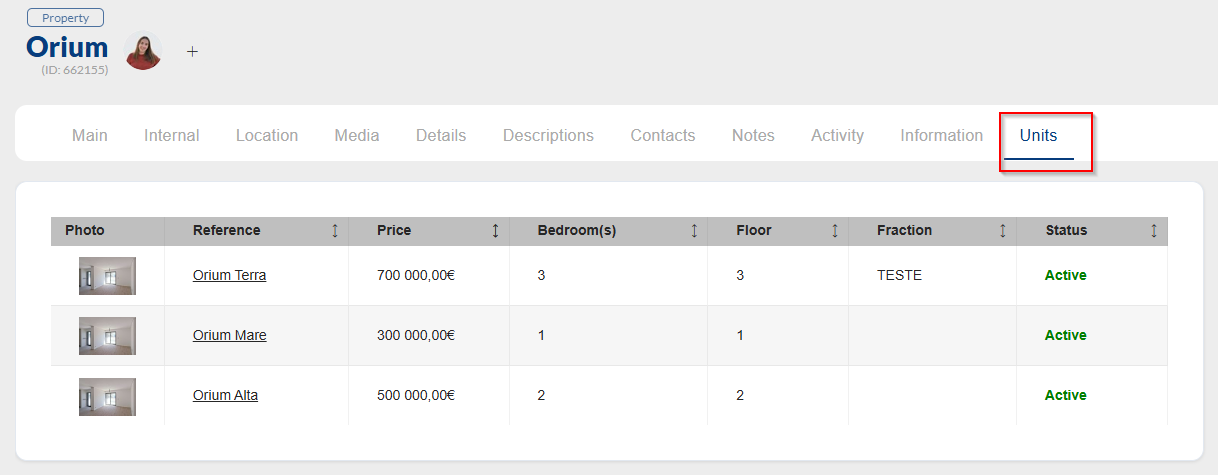
Once completed, you can view everything in an organized manner within the development itself, in the "Units" tab, where you will have access to the complete list of associated apartments.
This feature allows you to:
- Have a centralized view of all units
- Navigate quickly between units
- See the status of each unit
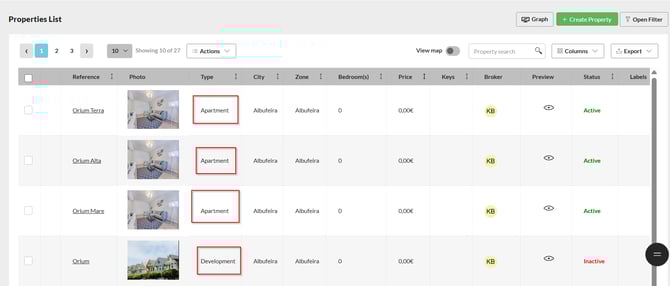
5. Search for a property in the property list
Go to Properties > List
- Search by property reference:
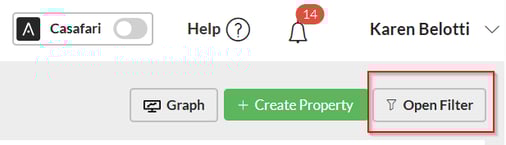
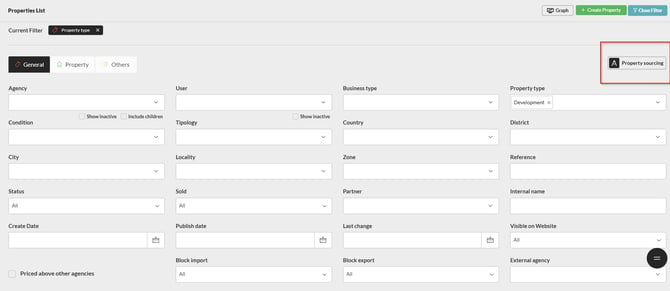
- Open filter and filter by property type "Development":

6. Publish and view on the website
The entire structure you created in the CRM—the development and its respective units—is automatically reflected on the website, as long as the properties are active in the CRM and the "Visible on website" option is enabled:
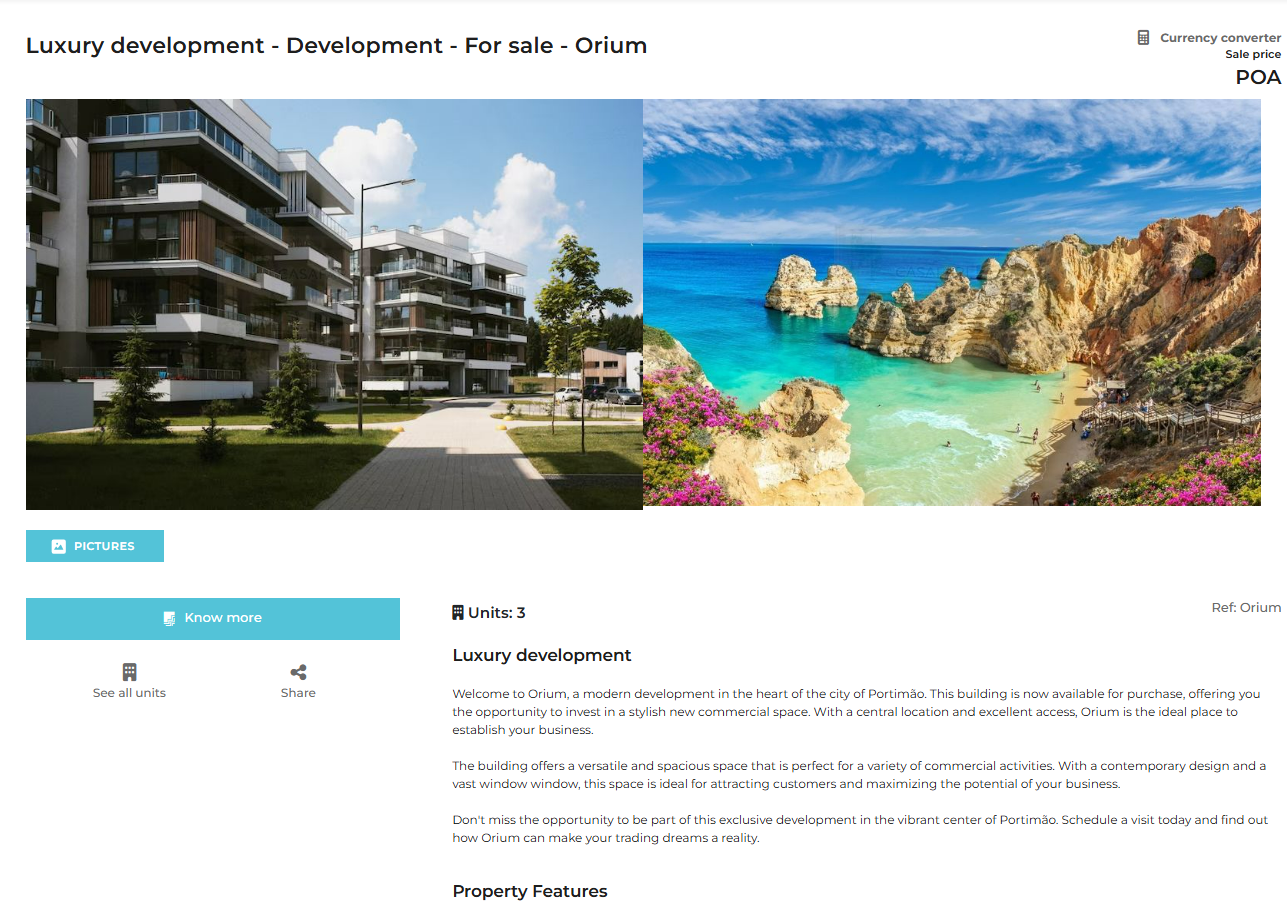
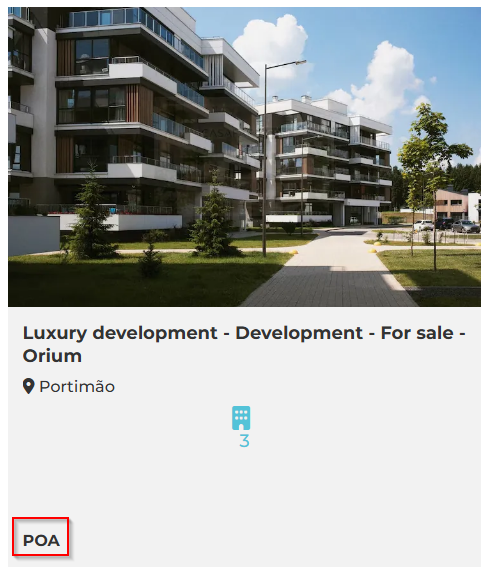
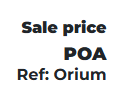
In the development itself, we recommend defining the price as “not visible”, so that it appears as “POA” or the minimum value of the cheapest fraction so that “sale price from...” appears.
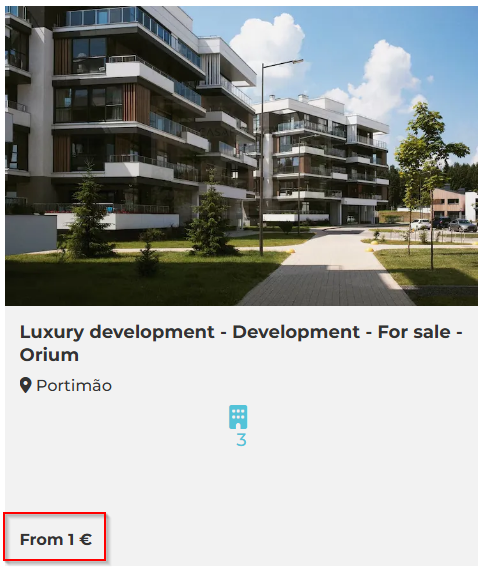
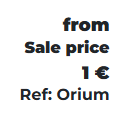
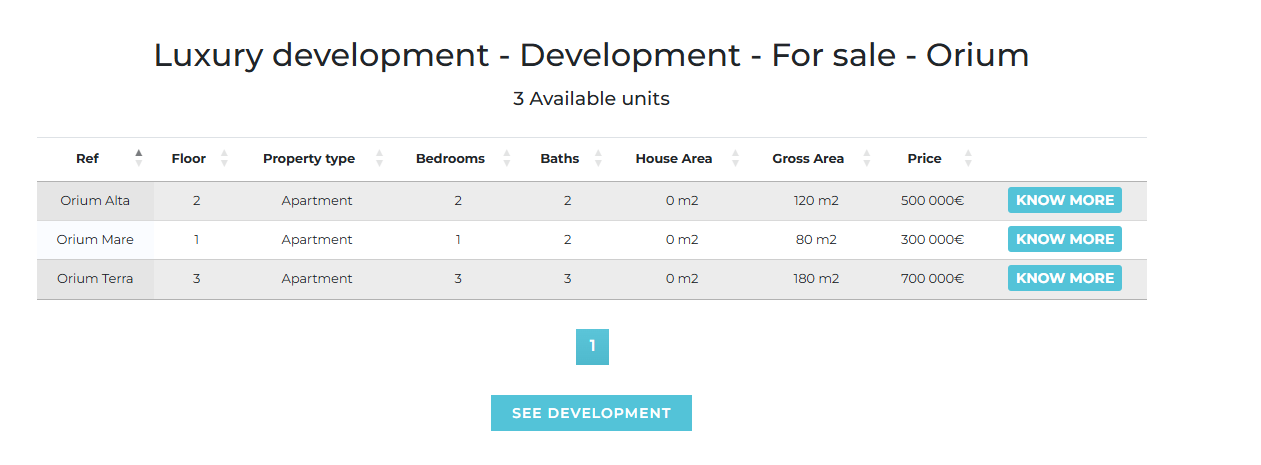
On the development's page, visitors can see a table listing all available units, including information such as type, area, floor plan, and price, and can access each unit individually to view complete details.
This makes navigation clearer and more organized, facilitating comparisons between units and helping potential customers make their decisions.
7. Exporting to the Idealista Portal
To export properties to the Idealista portal, you must have purchased the properties module from the portal. To do this, you must request activation on the Idealista side and inform us so we can process the activation request internally. After this, we will confirm the activation, and you can then select the properties/properties to export to the portal.
8. Exporting to the Imovirtual Portal
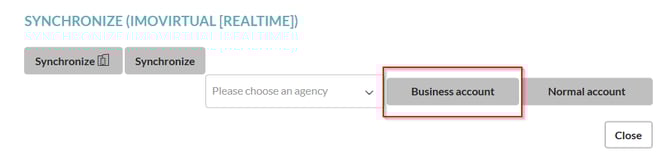
To export properties to the Imovirtual portal, you must have a properties account on the portal side and complete the activation/synchronization process through the portal catalog in the CRM:
For more information, contact us by email: help@casafaricrm.com