![login-logo.png]](https://helpcenter.casafari.com/hs-fs/hubfs/login-logo.png?height=23&name=login-logo.png)
Rightmove is a portal that advertises your properties in over 90 countries, allowing you to receive leads from anywhere in the globe.
Step by step:
-
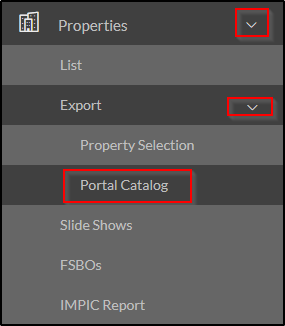
Create an account on the Rightmove portal. In case you don't have one, you can apply for registration through CRM: go to Properties - Export - Portal Catalog - Rightmove and click on the icon (i) in the “Business Model” column.

-
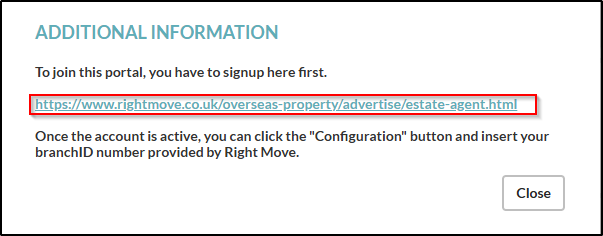
Click on the link (https://www.rightmove.co.uk/overseas-property/advertise/estate-agent.html) to be redirected to fill in a form on Rightmove.
-
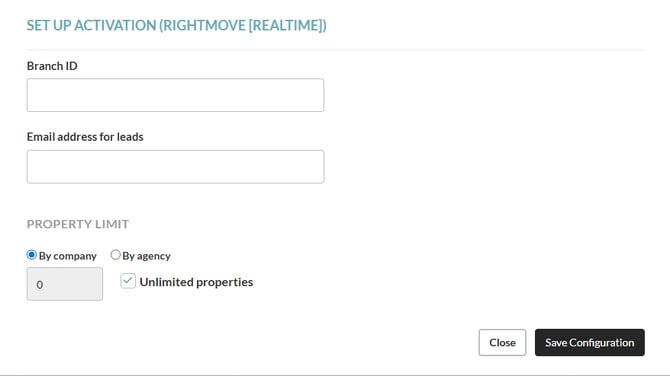
At the end of this process, click on “Configuration” in the Portal Catalogue, enter the “Branch ID” you received after filling out the form and the email address for sending leads. Click on “Save”.

-
If necessary, go to Properties - Export - Portal Catalogue and set the limit of properties to be exported in the Configuration option.
-
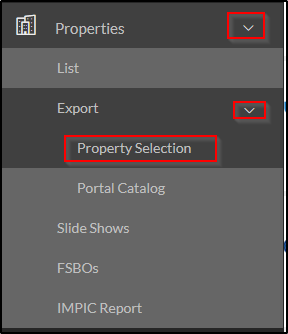
Go to Properties - Export - Properties Selection and select the properties that should be sent to Rightmove.
To learn how to select properties for the portals and find out more about property limits, see this article: How to export properties to real estate portals?
Rightmove observations:
-
This portal automatically removes URLs, emails and phone numbers that appear in the following settings:
- Property description
- Room names
- Room descriptions
- Address
- Property features
-
It is necessary to configure in the CRM the description of the properties to export in English. If it does not exist, the property will be sent to Rightmove, but will appear without any kind of description.
-
To import leads, you must activate the Lead Importer tool. To learn more about the Lead Importer, read our article.
-
It is possible to send documents directly from the CRM to Rightmove. To do this, upload the document to the CRM, categorize it, and select the option “Send to portals”:

- Each time a property level change is made within the CRM, we send that change to the portal. However, Rightmove may take longer to process it.
Consulting the export history

- In case the messages are successfully processed, you receive the following information:
"Property inserted/updated in Rightmove".
- This means that any property that was changed in the CRM was updated in Rightmove or that a new property was exported successfully. In this message you can also access the link to the property in the portal.
- If the message you see in the history displays the information "Your property has not been updated to Rightmove. Please check that your request meets the Rightmove Realtime Datafeed conditions for sending properties.", you should access the Rightmove backoffice/system to see what information is missing.
You can also check the rules of the portals in the CRM, by clicking on the option "Rules".

Frequently Asked Questions:
"I am exporting properties from a different system. What do I need to do to switch to CASAFARI CRM"?
Contact your Rightmove account manager and ask him to change your import system to CASAFARI CRM.
This feature is available for all CASAFARI CRM users.
For more information, contact us by email: help@casafaricrm.com