If this happens, please check the following:
✅ Review Selected Characteristics
Step 1: Valuation Settings – Characteristics
- In the first step of the valuation, you can choose specific characteristics such as balcony, parking, etc.
- Ensure that you select: “Comparables must have at least 1 selected characteristic.”
This option broadens your results. Choosing “Comparables must have all selected characteristics” may be more precise, but it significantly limits the number of results shown.
📊 Adjust Comparable Statuses
Step 2: Comparable Selection – Property Status
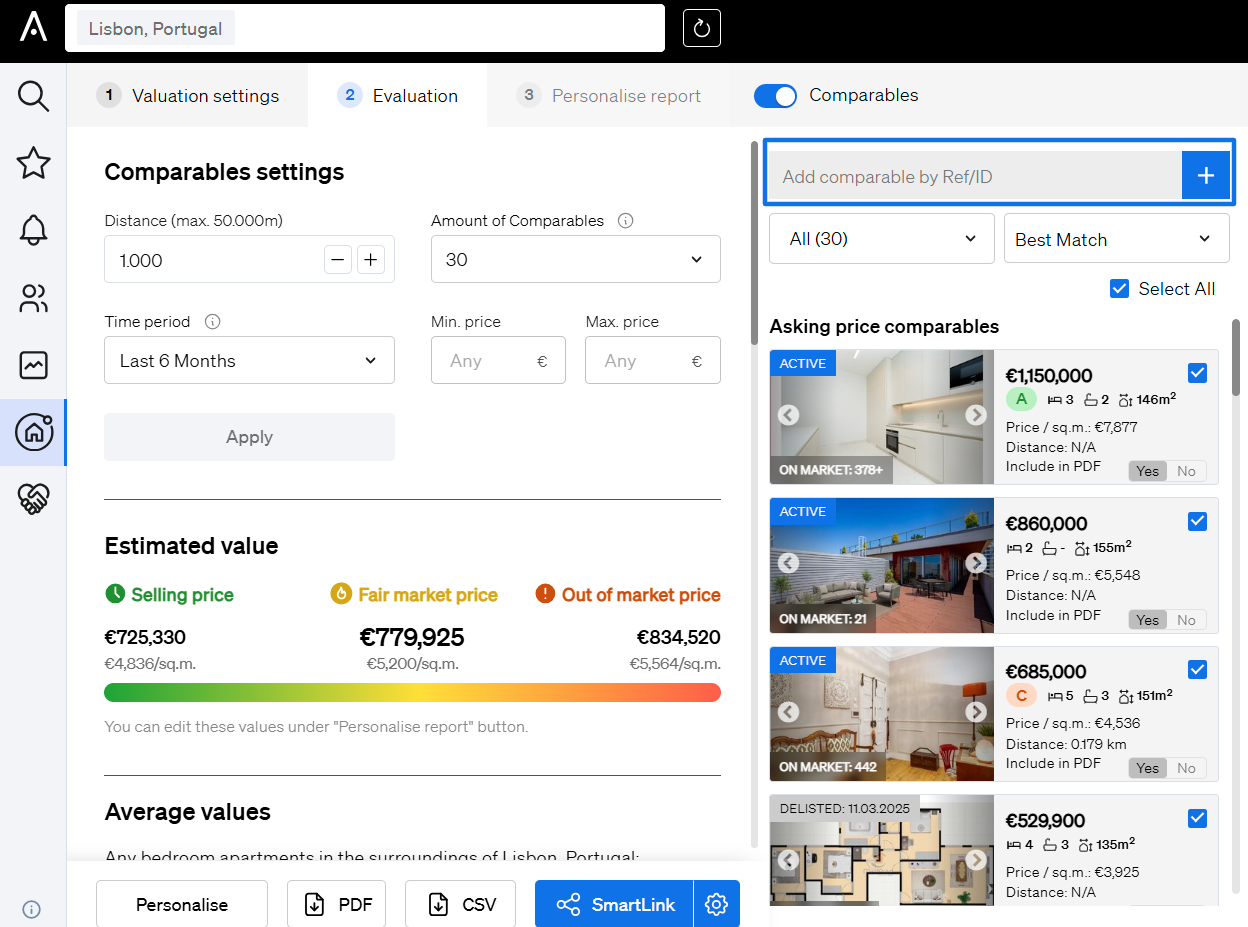
- Above the list of comparables, select the statuses you want to see better: Sold, Delisted, Active, or All.
- To see all comparables, select All.
📍 Expand the Search Radius
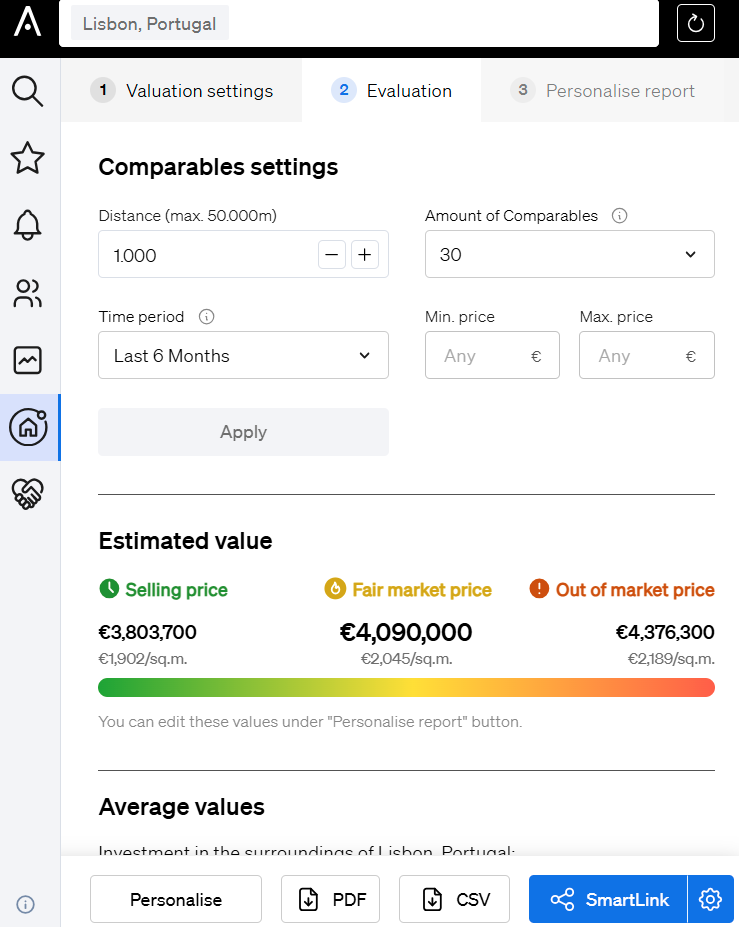
Step 2: Comparable Settings – Perimeter
- Especially in rural areas, the number of comparables may be limited.
- In the second step of the valuation, increase the search distance in the comparable settings—up to 50,000 meters—to widen your search area.
➕ Add a Specific Comparable Manually
Step 2: Comparable Selection – Manual Entry
- You can manually add a property as a comparable using its reference number.
- Use the search bar above the comparable column to input the property reference and include it in your analysis.