
🔐 Step 1: Log in to Your CASAFARI Account
- Go to www.casafari.com.
- Click Log in and enter your credentials.
🔍 Step 2: Access the Property Sourcing Page
- After logging in, navigate to Property Sourcing from your main navigation menu.
🧭 Step 3: Choose Between “All Properties” and “All Listings”
- On the Property Sourcing tool, locate the Filters section on the top bar.
- Select the last filter option, when opening it you will find the filter labeled "All Properties / All Listings".
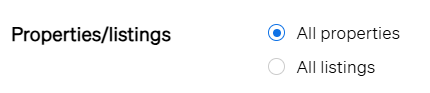
Choose one of the following options:
- All Properties
Displays one page per property, combining all available data after deduplication.
✅ Use this view for a clean, consolidated summary of each property.
- All Listings
Displays one page per individual listing with no deduplication.
✅ Use this view when you want to see all versions of a property published by different portals or agencies.
💡 Tip:
- Use All Properties for faster analysis and cleaner reports.
- Switch to All Listings when investigating listing history or comparing publishers. Some recent properties might still be under the all listings option because they are still ongoing the deduplication process.
📩 Need Help?
If you need assistance using these filters or understanding deduplication, contact our support team at: support@casafari.com