![login-logo.png]](https://helpcenter.casafari.com/hs-fs/hubfs/login-logo.png?height=23&name=login-logo.png)
The Training Module allows you to create and manage training events directly within the CRM. Through this module, users can create training sessions and make them available for other users to enroll in a simple and organized way. This feature facilitates the management of internal training, promoting knowledge sharing and allowing registrations to be managed in one central place.
What does it do?
Users can create training events so others can enroll.
Requirements:
- PREMIUM plan
Index:
How to create a training event
How to accept/reject registrations
During training - mark attendances
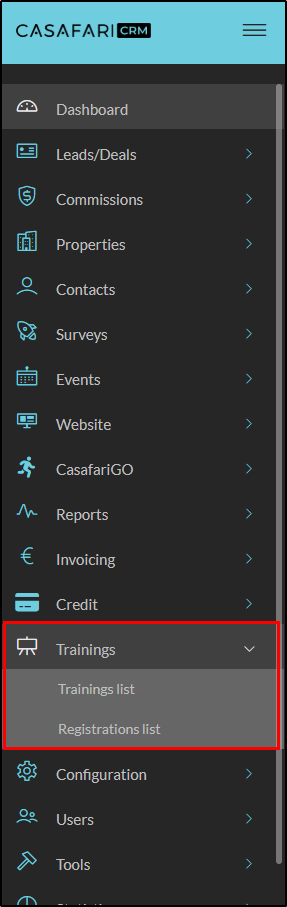
Once the module is active, when you login, there is a new menu entry called “Trainings”:
Set up the permission
Go to Users > Groups/Permissions, select the group that will be able to create training events, select the permission “Training Manager” and save:

Only training managers will be able to create and edit training events.
Notes:
Multi-agency rules - Only users who can see all agencies can set up global trainings; everyone else will just be able to create trainings for their own agency.
To allow agency directors within a network to also create global trainings across the network, the new permission “Allows creating training for all agencies” has been introduced. Users with this permission enabled, together with the Training Manager permission, can create trainings exclusive to their agency or global trainings that any user can enroll in.

How to create a training event
Only users with the “Training manager” permission can create “Training” type events.
To create a new training event is the same as creating any other event:
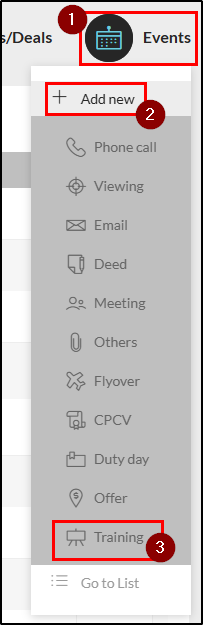
- You can use the dashboard buttons “Events” > “Add new” and click on "Training":
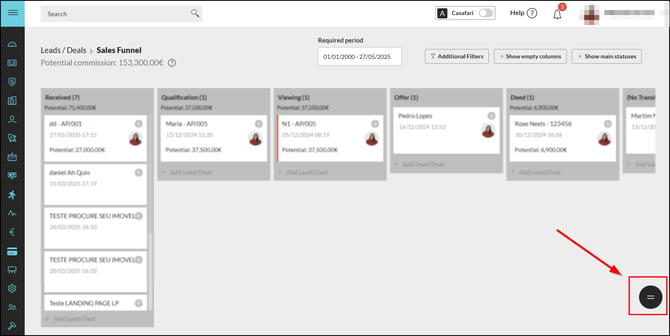
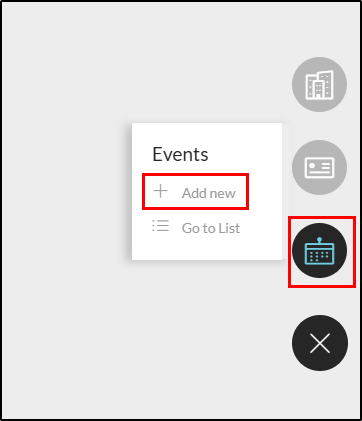
- You can use the widget visible on every CRM page, in the bottom right corner - “Events”, “Add new” and “Training”:
- You can go to the Events list and click “Add New Event”:
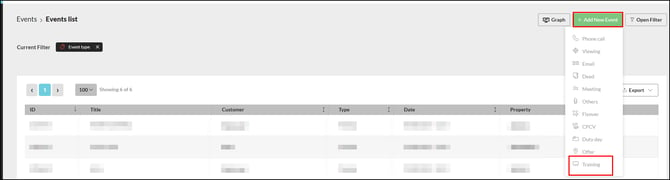
-
You can also create training events from inside the Trainings List:
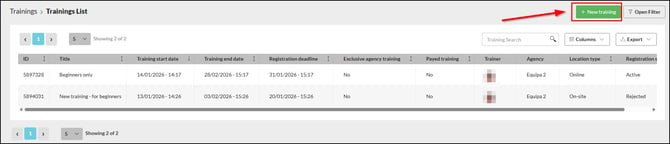
The training event has a specific form, different from other event types:
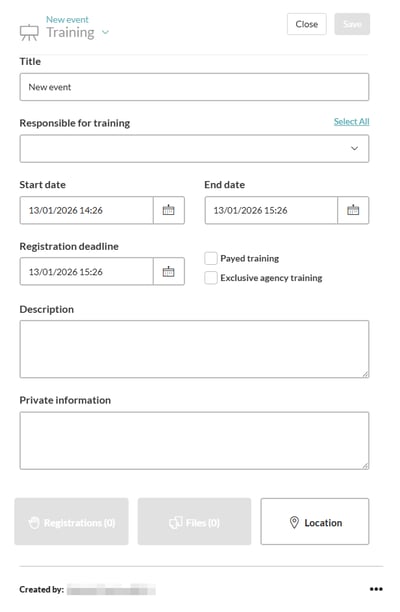
Title - insert the training title
Responsible for training - select all users who are responsible for this training event. It does not have to be the trainers themselves, but people who will be responsible for accepting registrations
Start date / End date - fill in with the start and ending time for the training event
Registration deadline - fill in with the time by which participants must submit their registration. Once finished, only training managers will be able to enroll users
Payed training - select this option if the training will require a fee to participate. Training managers will then have to confirm it was paid before accepting the registration
Exclusive agency training* - select this option if the training is exclusive for an agency. All the users in the agency’s hierarchy will receive the “New training” notification. Users from agencies of a different hierarchy will only be able to register by demand
*(Please note: if the training is exclusive to the agency, if you add users from different agencies as responsible, all users from both agencies will receive notifications and will be able to attend the training.)
Description - summary of the training. Will be available for all users who receive the training notification
Private information - use this field to include information about the training that only the registered participants will have access to. This will only be visible after the training starts
Location - click to open the location panel and select where the training will take place:
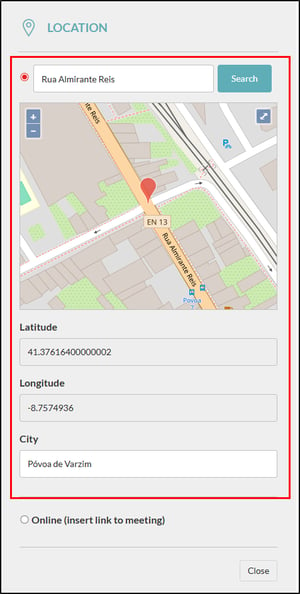
On site- Search for the location (use the address) and include the “City”, so that it will be filled in the Certificate of Attendance that the users can print after the training ends
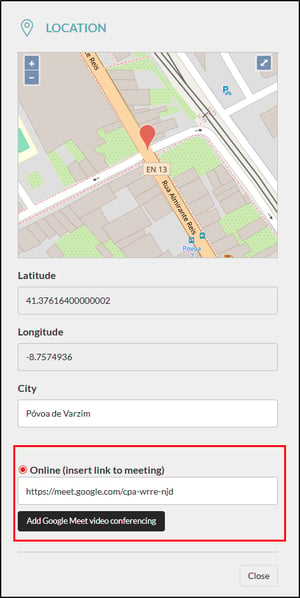
Online - Insert the link to the meeting or create a new Google Meeting (if your Google email account is synchronized with our CRM). Only users with accepted registrations will have access to the link
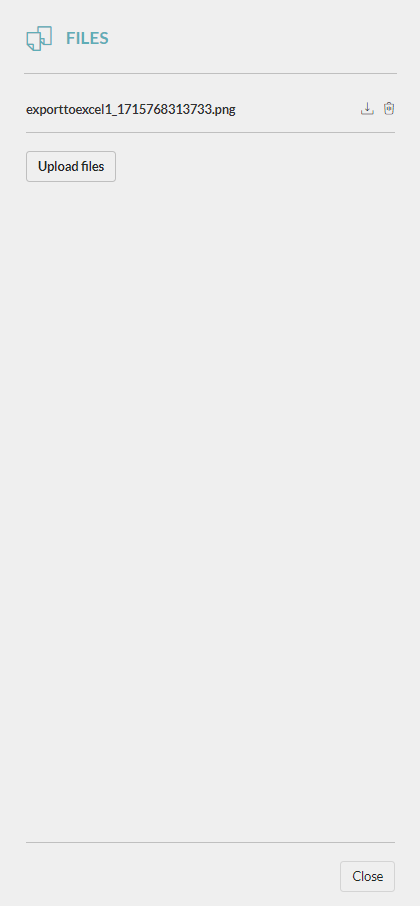
Files - If you want to add files to the event (first you need to create the event).
After creating it, open the files panel and upload as many files as you wish. Only registered participants will have access to the files, and just after the training starts.
Notifications
User-configurable notifications
- New training
- Sent whenever a new training is created
- Global training - sends to all active users (except those who created the training) who have the configuration marked to receive
- Exclusive agency training - sends to all users associated with the trainers' or daughters' agencies; sends all users with permission to see all agencies in the system; sends it to all training managers from the agency or parent of the trainers’ agencies
- New registration/Registration canceled
- Sent whenever a user enrolls or unsubscribes from a training
- Who receives it:
- Responsible for training
- Training managers
- If a training manager enrolls a user in training:
- This user receives notification
- Training instructors receive notification
- Training managers receive notification
Notifications without configuration
- Approval or rejection of application
- Email and notification are sent to the registered user
- Delete training event
- All those responsible for training (except those who made the change)
- All registrants with pending or validated registration (rejected registration will not receive)
- All training managers
Notifications on demand (the user decides to send it or not)
- Changes to the training event - when editing an event, the user will select if they want to send notifications or not. If they select “Save and send notification”, the following users will receive it:
- All those responsible for training (except those who made the change)
- All registrants with pending or validated registration (rejected registration will not receive)
- All training managers from the trainers agencies’ hierarchy
How to enroll in a training
After the training is created and if the registration deadline has not yet been reached, all users who received the notification or are eligible for enrolling can register for a training.
To do so, users must open the training event:
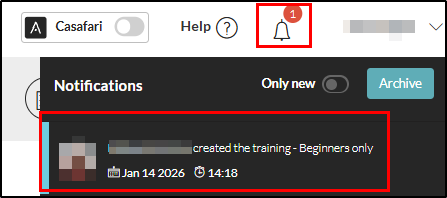
- Using the notification inside the CRM by clicking it to open the event:
- Accessing the trainings list:
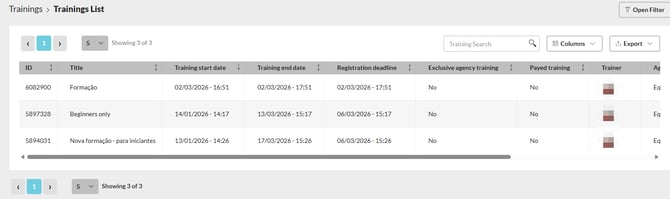
Click it to open the event.
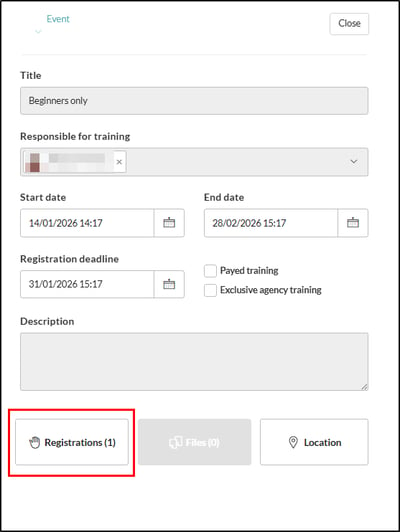
Inside the event, click the “Registrations” button to open the drawer:
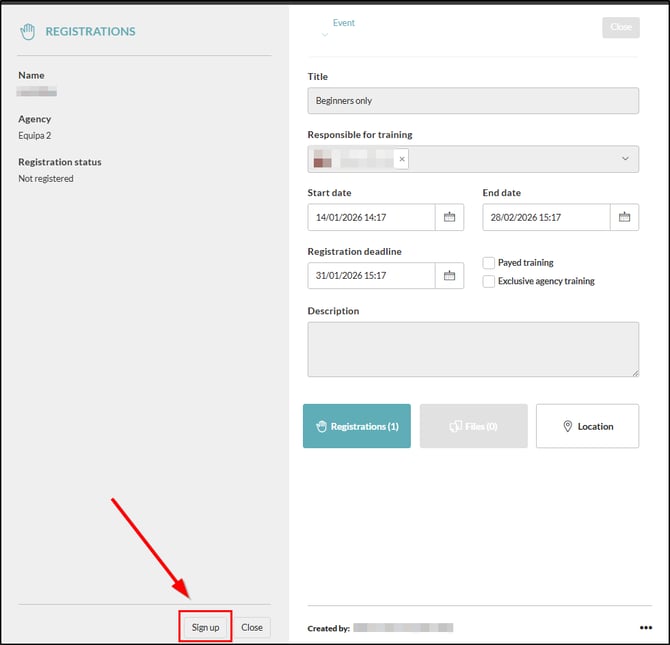
Click “Sign up” to register. After you do, a success message will appear at the left bottom of the screen and the “Registration status” will change to “Pending”:
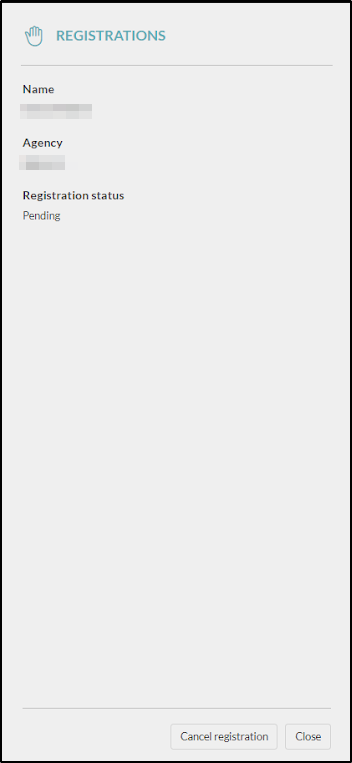
At this moment you can cancel the registration.
How to accept/reject registrations
When a user registers, training managers will get a notification (if configured in the user notifications’ configuration):
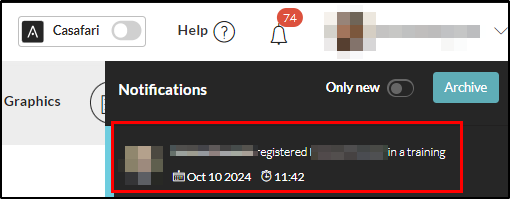
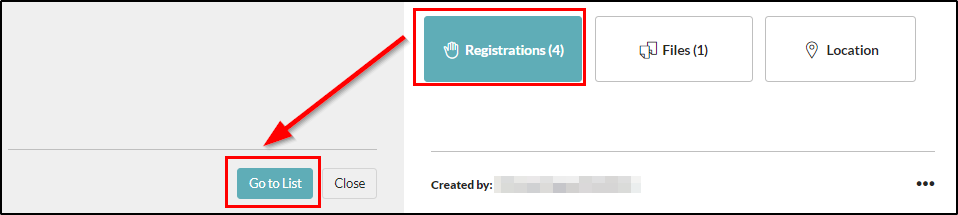
They can click it to open the event and then click on Registrations and Go to List:
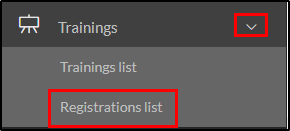
Or they can open the registrations list directly from the menu:
In the registrations list page, filter by the training (if they access from the event it will be already filtered):
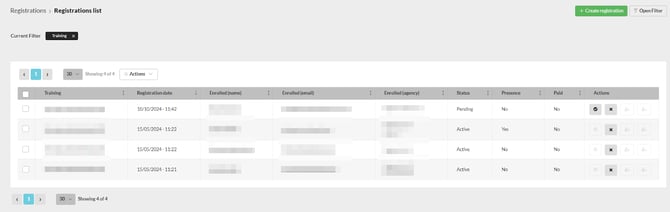
Here you will have all the registrations to that specific training. The registration status will be visible in the column “Status” and it can be:
- Pending - awaiting for you to accept it or reject it
- Active - accepted by a training manager
- Rejected - rejected by a training manager
To accept or reject a registration, use the Actions buttons available:
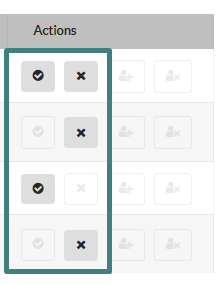
|
Status |
Actions |
|
|
|
Pending |
Accept registration / Reject registration |
|
|
Active |
Reject registration |
|
|
Rejected |
Accept registration |


During training - mark attendances
When the date/time of the training arrives, the person in charge of the training should mark the attendees' presence. This is important because some training information (like files, for instance) can only be visible to trainees after their attendance is marked. Trainees will also only be able to download the attendance certificate with a marked attendance.
To mark the attendance, the person in charge of the training must open the registration list and use the corresponding actions:
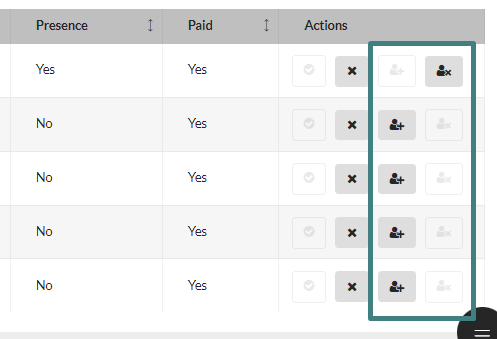
|
Presence |
Actions |
|
|
|
Yes |
Unmark presence |
|
|
No |
Mark presence |


FAQ
How do I create a new training event?
If I have permission to do it, there are two ways to do it: from any “New event” action button in the CRM; accessing the “Trainings list” in my “Trainings” menu and clicking “New Training”.
How can users check the training events calendar?
New training events will send a notification to users who have it configured. If not, they can access the “Trainings list” in the “Trainings” menu and view a list of all the training events they can enroll into - global trainings and agency-exclusive trainings.
Why is the “Exclusive agency training” always selected when I create the training event?
Users who view only their own agencies (like brokers, managers, etc.) can only create trainings for their own agencies’ users.
If I have two agencies but want to set up a training event just for one of them; can I?
Yes. However you have to select only users from the agency you want to be associated with the training. The system uses the agencies of the “Responsible for training” users to define which agencies - and below (like teams) - will have access to the training, so be smart.
How do I edit or update the details of a training event?
Just open the event, edit as you like and save. When saving, select if you want to send notifications or not.
Can I cancel or reschedule a training event?
Yes. To reschedule, open the event and select a different start and end time. Be sure you also adjust the registration deadline. To cancel a training event, open the event and click the three dots on the lower right corner and select “Delete”.
How can I view the list of attendees for a training event?
In the menu, select Trainings and then Registrations List. Select the training you want to view a list of all registrations. Check the status of each registration in the Status column.
What do users need to do to download their certificate of attendance?
Users need to have an accepted registration and a marked presence to be able to download the certificate.
Can I track or report the completion of trainings by users?
You can check all registrations in the Registrations List and filter as you like. Only training managers have access to this page.
Can users register for a training event on behalf of someone else?
Training managers can register users for training events. Just access the registrations list and click “Create registration”. All created registrations will be automatically accepted.
This feature is available in the PREMIUM plan.
For more information, send an email to help@casafaricrm.com