![login-logo.png]](https://helpcenter.casafari.com/hs-fs/hubfs/login-logo.png?height=23&name=login-logo.png)
Newsletters are a way to regularly communicate with your customers. They contribute to building your brand and increase business opportunities.
CASAFARI CRM is integrated with MailChimp, allowing the creation of lists, importing contacts, and sending newsletters.
Create your MailChimp account:
1. Go to MailChimp.
2. Click on your profile and go to the “Profile” option.
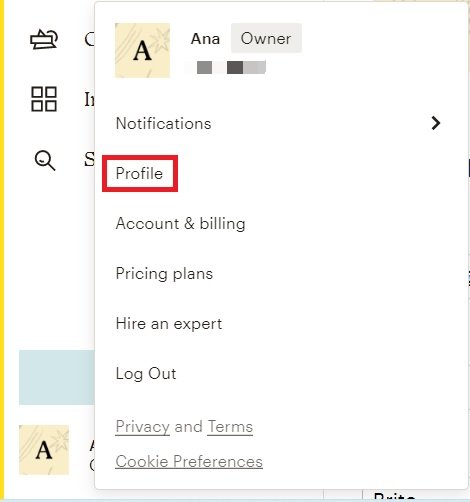
3. Click on “Extras” - “API Keys”.
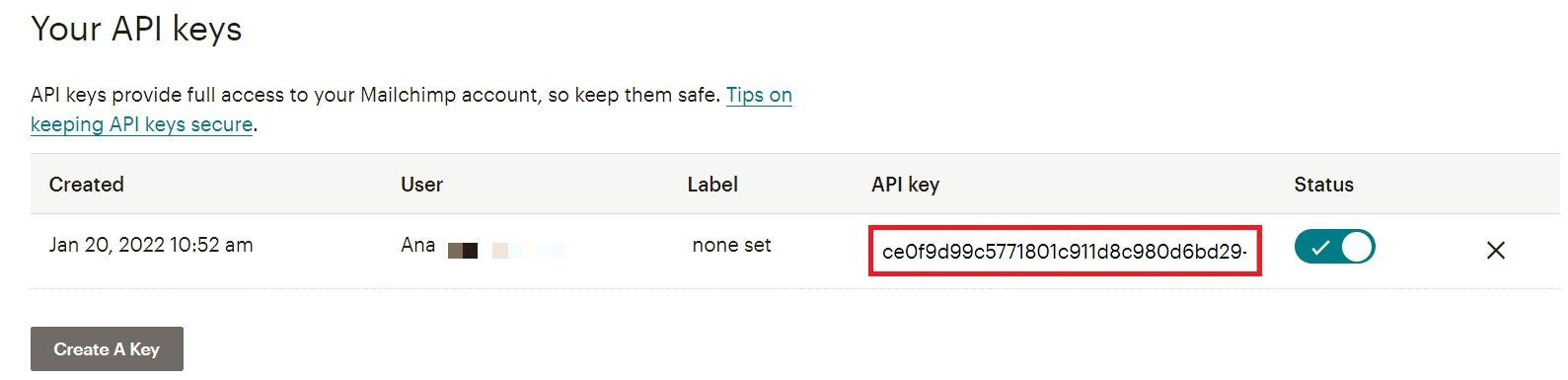
4. Click on “Create API”. A message will appear informing you that the code was successfully created.
5. Copy the key, in the “API Key” column.
Place the key in CASAFARI CRM:
1. Go to Settings - General Data - Social.
2. Paste the key obtained from the MailChimp website:

3. Click Save.
Associate contacts to the MailChimp (mailing list):
1. Go to Contacts - Sellers and/or Buyers List.
2. Select the contacts, click on “Actions” and choose the "MailChimp" option.
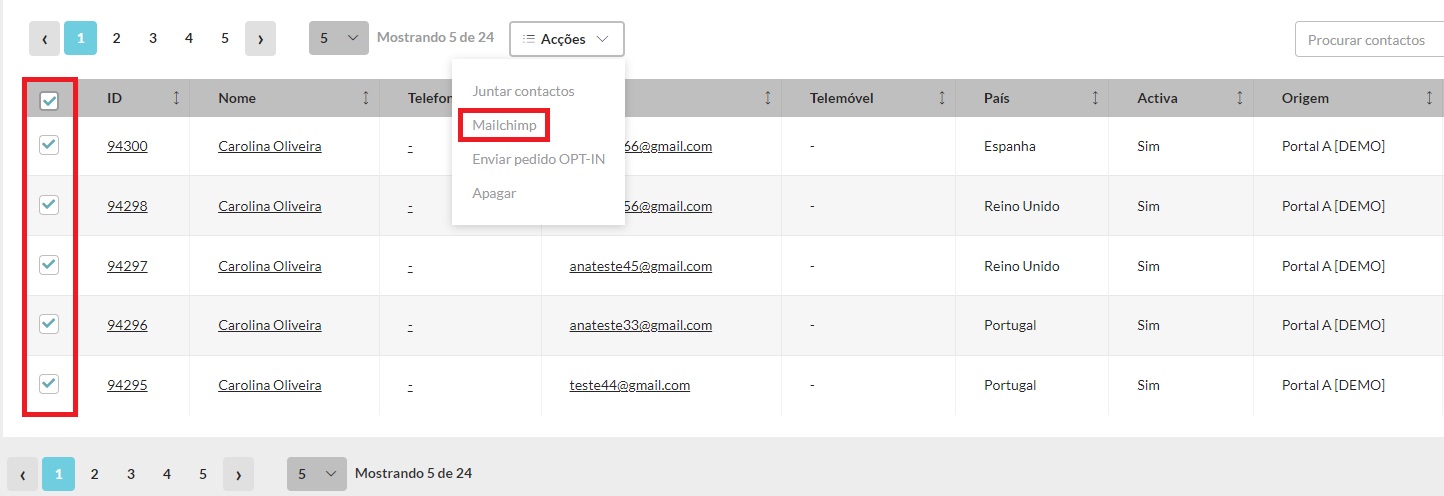
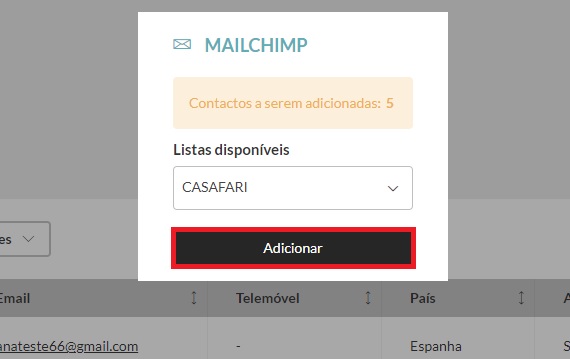
3. Choose the list and click “Add” to have the contacts added to the Mailchimp list.
Configure Unsubscribers List (contacts who have blocked the reception of your communication):
1. Go to Settings - General Data - Social and copy the link:
EXEMPLO: https://admin.casafaricrm.com/mvc/entity/unsubscribe?proppy={CODE}
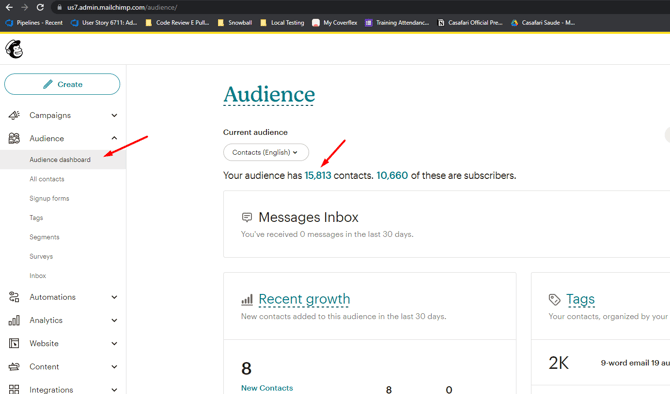
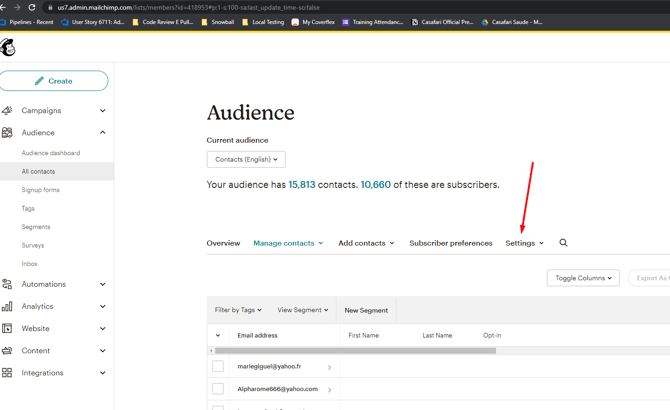
2. On the MailChimp page, click on the “Audience” - “All Contacts” icon.
3. Select the option “Tools” - “Webhooks”.
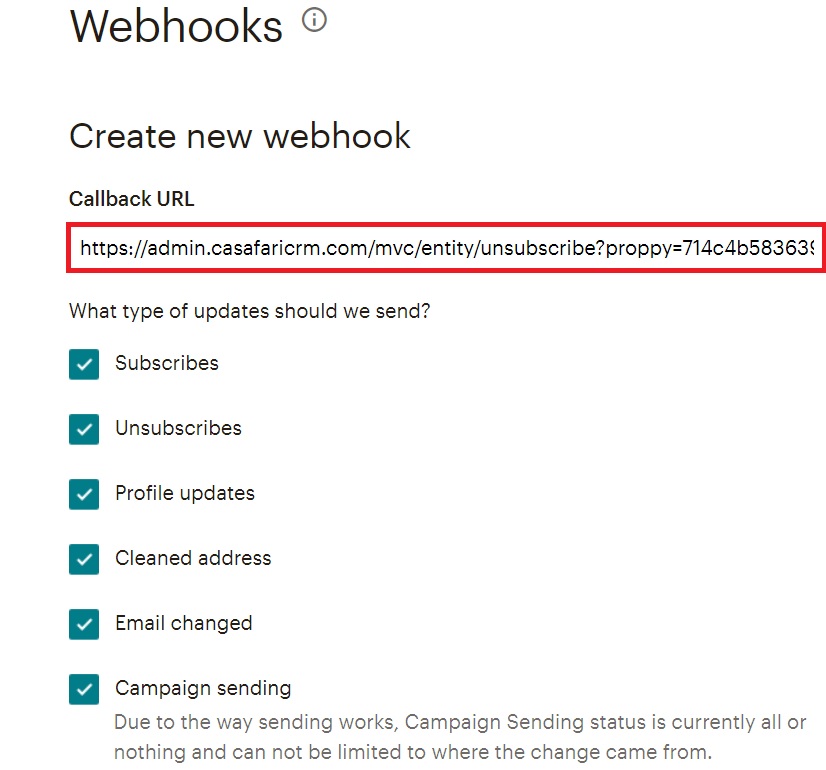
4. Click on “Create New Webhook”.

5. Paste the link obtained in CASAFARI CRM in the “Callback URL” field.
6. Select the contacts to be removed from the (mailing list), in the option “What kind of updates should we send?”.
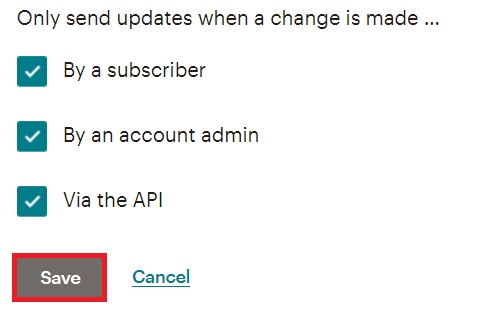
7. Make sure you have enabled all the options in the section “Only send updates when a change is made...” and click on "Save".
Note: Currently, when a contact selects “unsubscribe” from a newsletter sent via MailChimp through the CRM, that contact is automatically removed from the contact list (referred to as an “Audience” in MailChimp) to which the newsletter was sent.
Example:
The contact André Veloso is associated with three contact lists (Audiences) in MailChimp and in the CRM.
If this contact receives a newsletter from one of these lists and chooses “unsubscribe”, they will be removed from that list in both MailChimp and the CRM, but will remain in the other two lists. If they choose to unsubscribe from the remaining lists, they will also be removed from those lists in both the CRM and MailChimp.
However, the contact remains active in the CRM, and if the OPT-IN and automail options are selected, they will remain active. This situation occurs for several reasons:
-
Despite having unsubscribed, the contact may still want to receive other communications via the CRM, such as Smartlink, Smartmail, and canned replies.
-
If the contact were removed, any existing associations in the CRM (e.g., associated leads) would lose the contact’s data.
Once a contact opts out of communications from a specific contact list (Audience), MailChimp does not allow that contact to be added back to the list.
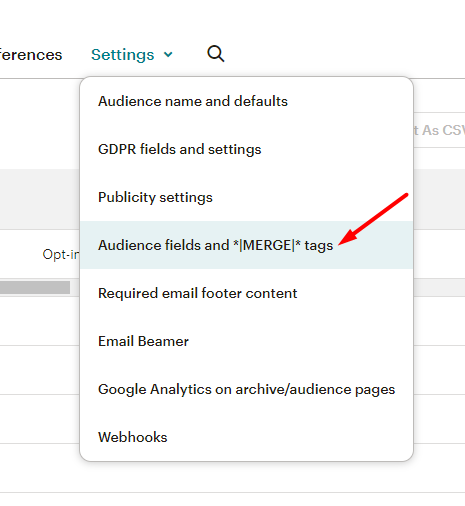
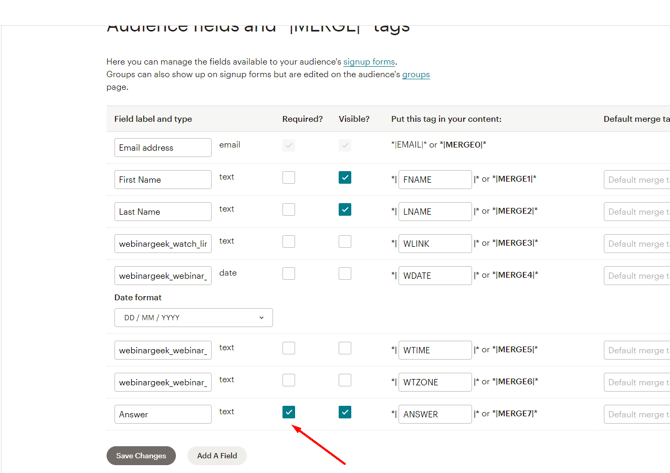
Required fields in Audiences: Audiences (contact lists) cannot have additional required fields configured (only the email address is required by default).
MailChimp Integration by Agency
In multi-agency accounts, it is possible to configure a separate MailChimp API key for each agency:
-
The system automatically identifies the user’s agency and uses the correct key (either from the agency itself or from the agency hierarchically above).
-
If no specific configuration exists, the key defined in General Data will be used, ensuring a fully functional and reliable integration.
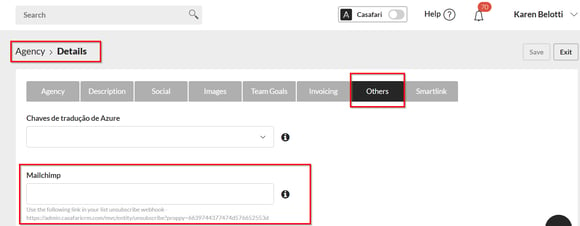
Note: Currently available only for agencies at the “store” hierarchical level.
Notes:
**Contacts must have their OPT-IN request already accepted. Read more about this topic, in the note of this article
Labels* - it is also possible to send contact tags to Mailchimp.For this we created two new fields inside the tags: a "For Mailchimp" checkbox and a text field to put the name of the tag. The checkbox marks that tag to be included in the contact sent to Mailchimp, and the name is the identifier. Some rules:
-
If the tag name is changed in the CRM, the contact in Mailchimp will have two tags: the one it already had and the "fixed" one. It works like this because the integration ID is the name.
-
To send a tag to existing contacts, they will have to go to the contact's details and add a tag.
-
If they change tags in Mailchimp, it won't be reflected in the CRM, as the integration is one-way only.
This feature is available in the PREMIUM plan.
For more information, please email us at help@casafaricrm.com.