![login-logo.png]](https://helpcenter.casafari.com/hs-fs/hubfs/login-logo.png?height=23&name=login-logo.png)
The Real Estate Mediation Logbook is a mandatory legal document in Portugal that ensures transparency and compliance with regulations by real estate mediation companies. In addition to recording all contracts entered into with clients, this logbook guarantees the integrity of operations.
With the new CRM feature, it is now possible to store and export these records in a complete manner, making future consultation easier and enabling the generation of detailed reports.
How to configure the Logbook
When exporting the IMPIC report, in addition to the list of properties, it is possible to define the text for the first page, the last page, and the header.
To do this, go to Configuration > Automations Text > Log book.

Configure the following fields:
Header
-
Enter the text to be displayed in the header.
-
The text can be formatted (bold, italic, paragraphs, justified).
-
Select which pages will display the header:
-
Opening page
-
Property table
-
Closing page
-
-
It is possible to add variables to the header that the system will auto-fill, such as:
-
Agency/company name
-
AMI license number
-
Date
-
Registration book number
-
Agency/company address
-
Agency/company postal code
-
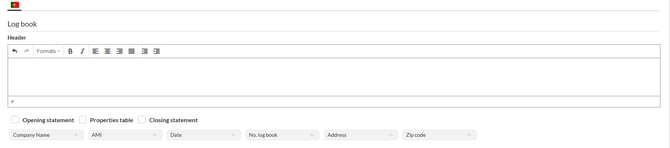
Opening Statement
-
Enter the text to be displayed on the opening page (the first page of the exported document).
-
The text can be formatted (bold, italic, paragraphs, justified).
-
It is possible to add variables that the system will auto-fill, such as:
-
Agency/company name
-
AMI license number
-
Date
-

Closing Statement
-
Enter the text to be displayed on the closing page (the last page of the exported document).
-
The text can be formatted (bold, italic, paragraphs, justified).

How to Generate the Log book
To generate the Log book, go to Main Menu > Properties > IMPIC Report.
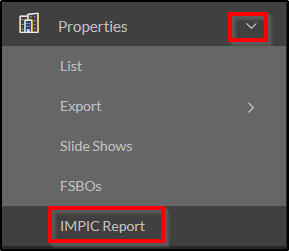
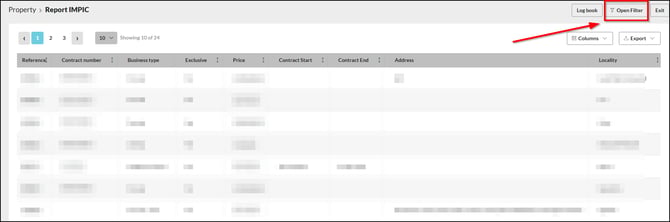
Add the desired filters:

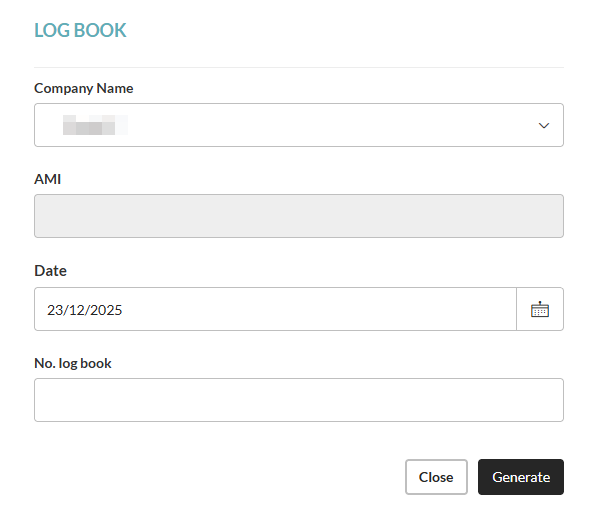
After adding the filters, close the filters panel, click on Log Book and then New.
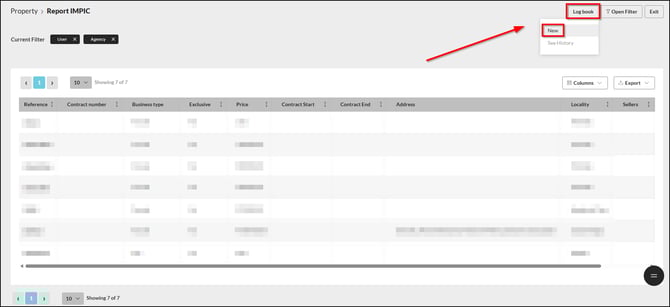
Note: Pay attention to the filters, as they define the date range of the Log Book.
Fill in the required data and click Generate.
How to View and Export Generated Register Books
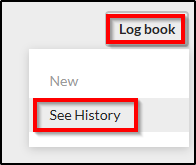
Click on Log Book and then See History:
Note: Pay attention to the filters, as they define the date range of the Log Book even when viewing the history.
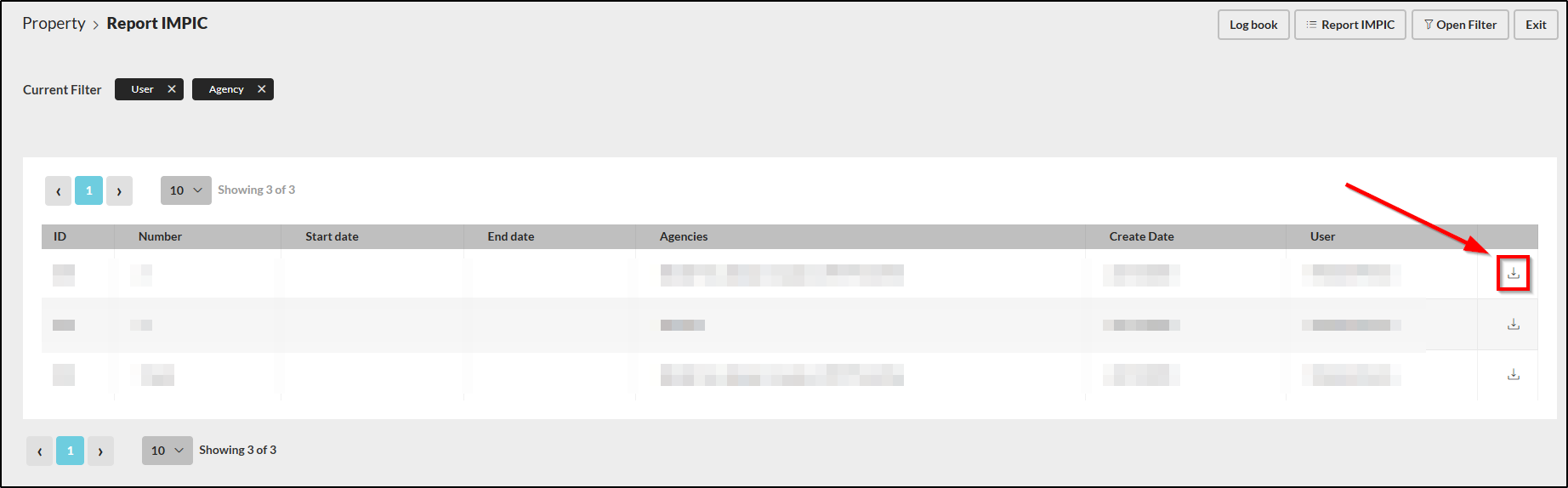
To export, simply click on the export icon: 
For more information, please contact us by email: help@casafaricrm.com