![login-logo.png]](https://helpcenter.casafari.com/hs-fs/hubfs/login-logo.png?height=23&name=login-logo.png)
In the CRM, it is possible to add and configure agencies in a simple and efficient way. Companies that operate with multiple agencies can create an organizational structure that reflects their real network, allowing centralized management of the hierarchical relationship between agencies and consultants. This functionality provides a clear overview of the organization and facilitates team coordination, promoting more integrated and effective management.
How to Configure Agencies
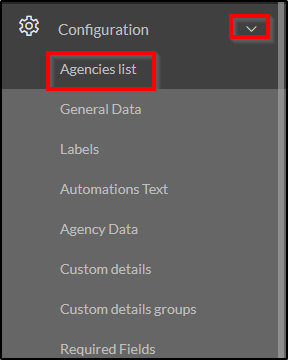
To add an agency, go to the Agencies List under Configuration and click “Add New”.

Define the hierarchy and create a name:
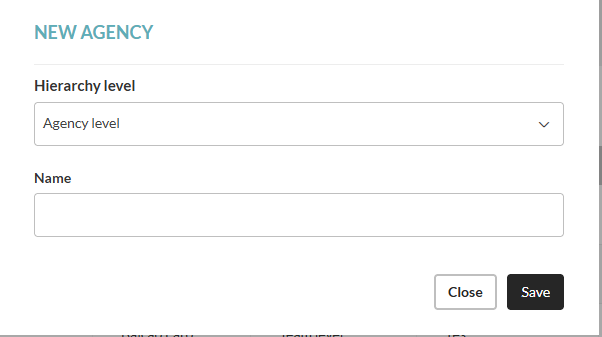
Hierarchy Level
The hierarchy level defines the organizational structure, establishing how agencies and teams relate to and are organized within the company.
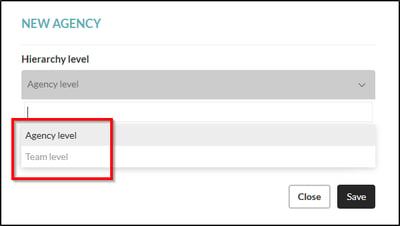
To create a new agency in the CRM, you must define the hierarchy by choosing between “Agency level” or “Team level”:
-
Agency level: used to create a new agency.
-
Team level: used to create a team within an existing agency.
Agency vs. Multi-Agency vs. Hierarchy
It is possible to create multiple agencies according to the company’s organization, with each agency having one or more teams.
This organizational structure follows rules that reflect the company’s internal organization. Users associated with an agency can access the information (contacts, leads, properties) of the agency they belong to, as well as the teams within that agency.
On the other hand, users associated with a team can only see information related to their own team and do not have access to the agency’s overall information. Therefore, users from one agency cannot view information from other agencies.
-
Master agency: the main or “master” agency has access to all information from all agencies and teams. Users who require full visibility permissions should be associated with this agency.
-
Permissions: although there is a defined hierarchy between agencies, individual permissions determine the visibility of information for each user.
Agency Details
Agency:

General details include information about the agency and company, brand, contacts, supervision, and logo.
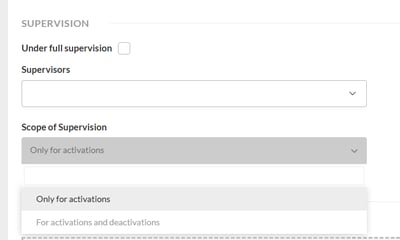
Supervision: this option allows you to indicate whether the agency performs supervisory functions on property activations and whether it can define the responsible user (for more information about supervision, click here).
Active agency and website visibility: these fields must be checked to indicate that the agency is active and to define whether the agency’s data should be visible on the website.
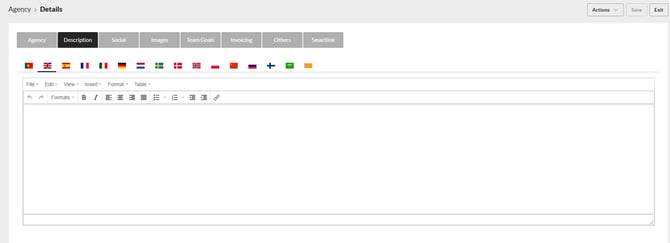
Description: insert the explanatory text about the agency and provide the corresponding translations.
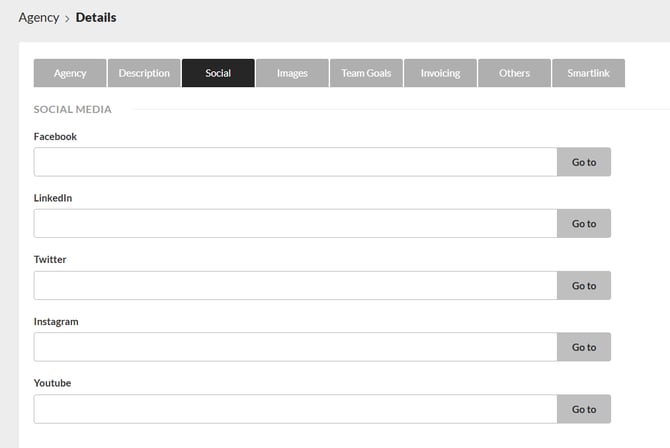
Social: insert the links to your social networks and share them.
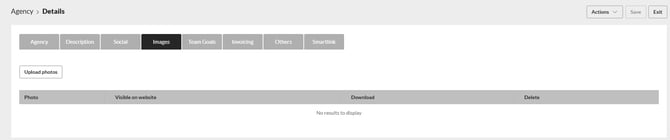
Images: choose an image for your agency and check the website visibility option so that the image is published on the website.
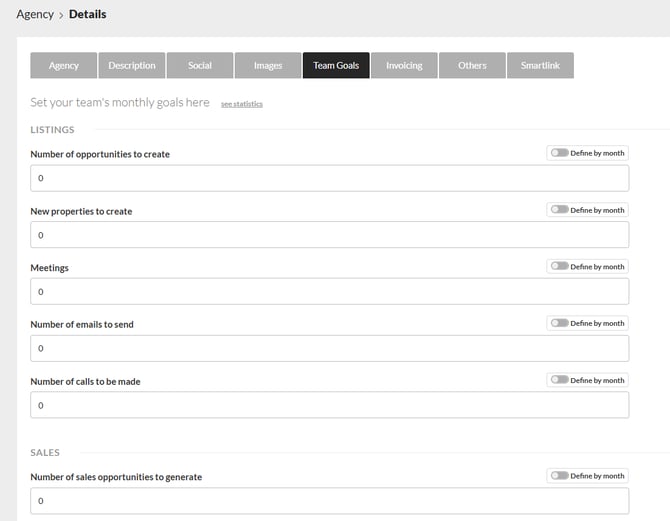
Team Goals: define monthly team goals for your agency (for more information about goals, click here).
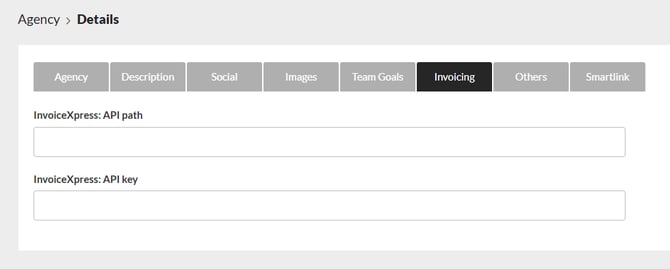
Invoicing: For more information about Invoicing module please click here
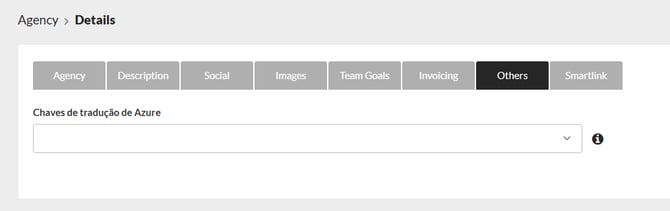
Others:
Azure Translation Key: if you have an Azure translation key, enter it in this field if you want it to be configured for your agency (for more information about the Azure key, click here).
Mailchimp: In multi-agency accounts, it is possible to configure a Mailchimp API key per agency:
• The system automatically identifies the user’s agency and uses the correct key (from the agency itself or from the hierarchically higher agency).
• If no specific configuration exists, the key defined in the General Data will be used, ensuring that the integration remains functional and without failures.
(For more information about the Mailchimp integration, click here)
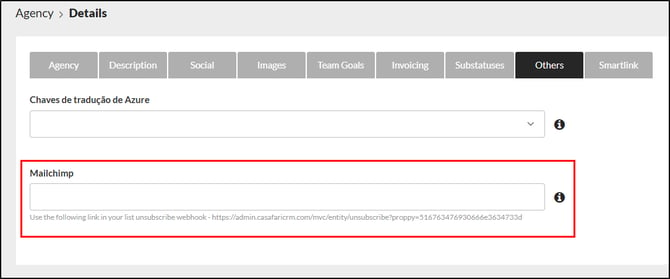
Note: Currently available for agencies at the “store” hierarchical level.
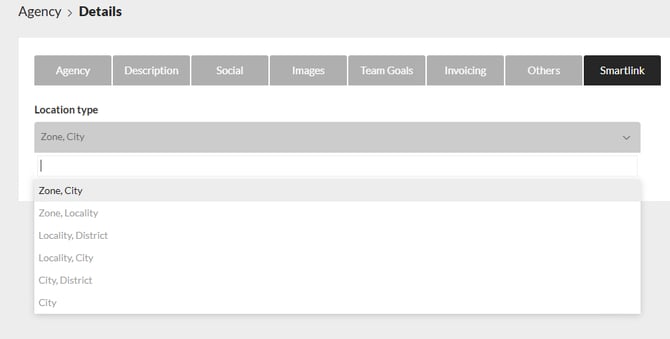
Smartlink: Select the location type you want to be sent in the Smartlink.
Configuring Details for a Team
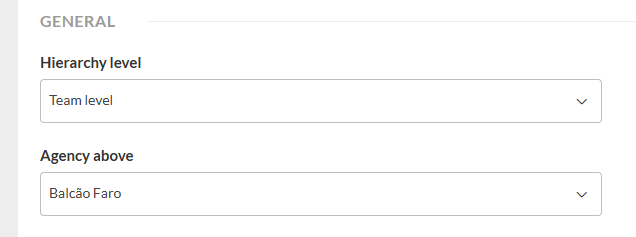
The configuration of general details is similar to that of an agency; you only need to take into account the selection of the Agency above, i.e., the agency to which the team will belong.
Assigning Users to Agencies
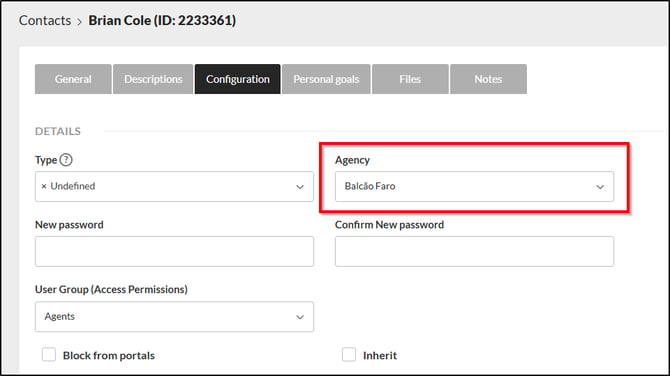
To assign a user to an agency, go to Users > List and, within the user profile, access “Configuration” and select the agency.
For more information, please contact us by email: help@casafaricrm.com