![login-logo.png]](https://helpcenter.casafari.com/hs-fs/hubfs/login-logo.png?height=23&name=login-logo.png)
Document templates in the CRM allow you to generate documents quickly and in a standardized way, automatically using the information already available in the system. Through these templates, such as the Real Estate Mediation Contract (CMI), it is possible to create complete documents with property, owner, and agency data already filled in, making the process more efficient and reducing manual errors.
How to configure:
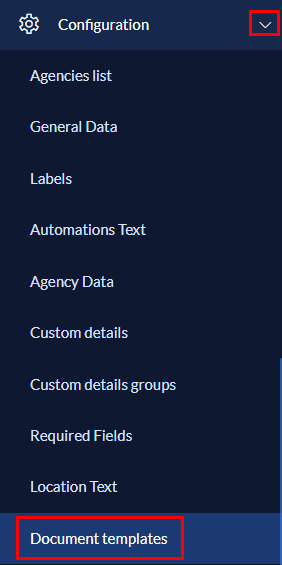
- In the main menu, go to Configuration > Document Templates:
- On the page, click on "Add new":

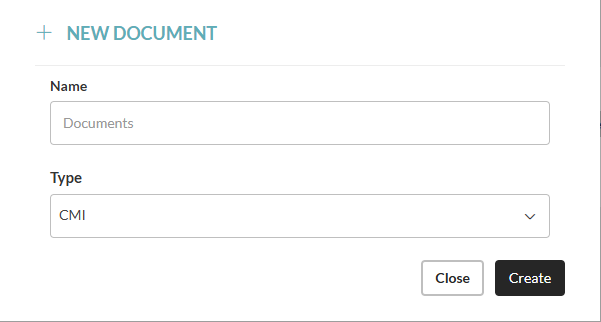
- Name the document and click "Create":
- After creating it, click on the document name to start configuring:
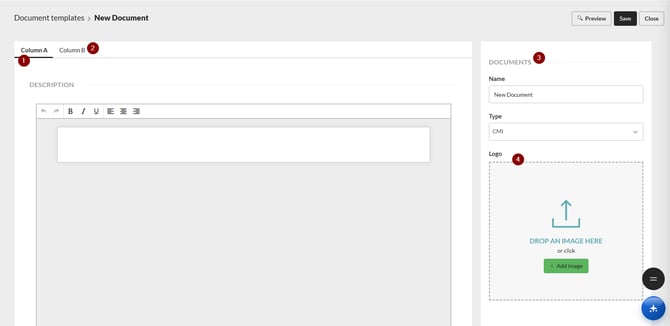
1 - Column A: Edit all the information you want to appear in column A
2 - Column B: Edit all the information you want to appear in column B
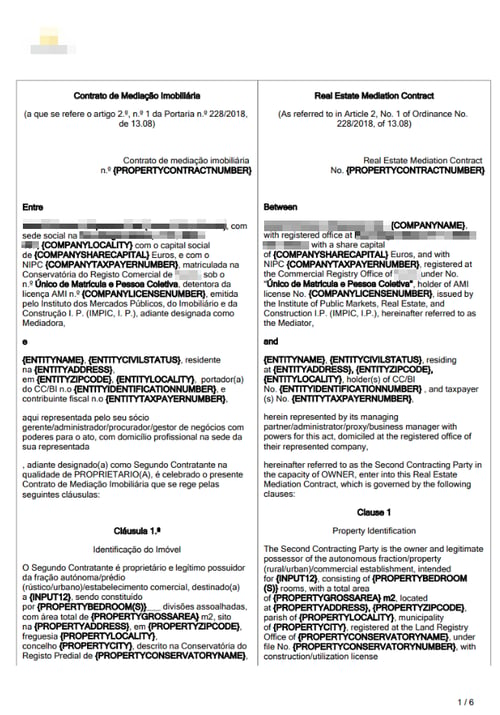
This allows you to have two separate columns in the document, usually used for PT/EN.
Example:
3 - Documents: You can edit the document name
4 - Logo: Add the logo you want to appear in the document
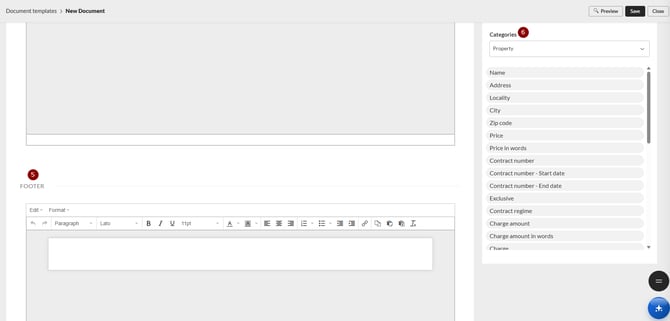
5 - Footer: Edit all the information you want to appear in the footer
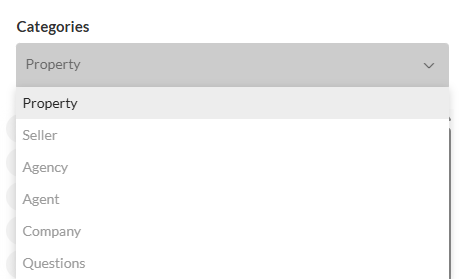
6 - Categories: To fill in the columns, use the available categories, which, if already filled in the CRM, will automatically populate the desired fields:
Important notes:
-
To create and edit templates, you must have this permission enabled:

-
The template does not support images pasted directly into the text body. You can only upload a logo, which will appear on the left side of the document
-
The formatting options in the editor are limited. Therefore, we recommend preparing the content in a text editor (e.g., Microsoft Word or similar) and then copying and pasting it into the CRM
-
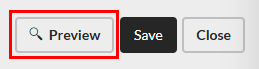
You can preview how the document will look by clicking the “Preview” option in the top right corner:
-
Additionally, when generating the document from a property, you will be able to edit all the text content before finalizing it.
-
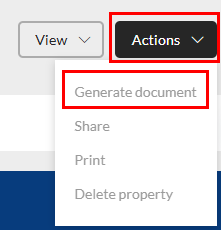
Once created, templates are available to ALL users, who can generate the CMI from the property by clicking Actions > Generate document:
This feature is available in the PREMIUM Plan.
For more information, contact us by email at: help@casafaricrm.com